Windows Powershell

                                        Kurze Einführung in
                                        Windows Powershell


Software: Planen. Entwickeln. Testen.
Was ist Windows Powershell?

Eine von Microsoft entwickelte Alternative
zum Kommandozeilenprogramm «cmd» und
Windows Host Script

Sehr mächtig (powerful)


Software: Planen. Entwickeln. Testen.
                                        2
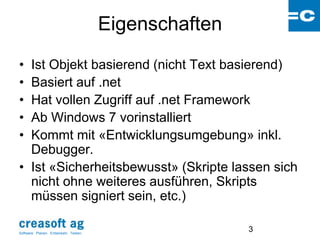
Eigenschaften
• Ist Objekt basierend (nicht Text basierend)
• Basiert auf .net
• Hat vollen Zugriff auf .net Framework
• Ab Windows 7 vorinstalliert
• Kommt mit «Entwicklungsumgebung» inkl.
  Debugger.
• Ist «Sicherheitsbewusst» (Skripte lassen sich
  nicht ohne weiteres ausführen, Skripts
  müssen signiert sein, etc.)

Software: Planen. Entwickeln. Testen.
                                                        3
Eigenschaften
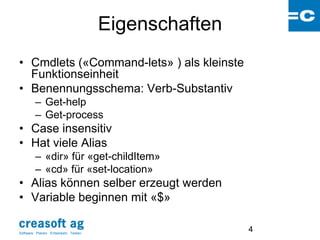
• Cmdlets («Command-lets» ) als kleinste
  Funktionseinheit
• Benennungsschema: Verb-Substantiv
         – Get-help
         – Get-process
• Case insensitiv
• Hat viele Alias
         – «dir» für «get-childItem»
         – «cd» für «set-location»
• Alias können selber erzeugt werden
• Variable beginnen mit «$»

Software: Planen. Entwickeln. Testen.
                                                        4
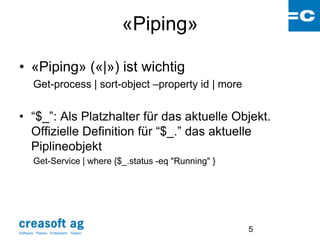
«Piping»

• «Piping» («|») ist wichtig
        Get-process | sort-object –property id | more


• “$_”: Als Platzhalter für das aktuelle Objekt.
  Offizielle Definition für “$_.” das aktuelle
  Piplineobjekt
        Get-Service | where {$_.status -eq "Running" }


Software: Planen. Entwickeln. Testen.
                                                         5
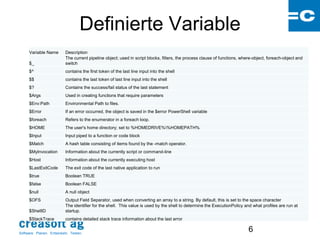
Definierte Variable
     Variable Name         Description
                           The current pipeline object; used in script blocks, filters, the process clause of functions, where-object, foreach-object and
     $_                    switch
     $^                    contains the first token of the last line input into the shell
     $$                    contains the last token of last line input into the shell
     $?                    Contains the success/fail status of the last statement
     $Args                 Used in creating functions that require parameters
     $Env:Path             Environmental Path to files.
     $Error                If an error occurred, the object is saved in the $error PowerShell variable
     $foreach              Refers to the enumerator in a foreach loop.
     $HOME                 The user's home directory; set to %HOMEDRIVE%%HOMEPATH%
     $Input                Input piped to a function or code block
     $Match                A hash table consisting of items found by the -match operator.
     $MyInvocation         Information about the currently script or command-line
     $Host                 Information about the currently executing host
     $LastExitCode         The exit code of the last native application to run
     $true                 Boolean TRUE
     $false                Boolean FALSE
     $null                 A null object
     $OFS                  Output Field Separator, used when converting an array to a string. By default, this is set to the space character
                           The identifier for the shell. This value is used by the shell to determine the ExecutionPolicy and what profiles are run at
     $ShellID              startup.
     $StackTrace           contains detailed stack trace information about the last error


Software: Planen. Entwickeln. Testen.
                                                                                                                            6
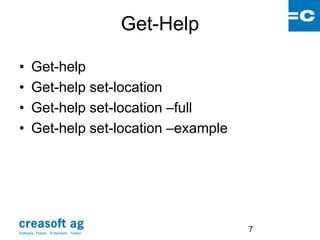
Get-Help

•      Get-help
•      Get-help set-location
•      Get-help set-location –full
•      Get-help set-location –example


Software: Planen. Entwickeln. Testen.
                                                   7
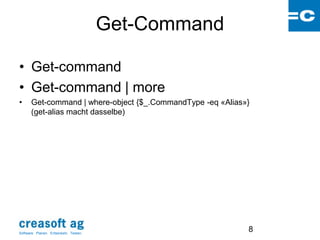
Get-Command

• Get-command
• Get-command | more
•      Get-command | where-object {$_.CommandType -eq «Alias»}
       (get-alias macht dasselbe)


Software: Planen. Entwickeln. Testen.
                                                             8
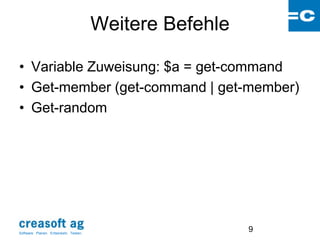
Weitere Befehle

• Variable Zuweisung: $a = get-command
• Get-member (get-command | get-member)
• Get-random


Software: Planen. Entwickeln. Testen.
                                                          9
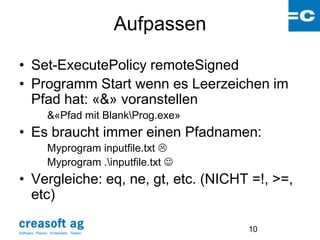
Aufpassen

• Set-ExecutePolicy remoteSigned
• Programm Start wenn es Leerzeichen im
  Pfad hat: «&» voranstellen
                &«Pfad mit BlankProg.exe»
• Es braucht immer einen Pfadnamen:
                Myprogram inputfile.txt 
                Myprogram .inputfile.txt 
• Vergleiche: eq, ne, gt, etc. (NICHT =!, >=,
  etc)

Software: Planen. Entwickeln. Testen.
                                                    10
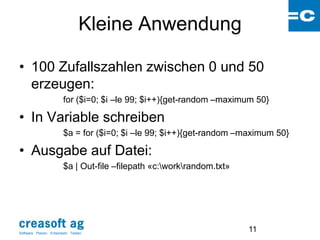
Kleine Anwendung

• 100 Zufallszahlen zwischen 0 und 50
  erzeugen:
                         for ($i=0; $i –le 99; $i++){get-random –maximum 50}

• In Variable schreiben
                         $a = for ($i=0; $i –le 99; $i++){get-random –maximum 50}

• Ausgabe auf Datei:
                         $a | Out-file –filepath «c:workrandom.txt»


Software: Planen. Entwickeln. Testen.
                                                                        11
Powershell IDE

•      Script erzeugen
•      Script debuggen (break points etc)
•      Befehle manuell eingeben
•      Powershell Fenster starten


Software: Planen. Entwickeln. Testen.
                                                         12
«dot Source» a Script

Statt Scriptaufruf
        «c:pfadscript.ps1»
Diesen Aufruf:
        «. c:pfadscript.ps1» (Beachte Punkt und Blank)
 Die Variablen, die innerhalb des Scirpts
definiert sind, stehen nach Ablauf des
Scripts zur Verfügung. (sie sind global
geworden)

Software: Planen. Entwickeln. Testen.
                                                      13
Webseiten
•      http://de.wikipedia.org/wiki/Windows_PowerShell
•      http://technet.microsoft.com/en-us/scriptcenter/dd742419
•      http://technet.microsoft.com/en-us/library/ee177003.aspx
•      http://www.computerperformance.co.uk/powershell/index.htm

•      Quick Referenz:
         –     http://www.microsoft.com/download/en/details.aspx?displaylang=en&id=7097


•      http://www.powershellpro.com/


Software: Planen. Entwickeln. Testen.
                                                                                   14

Creasoft - Windows powershell

  • 1.
    Windows Powershell Kurze Einführung in Windows Powershell Software: Planen. Entwickeln. Testen.
  • 2.
    Was ist WindowsPowershell? Eine von Microsoft entwickelte Alternative zum Kommandozeilenprogramm «cmd» und Windows Host Script Sehr mächtig (powerful) Software: Planen. Entwickeln. Testen. 2
  • 3.
    Eigenschaften • Ist Objektbasierend (nicht Text basierend) • Basiert auf .net • Hat vollen Zugriff auf .net Framework • Ab Windows 7 vorinstalliert • Kommt mit «Entwicklungsumgebung» inkl. Debugger. • Ist «Sicherheitsbewusst» (Skripte lassen sich nicht ohne weiteres ausführen, Skripts müssen signiert sein, etc.) Software: Planen. Entwickeln. Testen. 3
  • 4.
    Eigenschaften • Cmdlets («Command-lets») als kleinste Funktionseinheit • Benennungsschema: Verb-Substantiv – Get-help – Get-process • Case insensitiv • Hat viele Alias – «dir» für «get-childItem» – «cd» für «set-location» • Alias können selber erzeugt werden • Variable beginnen mit «$» Software: Planen. Entwickeln. Testen. 4
  • 5.
    «Piping» • «Piping» («|»)ist wichtig Get-process | sort-object –property id | more • “$_”: Als Platzhalter für das aktuelle Objekt. Offizielle Definition für “$_.” das aktuelle Piplineobjekt Get-Service | where {$_.status -eq "Running" } Software: Planen. Entwickeln. Testen. 5
  • 6.
    Definierte Variable Variable Name Description The current pipeline object; used in script blocks, filters, the process clause of functions, where-object, foreach-object and $_ switch $^ contains the first token of the last line input into the shell $$ contains the last token of last line input into the shell $? Contains the success/fail status of the last statement $Args Used in creating functions that require parameters $Env:Path Environmental Path to files. $Error If an error occurred, the object is saved in the $error PowerShell variable $foreach Refers to the enumerator in a foreach loop. $HOME The user's home directory; set to %HOMEDRIVE%%HOMEPATH% $Input Input piped to a function or code block $Match A hash table consisting of items found by the -match operator. $MyInvocation Information about the currently script or command-line $Host Information about the currently executing host $LastExitCode The exit code of the last native application to run $true Boolean TRUE $false Boolean FALSE $null A null object $OFS Output Field Separator, used when converting an array to a string. By default, this is set to the space character The identifier for the shell. This value is used by the shell to determine the ExecutionPolicy and what profiles are run at $ShellID startup. $StackTrace contains detailed stack trace information about the last error Software: Planen. Entwickeln. Testen. 6
  • 7.
    Get-Help • Get-help • Get-help set-location • Get-help set-location –full • Get-help set-location –example Software: Planen. Entwickeln. Testen. 7
  • 8.
    Get-Command • Get-command • Get-command| more • Get-command | where-object {$_.CommandType -eq «Alias»} (get-alias macht dasselbe) Software: Planen. Entwickeln. Testen. 8
  • 9.
    Weitere Befehle • VariableZuweisung: $a = get-command • Get-member (get-command | get-member) • Get-random Software: Planen. Entwickeln. Testen. 9
  • 10.
    Aufpassen • Set-ExecutePolicy remoteSigned •Programm Start wenn es Leerzeichen im Pfad hat: «&» voranstellen &«Pfad mit BlankProg.exe» • Es braucht immer einen Pfadnamen: Myprogram inputfile.txt  Myprogram .inputfile.txt  • Vergleiche: eq, ne, gt, etc. (NICHT =!, >=, etc) Software: Planen. Entwickeln. Testen. 10
  • 11.
    Kleine Anwendung • 100Zufallszahlen zwischen 0 und 50 erzeugen: for ($i=0; $i –le 99; $i++){get-random –maximum 50} • In Variable schreiben $a = for ($i=0; $i –le 99; $i++){get-random –maximum 50} • Ausgabe auf Datei: $a | Out-file –filepath «c:workrandom.txt» Software: Planen. Entwickeln. Testen. 11
  • 12.
    Powershell IDE • Script erzeugen • Script debuggen (break points etc) • Befehle manuell eingeben • Powershell Fenster starten Software: Planen. Entwickeln. Testen. 12
  • 13.
    «dot Source» aScript Statt Scriptaufruf «c:pfadscript.ps1» Diesen Aufruf: «. c:pfadscript.ps1» (Beachte Punkt und Blank)  Die Variablen, die innerhalb des Scirpts definiert sind, stehen nach Ablauf des Scripts zur Verfügung. (sie sind global geworden) Software: Planen. Entwickeln. Testen. 13
  • 14.
    Webseiten • http://de.wikipedia.org/wiki/Windows_PowerShell • http://technet.microsoft.com/en-us/scriptcenter/dd742419 • http://technet.microsoft.com/en-us/library/ee177003.aspx • http://www.computerperformance.co.uk/powershell/index.htm • Quick Referenz: – http://www.microsoft.com/download/en/details.aspx?displaylang=en&id=7097 • http://www.powershellpro.com/ Software: Planen. Entwickeln. Testen. 14