Windows 10 IoT Core
.NET User Group Paderborn, 18. Oktober 2016
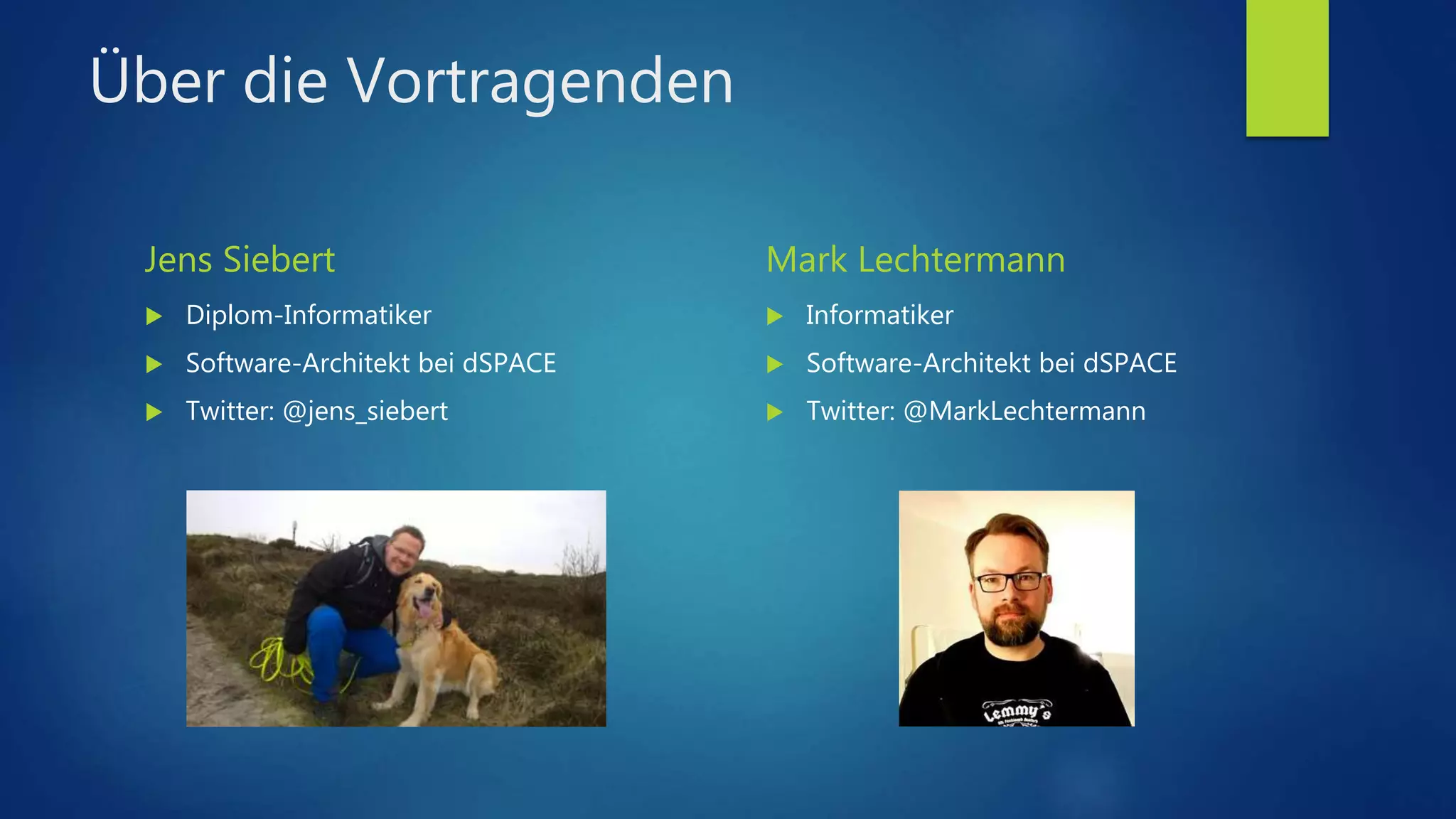
Über die Vortragenden
Jens Siebert
 Diplom-Informatiker
 Software-Architekt bei dSPACE
 Twitter: @jens_siebert
Mark Lechtermann
 Informatiker
 Software-Architekt bei dSPACE
 Twitter: @MarkLechtermann
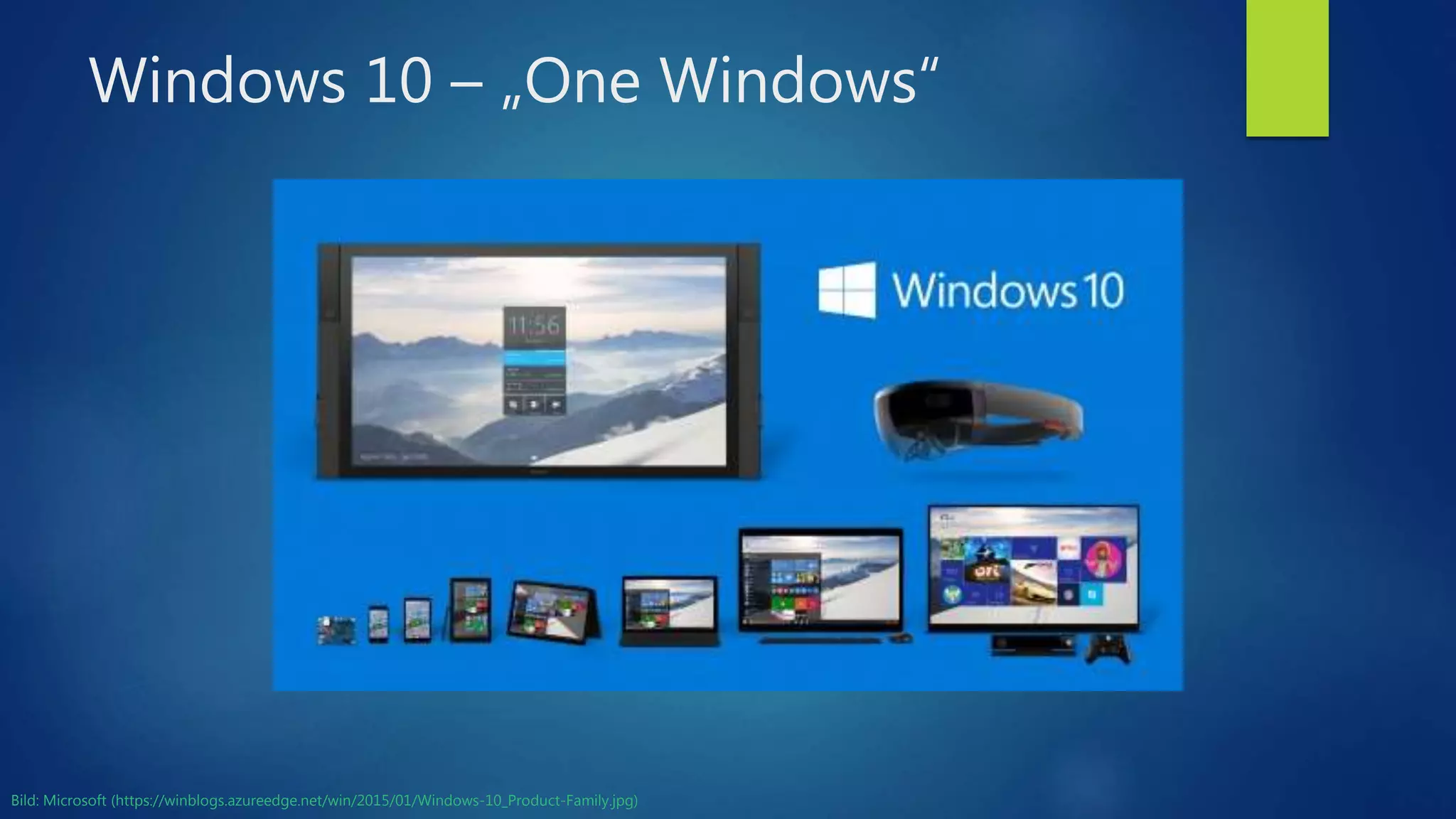
Windows 10 – „One Windows“
Bild: Microsoft (https://winblogs.azureedge.net/win/2015/01/Windows-10_Product-Family.jpg)
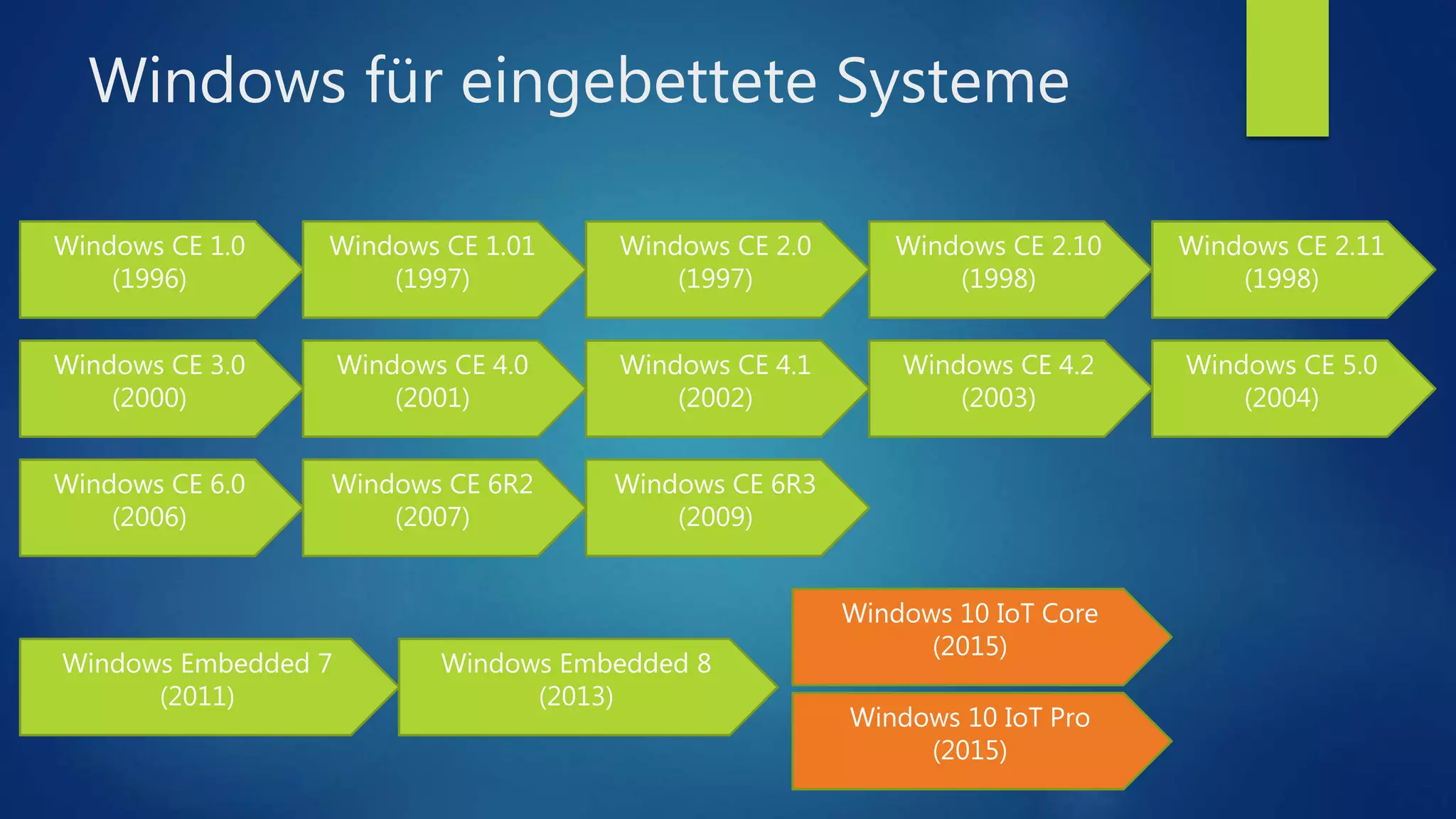
Windows für eingebettete Systeme
Windows CE 1.0
(1996)
Windows CE 1.01
(1997)
Windows CE 2.0
(1997)
Windows CE 2.10
(1998)
Windows CE 2.11
(1998)
Windows CE 3.0
(2000)
Windows CE 4.0
(2001)
Windows CE 4.1
(2002)
Windows CE 4.2
(2003)
Windows CE 5.0
(2004)
Windows CE 6.0
(2006)
Windows CE 6R2
(2007)
Windows CE 6R3
(2009)
Windows Embedded 7
(2011)
Windows Embedded 8
(2013)
Windows 10 IoT Core
(2015)
Windows 10 IoT Pro
(2015)
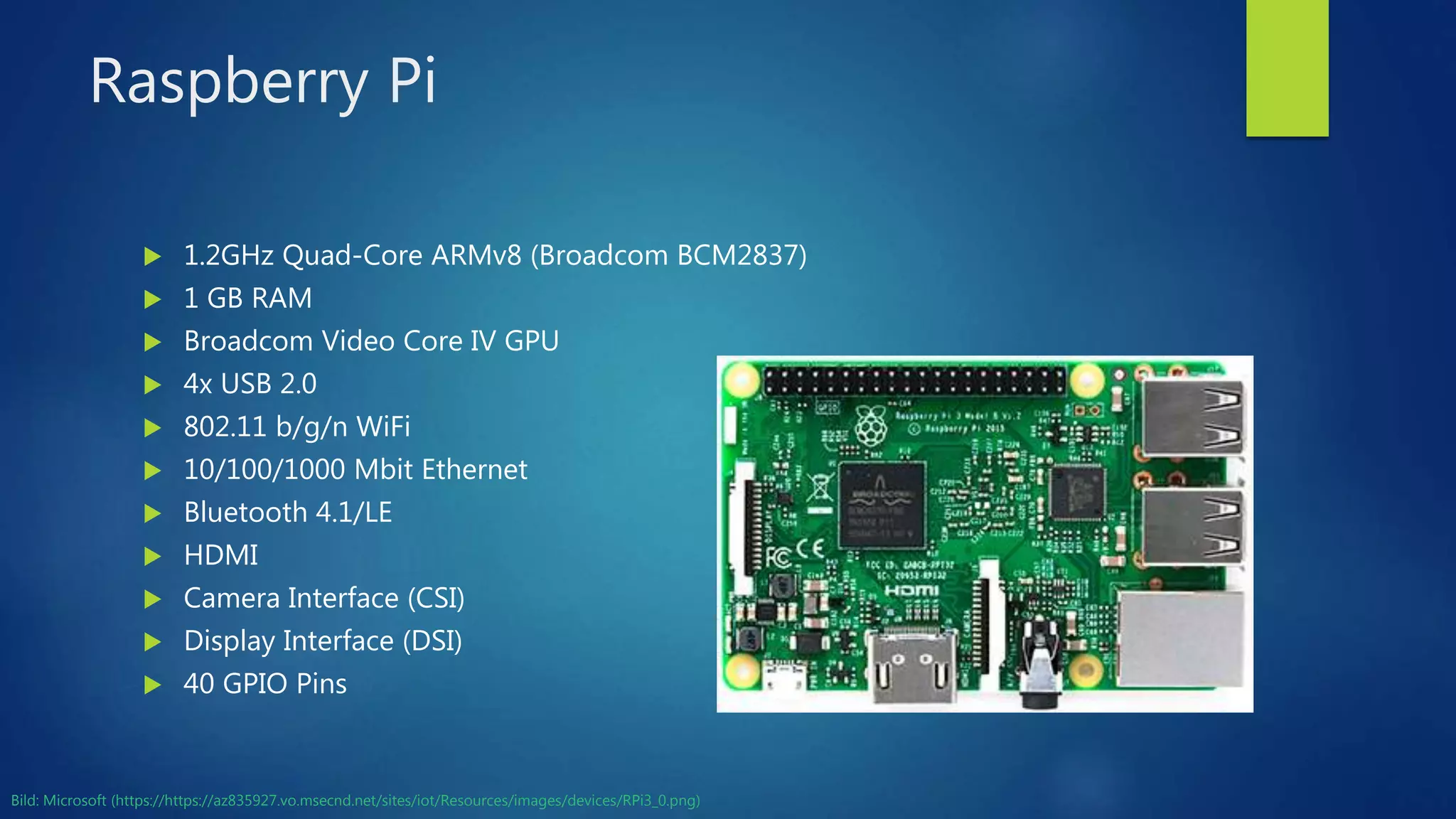
Raspberry Pi
 1.2GHz Quad-Core ARMv8 (Broadcom BCM2837)
 1 GB RAM
 Broadcom Video Core IV GPU
 4x USB 2.0
 802.11 b/g/n WiFi
 10/100/1000 Mbit Ethernet
 Bluetooth 4.1/LE
 HDMI
 Camera Interface (CSI)
 Display Interface (DSI)
 40 GPIO Pins
Bild: Microsoft (https://https://az835927.vo.msecnd.net/sites/iot/Resources/images/devices/RPi3_0.png)
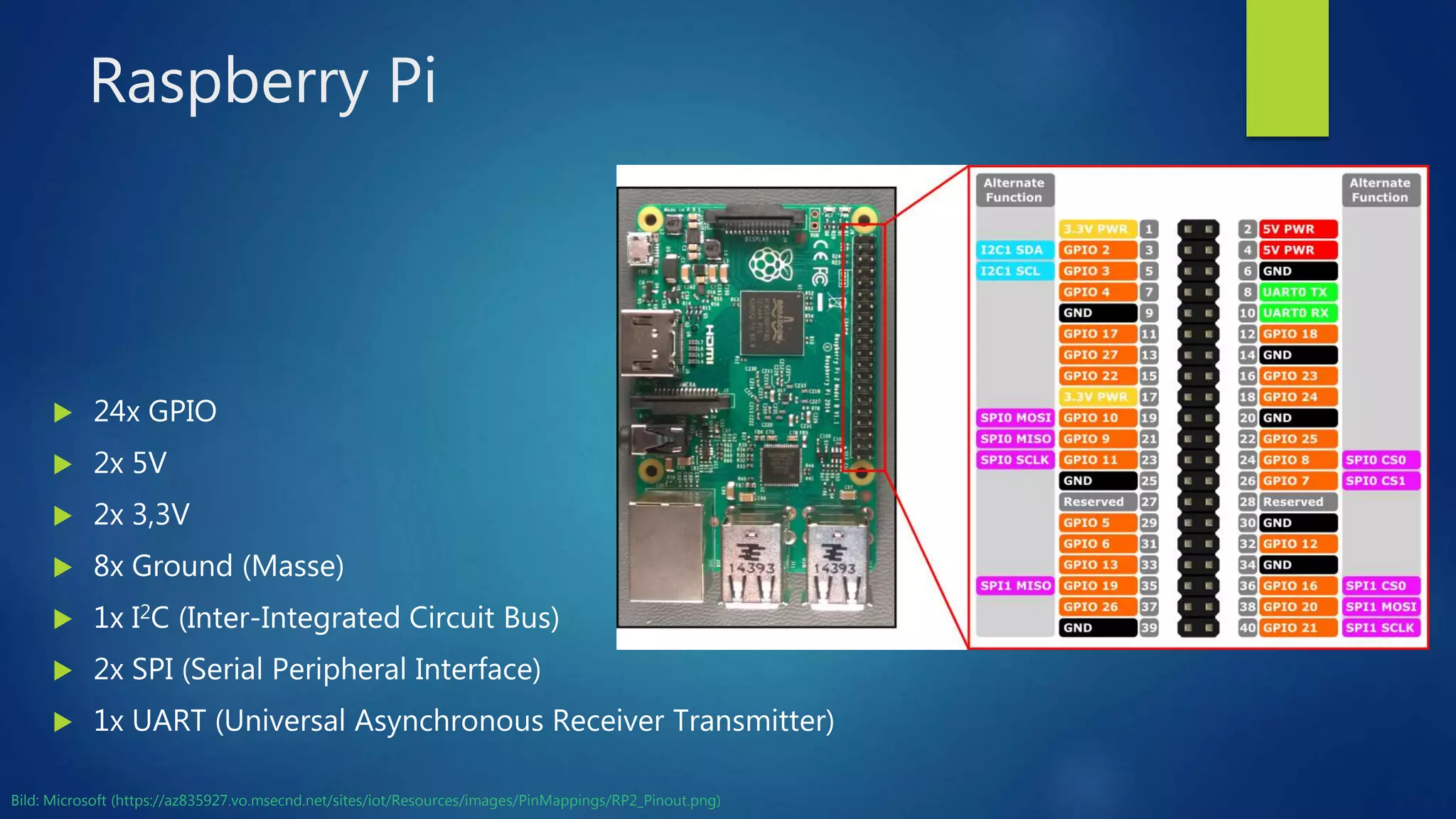
Raspberry Pi
 24x GPIO
 2x 5V
 2x 3,3V
 8x Ground (Masse)
 1x I2C (Inter-Integrated Circuit Bus)
 2x SPI (Serial Peripheral Interface)
 1x UART (Universal Asynchronous Receiver Transmitter)
Bild: Microsoft (https://az835927.vo.msecnd.net/sites/iot/Resources/images/PinMappings/RP2_Pinout.png)
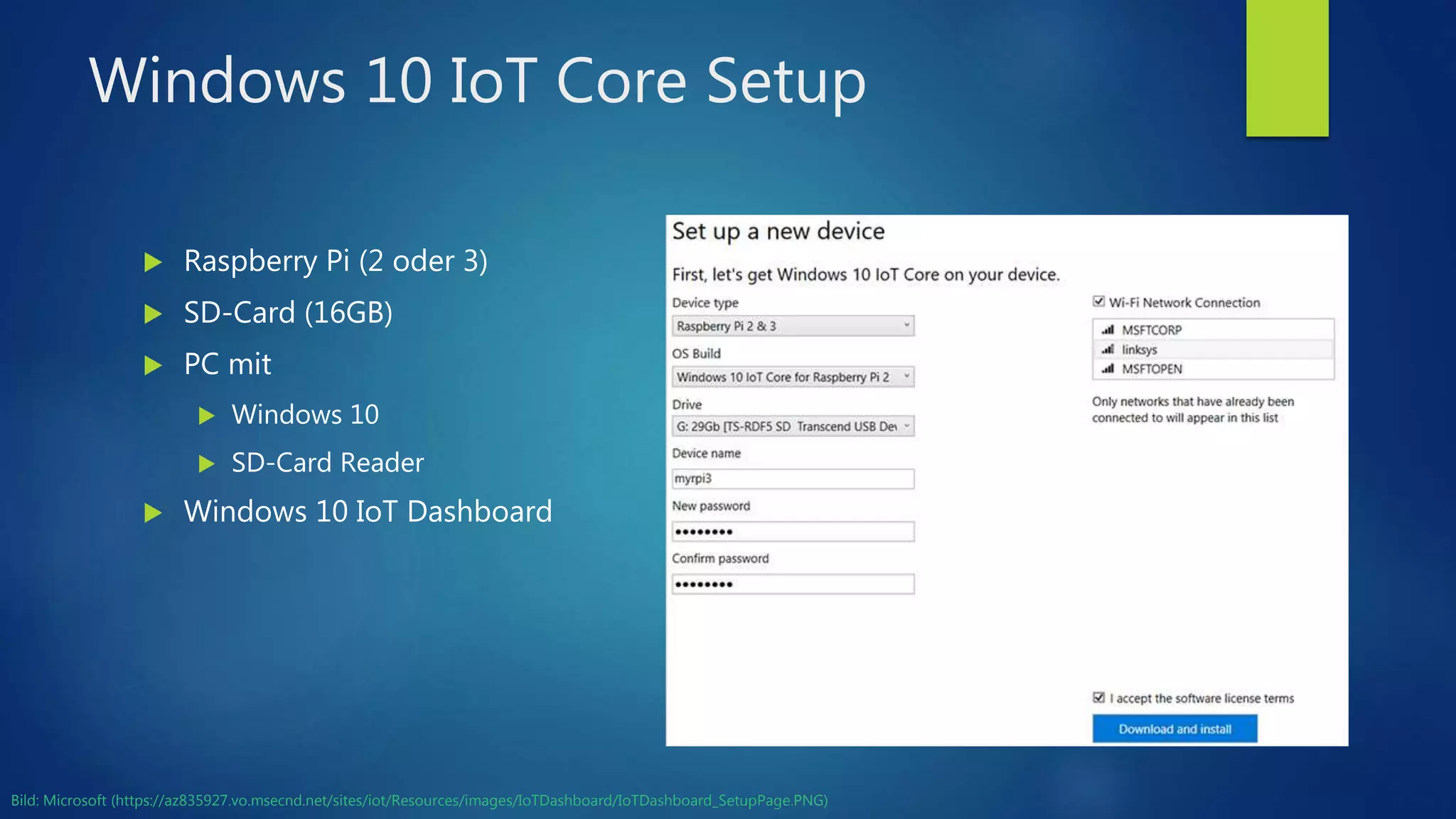
Windows 10 IoT Core Setup
 Raspberry Pi (2 oder 3)
 SD-Card (16GB)
 PC mit
 Windows 10
 SD-Card Reader
 Windows 10 IoT Dashboard
Bild: Microsoft (https://az835927.vo.msecnd.net/sites/iot/Resources/images/IoTDashboard/IoTDashboard_SetupPage.PNG)
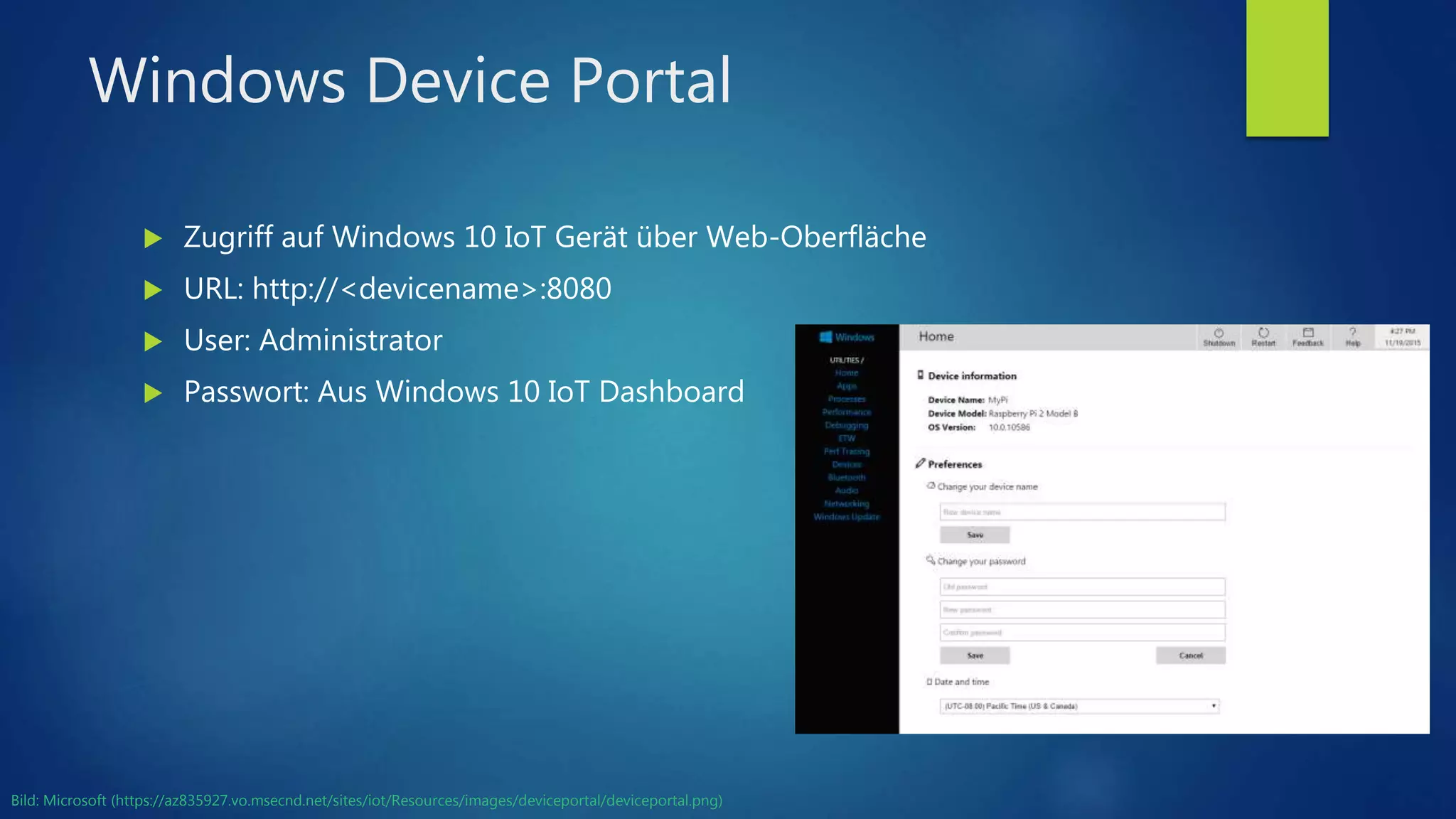
Windows Device Portal
 Zugriff auf Windows 10 IoT Gerät über Web-Oberfläche
 URL: http://<devicename>:8080
 User: Administrator
 Passwort: Aus Windows 10 IoT Dashboard
Bild: Microsoft (https://az835927.vo.msecnd.net/sites/iot/Resources/images/deviceportal/deviceportal.png)
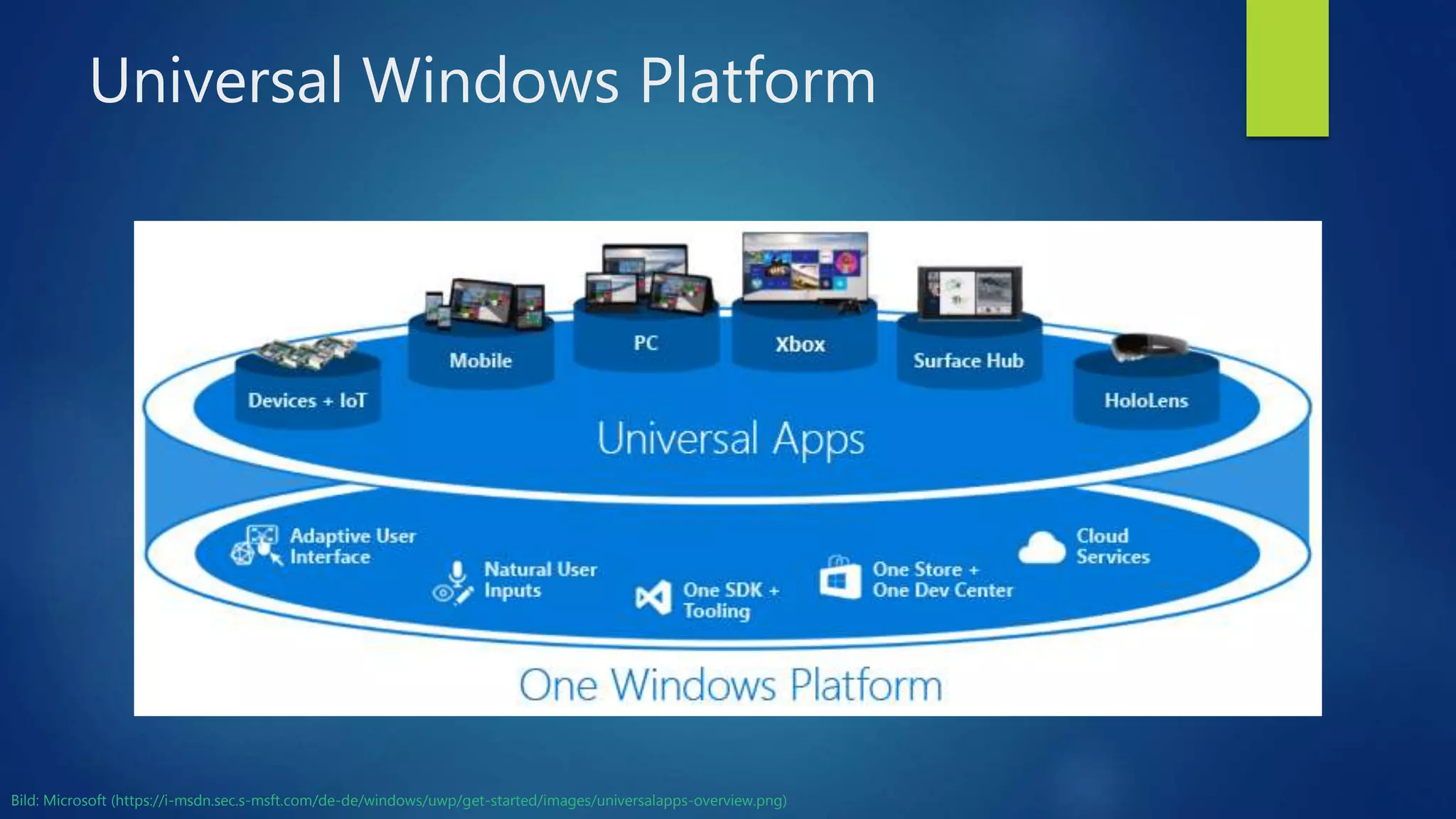
Universal Windows Platform
Bild: Microsoft (https://i-msdn.sec.s-msft.com/de-de/windows/uwp/get-started/images/universalapps-overview.png)
Was wird benötigt?
 Raspberry Pi 2 oder 3 mit Windows 10 IoT Core (Anniversary Update)
 PC mit Windows 10 (Anniversary Update)
 Visual Studio 2015 Update 3 (Community reicht aus)
 Windows 10 SDK und Tools (für Anniversary Update)
 Für Elektronik-Basteleien:
 Breadboard
 Elektronik-Komponenten (Widerstände, LEDs, etc.)
 Sensoren (Temperatur, Luftdruck, Luftfeuchtigkeit, GPS, etc.)
 Ein gewisses Elektronik-Grundwissen ist von Vorteil!
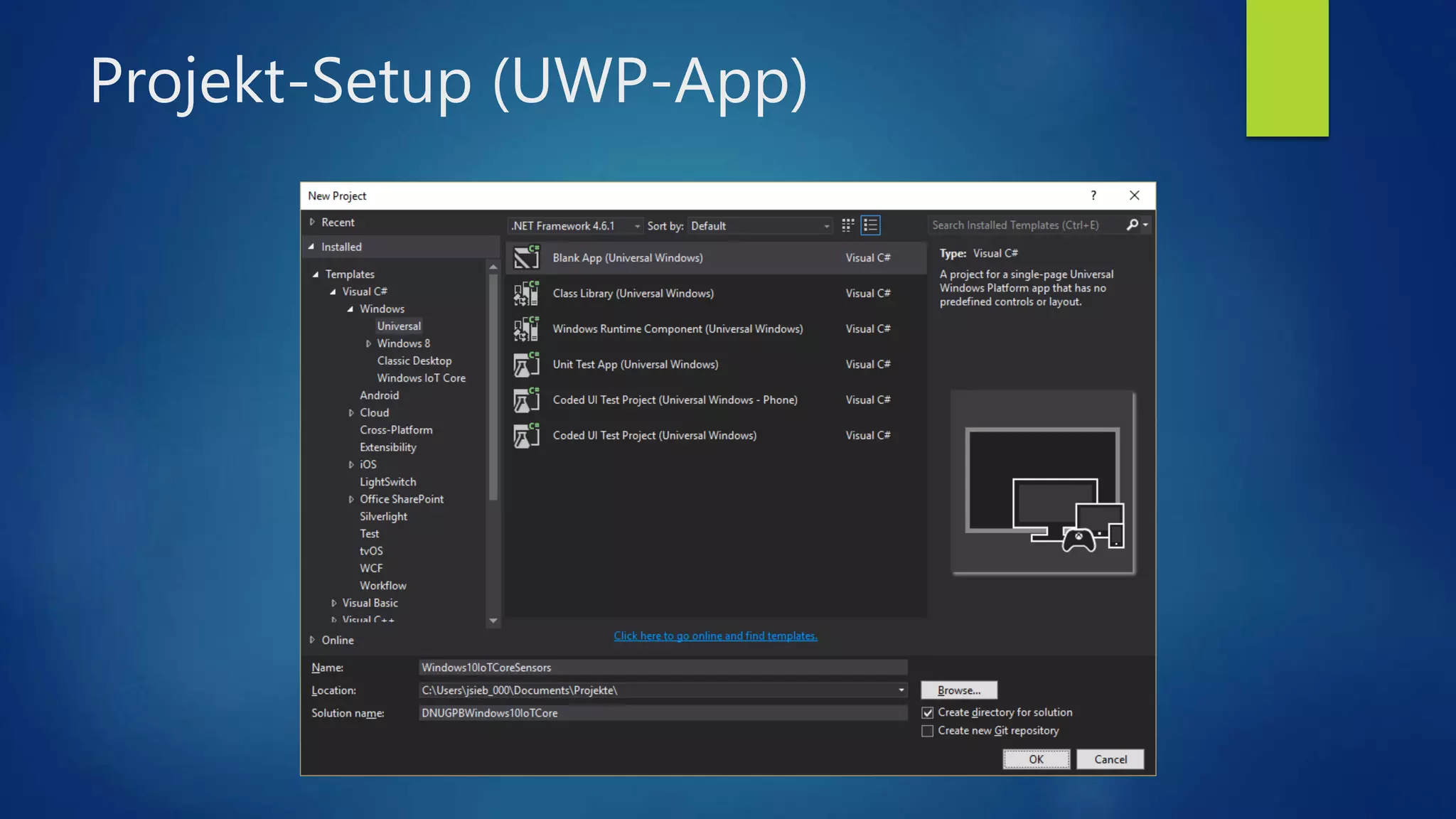
Projekt-Setup (UWP-App)
GPIO-Pins nutzen
using Windows.Devices.Gpio;
[…]
// Hole Referenz auf GPIO Controller Objekt
var gpio = GpioController.GetDefault();
// Prüfe ob GPIO Controller vorhanden ist
if (gpio != null)
{
// Verbindung zum GPIO-Pin Nr. 5 öffnen
var pin = gpio.OpenPin(5);
// GPIO-Pin als Ausgabe-Pin konfigurieren
pin.SetDriveMode(GpioPinDriveMode.Output);
// GPIO Pin auf Wert «High» setzen
pin.Write(GpioPinValue.High);
}
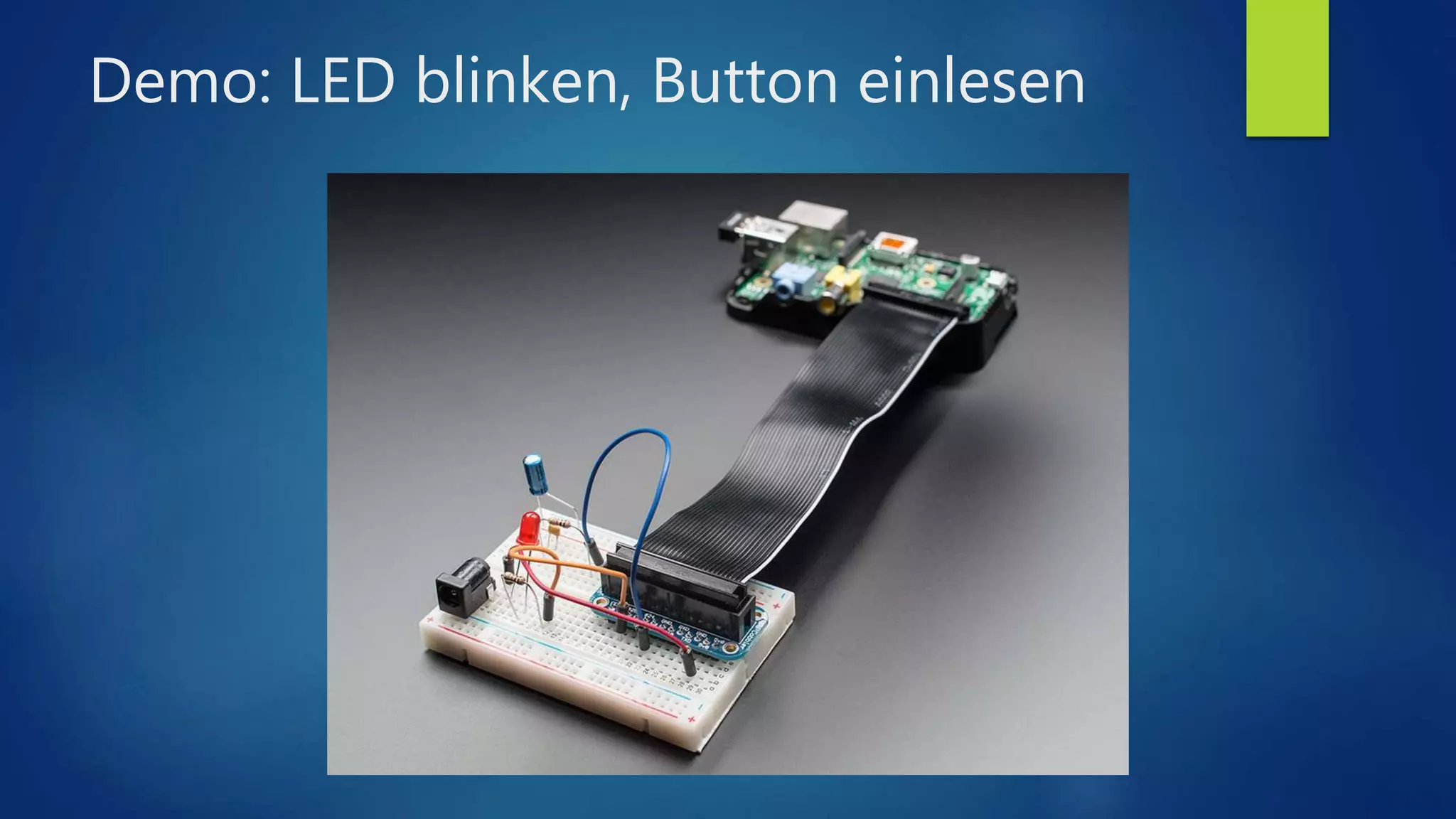
Demo: LED blinken, Button einlesen
I2C-Bus nutzen
using Windows.Devices.I2c;
[…]
// Hole Referenz auf I2C Controller Objekt
var controller = await I2cController.GetDefaultAsync();
// Prüfe ob I2C Controller vorhanden ist
if (controller != null)
{
// Verbindung zum Sensor mit der Adresse 0x77 herstellen
var connectionSettings = new I2cConnectionSettings(0x77);
device = controller.GetDevice(connectionSettings);
// Wert aus Sensor-Register mit Adresse 0xAA auslesen
var registerData = new byte[2];
device.WriteRead(new byte[] { 0xAA }, registerData);
}
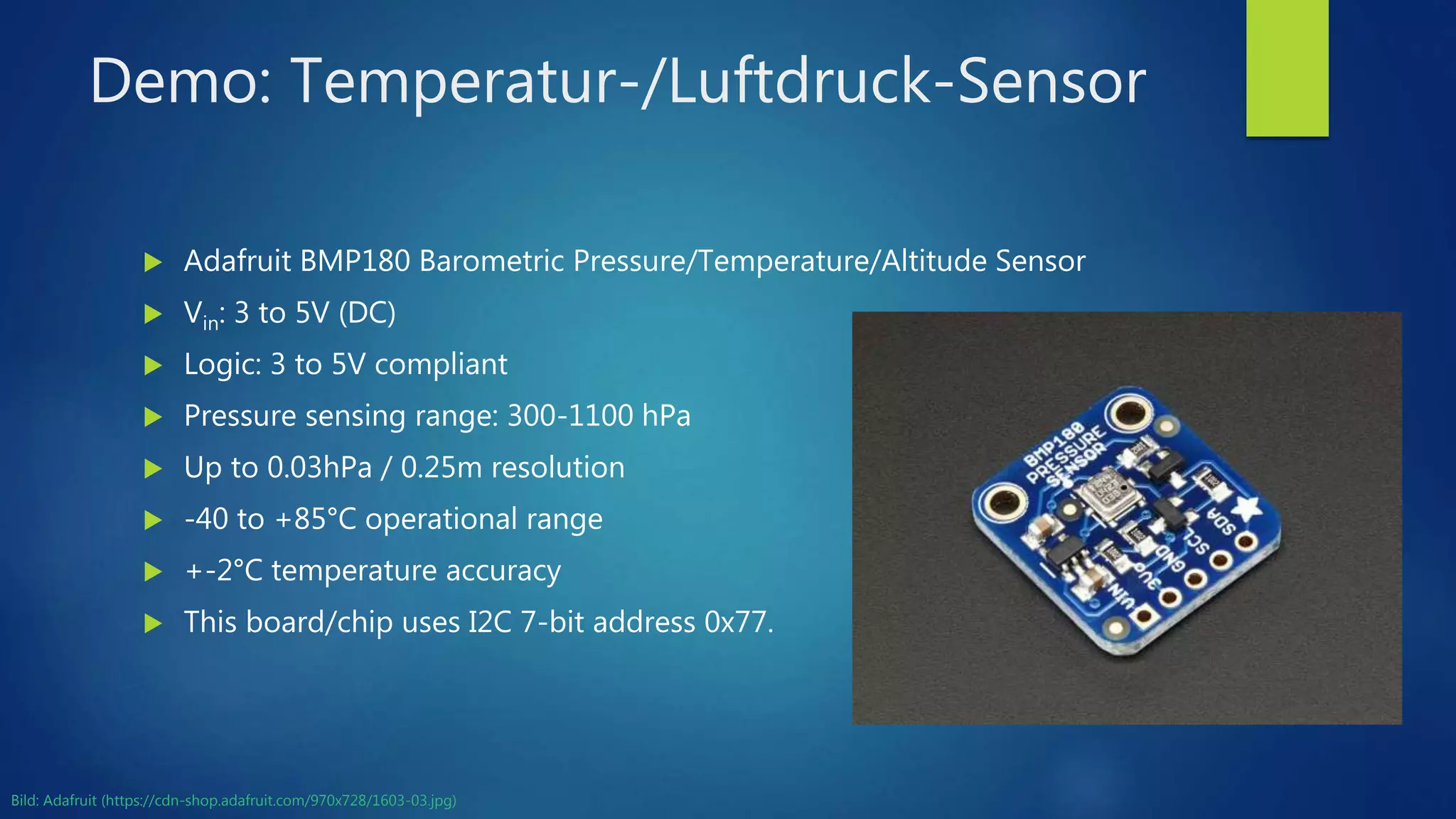
Demo: Temperatur-/Luftdruck-Sensor
 Adafruit BMP180 Barometric Pressure/Temperature/Altitude Sensor
 Vin: 3 to 5V (DC)
 Logic: 3 to 5V compliant
 Pressure sensing range: 300-1100 hPa
 Up to 0.03hPa / 0.25m resolution
 -40 to +85°C operational range
 +-2°C temperature accuracy
 This board/chip uses I2C 7-bit address 0x77.
Bild: Adafruit (https://cdn-shop.adafruit.com/970x728/1603-03.jpg)
UART nutzen
using Windows.Devices.SerialCommunication;
[…]
// Hole Referenz auf UART Objekt
var aqs = SerialDevice.GetDeviceSelector();
var dis = await DeviceInformation.FindAllAsync(aqs);
device = await SerialDevice.FromIdAsync(dis[0].Id);
// Prüfe ob UART Objekt vorhanden ist
if (device != null)
{
// UART Baud-Rate setzen
device.BaudRate = 9600;
// Wert über InputStream auslesen
var dataReader = new DataReader(device.InputStream);
var bytesRead = await dataReader.LoadAsync(1024);
var data = dataReader.ReadString(bytesRead);
}
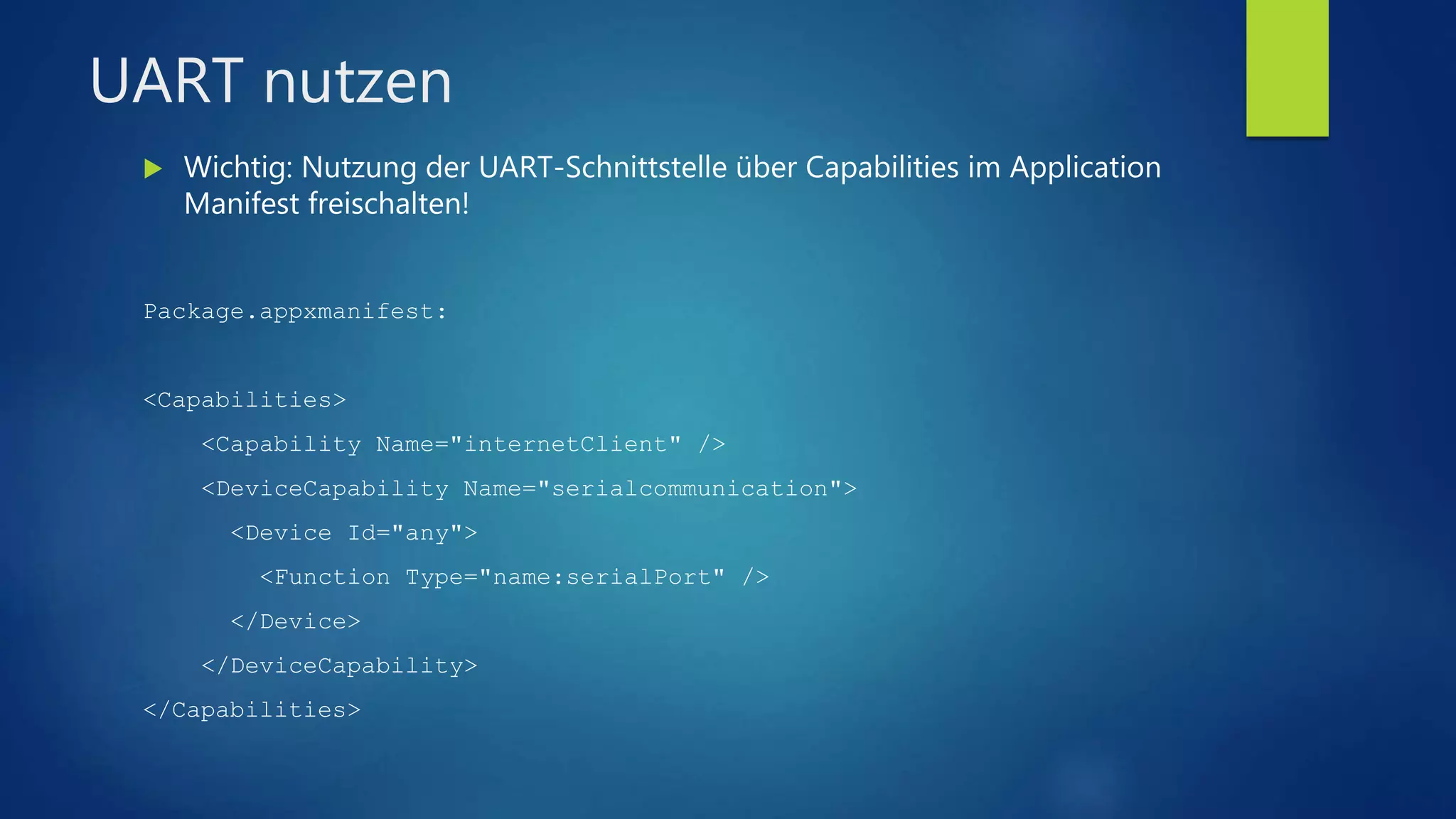
UART nutzen
 Wichtig: Nutzung der UART-Schnittstelle über Capabilities im Application
Manifest freischalten!
Package.appxmanifest:
<Capabilities>
<Capability Name="internetClient" />
<DeviceCapability Name="serialcommunication">
<Device Id="any">
<Function Type="name:serialPort" />
</Device>
</DeviceCapability>
</Capabilities>
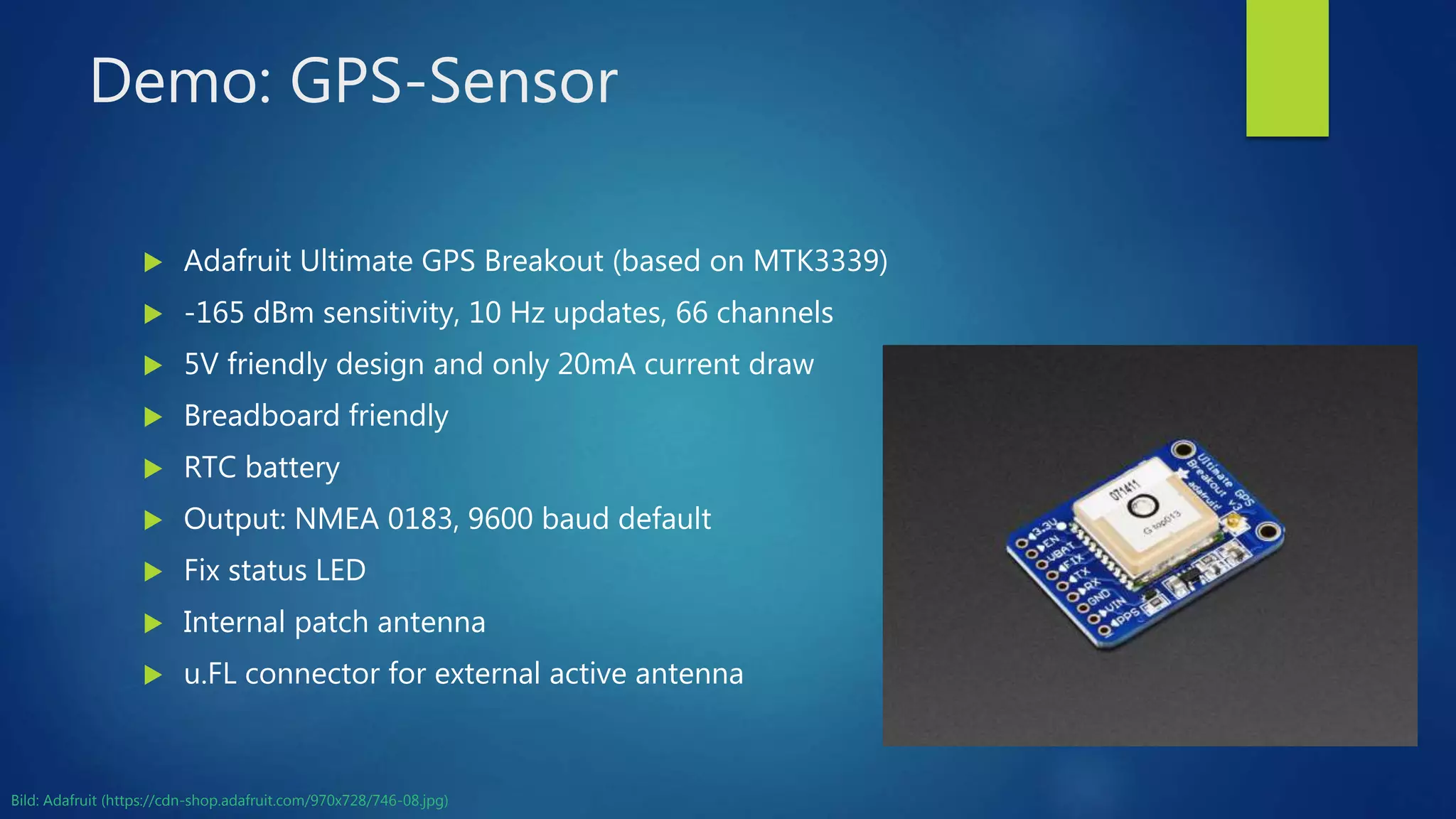
Demo: GPS-Sensor
 Adafruit Ultimate GPS Breakout (based on MTK3339)
 -165 dBm sensitivity, 10 Hz updates, 66 channels
 5V friendly design and only 20mA current draw
 Breadboard friendly
 RTC battery
 Output: NMEA 0183, 9600 baud default
 Fix status LED
 Internal patch antenna
 u.FL connector for external active antenna
Bild: Adafruit (https://cdn-shop.adafruit.com/970x728/746-08.jpg)
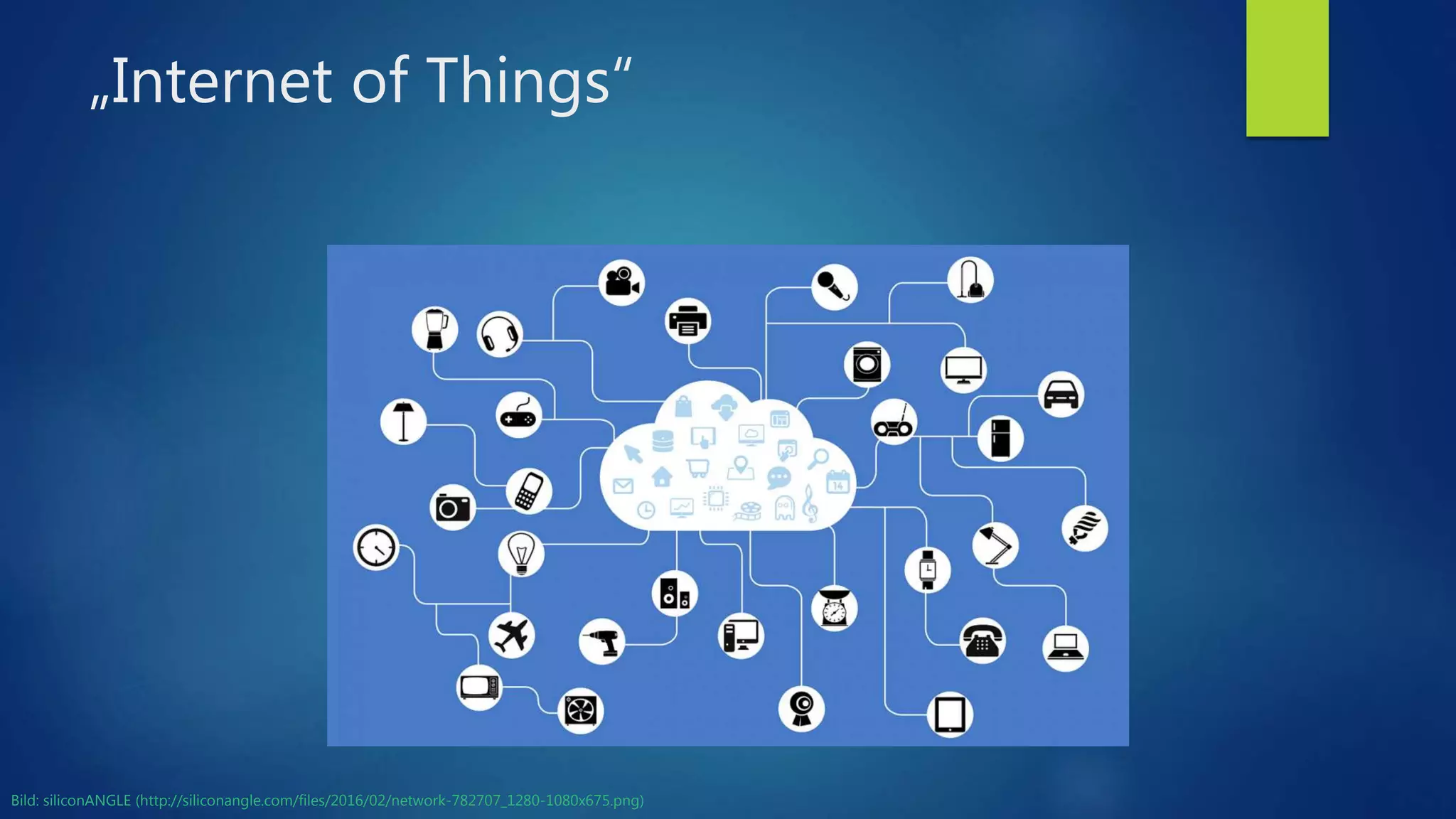
„Internet of Things“
Bild: siliconANGLE (http://siliconangle.com/files/2016/02/network-782707_1280-1080x675.png)
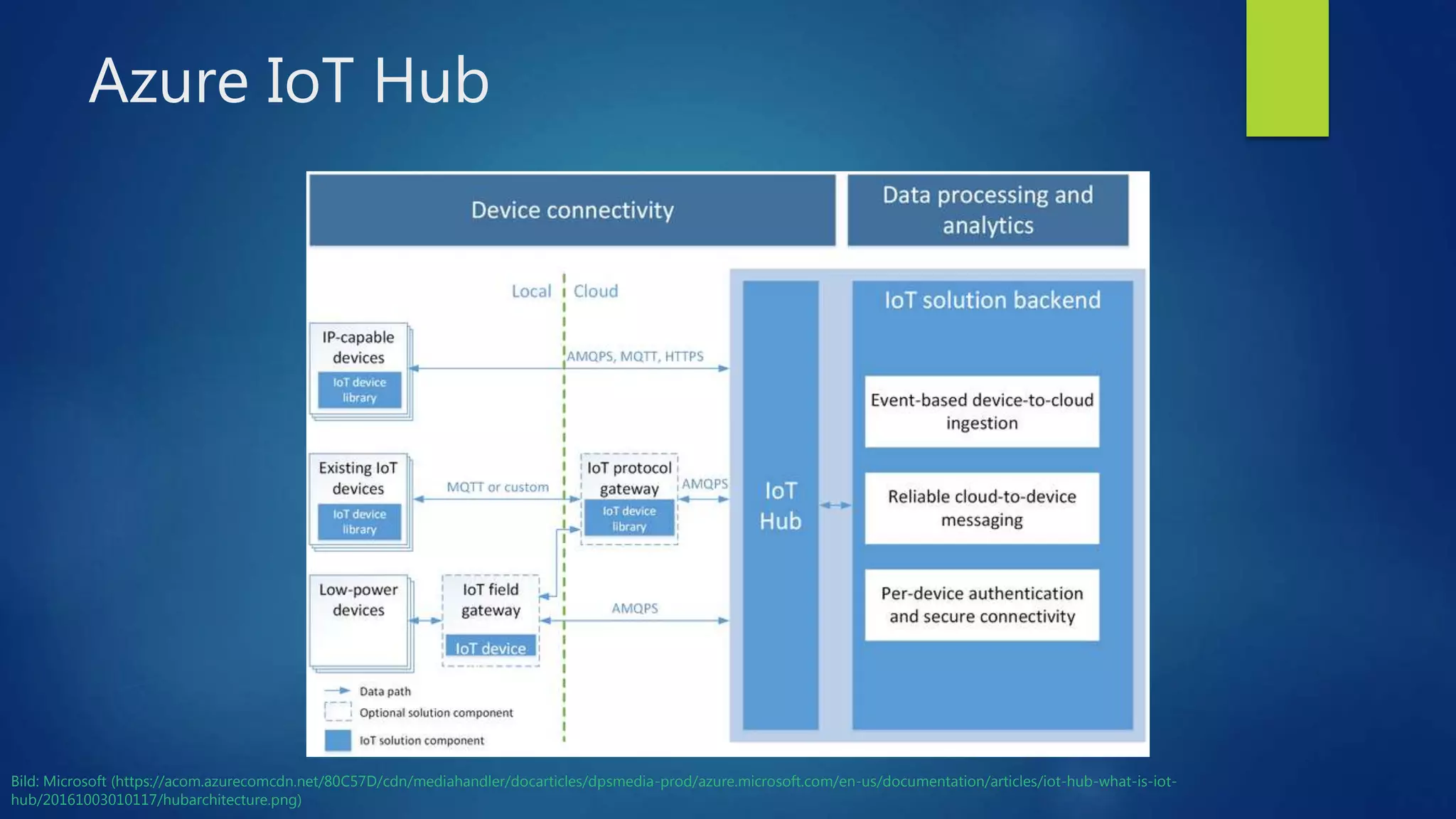
Azure IoT Hub
Bild: Microsoft (https://acom.azurecomcdn.net/80C57D/cdn/mediahandler/docarticles/dpsmedia-prod/azure.microsoft.com/en-us/documentation/articles/iot-hub-what-is-iot-
hub/20161003010117/hubarchitecture.png)
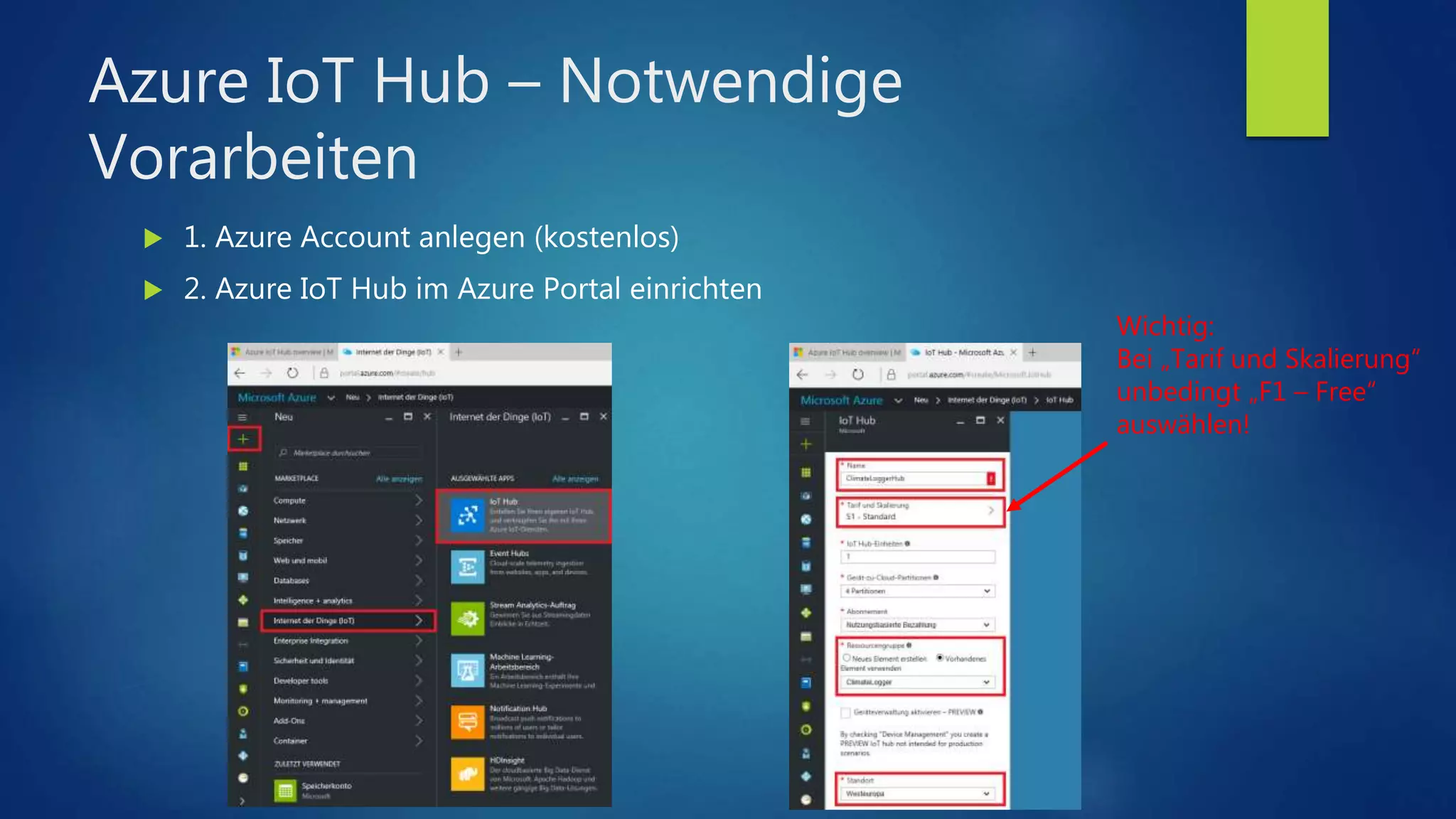
Azure IoT Hub – Notwendige
Vorarbeiten
 1. Azure Account anlegen (kostenlos)
 2. Azure IoT Hub im Azure Portal einrichten
Wichtig:
Bei „Tarif und Skalierung“
unbedingt „F1 – Free“
auswählen!
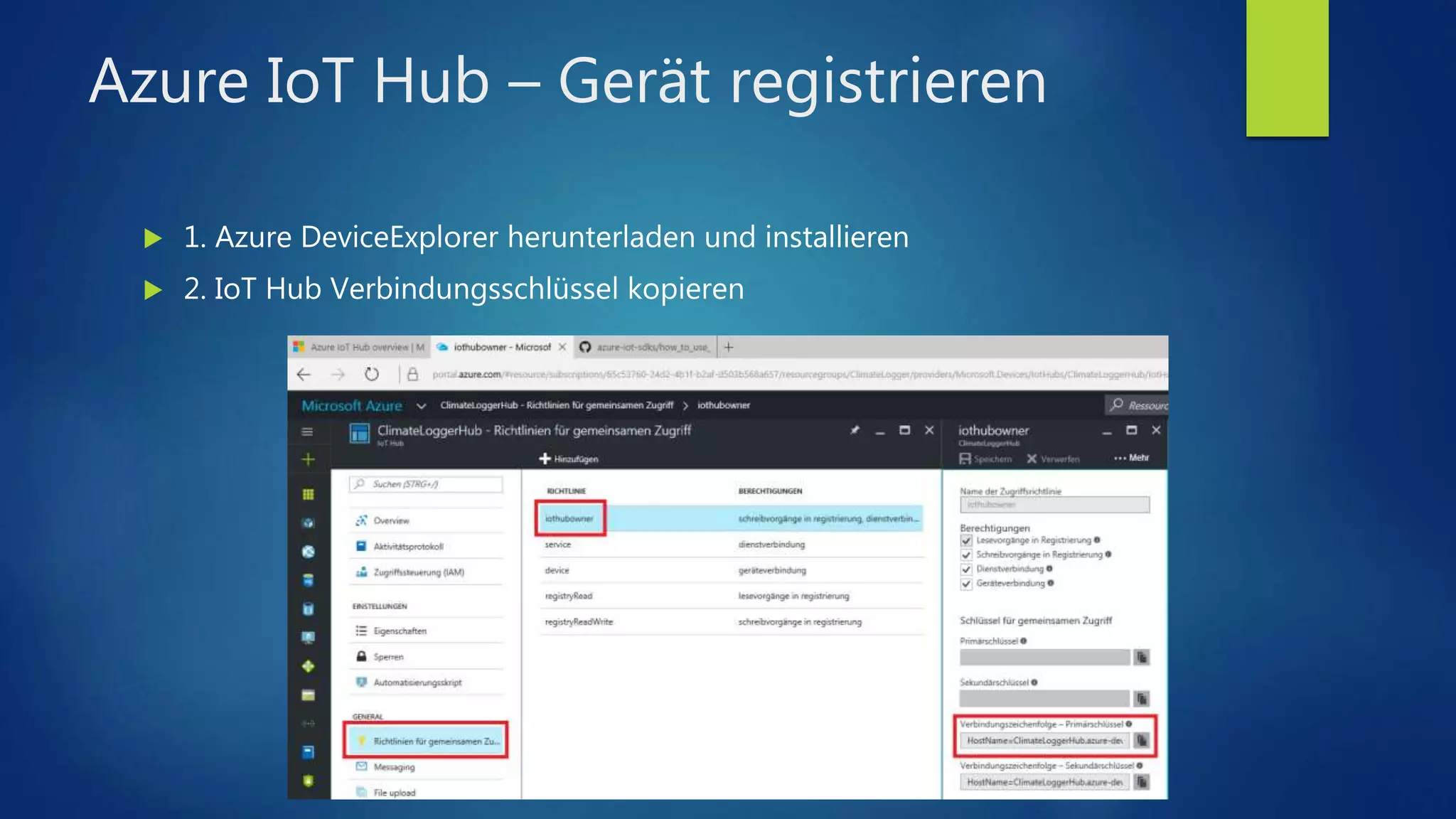
Azure IoT Hub – Gerät registrieren
 1. Azure DeviceExplorer herunterladen und installieren
 2. IoT Hub Verbindungsschlüssel kopieren
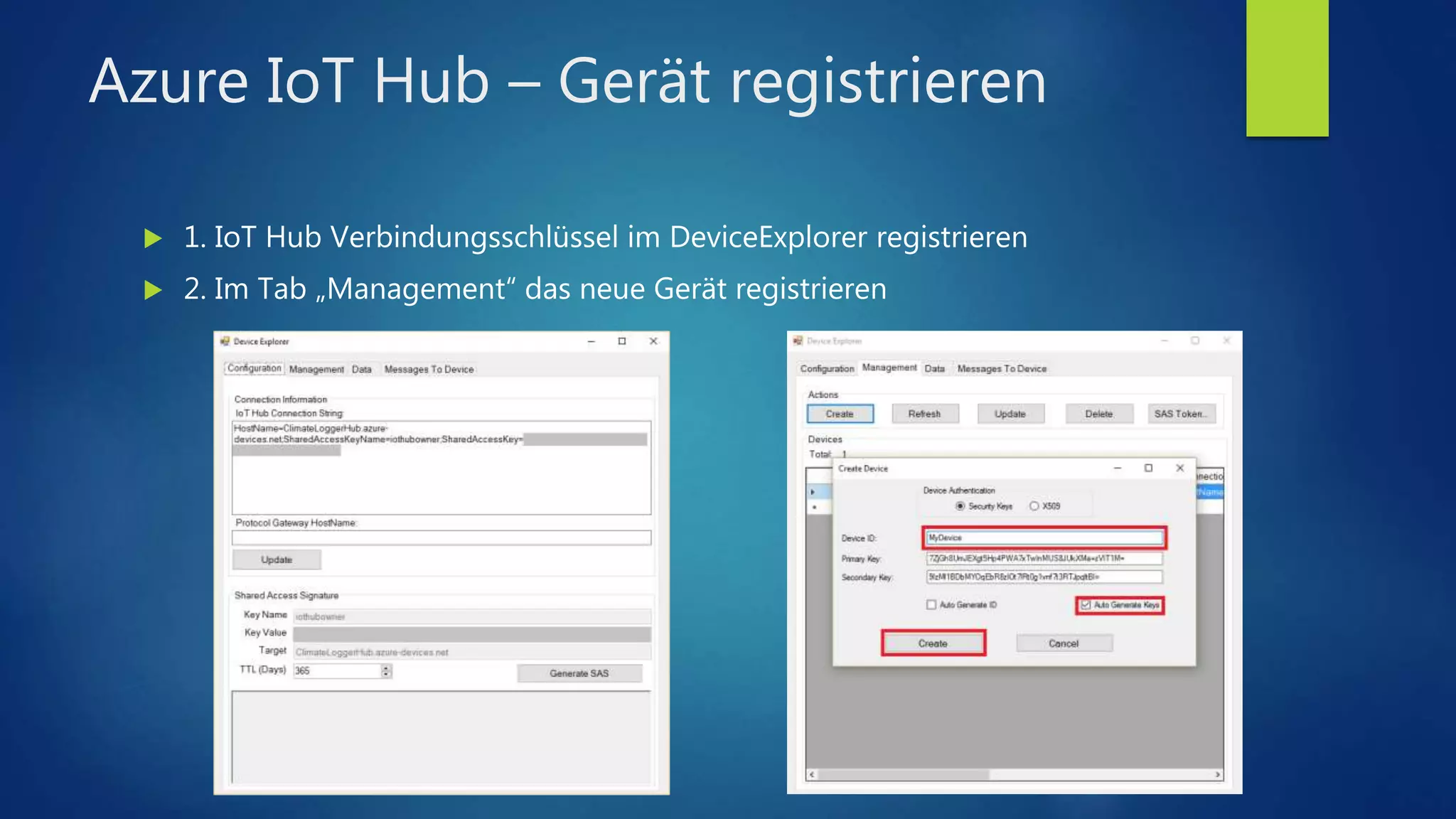
Azure IoT Hub – Gerät registrieren
 1. IoT Hub Verbindungsschlüssel im DeviceExplorer registrieren
 2. Im Tab „Management“ das neue Gerät registrieren
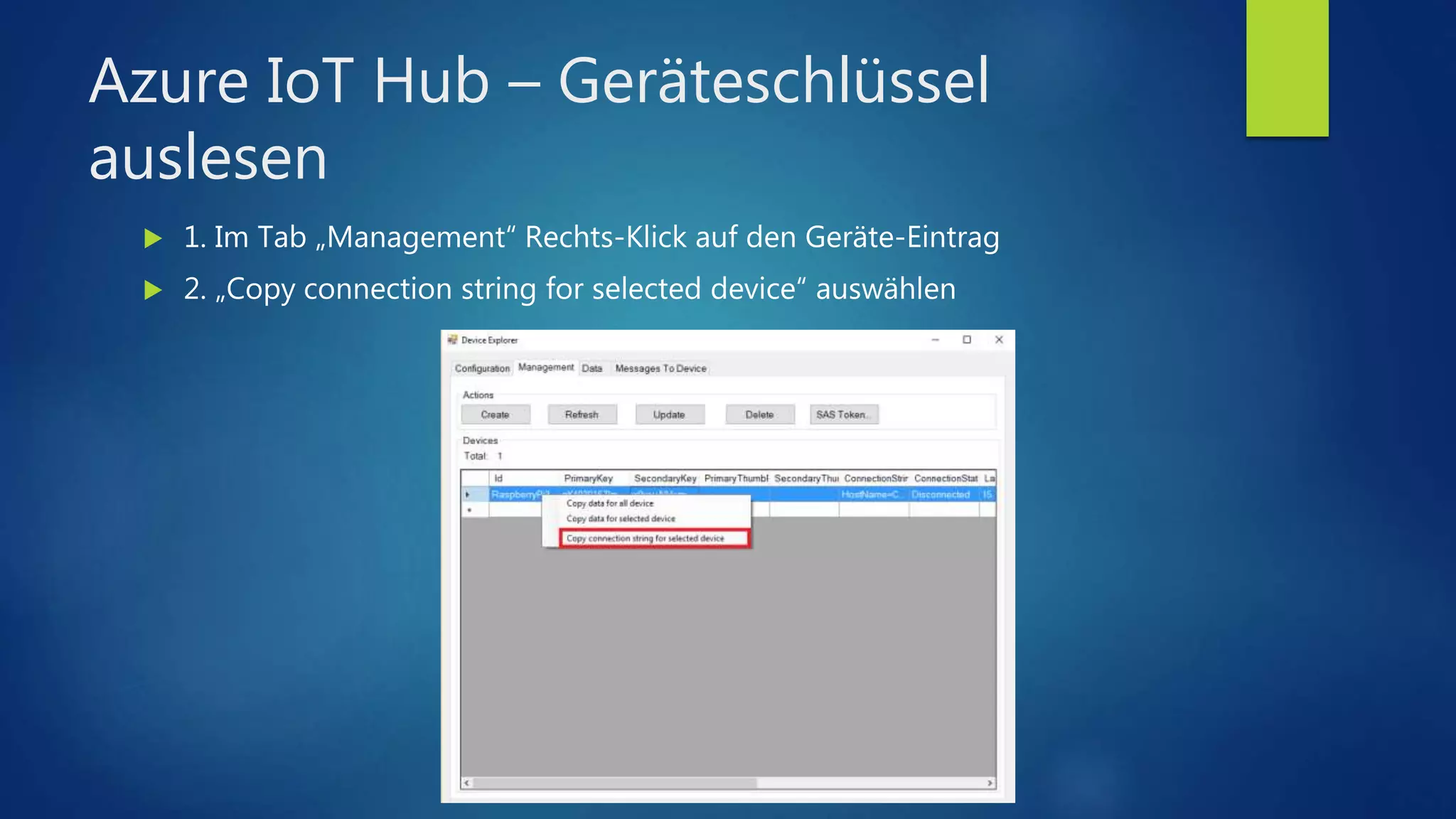
Azure IoT Hub – Geräteschlüssel
auslesen
 1. Im Tab „Management“ Rechts-Klick auf den Geräte-Eintrag
 2. „Copy connection string for selected device“ auswählen
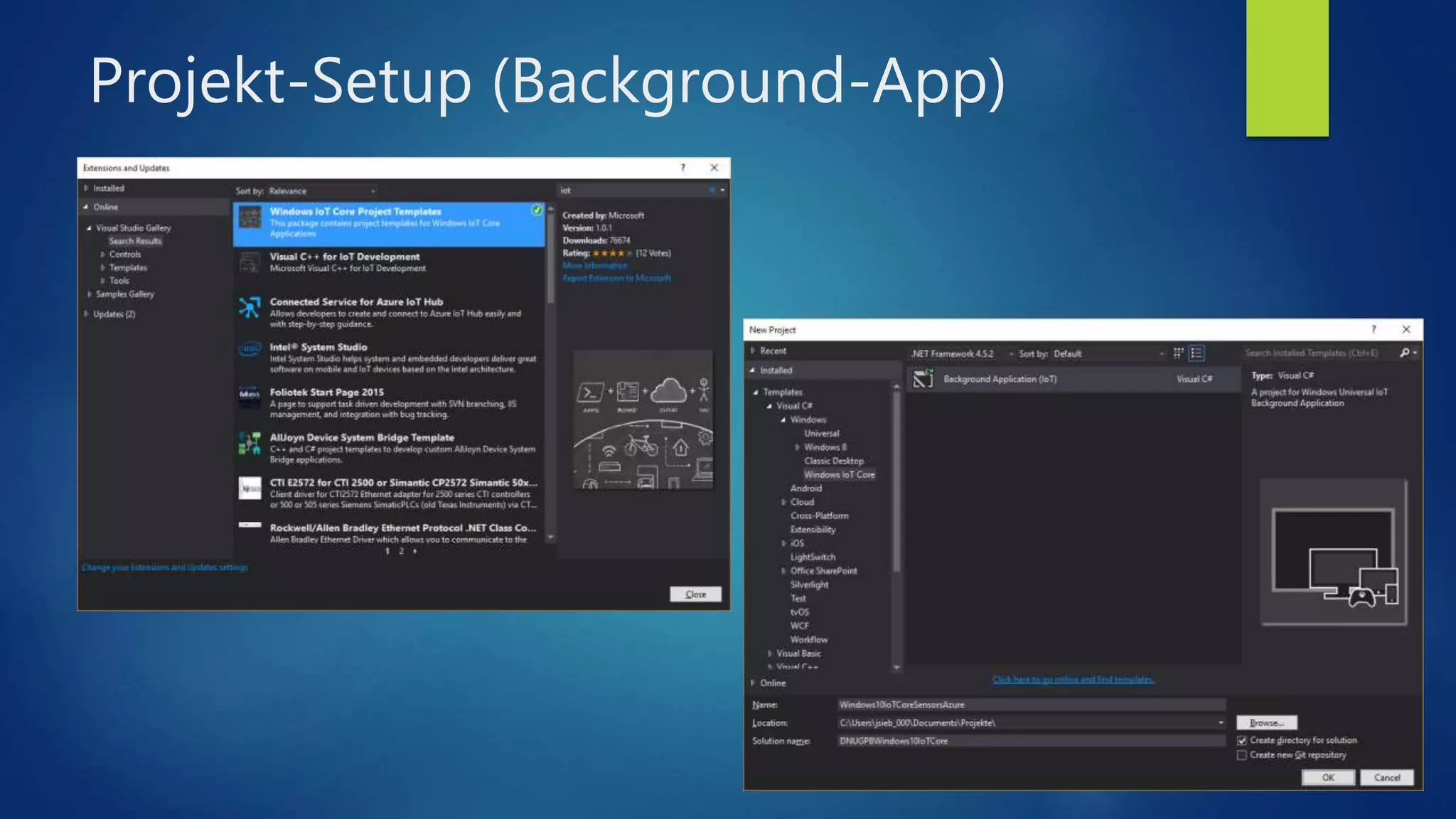
Projekt-Setup (Background-App)
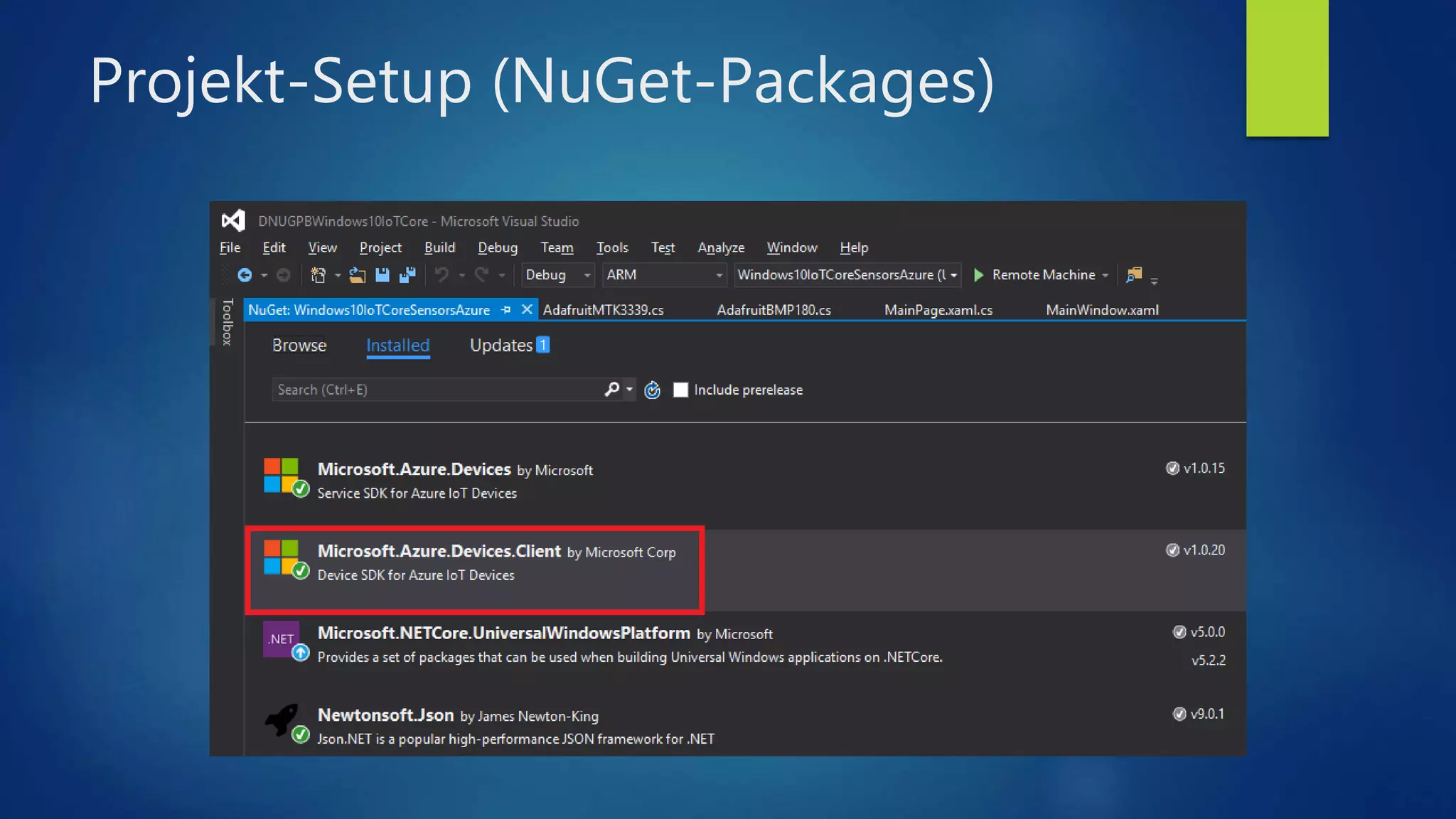
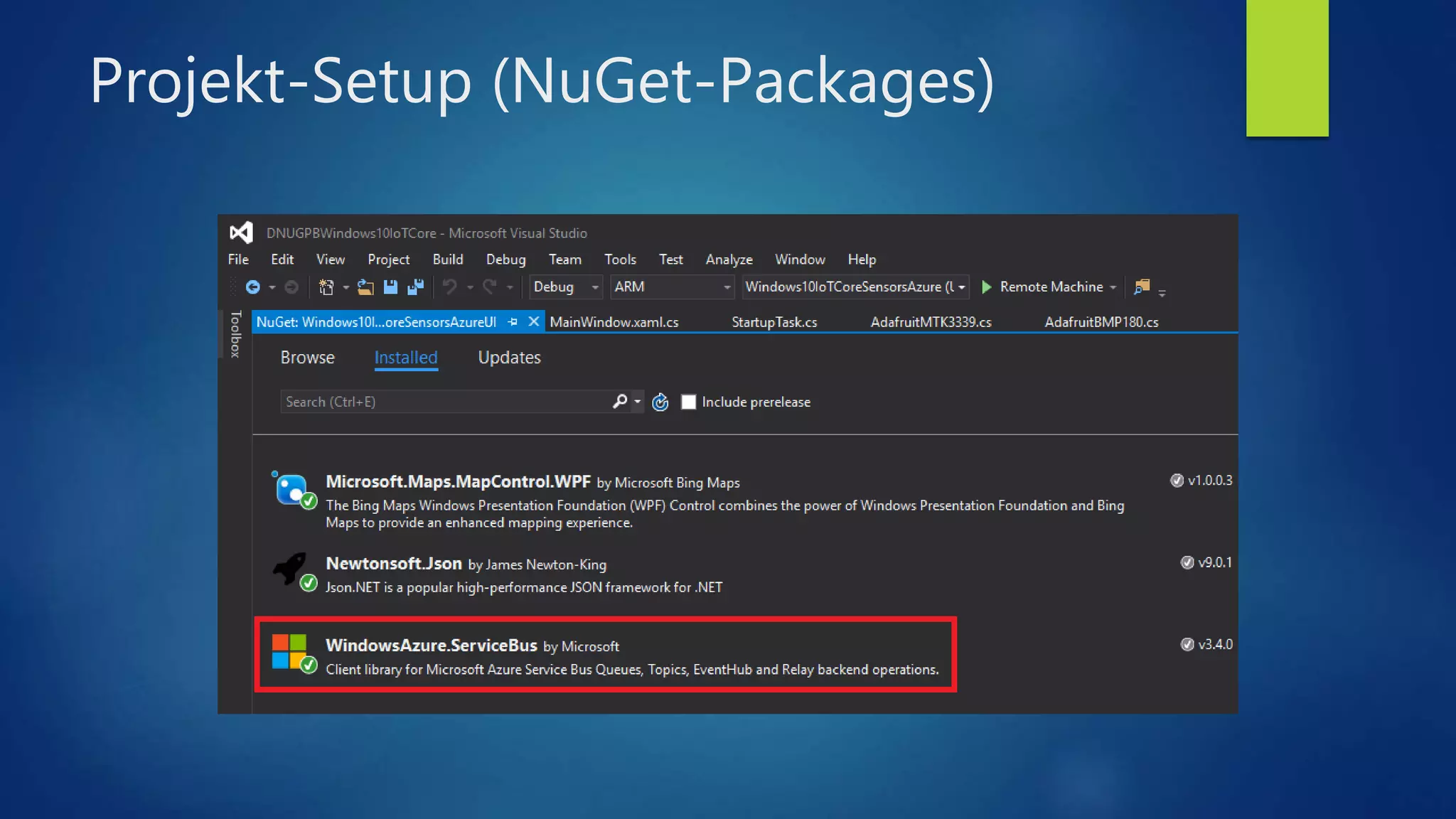
Projekt-Setup (NuGet-Packages)
Nachrichten an IoT Hub senden
using Microsoft.Azure.Devices.Client;
[…]
var deviceClient =
DeviceClient.CreateFromConnectionString(azureIotHubConnectionString);
[…]
var message = new Message(Encoding.UTF8.GetBytes(data));
await deviceClient.SendEventAsync(message);
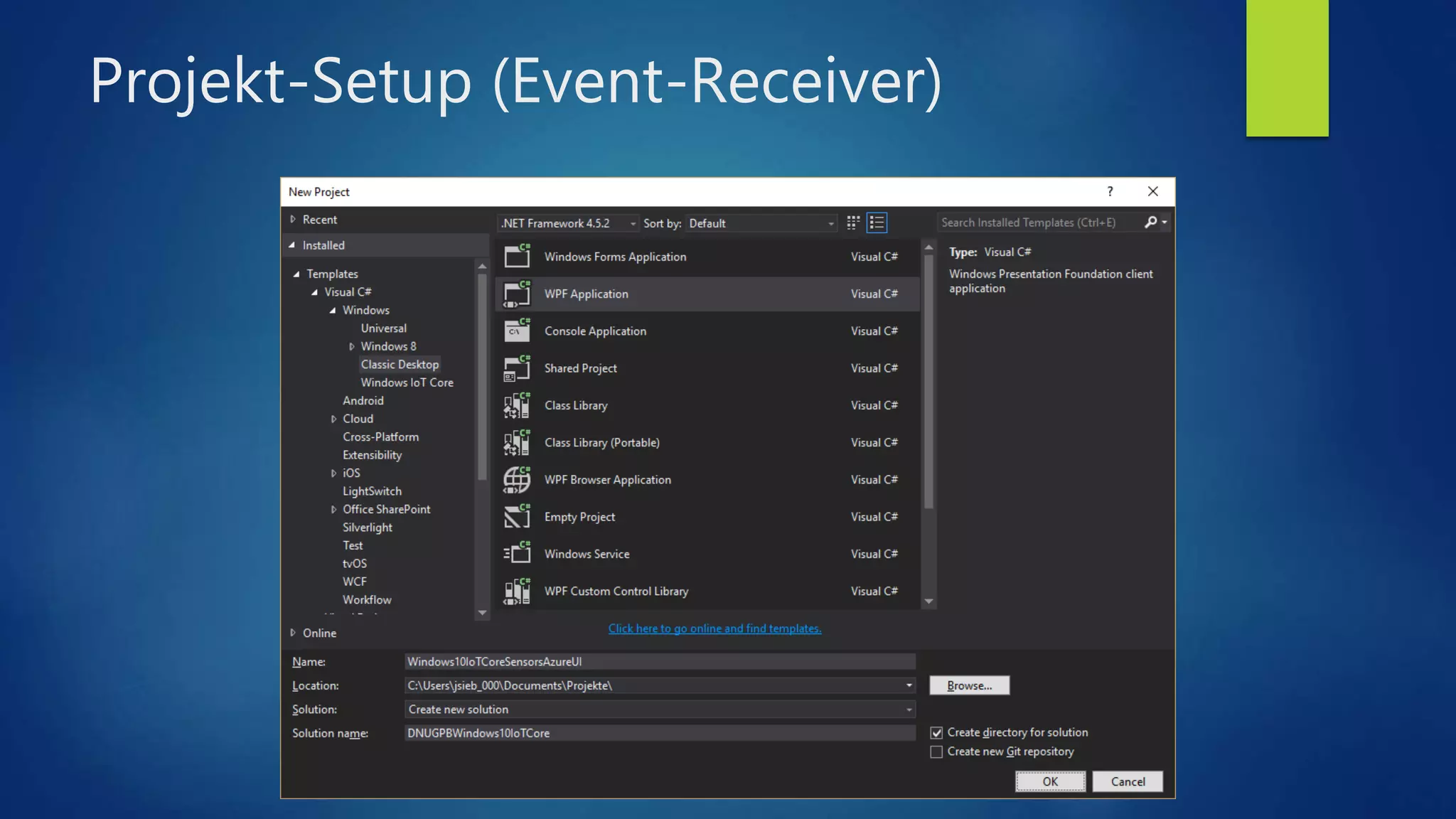
Projekt-Setup (Event-Receiver)
Projekt-Setup (NuGet-Packages)
Nachrichten vom IoT Hub empfangen
using Microsoft.ServiceBus.Messaging;
[…]
var eventHubClient = EventHubClient.CreateFromConnectionString(
connectionString,
"messages/events"
);
[…]
var eventData = await eventHubReceiver.ReceiveAsync();
var data = Encoding.UTF8.GetString(eventData.GetBytes());
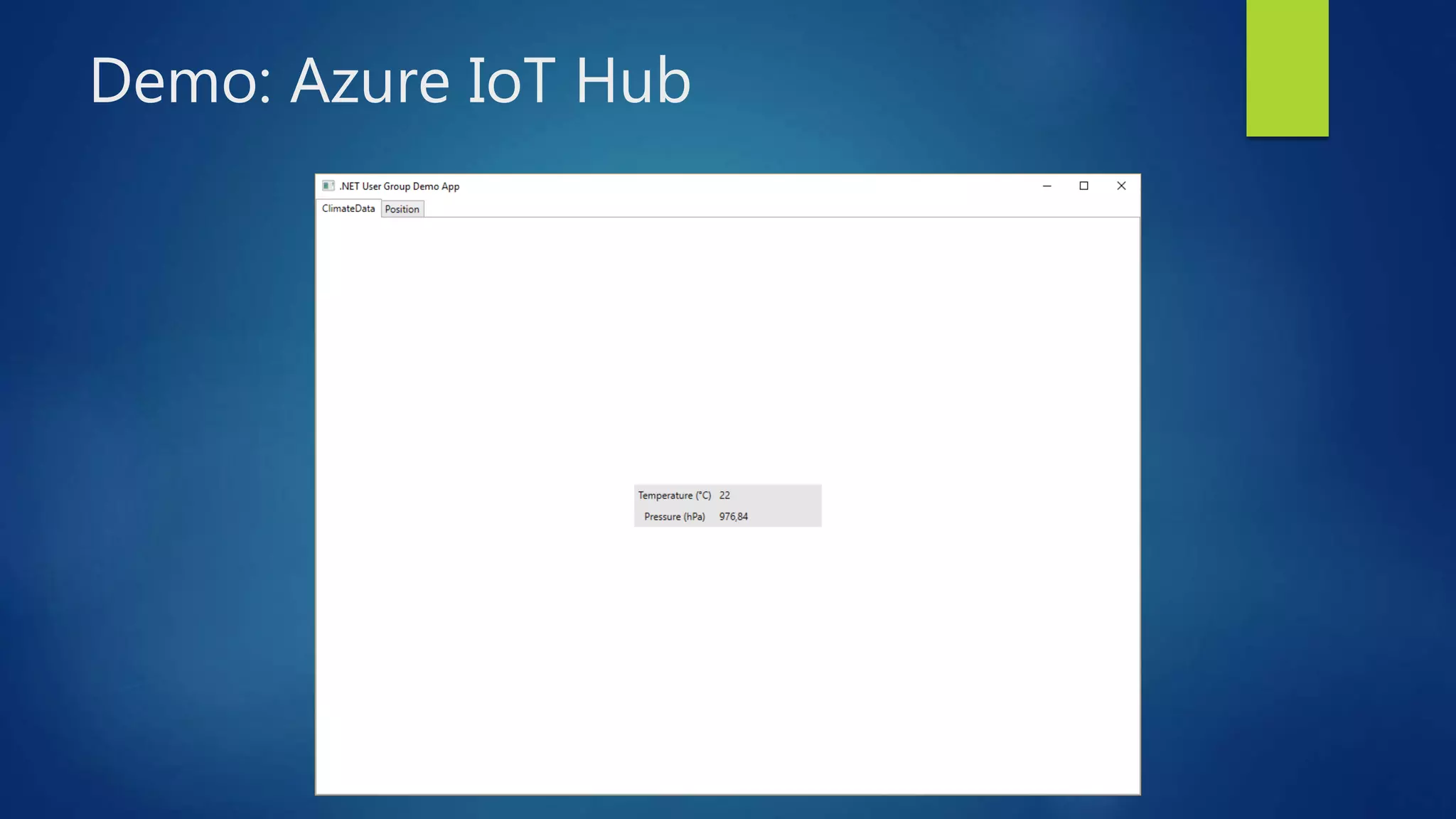
Demo: Azure IoT Hub
Informationen & Links
 Source-Code: bitbucket.org/jenssiebert/dnugpbwindows10iotcore
 Windows 10 IoT Core: developer.microsoft.com/en-us/windows/iot
 Docs: developer.microsoft.com/en-us/windows/iot/Docs
 Samples: developer.microsoft.com/en-us/windows/iot/samples
 IoT Core Dashboard: developer.microsoft.com/en-us/windows/iot/docs/iotdashboard
 Raspberry Pi: raspberrypi.org
 Docs: raspberrypi.org/documentation
 Azure IoT Hub: azure.microsoft.com/de-de/services/iot-hub
 Docs: azure.microsoft.com/de-de/documentation/services/iot-hub
 DeviceExplorer: github.com/Azure/azure-iot-sdks/blob/master/tools/DeviceExplorer
Literatur
Bilder:
Hanser Verlag (http://files.hanser.de/hanser/pics/978-3-446-44719-6_2165312176-34.jpg)
Microsoft Press (https://www.microsoftpressstore.com/ShowCover.aspx?isbn=9781509302161)
Vielen Dank!

Windows 10 IoT Core

  • 1.
    Windows 10 IoTCore .NET User Group Paderborn, 18. Oktober 2016
  • 2.
    Über die Vortragenden JensSiebert  Diplom-Informatiker  Software-Architekt bei dSPACE  Twitter: @jens_siebert Mark Lechtermann  Informatiker  Software-Architekt bei dSPACE  Twitter: @MarkLechtermann
  • 3.
    Windows 10 –„One Windows“ Bild: Microsoft (https://winblogs.azureedge.net/win/2015/01/Windows-10_Product-Family.jpg)
  • 4.
    Windows für eingebetteteSysteme Windows CE 1.0 (1996) Windows CE 1.01 (1997) Windows CE 2.0 (1997) Windows CE 2.10 (1998) Windows CE 2.11 (1998) Windows CE 3.0 (2000) Windows CE 4.0 (2001) Windows CE 4.1 (2002) Windows CE 4.2 (2003) Windows CE 5.0 (2004) Windows CE 6.0 (2006) Windows CE 6R2 (2007) Windows CE 6R3 (2009) Windows Embedded 7 (2011) Windows Embedded 8 (2013) Windows 10 IoT Core (2015) Windows 10 IoT Pro (2015)
  • 5.
    Raspberry Pi  1.2GHzQuad-Core ARMv8 (Broadcom BCM2837)  1 GB RAM  Broadcom Video Core IV GPU  4x USB 2.0  802.11 b/g/n WiFi  10/100/1000 Mbit Ethernet  Bluetooth 4.1/LE  HDMI  Camera Interface (CSI)  Display Interface (DSI)  40 GPIO Pins Bild: Microsoft (https://https://az835927.vo.msecnd.net/sites/iot/Resources/images/devices/RPi3_0.png)
  • 6.
    Raspberry Pi  24xGPIO  2x 5V  2x 3,3V  8x Ground (Masse)  1x I2C (Inter-Integrated Circuit Bus)  2x SPI (Serial Peripheral Interface)  1x UART (Universal Asynchronous Receiver Transmitter) Bild: Microsoft (https://az835927.vo.msecnd.net/sites/iot/Resources/images/PinMappings/RP2_Pinout.png)
  • 7.
    Windows 10 IoTCore Setup  Raspberry Pi (2 oder 3)  SD-Card (16GB)  PC mit  Windows 10  SD-Card Reader  Windows 10 IoT Dashboard Bild: Microsoft (https://az835927.vo.msecnd.net/sites/iot/Resources/images/IoTDashboard/IoTDashboard_SetupPage.PNG)
  • 8.
    Windows Device Portal Zugriff auf Windows 10 IoT Gerät über Web-Oberfläche  URL: http://<devicename>:8080  User: Administrator  Passwort: Aus Windows 10 IoT Dashboard Bild: Microsoft (https://az835927.vo.msecnd.net/sites/iot/Resources/images/deviceportal/deviceportal.png)
  • 9.
    Universal Windows Platform Bild:Microsoft (https://i-msdn.sec.s-msft.com/de-de/windows/uwp/get-started/images/universalapps-overview.png)
  • 10.
    Was wird benötigt? Raspberry Pi 2 oder 3 mit Windows 10 IoT Core (Anniversary Update)  PC mit Windows 10 (Anniversary Update)  Visual Studio 2015 Update 3 (Community reicht aus)  Windows 10 SDK und Tools (für Anniversary Update)  Für Elektronik-Basteleien:  Breadboard  Elektronik-Komponenten (Widerstände, LEDs, etc.)  Sensoren (Temperatur, Luftdruck, Luftfeuchtigkeit, GPS, etc.)  Ein gewisses Elektronik-Grundwissen ist von Vorteil!
  • 11.
  • 12.
    GPIO-Pins nutzen using Windows.Devices.Gpio; […] //Hole Referenz auf GPIO Controller Objekt var gpio = GpioController.GetDefault(); // Prüfe ob GPIO Controller vorhanden ist if (gpio != null) { // Verbindung zum GPIO-Pin Nr. 5 öffnen var pin = gpio.OpenPin(5); // GPIO-Pin als Ausgabe-Pin konfigurieren pin.SetDriveMode(GpioPinDriveMode.Output); // GPIO Pin auf Wert «High» setzen pin.Write(GpioPinValue.High); }
  • 13.
    Demo: LED blinken,Button einlesen
  • 14.
    I2C-Bus nutzen using Windows.Devices.I2c; […] //Hole Referenz auf I2C Controller Objekt var controller = await I2cController.GetDefaultAsync(); // Prüfe ob I2C Controller vorhanden ist if (controller != null) { // Verbindung zum Sensor mit der Adresse 0x77 herstellen var connectionSettings = new I2cConnectionSettings(0x77); device = controller.GetDevice(connectionSettings); // Wert aus Sensor-Register mit Adresse 0xAA auslesen var registerData = new byte[2]; device.WriteRead(new byte[] { 0xAA }, registerData); }
  • 15.
    Demo: Temperatur-/Luftdruck-Sensor  AdafruitBMP180 Barometric Pressure/Temperature/Altitude Sensor  Vin: 3 to 5V (DC)  Logic: 3 to 5V compliant  Pressure sensing range: 300-1100 hPa  Up to 0.03hPa / 0.25m resolution  -40 to +85°C operational range  +-2°C temperature accuracy  This board/chip uses I2C 7-bit address 0x77. Bild: Adafruit (https://cdn-shop.adafruit.com/970x728/1603-03.jpg)
  • 16.
    UART nutzen using Windows.Devices.SerialCommunication; […] //Hole Referenz auf UART Objekt var aqs = SerialDevice.GetDeviceSelector(); var dis = await DeviceInformation.FindAllAsync(aqs); device = await SerialDevice.FromIdAsync(dis[0].Id); // Prüfe ob UART Objekt vorhanden ist if (device != null) { // UART Baud-Rate setzen device.BaudRate = 9600; // Wert über InputStream auslesen var dataReader = new DataReader(device.InputStream); var bytesRead = await dataReader.LoadAsync(1024); var data = dataReader.ReadString(bytesRead); }
  • 17.
    UART nutzen  Wichtig:Nutzung der UART-Schnittstelle über Capabilities im Application Manifest freischalten! Package.appxmanifest: <Capabilities> <Capability Name="internetClient" /> <DeviceCapability Name="serialcommunication"> <Device Id="any"> <Function Type="name:serialPort" /> </Device> </DeviceCapability> </Capabilities>
  • 18.
    Demo: GPS-Sensor  AdafruitUltimate GPS Breakout (based on MTK3339)  -165 dBm sensitivity, 10 Hz updates, 66 channels  5V friendly design and only 20mA current draw  Breadboard friendly  RTC battery  Output: NMEA 0183, 9600 baud default  Fix status LED  Internal patch antenna  u.FL connector for external active antenna Bild: Adafruit (https://cdn-shop.adafruit.com/970x728/746-08.jpg)
  • 19.
    „Internet of Things“ Bild:siliconANGLE (http://siliconangle.com/files/2016/02/network-782707_1280-1080x675.png)
  • 20.
    Azure IoT Hub Bild:Microsoft (https://acom.azurecomcdn.net/80C57D/cdn/mediahandler/docarticles/dpsmedia-prod/azure.microsoft.com/en-us/documentation/articles/iot-hub-what-is-iot- hub/20161003010117/hubarchitecture.png)
  • 21.
    Azure IoT Hub– Notwendige Vorarbeiten  1. Azure Account anlegen (kostenlos)  2. Azure IoT Hub im Azure Portal einrichten Wichtig: Bei „Tarif und Skalierung“ unbedingt „F1 – Free“ auswählen!
  • 22.
    Azure IoT Hub– Gerät registrieren  1. Azure DeviceExplorer herunterladen und installieren  2. IoT Hub Verbindungsschlüssel kopieren
  • 23.
    Azure IoT Hub– Gerät registrieren  1. IoT Hub Verbindungsschlüssel im DeviceExplorer registrieren  2. Im Tab „Management“ das neue Gerät registrieren
  • 24.
    Azure IoT Hub– Geräteschlüssel auslesen  1. Im Tab „Management“ Rechts-Klick auf den Geräte-Eintrag  2. „Copy connection string for selected device“ auswählen
  • 25.
  • 26.
  • 27.
    Nachrichten an IoTHub senden using Microsoft.Azure.Devices.Client; […] var deviceClient = DeviceClient.CreateFromConnectionString(azureIotHubConnectionString); […] var message = new Message(Encoding.UTF8.GetBytes(data)); await deviceClient.SendEventAsync(message);
  • 28.
  • 29.
  • 30.
    Nachrichten vom IoTHub empfangen using Microsoft.ServiceBus.Messaging; […] var eventHubClient = EventHubClient.CreateFromConnectionString( connectionString, "messages/events" ); […] var eventData = await eventHubReceiver.ReceiveAsync(); var data = Encoding.UTF8.GetString(eventData.GetBytes());
  • 31.
  • 32.
    Informationen & Links Source-Code: bitbucket.org/jenssiebert/dnugpbwindows10iotcore  Windows 10 IoT Core: developer.microsoft.com/en-us/windows/iot  Docs: developer.microsoft.com/en-us/windows/iot/Docs  Samples: developer.microsoft.com/en-us/windows/iot/samples  IoT Core Dashboard: developer.microsoft.com/en-us/windows/iot/docs/iotdashboard  Raspberry Pi: raspberrypi.org  Docs: raspberrypi.org/documentation  Azure IoT Hub: azure.microsoft.com/de-de/services/iot-hub  Docs: azure.microsoft.com/de-de/documentation/services/iot-hub  DeviceExplorer: github.com/Azure/azure-iot-sdks/blob/master/tools/DeviceExplorer
  • 33.
    Literatur Bilder: Hanser Verlag (http://files.hanser.de/hanser/pics/978-3-446-44719-6_2165312176-34.jpg) MicrosoftPress (https://www.microsoftpressstore.com/ShowCover.aspx?isbn=9781509302161)
  • 34.