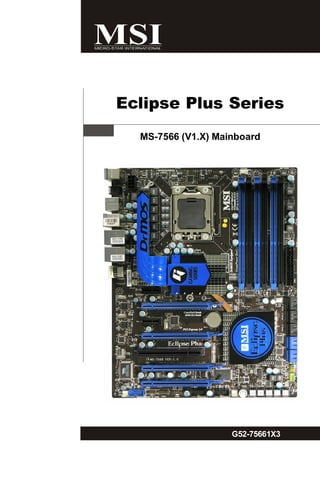
Eclipse Plus Series
  MS-7566 (V1.X) Mainboard


                    G52-75661X3

     i
Copyright Notice
T he material in this doc ument is the intellec tual property of M ICRO-STAR
INTERNATIONAL. We take every care in the preparation of this document, but no
guarantee is given as to the correctness of its contents. Our products are under
continual improvement and we reserve the right to make changes without notice.


Trademarks
All trademarks are the properties of their respective owners.

NVIDIA, the NVIDIA logo, DualNet, and nForce are registered trademarks or trade-
marks of NVIDIA Corporation in the United States and/or other countries.
AMD, Athlon™, Athlon™ XP, Thoroughbred™, and Duron™ are registered trade-
marks of AMD Corporation.
Intel® and Pentium® are registered trademarks of Intel Corporation.
PS/2 and OS ® /2 are registered trademarks of International Business Machines
Corporation.
W indows ® 2000/NT/XP/Vista are registered trademarks of Microsoft Corporation.
Netware® is a registered trademark of Novell, Inc.
Award® is a registered trademark of Phoenix Technologies Ltd.
AMI® is a registered trademark of American Megatrends Inc.


Revision History
Revision                   Revision History                         Date
V1.0                       First release for europe                 March 2009


Technical Support
If a problem arises with your system and no solution can be obtained from the user’s
manual, please contact your place of purchase or local distributor. Alternatively,
please try the following help resources for further guidance.


           Visit the MSI website for FAQ, technical guide, BIOS updates, driver updates,
           an d ot h er i n f orm at i on: h t t p: / / g l o ba l . m s i. c o m . t w / i n d e x .p h p ?
           func=service
           Contact our technical staff at: http://ocss.msi.com.tw


                                                   ii
Safety Instructions

1.   Always read the safety instructions carefully.
2.   Keep this User’s Manual for future reference.
3.   Keep this equipment away from humidity.
4.   Lay this equipment on a reliable flat surface before setting it up.
5.   The openings on the enclosure are for air convection hence protects the equip-
     ment from overheating. DO NOT COVER THE OPENINGS.
6.   Make sure the voltage of the power source and adjust properly 110/220V be-
     fore connecting the equipment to the power inlet.
7.   Place the power cord such a way that people can not step on it. Do not place
     anything over the power cord.
8.   Always Unplug the Power Cord before inserting any add-on card or module.
9.   All cautions and warnings on the equipment should be noted.
10. Never pour any liquid into the opening that could damage or cause electrical
    shock.
11. If any of the following situations arises, get the equipment checked by a service
    personnel:
     † The power cord or plug is damaged.
     † Liquid has penetrated into the equipment.
     † The equipment has been exposed to moisture.
     † The equipment has not work well or you can not get it work according to
       User’s Manual.
     † The equipment has dropped and damaged.
     † The equipment has obvious sign of breakage.
12. DO NOT LEAVE THIS EQUIPMENT IN AN ENVIRONMENT UNCONDITIONED, STOR-
     AGE TEMPERATURE ABOVE 600 C (1400F), IT MAY DAMAGE THE EQUIPMENT.


         CAUT ION: Danger of expl os i on if bat ter y i s i nc orrec tl y r epl ac ed.
         Replac e only with the same or equivalent type rec ommended by the
         manufacturer.


                                          iii
FCC-B Radio Frequency Interference Statement
T h is eq uip men t h as been
tested and found to c omply
with the limits for a Class B
digital device, pursuant to Part
15 of the FCC Rules. These limits are designed to provide reasonable protection
against harmful interference in a residential installation. This equipment generates,
uses and can radiate radio frequency energy and, if not installed and used in accor-
dance with the instructions, may cause harmful interference to radio communications.
However, there is no guarantee that interference will not occur in a particular
installation. If this equipment does cause harmful interference to radio or television
reception, which can be determined by turning the equipment off and on, the user is
encouraged to try to correct the interference by one or more of the measures listed
below.
         † Reorient or relocate the receiving antenna.
         † Increase the separation between the equipment and receiver.
         † Connect the equipment into an outlet on a circuit different from that to
            which the receiver is connected.
         † Consult the dealer or an experienced radio/television technician for help.

Notice 1
The changes or modifications not expressly approved by the party responsible for
compliance could void the user’s authority to operate the equipment.

Notice 2
Shielded interface cables and A.C. power cord, if any, must be used in order to
comply with the emission limits.

VOIR LA NOTICE D’INSTALLATION AVANT DE RACCORDER AU RESEAU.


                                   Micro-Star International
                                          MS-7566


This device complies with Part 15 of the FCC Rules. Operation is subject to the
following two conditions:
(1) this device may not cause harmful interference, and
(2) this device must accept any interference received, including interference that
     may cause undesired operation.

                                          iv
WEEE (Waste Electrical and Electronic Equipment) Statement


                             v
vi
vii
CONTENTS
Copyright Notice ......................................................................................................... ii
Tradema rks .................................................................................................................. ii
Revision History ......................................................................................................... ii
Technical Support ...................................................................................................... ii
Safety Instructions ................................................................................................... iii
FCC-B Radio Frequency Interference Statement ............................................. iv
WEEE (Waste Electrical and Electronic Equipment) Statement ....................... v

English ...................................................................................................................... En-1
   Mainboard Specifications ................................................................................. En-2
   Quick Components Guide .................................................................................. En-4
   CPU (Central Processing Unit) .......................................................................... En-5
   Memory ............................................................................................................... En-9
   Power Supply .................................................................................................. En-13
   Back Panel ........................................................................................................ En-14
   Connectors ...................................................................................................... En-16
   Buttons and Knob ............................................................................................ En-21
   Slots .................................................................................................................. En-23
   Switchs ............................................................................................................ En-28
   LED Status Indicators ...................................................................................... En-31
   BIOS Setup ....................................................................................................... En-34
   Software Information ...................................................................................... En-46

Deutsch .................................................................................................................... De-1
   Spezifikationen .................................................................................................. De-2
   Komponenten-Übersicht ................................................................................... De-4
   CPU (Central Processing Unit) .......................................................................... De-5
   Speicher ............................................................................................................. De-9
   Stromversorgung ............................................................................................ De-13
   Rücktafel .......................................................................................................... De-14
   Anschlüsse ...................................................................................................... De-16
   Tasten und Knopf ............................................................................................ De-21
   Steckplätze ...................................................................................................... De-23
   Schalter ............................................................................................................ De-28
   LED Statusdikatoren ........................................................................................ De-31
   BIOS Setup ....................................................................................................... De-34
   Software-Information ...................................................................................... De-46

Français ..................................................................................................................... Fr-1
    Spécifications de la Carte Mère ........................................................................ Fr-2
    Guide rapide des composants .......................................................................... Fr-4


                                                              viii
Processeur : CPU ............................................................................................... Fr-5
       Mémoire ............................................................................................................... Fr-9
       Connecteur d’alimentation ............................................................................... Fr-13
       Panneau arrière ................................................................................................ Fr-14
       Connecteurs ..................................................................................................... Fr-16
       Boutons et poignée .......................................................................................... Fr-21
       Slots ................................................................................................................... Fr-23
       Interrupteur ....................................................................................................... Fr-28
       Indicateurs du statut LED ................................................................................ Fr-31
       Réglages BIOS .................................................................................................. Fr-34
       Information de Logiciel ..................................................................................... Fr-46

Русский .................................................................................................................... Ru-1
   Характеристики ............................................................................................... Ru-2
   Руководство по размещению компонентов .............................................. Ru-4
   CPU (Центральный процессор) ..................................................................... Ru-5
   Память .............................................................................................................. Ru-9
   Разъем питания ............................................................................................. Ru-13
   Задняя панель ............................................................................................... Ru-14
   Коннекторы .................................................................................................... Ru-16
   Кнопки и регулятор ....................................................................................... Ru-21
   Слоты ............................................................................................................... Ru-23
   Переключатели .............................................................................................. Ru-28
   Световые индикаторы ................................................................................. Ru-31
   Настройка BIOS .............................................................................................. Ru-34
   Сведения о программном обеспечении ................................................... Ru-46


                                                                 ix
English
Eclipse Plus
   Series
User’s Guide


  English

               En-1
M S-7566 M ainboard


       Mainboard Specifications

          Processor Support
          - Intel ® Core i7 processors in the LGA1366 package
            (For the latest information about CPU, please visit
             http://global.m si.com.tw/index.php?func=cpuform 2)
          Supported QPI
          - Up to 25.6 GB/s
          Chipset
          - North Bridge: Intel ® X58 chipset
          - South Bridge: Intel ® ICH10R chipset
          M emory Support
          - 6 DDR3 DIMMs support DDR3 1600(OC)/ 1333/ 1066/ 800 SDRAM
            (24GB Max)
          - Supports 3 channels
            (For more information on compatible components, please visit http:/
            /global.msi.com.tw/index.php?func=testreport)
          LAN
          - Supports 2 PCIE LAN 10/100/1000 Fast Ethernet by Realtek® 8111C
          Audio (optional)
          -   Sound Blaster® X-Fi™ Xtreme Audio Card
          -   24-bit / 96KHz audio quality
          -   100dB SNR clarity
          -   Up to 7.1ch EAX ® 5.0 Surround Sound
          SATA
          -   6 SATAII ports by Intel ® ICH10R
          -   4 SATAII ports by JMicron® JMB322
          -   2 E-SATA ports by JMicron® JMB362
          -   Supports storage and data transfers up to 3 Gb/s
          RAID
          - SATA1~6 support Intel ® Martix Storage Technology (AHCI + RAID 0/
            1/5/10) by Intel ® ICH10R
          - SATA7/8 support RAID 0/ 1 (hardware RAID) mode by 1st JMicron ®
            JMB322
          - SATA9/10 support RAID 0/ 1 (hardware RAID) mode by 2nd JMicron®
            JMB322
          - Two E-SATA ports on back panel support RAID 0/ 1 & JBOD mode by
            JMicron JMB362
          IEEE1394 (optional)
          - 2 IEEE1394 ports (rear*1, front*1) by VIA ® VT6308
          NVIDIA ® nForce ® 200
          - Supports NVIDIA ® SLI™ Multi Graphic solution


En-2
English
ATI CrossFireX™
- Supports ATI CrossFireX™
Connectors
Back panel
- 1 PS/2 m ouse port
- 1 PS/2 keyboard port
- 1 1394 port
- 2 eSATA ports
- 8 USB 2.0 ports
- 2 LAN jacks
- 1 Debug LED
- 1 Clear CMOS button
On-Board Pinheaders / Connectors
- 2 USB 2.0 connectors
- 1 1394 connector (optional)
- 1 chassis intrusion pinheader
- 1 serial port pinheader
- 1 TPM Module pinheader
- 1 D-LED2 pinheader
- 1 GreenPower Genie connector
- 1 Power button
- 1 Reset button
- 1 D-LED2 button
- 1 GreenPower button
- 1 OC Dial button
- 1 OC Dial knob
TPM
- Supports TPM
Slots
-   3   PCI   Express® gen2 x16 slots
-   1   PCI   Express® x16 slot supports up to PCI Express® gen2 x4 speed
-   2   PCI   Express® gen1 x1 slots
-   1   PCI   slots, support 3.3V/ 5V PCI bus Interface
Form Factor
- ATX (30.5cm X 24.5cm)
M ounting
- 9 mounting holes


                                                                            En-3
M S-7566 M ainboard


            Quick Components Guide


                                                               CPUFAN1, En-17
                JPWR2, En-13           CPU, En-5


                                                                                         DDR3, En-9


  Back Panel,
  En-14


                                                                                         JPWR1, En-13

SY SFA N1/ 4,
En-17                                                                                    JCI1, En-19
                                                                                         JSMB1, En-20


PCIE slots,
En-23

                                                                                         SATA1~10,
                                                                                         En-16

PCI slot,
En-30
                                                                                         JFP1, En-18
PCIE slots,                                                                              JFP2, En-18
En-23                                                                                    SYSFAN2, En-17
                                                                        DL ED


                                                                                         JDLED2, En-19

                                   J C O M 1 , J US B 1 /2 ,                      POWER1, En-21
            SYSFAN3,                                                            RESET1, En-21
                                   En-18       En-20
            En-17
                               JTPM1, En-19                            D-LED2, En-21
                                                                    GreenPower button, En-21
                                                                  OC Dial button, En-22
                    J1394_1, En-17                             OC Dial knob, En-22
                                                           SYSFAN5, En-17


    En-4
CPU (Central Processing Unit)


                                                                                                  English
W hen you are installing the CPU, make sure to install the cooler to prevent
overheating. If you do not have the CPU cooler, consult your dealer before turning
on the computer.
For the latest information about CPU, please visit http://global.msi.com.tw/index.php?
func=cpuform2


                       Important


    Overheating
    Overheating will seriously damage the CPU and system. Always make sure
    the cooling fan can work properly to protect the CPU from overheating. Make
    sure that you apply an even layer of thermal paste (or thermal tape) between
    the CPU and the heatsink to enhance heat dissipation.
    Replaceing the CPU
    While replacing the CPU, always turn off the ATX power supply or unplug the
    power supply’s power cord from the grounded outlet first to ensure the safety
    of CPU.
    Overclocking
    This mainboard is designed to support overclocking. However, please make
    sure your components are able to tolerate such abnormal setting, while
    doing overclocking. Any attempt to operate beyond product specifications is
    not recommended. We do not guarantee the damages or risks caused
    by inadequate operation or beyond product specifications.


   Introduction to LGA 1366 CPU
   The pin-pad side of LGA 1366                  The surface of LGA 1366 CPU.
   CPU.                                          Remember to apply some ther-
                                                 mal paste on it for better heat
                                                 dispersion.


                  Alignment Key                                Alignment Key


        Yellow triangle is the Pin 1 indicator    Yellow triangle is the Pin 1 indicator


                                                                                           En-5
M S-7566 M ainboard


CPU & Cooler Installation
W hen you are installing the CPU, make sure the CPU has a cooler attached on
the top to prevent overheating. Meanwhile, do not forget to apply some thermal
paste on CPU before installing the heat sink/cooler fan for better heat dispersion.
Follow the steps below to install the CPU & cooler correctly. W rong installation will
cause the damage of your CPU & mainboard.
1. Open the load level.                       2. Lift the load lever up and open the
                                                 load plate.


3. The CPU socket has a plastic cap on it     4. After confirming the CPU direction for
   to protect the contack from damage.           correct mating, put down the CPU in
   Before you install CPU, always cover          the socket housing frame. Be sure to
   it to protect the socket pin. Romove          grasp on the edge of the CPU base.
   the cap from the lever hinge side (as         Note that the alignment keys are
   the arrow shows).                             matched.


                                                        alignment key


En-6
5. Visually inspect if the CPU is seated      6. C over t h e l oad p l at e on t o t h e
   well into the socket. If not, take out        package.


                                                                                            English
   the CPU with pure vertical motion and
   reinstall.


7. Press down the load lever lightly onto     8. Inspect the four hooks are in porper
   the load plate, and then secure the           position before you install the cooler.
   lever with the hook under retention
   tab.


                  Important

    1. Confirm if your CPU cooler is firmly installed before turning on your system.
    2. Do not touch the CPU socket pins to avoid damaging.


                                                                                   En-7
M S-7566 M ainboard


9. Align the holes on the mainboard with    10.Press the four hooks down to fas-
   the heatsink. Push down the cooler          ten the cooler.
   until its four clips get wedged into
   the holes of the mainboard.


11. Turn over the mainboard to confirm      12. Finally, attach the CPU Fan cable to
    that the c lip-ends are c orrectly          the C PU f an c onnec tor on the
    inserted.                                   mainboard.


 Mainboard


             Hook


                    Important


   1. Read the CPU status in BIOS.
   2. Whenever CPU is not installed, always protect your CPU socket pin with the
      plastic cap covered (shown in Figure 1) to avoid damaging.
   3. Mainboard photos shown in this section are for demonstration of the CPU/
      cooler installation only. The appearance of your mainboard may vary depend-
      ing on the model you purchase.
   4. Please refer to the documentation in the CPU fan package for more details
      about the CPU fan installation.


En-8
Memory


                                                                                             English
These DIMM slots are used for installing memory modules.
For more information on compatible components, please visit http://global.msi.com.
tw/index.php?func=testreport


            DDR3
          240-pin, 1.5V
                           48x2=96 pin          72x2=144 pin


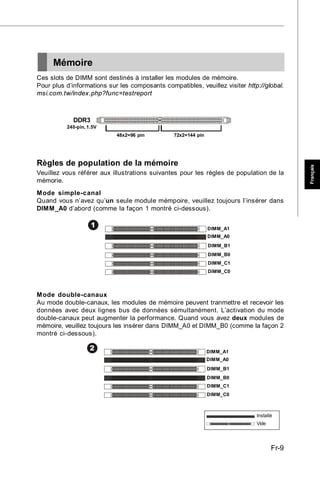
Memory Population Rules
Please refer to the following illustrations for memory population rules.
Single-Channel mode
W hen you have only one memory module, please always insert it into the DIMM_A0
first (as way 1 shown in below).

                    1                                          DIMM_A1
                                                               DIMM_A0
                                                               DIMM_B1
                                                               DIMM_B0
                                                               DIMM_C1
                                                               DIMM_C0


Dual-Channel mode
In Dual-Channel mode, the memory modules can transmit and receive data with two
data bus lines simultaneously. Enabling Dual-Channel mode can enhance the system
performance. W hen you have two memory modules, please always insert them into
the DIMM_A0 & DIMM_B0 (as way 2 shown in below).


                    2                                          DIMM_A1
                                                               DIMM_A0
                                                               DIMM_B1
                                                               DIMM_B0
                                                               DIMM_C1
                                                               DIMM_C0


                                                                           In s t a l le d
                                                                           Em pty


                                                                                   En-9
M S-7566 M ainboard


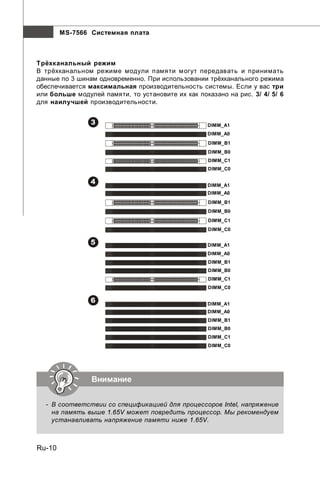
Triple-Channel mode
In Triple-Channel mode, the memory modules can transmit and receive data with
three data bus lines simultaneously. Enabling Triple-Channel mode can enhance the
best system performance. W hen you have three or more memory modules, please
always insert them as the way 3/ 4/ 5/ 6 (shown in below) to get the best system
performance.


                 3                                      DIMM_A1
                                                        DIMM_A0
                                                        DIMM_B1
                                                        DIMM_B0
                                                        DIMM_C1
                                                        DIMM_C0

                 4                                      DIMM_A1
                                                        DIMM_A0
                                                        DIMM_B1
                                                        DIMM_B0
                                                        DIMM_C1
                                                        DIMM_C0

                 5                                      DIMM_A1
                                                        DIMM_A0
                                                        DIMM_B1
                                                        DIMM_B0
                                                        DIMM_C1
                                                        DIMM_C0

                 6                                      DIMM_A1
                                                        DIMM_A0
                                                        DIMM_B1
                                                        DIMM_B0
                                                        DIMM_C1
                                                        DIMM_C0


   - According to Intel CPU SPEC, DIMMs with voltage setting over 1.65V may
     damage the CPU permanently. We recommend you install the DIMMs with the
     voltage setting below 1.65V.


En-10
English
              Important


- DDR3 memory modules are not interchangeable with DDR2 and the DDR3
  standard is not backwards compatible. You should always install DDR3
  memory modules in the DDR3 DIMM slots.
- In Triple/ Dual-Channel mode, make sure that you install memory modules of
  the same type and density in different channel DIMM slots.
- To enable successful system boot-up, always insert the memory modules
  into the DIMM _A0 first.
- Due to the chipset resource deployment, the system density will only be
  detected up to 23+GB (not full 24GB) when each DIMM is installed with a 4GB
  memory module.
- When you install incorrect memory module (the SA2-pin of the memory
  module connects to Ground) in the DIMM_C0/C1, the LED beside DIMM_C0
  will light red color to remind you. The position of the LED is shown as below.
  Double confirm with your memory module vender for the third channel supports.


                                                                           En-11
M S-7566 M ainboard


Installing Memory Modules
1. The memory module has only one notch on the center and will only fit in the right
   orientation.

2. Insert the memory module vertically into the DIMM slot. Then push it in until the
   golden finger on the memory module is deeply inserted in the DIMM slot. The plastic
   clip at each side of the DIMM slot will automatically close when the memory module
   is properly seated.


                  Important


   You can barely see the golden finger if the memory module is properly inserted
   in the DIMM slot.


3. Manually check if the memory module has been locked in place by the DIMM slot
   clips at the sides.


                                 Volt            Notch


En-12
Power Supply


                                                                                         English
ATX 24-Pin Power Connector: JPWR1
                                                                              pin 13
This connector allows you to connect an ATX 24-pin power supply.
To connect the ATX 24-pin power supply, make sure the plug of the
power supply is inserted in the proper orientation and the pins are
aligned. Then push down the power supply firmly into the connector.
You may use the 20-pin ATX power supply as you like. If you’d like
to use the 20-pin ATX power supply, please plug your power sup-
ply along with pin 1 & pin 13 (refer to the image at the right hand).           pin 12


                                             Pin Definition
                12        24       PIN     SIGNAL         PIN        SIGNAL
                                   1       +3.3V          13         +3.3V
                                   2       +3.3V          14         -12V
                                   3       GND            15         GND
                                   4       +5V            16         PS-ON#
       JPWR1                       5       GND            17         GND
                                   6       +5V            18         GND
                                   7       GND            19         GND
                                   8       PWR OK         20         Res
                                   9       5VSB           21         +5V
                                   10      +12V           22         +5V
                1         13       11      +12V           23         +5V
                                   12      +3.3V          24         GND


ATX 8-Pin Power Connector: JPWR2
This power connector is used to provide power to the CPU.

                                                    Pin Definition
                 4        8
                                              PIN SIGNAL PIN SIGNAL
      JPWR2                                   1     GND     5   +12V
                                              2     GND     6   +12V
                 1        5
                                              3     GND     7   +12V
                                              4     GND     8   +12V


                     Important

  1. Make sure that all the connectors are connected to proper ATX power sup-
     plies to ensure stable operation of the mainboard.
  2. Power supply of 450 watts (and above) is highly recommended for system
     stability.
  3. ATX 12V power connection should be greater than 18A.


                                                                                 En-13
M S-7566 M ainboard


         Back Panel
                                         1394 Port (optional)
                                                                          LAN
    Mouse                USB Ports


  Keyboard


            Clear CMOS          eSATA Ports                              USB Ports        Debug LED
            Button


  M ouse/Keyboard
The standard PS/2® mouse/keyboard DIN connector is for a PS/2® mouse/keyboard.
  Clear CMOS Button
There is a CMOS RAM on board that has a power supply from external battery to
keep the system configuration data. With the CMOS RAM, the system can automati-
cally boot OS every time it is turned on. If you want to clear the system configuration,
use the button to clear data. Press the button to clear the data.


                    Important

   Make sure that you power off the system before clearing CMOS data.


  1394 Port (optional)
The IEEE1394 port on the back panel provides connection to IEEE1394 devices.
  eSATA Port
The eSATA port is for attaching the eSATA external hard drive.
  LAN
The standard RJ-45 LAN jack is for connection to                 Yellow                     Green / Orange
the Local Area Network (LAN). You can connect
a network cable to it.

  LED     Color    LED State                 Condition

                   Off                    LAN link is not established.
  Left    Yellow   On (steady state)      LAN link is established.
                   On (brighter & pulsing) The computer is communicating with another computer on the LAN.

          Green    Off                    10 Mbit/sec data rate is selected.
  Right            On                     100 Mbit/sec data rate is selected.
          Orange   On                     1000 Mbit/sec data rate is selected.

En-14
English
  USB Port
The USB (Universal Serial Bus) port is for attaching USB devices such as keyboard,
mouse, or other USB-compatible devices.

  Debug LED
Please refer to the table below to get more information about the Debug LED message.

   Post         Status
   FF           Power on and first initialize CPU.
   C0, C1, C2 Early CPU Initialize.
   C4, C6       Initialize chipset.
   D4, D5       Initialize memory.
   08           Initialize keyboard.
   2A, 31       Initialize onboard devices. Load Option ROM (VGA and RAID
                option ROM) form BIOS to memory.
   37           Displaying sign-on message, CPU information, setup key
                message and any OEM specific information.
   38           Initialize USB device and different devices.
   3C           Mid POST initialization of chipset registers. Detect different
                devices (parallel ports, serial ports and coprocessor in CPU…etc.)
   75, 78       Initialize INT 13 devices and IPL devices. (include SATA/ PATA
                HDD and CD/DVD ROM).
   87           Enter setup screen. BIOS setup if needed/ requested.
   A4           W ait for user input at configuration display if needed.
   A7           Display the system configuration screen if enabled.
   B1           Save system context for ACPI (Advanced Configuration and Power
                Interface). Prepare give control to OS loader (INT 19H).
   00           Pass control to OS Loader (typically INT 19H).
   AA           Enter OS (Vista or W indows XP).


                                                                                 En-15
M S-7566 M ainboard


     Connectors

Serial ATA Connector: SATA1~10
This connector is a high-speed Serial ATA interface port. Each connector can connect
to one Serial ATA device.


        SATA1_3


        SATA2_4
                                      SATA1~6
                                      are supported by ICH10R


        SATA5_6


        SATA7_8                      SATA7~8
                                     are supported by first JM B322


                                     SATA9~10
        SATA9_10
                                     are supported by second JM B322


                   Important


    1. Please do not fold the Serial ATA cable into 90-degree angle. Otherwise,
       data loss may occur during transmission.
    2. Please always use the Intel default SATA connectors (SATA1~6) first.


En-16
Fan Power Connectors: CPUFAN1, SYSFAN1~5
The fan power connectors support system cooling fan with +12V. W hen connecting


                                                                                                               English
the wire to the connectors, always note that the red wire is the positive and should
be connected to the +12V; the black wire is Ground and should be connected to GND.
If the mainboard has a System Hardware Monitor chipset on-board, you must use a
specially designed fan with speed sensor to take advantage of the CPU fan control.
           CONTROL
  SENSOR


                                                              SENSOR
  +1 2V
  GND


                                                              +1 2V
                                                              GND


                                                                                                    +1 2V
                                                                                                    GND
                                               +1 2V
                                               GND
                                            SENSOR


                                                                                                    NC
                               GND                                                    GND
                               +12V                                                   +12V
                               SENSOR                                                 NC

 CPUFAN1                  SYSFAN1           SYSFAN2          SYSFAN3         SYSFAN4           SYSFAN5


                            Important


   1. Please refer to the recommended CPU fans at processor’s official website
      or consult the vendors for proper CPU cooling fan.
   2. CPUFAN1 supports fan control. You can install Overclocking Center util-
      ity that will automatically control the CPU fan speed according to the actual
      CPU temperature.
   3. SYSFAN1~3 support fan control, too. You may select how percentage of
      speed for the SYSFAN1/2/3 in BIOS.


IEEE1394 Connector: J1394_1 (optional)
This connector allows you to connect the IEEE1394 device via an optional IEEE1394
bracket.
                                                                       Pin Definition
                                                       PIN    SIGNAL            PIN          SIGNAL
                          J1394_1                      1      TPA+              2            TPA-

                      9                 1              3      Ground            4            Ground
                     10                 2              5      TPB+              6            TPB-

                                                       7      Cable power       8            Cable power

                                                       9      Key (no pin)      10           Ground


                                                                       IEEE1394 Bracket (Optional)


                                                                                                       En-17
M S-7566 M ainboard


Front Panel Connectors: JFP1, JFP2
These connectors are for electrical connection to the front panel switches and LEDs.
The JFP1 is compliant with Intel® Front Panel I/O Connectivity Design Guide.

                                                   JFP1 Pin Definition

                                   PIN    SIGNAL             DESCRIPTION
          JFP1                     1      HD_LED +           Hard disk LED +

         10    9                   2      PWR/SLP LED        MSG LED
 Power -           + Reset         3      HD_LED -           Hard disk LED -
 Switch +          - Switch        4      PWR/SLP LED        MSG LED
  Power            - HDD           5      RST_SW -           Reset Switch -
  LED              + LED
          2    1                   6      PWR_SW +           Power Switch +
                                   7      RST_SW +           Reset Switch +
                                   8      PWR_SW -           Power Switch -
                                   9      RSVD               Reserved. Do not use.


                                                              JFP2 Pin Definition

                       JFP2                          PIN     SIGNAL                  DESCRIPTION
                       8      7                      1       GND                     Ground
                   +
                       -                             2       SPK-                    Speaker-
         Speaker                  Power
                       +                             3       SLED                    Suspend LED
                   -              LED
                                                     4       BUZ+                    Buzzer+
                       2      1
                                                     5       PLED                    Power LED
                                                     6       BUZ-                    Buzzer-
                                                     7       NC                      Key (No Pin)
                                                     8       SPK+                    Speaker+


Serial Port Connector: JCOM1
This connector is a 16550A high speed communication port that sends/receives 16
bytes FIFOs. You can attach a serial device.

                                                              Pin Definition

                                                   PIN     SIGNAL       DESCRIPTION
                    JCOM1
                                                     1     DCD          Data Carry Detect
              2                   10                 2     SIN          Serial In or Receive Data
              1                   9                  3     SOUT         Serial Out or Transmit Data
                                                     4     DTR          Data Terminal Ready
                                                     5     GND          Ground
                                                     6     DSR          Data Set Ready
                                                     7     RTS          Request T Send
                                                                                   o
                                                     8     CTS          Clear To Send
                                                     9     RI           Ring Indicate


En-18
TPM Module Connector: JTPM1
This connector connects to a TPM (Trusted Platform Module) module (optional). Please


                                                                                                  English
refer to the TPM security platform manual for more details and usages.


            2               14
            1               13

                   JTPM 1


    Pin   Signal      Description                    Pin      Signal   Description
    1     LCLK        LPC clock                      2        3V_STB   3V standby power
    3     LRST#       LPC reset                      4        VCC3     3.3V power
    5     LAD0        LPC address & data pin0        6        SIRQ     Serial IRQ
    7     LAD1        LPC address & data pin1        8        VCC5     5V power
    9     LAD2        LPC address & data pin2        10       KEY      No pin
    11    LAD3        LPC address & data pin3        12       GND      Ground
    13    LFRAME#     LPC Frame                      14       GND      Ground


D-LED2 Connector: JDLED2
This connector connects to a D-LED2 (Debug-LED2) panel (optional), which shows
information on the panel for you and identify the current status or mode of the
connected system. Please refer to the D-LED2 quick guide for more details and
usages.
                                                12       11

                                  JDLED2
                                                2        1


Chassis Intrusion Connector: JCI1
This connector connects to the chassis intrusion switch cable. If the chassis is
opened, the chassis intrusion mechanism will be activated. The system will record
this status and show a warning message on the screen. To clear the warning, you
must enter the BIOS utility and clear the record.

                                           CINTRU             1
                                              GND             2

                                                     JCI1

                                                                                          En-19
M S-7566 M ainboard


Front USB Connector: JUSB1/ JUSB2
These connectors, compliant with Intel® I/O Connectivity Design Guide, is ideal for
connecting high-speed USB interface peripherals such as USB HDD, digital cameras,
M P3 players, printers, modems and the like.


                                                            Pin Definition
                                          PIN       SIGNAL           PIN     SIGNAL
            JUSB1/ JUSB2
                                          1         VCC              2       VCC
        2              10                 3         USBD-            4       USBD-
        1               9                 5         USBD+            6       USBD+
                                          7         GND              8       GND
                                          9         Key (no pin)     10      NC


                                                               USB 2.0 Bracket
                                                                 (optional)


                  Important

   Note that the pins of VCC and GND must be connected correctly to avoid
   possible damage.


GreenPower Genie Connector: JSMB1
This connector connects to GreenPower Genie (optional). Pleas e refer to the
GreenPower Genie manual for more details and usages.


                                      2         1

                                      JSMB1


En-20
Buttons and Knob


                                                                                         English
The motherboard provides the following buttons for you to set the computer’s function.
This section will explain how to change your motherboard’s function through the use
of button.


Power Button: POWER1
This power button is used to turn-on or turn-off the system. Press the button to turn-
on or turn-off the system. This button will light after you power-on the system, and
the light will turn-off when you power-off the system.


                                     POWER1


Reset Button: RESET1
This reset button is used to reset the system. Press the button to reset the system.
This button will light when the system is in S0 status.


                                     RESET1


D-LED2 Button: DLED2
This button is used to change the menu on D-LED2 panel. Press the button to change
the menu on D-LED2 panel. Please refer to the D-LED2 quick guide for more details
and usages.


                                     DLED2


GreenPower Button
This button is used to switch GreenPower function of system. Once you press the
button, the system will switch the GreenPower between disable and auto mode.


                                                                               En-21
M S-7566 M ainboard


OC Dial Button and OC Dial Knob
These button and knob are used to adjust the FSB.


                       OC Dial Knob            OC Dial Button


You can use them to change base clock at any time under the operating systems.
This method does not need to install software or reboot. Please follow the steps
below to increase or decrease the frequency of base clock.
1. Press the OC Dial button to start adjustment. The OC Dial LED will light to indicate
   current operation.
2. Turn the OC Dial knob clockwise/anti-clockwise to increase/decrease base clock.
   You can set the value of OC Dial Step in BIOS.
3. Press the OC Dial button again to complete adjustment. The OC Dial LED will turn off
   automatically.


                  Important


   1. In order to increase the success rate, you should set parameters of voltage
      in BIOS properly, before you use OC Dial function to overclock the system.
   2. After each of the adjustments, this feature should be shut down. Otherwise,
      it would affect the system performance. Therefore, when you complete the
      adjustment, check whether OC Dial LED is on or off, if OC Dial LED is still
      lit, press the button and then check again.


En-22
Slots


                                                                                        English
PCI (Peripheral Component Interconnect) Express Slot
The   PCI   Express   slot supports the PCI Express interface expansion card.
The   PCI   Express   2.0 x16 supports up to 8.0 GB/s transfer rate.
The   PCI   Express   2.0 x4 supports up to 2.0 GB/s transfer rate.
The   PCI   Express   1.0 x1 supports up to 250 MB/s transfer rate.


                 PCI_E1 supports up to PCI Express 1.0 x1 speed


                 PCI_E2 supports up to PCI Express 2.0 x16 speed


                 PCI_E3 supports up to PCI Express 1.0 x1 speed


                 PCI_E4 supports up to PCI Express 2.0 x16 speed


                 PCI_E5 supports up to PCI Express 2.0 x16 speed


                 PCI_E6 supports up to PCI Express 2.0 x4 speed


                      Important

  1. The mainboard supports ATI CrossFireXTM technology and NVIDIA SLITM
     Multi Graphic solution.
  2 When adding or removing expansion cards, make sure that you unplug the
     power supply first. Meanwhile, read the documentation for the expansion
     card to configure any necessary hardware or software settings for the ex-
     pansion card, such as jumpers, switches or BIOS configuration.


                                                                                En-23
M S-7566 M ainboard


ATI CrossFireXTM (Multi-GPU) Technology
ATI CrossFireXTM is the ultimate multi-GPU performance gaming platform. Enabling
game-dominating power, ATI CrossFireXTM technology enables two or more discrete
graphics processors to work together to improve system performance. ATI CrossFireX
technology allows you to expand your system’s graphics capabilities. It allows you
the ability to scale your system’s graphics horsepower as you need it, supporting up
to two or more ATI RadeonTM HD graphics cards, making this the most scalable gaming
platform ever. The mainboard can auto detect the CrossFireXTM mode by software,
therefore you don’t have to enable the CrossFireXTM in BIOS by yourself. The follow-
ing details the 2-way CrossFireXTM installation.
1. Install one ATI RadeonTM HD graphics card in the first PCIE x16 (PCI_E2) slot , then
   install one ATI RadeonTM HD graphics card in the second PCIE x16 (PCI_E4) slot.
2. W ith two cards installed, an CrossFireXTM Video Link cable is required to connect
   the golden fingers on the top of these two graphics cards (refer to the picture
   below). Please note that although you have installed two or more graphics cards,
   only the video outputs on the graphics card installed in PCI_E2 will work. Hence,
   you only need to connect a monitor to this graphics card.


                                                  CrossFireXTM Video Link cable


                  Important

   1. Mainboard photos shown in this section are for demonstration only. The
      appearance of your mainboard may vary depending on the model you purchase.
   2. If you intend to install TWO graphics cards for CrossFireXTM mode, make
      sure that:
      a. these graphics cards are of the same brand and specifications;
      b. these graphics cards are installed on PCIE_E2 & PCI_E4 slots.
   3. Make sure that you connect an adequate power supply to the power connec-
      tor on the graphics card to ensure stable operation of the graphics card.
   4. Only Windows® XP with Service Pack 2 (SP2)& Windows ® XP Profes
       -sional x64 Edition & Windows ® Vista support the CrossFireXTM function.


En-24
3.W hen all of the hardware and software has been properly set up and installed,


                                                                                      English
  reboot the system. After entering the O.S., click the “Catalyst™ Control Center”
  icon      on the desktop. There is a setting in the Catalyst™ Control Center that
  needs to be enabled for CrossFireX™ to operate. The following aspect appears in
  Catalyst™ Control Center:


  Select the
  Advanced View
  f rom t h e view
  drop menu.


                 Important

   A CrossFireX™ system has four possible display modes:
   • SuperTiling
   • Scissor Mode
   • Alternate Frame Rendering
   • Super Anti-aliasing.
   for more details , pleas e c ons ult the graphic s c ard manual from the
   manufacturer.


                                                                            En-25
M S-7566 M ainboard


NVIDIA 3-Way SLI Technology
NVIDIA 3-W ay SLI (Scalable Link Interface) technology allows three GPUs to run in
sequence within a system to achieve up to triple the performance of a single graph-
ics card. To utilize this technology, the three GPU cards must be connected by 3-Way
SLI bridge cables. Please refer to the following illustrations for enabling the 3-W ay
SLI technology.


                                                                  3-Way SLI bridge
                                                                  short cable


                                                             3-Way SLI bridge
                                                             long cable


                  Important

   Before you configure the 3-SLI platform hardware, please make sure that:
   1. The three graphics cards have to support 3-Way SLI technology and they
      are of the same brand and specifications;
   2. The 3-Way SLI platform requires specific power supply requirement
      which provide the minimum 1000W peak power to support the needs of
      three graphics cards in the system;
   3. The 3-Way SLI platform also requires a chassis that meet the qualifictions
      for running 3-way NVIDIA SLI.
   4. To visit the NVIDIA official website and find the GPUs, power supply and
      chassis that should be approved for 3-Way SLI.


En-26
1. Installing three graphics cards which support 3-W ay SLI technology on black PCI


                                                                                           English
   Express x16 slots. After three cards installed, SLI Bridge cables are required to
   connect the golden fingers on the top of these three graphics cards (fig.1). Please
   note that although you have installed three graphics cards, only the video outputs
   on the first card (which be installed in PCI_E2 slot) will work. Hence, you only need
   to connect a monitor to the first PCI Express card.


                  Fig.1 3-Way SLI Bridge cables connection


                                                                                 En-27
M S-7566 M ainboard


                 Important

  1. Mainboard photos shown in this section are for demonstration only. The
     appearance of your mainboard may vary depending on the model you purchase.
  2. If you intend to install only ONE x16 graphics card, please install this
     graphics card in first PCIE x16 (PCI_E2) slot to run full x16 speed.
  3. If you wish to use 2-way SLI, you must install the two graphics cards in first
     and second PCIE x16 slots (PCI_E2 & PCI_E4). Then, connect two graph-
     ics cards together using the 2 SLI bridge short cables (Fig.2). And remem-
     ber to enable the SLI technology function as the following step 2 & step 3.
                                                ®
  4. 3-Way SLI technology supports Windows Vista only.


               Fig.2 2-Way SLI Bridge cables connection


En-28
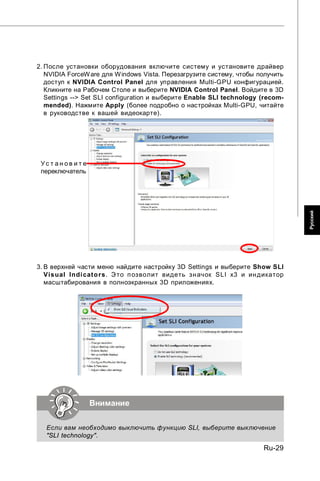
2. After the hardware installation is completed, power on the system and install the
   NVIDIA ForceW are W indows Vista driver. Reboot the system, a NVIDIA Control


                                                                                       English
   Panel will be provided for Multi-GPU control. Right click on windows desktop and
   select NVIDIA Control Panel. Go to 3D Settings --> Set SLI configuration and
   check Enable SLI technology (recommended). Then press Apply. (concerning
   the details of multi-GPU settings, please refer to your graphics card manual).


 Check the box


3. Go to 3D Settings on the top menu options, and check the Show SLI Visual
   Indicators. It will show the SLI x3 lable and a scaling bar in fullscreen 3D
   applications.


                 Important

   If you want to quit the SLI function, make sure that you disable the "SLI
   technology" function.

                                                                             En-29
M S-7566 M ainboard


PCI (Peripheral Component Interconnect) Slot
The PCI slot supports LAN card, SCSI card, USB card, and other add-on cards that
comply with PCI specifications.


                 Important

   This PCI slot doesn’t support 64bit PCI cards.


PCI Interrupt Request Routing
The IRQ, acronym of interrupt request line and pronounced I-R-Q, are hardware lines
over which devices can send interrupt signals to the microprocessor. The PCI IRQ
pins are typically connected to the PCI bus pins as follows:


                      Order 1        Order 2         Order 3        Order 4
   PCI Slot 1         INT A#         INT B#          INT C#         INT D#


En-30
LED Status Indicators


                                                                                                                  English
                                                                            DIMM Warning LED
               CPU Phase LEDs

                                    CPU Load Line LED                                    DDR Phase LEDs


                   QPI Phase LEDs

   eSATA LED


                             IOH Phase LEDs


 PCIE LEDs
                                                         ICH10R SATA LED
                                                                                                   Power LED
                                     PCI LED
                                                         JMB322 RAID LED
                                                                                                  Suspend LED


                                                                                                    HDD LED

                                                                            D LED                  OC Dial LED


CPU Phase LEDs
These LEDs indicate the current CPU power phase mode. Follow the instructions
below to read.

                   6   of   the   LEDs   will   light   blue when   CPU    is   in   6   phase   power    mode.
                   5   of   the   LEDs   will   light   blue when   CPU    is   in   5   phase   power    mode.
                   4   of   the   LEDs   will   light   blue when   CPU    is   in   4   phase   power    mode.
                   3   of   the   LEDs   will   light   blue when   CPU    is   in   3   phase   power    mode.
                   2   of   the   LEDs   will   light   blue when   CPU    is   in   2   phase   power    mode.
                   1   of   the   LEDs   will   light   blue when   CPU    is   in   1   phase   power    mode.

QPI Phase LEDs
These LEDs indicate the current QPI power phase mode. Follow the instructions
below to read.

         2 of the LEDs will light blue when QPI is in 2 phase power mode.
         1 of the LEDs will light blue when QPI is in 1 phase power mode.

                                                                                                          En-31
M S-7566 M ainboard


CPU Load Line LED
Lights blue when the CPU load line is optimized.

IOH Phase LEDs
These LEDs indicate the current IOH power phase mode. Follow the instructions
below to read.

         2 of the LEDs will light blue when IOH is in 2 phase power mode.
         1 of the LEDs will light blue when IOH is in 1 phase power mode.

DDR Phase LEDs
These LEDs indicate the current memory power phase mode. Follow the instructions
below to read.

          3 of the LEDs will light blue when memory is in 3 phase power mode.


          2 of the LEDs will light blue when memory is in 2 phase power mode.


          1 of the LEDs will light blue when memory is in 1 phase power mode.


DIMM Warning LED
Lights red when the incorrect memory installed into DIMM_C0/ DIMM_C1 (the DIMMs
of 3rd channel).


Power LED
Lights green when the system is in power-on(S0/S1) status.


Suspend LED
Lights yellow when the system is suspended (S3/S4/S5 ).


HDD LED
Lights red when hard disk drives are reading or writing.


PCIE and PCI LEDs
Lights blue when the slots is functional.


En-32
eSATA LED


                                                                                     English
Lights red when the eSATA hard disk drives are reading or writing.


ICH10R SATA LED
Lights red when hard disk drives which connected to ICH10R are reading or writing.


JMB322 RAID LED
Lights blue when the RAID hard disk drives are reading or writing.


OC Dial LED
Lights blue when the OC Dial is operating.


                                                                           En-33
M S-7566 M ainboard


      BIOS Setup
This chapter provides basic information on the BIOS Setup program and allows you to
configure the system for optimum use. You may need to run the Setup program
when:
* An error message appears on the screen during the system booting up, and re-
quests you to run BIOS SETUP.
* You want to change the default settings for customized features.


                 Important

   1.The items under each BIOS category described in this chapter are under
   continuous update for better system performance. Therefore, the description
   may be slightly different from the latest BIOS and should be held for reference
   only.
   2.Upon boot-up, the 1st line appearing after the memory count is the BIOS
   version. It is usually in the format:
                                 A7566IMS V1.0 010109 where:
   1st digit refers to BIOS maker as A = AMI, W = AWARD, and P = PHOENIX.
   2nd - 5th digit refers to the model number.
   6th refers to the Chipset vender as A = AMD, I = Intel, V = VIA, N = Nvidia, U =
   ULi.
   7th - 8th digit refers to the customer as MS = all standard customers.
   V1.0 refers to the BIOS version.
   010109 refers to the date this BIOS was released.


En-34
Entering Setup


                                                                                        English
Power on the computer and the system will start POST (Power On Self Test) process.
W hen the message below appears on the screen, press <DEL> key to enter Setup.

                           Press DEL to enter SETUP

If the message disappears before you respond and you still wish to enter Setup,
restart the system by turning it OFF and On or pressing the RESET button. You may
also restart the system by simultaneously pressing <Ctrl>, <Alt>, and <Delete> keys.

Getting Help
After entering the Setup menu, the first menu you will see is the Main Menu.

M ain M enu
The main menu lists the setup functions you can make changes to. You can use the
arrow keys (↑↓ ) to select the item. The on-line description of the highlighted setup
function is displayed at the bottom of the screen.

Sub-M enu
If you find a right pointer symbol (as shown in the right view)
appears to the left of certain fields that means a sub-menu
containing additional options can be launched from this field.
You can use control keys (↑↓ ) to highlight the field and
press <Enter> to call up the sub-menu. Then you can use the control keys to enter
values and move from field to field within a sub-menu. If you want to return to the
main menu, just press <Esc >.

General Help <F1>
The BIOS setup program provides a General Help screen. You can call up this screen
from any menu by simply pressing <F1>. The Help screen lists the appropriate keys
to use and the possible selections for the highlighted item. Press <Esc> to exit the
Help screen.


                                                                               En-35
M S-7566 M ainboard


The M ain Menu
Once you enter AMI® or AWARD ® BIOS CMOS Setup Utility, the Main Menu will appear
on the screen. The Main Menu allows you to select from functions and exit choices.
Use arrow keys to select among the items and press <Enter> to accept or enter the
sub-menu.


Standard CMOS Features
Use this menu for basic system configurations, such as time, date etc.
Advanced BIOS Features
Use this menu to setup the items of AMI® special enhanced features.
Integrated Peripherals
Use this menu to specify your settings for integrated peripherals.
Power M anagement Setup
Use this menu to specify your settings for power management.
H/W Monitor
This entry shows your PC health status.
G reen Power
Use this menu to specify the power phase.
BIOS Setting Password
Use this menu to set the password for BIOS.
Cell M enu
Use this menu to specify your settings for frequency/voltage control and overclocking.
User Settings
Use this menu to save/ load your settings to/ from CMOS for BIOS.
M -Flash
Use this menu to read/ flash the BIOS from storage drive (FAT/ FAT32 format only).
Load Fail-Safe Defaults
Use this menu to load the default values set by the BIOS vendor for stable system
performance.
Load Optimized Defaults
Use this menu to load the default values set by the mainboard manufacturer specifi-
cally for optimal performance of the mainboard.
Save & Exit Setup
Save changes to CMOS and exit setup.
Exit Without Saving
Abandon all changes and exit setup.

En-36
W hen enter the BIOS Setup utility, follow the processes below for general use.


                                                                                        English
1. Load Optimized Defaults : Use control keys (↑↓) to highlight the Load Opti-
   mized Defaults field and press <Enter> , a message as below appears:


  Select [Ok] and press Enter to load the default settings for optimal system
  performance.

2. Setup Date/ Time : Select the Standard CMOS Features and press <Enter> to
   enter the Standard CMOS Features-menu. Adjust the Date, Time fields.


3. Save & Exit Setup : Use control keys (↑↓) to highlight the Save & Exit Setup
   field and press <Enter> , a message as below appears:


  Select [Ok] and press Enter to save the configurations and exit BIOS Setup utility.


                 Important

   The configuration above are for general use only. If you need the detailed
   settings of BIOS, please see the manual in English version on MSI website.


                                                                              En-37
M S-7566 M ainboard


4. Cell Menu Introduction : This menu is for advanced user who want to overclock
   the mainboard.


                 Important

   Change these settings only if you are familiar with the chipset.
  Current Core / DRAM / QPI Frequency
These items show the current clocks of CPU and Memory speed. Read-only.

En-38
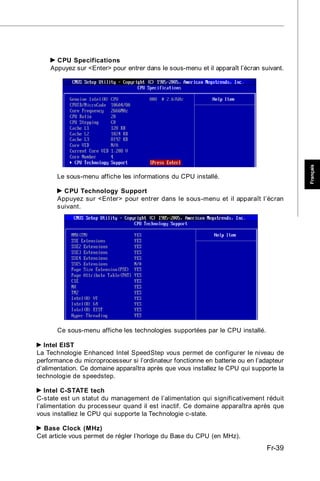
CPU Specifications


                                                                                          English
    Press <Enter> to enter the sub-menu and the following screen appears.


       This sub-menu displays the informations of installed CPU.

         CPU Technology Support
       Press <Enter> to enter the sub-menu and the following screen appears.


       This sub-menu displays the technologies that the installed CPU supported.

   Intel EIST
The Enhanced Intel SpeedStep technology allows you to set the performance level of
the microprocessor whether the computer is running on battery or AC power. This
field will appear after you installed the CPU which support speedstep technology.

  Intel C-STATE tech
C-state is a power management state that significantly reduces the power of the
processor during idle. This field will appear after you installed the CPU which support
c-state technology.

  Base Clock (MHz)
This item allows you to set the CPU Base clock (in MHz).
                                                                                En-39
M S-7566 M ainboard


   Intel Turbo Boost tech
This item will appear when you install a CPU include Intel Turbo Boost technology.
This item is used to enable/ disable Intel Turbo Boost technology. For further informa-
tion please refer to Intel's official website.

  Turbo Boost Tech Config
This sub-menu will appear when you install a CPU include Intel Turbo Boost technology.
Press <Enter> to enter the sub-menu and the following screen appears.


        Turbo Ratio Limit Program
     This item is used to enable/ disable the turbo ratio limit program. Setting to [Enabled]
     activates the following fields, and use the following fields to set each CPU core
     ratio.

          #-Core Ratio Limit
        These items allow you to select the CPU core ratio.

       TDC Limit Override
     Setting to [Enabled] activates the TDC Limit value field, and use the TDC Limit
     value field to set the CPU TDC value.

          TDC Limit value (A)
        This item allows you to select the CPU TDC value (ampere).

       TDP Limit Override
     Setting to [Enable] activates the TDP Limit value field, and use the TDP Limit
     value field to set the CPU TDP value.

          TDP Limit value (W)
        This item allows you to select the CPU TDP value (watt).

  OC Dial Function
This item allows you to enable/disable the OC Dial function. Setting to [Enabled]
activates the following fields, and use the following fields to set each OC Dial function.


En-40
OC Dial Step


                                                                                       English
This item is used to set value of each step when you rotate the OC dial knob.

  OC Dial Reset
Select [Reset] if you need to reset the OC Dial Value.

  OC Dial Value
This item indicates the overclocking value by OC dial function. W hen you rotate the
OC dial knob, this value will change.

   OC Dial Adjusted Base Clock (MHz)
It shows the adjusted base clock by OC Dial function (Base Clock +OC Dial Value).
Read-only.

   Adjusted Core Frequency (M Hz)
It shows the adjusted CPU frequency (Base clock x Ratio). Read-only.

  QPI Configuration
Press <Enter> to enter the sub-menu and the following screen appears.


      QPI Links Speed
    This item allows you to select the QPI links speed type.

      QPI Frequency
    This item allows you to select the QPI frequency.

  M emory -Z
Press <Enter> to enter the sub-menu and the following screen appears.


                                                                             En-41
M S-7566 M ainboard


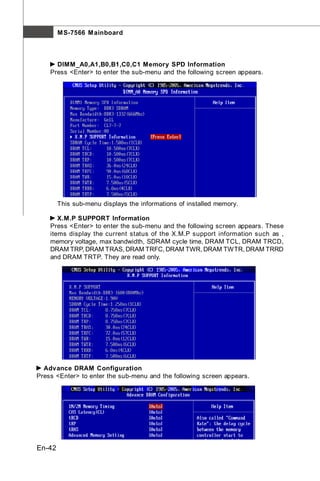
      DIMM _A0,A1,B0,B1,C0,C1 Memory SPD Information
    Press <Enter> to enter the sub-menu and the following screen appears.


        This sub-menu displays the informations of installed memory.

       X.M.P SUPPORT Information
    Press <Enter> to enter the sub-menu and the following screen appears. These
    items display the current status of the X.M.P support information such as ,
    memory voltage, max bandwidth, SDRAM cycle time, DRAM TCL, DRAM TRCD,
    DRAM TRP, DRAM TRAS, DRAM TRFC, DRAM TWR, DRAM TWTR, DRAM TRRD
    and DRAM TRTP. They are read only.


  Advance DRAM Configuration
Press <Enter> to enter the sub-menu and the following screen appears.


En-42
1N/2N M emory Timing


                                                                                          English
    This item controls the SDRAM command rate. Select [1N] makes SDRAM signal
    controller to run at 1N (N=clock cycles) rate. Selecting [2N] makes SDRAM signal
    controller run at 2N rate.

      CAS# Latency (CL)
    This controls the CAS latency, which determines the timing delay (in clock cycles)
    before SDRAM starts a read command after receiving it.

      tRCD
    W hen DRAM is refreshed, both rows and columns are addressed separately.
    This setup item allows you to determine the timing of the transition from RAS
    (row address strobe) to CAS (column address strobe). The less the clock
    cycles, the faster the DRAM performance.

       tRP
    This setting controls the number of cycles for Row Address Strobe (RAS) to be
    allowed to precharge. If insufficient time is allowed for the RAS to accumulate its
    charge before DRAM refresh, refresh may be incomplete and DRAM may fail to
    retain data. This item applies only when synchronous DRAM is installed in the
    system.

      tRAS
    This setting determines the time RAS takes to read from and write to memory
    cell.

      Advanced M emory Setting
    Setting to [Auto] enables the advance memory timing automatically to be deter-
    mined by BIOS. Setting to [Manual] allows you to set advanced memory timings.

   Extreme M emory Profile
This item is used to enable/disable the Intel Extreme Memory Profile (XMP). For further
information please refer to Intel's official website.

  M emory Ratio
This item allows you to set the memory multiplier.

   Adjusted DRAM Frequency (MHz)
It shows the adjusted DDR Memory frequency. Read-only.

  ClockGen Tuner
Press <Enter> to enter the sub-menu and the following screen appears.


                                                                                En-43
M S-7566 M ainboard


      CPU / PCI Express Amplitude Control
    These items are used to select the CPU/ PCI Express clock amplitude.

      CPU CLK Skew/ IOH CLK Skew
    These items are used to select the CPU/ IOH chipset clock skew. They can help
    CPU to reach the higher overclocking performace.

  Adjust PCI Frequency (MHz)
This field allows you to select the PCI frequency (in MHz).

  Adjust PCI-E Frequency (MHz)
This field allows you to select the PCIE frequency (in MHz).

  Auto Disable DRAM /PCI Frequency
W hen set to [Enabled], the system will remove (turn off) clocks from empty DIMM and
PCI slots to minimize the electromagnetic interference (EMI).

  CPU Load Line Calibration
This item allows you to enable/disable CPU Load Line Calibration.

   CPU Voltage (V)/ CPU Vcore/ QPI Voltage (V))/ CPU PLL Voltage (V)/ DRAM
Voltage (V)/ DDR_VREF_CA_A (V)/ DDR_VREF_CA_B (V)/ DDR_VREF_CA_C (V)/
DDR_VREF_DQ_A (V)/DDR_VREF_DQ_B (V), DDR_VREF_DQ_C (V)/ IOH Voltage
(V)/ IOH PCIE Voltage (V)/ ICH Voltage (V)/ nForce 200 Voltage (V)
These items are used to asjust the voltage of CPU, Memory, QPI and chipset.
For CPU Voltage:
The value here is the offset for you to adjust/add based on the current CPU voltage.
Please read the real-time CPU voltage in “CPU Vcore”. Please note the based CPU
Voltage will vary depending on the different CPU you install.
For QPI Voltage:
The value here is the offset for you to adjust/add based on the current QPI voltage.
The default based QPI Voltage is from 1.1V to 1.22V, and it will vary depending on the
different CPU you install. You can read the QPI voltage in GreenPower Center.
For DRAM Voltage:
According to the Inte CPU spec, DRAM Voltage setting 1.65V may damage the CPU
permanently. It is strongly recommended that you install the DRAM with the voltage
setting below 1.65V. You can read the DRAM voltage in GreenPower Center.

   Spread Spectrum
W hen the motherboard’s clock generator pulses, the extreme values (spikes) of the
pulses create EMI (Electromagnetic Interference). The Spread Spectrum function
reduces the EMI generated by modulating the pulses so that the spikes of the pulses
are reduced to flatter curves. If you do not have any EMI problem, leave the setting at
Disabled for optimal system stability and performance. But if you are plagued by EMI,
set to Enabled for EMI reduction. Remember to disable Spread Spectrum if you are
overclocking because even a slight jitter can introduce a temporary boost in clock
speed which may just cause your overclocked processor to lock up.


En-44
English
             Important

1. If you do not have any EMI problem, leave the setting at [Disabled] for
   optimal system stability and performance. But if you are plagued by EMI,
   select the value of Spread Spectrum for EMI reduction.
2. The greater the Spread Spectrum value is, the greater the EMI is reduced,
   and the system will become less stable. For the most suitable Spread
   Spectrum value, please consult your local EMI regulation.
3. Remember to disable Spread Spectrum if you are overclocking because
   even a slight jitter can introduce a temporary boost in clock speed which
   may just cause your overclocked processor to lock up.


                                                                        En-45
M S-7566 M ainboard


      Software Information
Take out the Driver/Utility DVD that is included in the mainboard package, and place it
into the DVD-ROM drive. The installation will auto-run, simply click the driver or utility
and follow the pop-up screen to complete the installation. The Driver/Utility DVD con-
tains the:
Driver menu - The Driver menu shows the available drivers. Install the driver by your
                desire and to activate the device.
Utility menu - The Utility menu shows the software applications that the mainboard
               supports.
Service base menu - The Service base menu shows the necessary websites.


                   Important

   Please visit the MSI website to get the latest drivers and BIOS for better
   system performance.


En-46
Eclipse Plus


                        Deutsch
     Serie
Benutzerhandbuch


    Deutsch

                 De-1
M S-7566 M ainboard


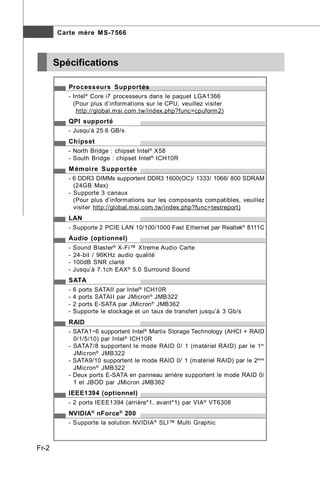
       Spezifikationen

          Proz essoren
          - Intel ® Core i7 Prozessoren für Sockel LGA1366
            (Weitere CPU Informationen finden Sie unter
             http://global.m si.com.tw/index.php?func=cpuform 2)
          QPI
          - Bis zu 25.6 GB/s
          Chipsatz
          - North-Bridge: Intel ® X58 Chipsatz
          - South-Bridge: Intel ® ICH10R Chipsatz
          Speicher
          - 6 DDR3 DIMMs unterstützen DDR3 1600(OC)/ 1333/ 1066/ 800
            SDRAM (max. 24GB)
          - Unterstützt 3-Kanal
            (Weitere Inform ationen zu kom patiblen Speicherm odulen finden
            Sie unter http://global.m si.com.tw/index.php?func=testreport)
          LAN
          - Unterstützt 2 PCIE LAN 10/100/1000 Fast Ethernet über Realtek®
            8111C
          Audio (optional)
          -   Sound Blaster® X-Fi™ Xtreme Audio Karte
          -   24-Bit / 96KHz Audio Qualität
          -   100dB SNR Clarity
          -   Bis zu 7.1-Kanal EAX ® 5.0 Surround Sound
          SATA
          -   6 SATAII Ports über Intel ® ICH10R
          -   4 SATAII Ports über JMicron® JMB322
          -   2 E-SATA Ports über JMicron® JMB362
          -   Unterstützt Datenübertragungsraten von bis zu 3 Gb/s
          RAID
          - SATA1~6 unterstützen die Intel ® Martix Storage Technologie (AHCI
            + RAID 0/1/5/10) über Intel ® ICH10R
          - SATA7/8 unterstützen die Modi RAID 0/ 1 (Hardware RAID) über 1st
            JMicron® JMB322
          - SATA9/10 unterstützen die Modi RAID 0/ 1 (Hardware RAID) über
            2nd JMicron® JMB322
          - Zwei E-SATA Ports auf hinteres Anschlusspanel unterstützen die
            Modi RAID 0/ 1 & JBOD über JMicron JMB362
          IEEE1394 (optional)
          - 2 IEEE1394 Ports (Rückseite*1, onBoard*1) über VIA ® VT6308
          NVIDIA ® nForce ® 200
          - Unterstützt NVIDIA ® SLI™ Multi Grafik Auflösung


De-2
ATI CrossFireX™
- Unterstützt ATI CrossFireX™
Anschlüsse
Hintere Ein-/ und Ausgänge
- 1 PS/2 Mausanschluss


                                                                                  Deutsch
- 1 PS/2 Tastaturanschluss
- 1 1394 Anschluss
- 2 eSATA Anschlüsse
- 8 USB 2.0 Anschlüsse
- 2 LAN Anschlüsse
- 1 Debug LED
- 1 CMOS leeren-Taste
On-Board Stiftleisten/ Anschlüsse
- 2 USB 2.0 Stiftleisten
- 1 1394 Stiftleiste (optional)
- 1 Gehäusekontaktschalter
- 1 Serielle Stiftleiste
- 1 TPM Module Stiftleiste
- 1 D-LED2 Stiftleiste
- 1 GreenPower Genie Anschluss
- 1 Ein-/ Aus-Schalter
- 1 Reset-Taste
- 1 D-LED2 Taste
- 1 GreenPower Taste
- 1 OC Dial Taste
- 1 OC Dial Knopf
TPM
- Unterstützt TPM
Steckplätze
- 3 PCI Express® gen2 x16 -Steckplätze
- 1 PCI Express® x16 -Steckplatz, unterstützt die Geschwindigkeit bis zu
  PCI Express® Gen.2 x4
- 2 PCI Express® Gen.1 x1 -Steckplätze
- 1 PCI -Steckplätze, unterstützen 3.3V/ 5V PCI Bus Interface
Form Faktor
- ATX (30.5cm X 24.5cm)
M ontage
- 9 Montagebohrungen


                                                                           De-3
M S-7566 M ainboard


            Komponenten-Übersicht


                                                               CPUFAN1, De-17
                JPWR2, De-13           CPU, De-5


                                                                                         DDR3, De-9


  Back Panel,
  De-14


                                                                                         JPWR1, De-13

SY SFA N1/ 4,
De-17                                                                                    JCI1, De-19
                                                                                         JSMB1, De-20


PCIE slots,
De-23

                                                                                        SATA1~10,
                                                                                        De-16

PCI slot,
De-30
                                                                                         JFP1, De-18
PCIE slots,                                                                              JFP2, De-18
De-23                                                                                    SYSFAN2, De-17
                                                                        DL ED


                                                                                         JDLED2, De-19

                                   J C O M 1 , J US B 1 /2 ,                      POWER1, De-21
            SYSFAN3,                                                            RESET1, De-21
                                   De-18       De-20
            De-17
                               JTPM1, De-19                            D-LED2, De-21
                                                                    GreenPower button, De-21
                                                                  OC Dial button, De-22
                    J1394_1, De-17                             OC Dial knob, De-22
                                                           SYSFAN5, De-17


    De-4
CPU (Prozessor)
Wenn Sie die CPU einbauen, stellen Sie bitte sicher, dass Sie auf der CPU
einen Kühler anbringen, um Überhitzung zu vermeiden. Verfügen Sie über
keinen Kühler, setzen Sie sich bitte mit Ihrem Händler in Verbindung, um einen solchen
zu erwerben und zu installieren.
Um die neuesten Informationen zu unterstützten Prozessoren zu erhalten, besuchen
Sie bitte http://global.msi.com.tw/index.php?func=cpuform2


                                                                                                    Deutsch
                     Wichtig


    Überhitzung
    Überhitzung beschädigt die CPU und das System nachhaltig. Stellen Sie
    stets eine korrekte Funktionsweise des CPU Kühlers sicher, um die CPU vor
    Überhitzung zu schützen. Überprüfen Sie eine gleichmäßige Schicht der
    thermischen Paste (oder thermischen Klebeandes) zwischen der CPU und
    dem Kühlblech anwenden, um Wärmeableitung zu erhöhen.
    CPU Wechsel
    Stellen Sie vor einem Wechsel des Prozessors stets sicher, dass das ATX
    Netzteil ausgeschaltet und der Netzstecker gezogen ist, um die Unversehrtheit
    der CPU zu gewährleisten.
    Übertakten
    Dieses Motherboard wurde so entworfen, dass es Übertakten unterstützt.
    Stellen Sie jedoch bitte sicher, dass die betroffenen Komponenten mit den
    abweichenden Einstellungen während des Übertaktens zurecht kommen. Von
    jedem Versuch des Betriebes außerhalb der Produktspezifikationen kann nur
    abgeraten werden. Wir übernehmen keinerlei Garantie für die Schäden
    un d Ri sike n, die aus unz uläs sig em o der Bet rieb je nsei ts d er
    Produktspezifikationen resultieren.

   Erklärung zur LGA 1366 CPU                    Die Obserseite der LGA 1366
   Die Pin-Seite der LGA 1366 CPU.               CPU. Vergessen Sie nicht, etwas
                                                 Siliziumwärmeleitpaste auf die
                                                 C P U au f z u t r a g e n , u m ei n e
                                                 Ableitung der Hitze zu erzielen.


                  Justierung                                     Justierung


        Das gelbe Dreieck des Prozessors            Das gelbe Dreieck des Prozessors
        definiert die Position des ersten Pins      definiert die Position des ersten Pins

                                                                                             De-5
M S-7566 M ainboard


CPU & Kühler Einbau
Wenn Sie die CPU einbauen, stellen Sie bitte sicher, dass Sie auf der CPU einen Kühler
anb r i ng en, um Ü ber hi t z un g z u ver mei den . Verg es s en S i e n i c h t , et was
Siliziumwärmeleitpaste auf die CPU aufzutragen, bevor Sie den Prozessorkühler
installieren, um eine Ableitung der Hitze zu erzielen.
Folgen Sie den Schritten unten, um die CPU und den Kühler ordnungsgemäß zu
installieren. Ein fehlerhafter Einbau führt zu Schäden an der CPU und dem Mainboard.

1. Öffnen Sie den                                2. Klappen Sie den Hebel ganz auf und
   Sockelverschlusshebel.                           öf fnen Sie die Metallversc hlus s-
                                                    klappe.


3. Der CPU-Sockel besitzt zum Schutz             4. Vergewissern Sie sich anhand der
   eine Plastikabdeckung. Lassen Sie                Justiermarkierungen und dem gelben
   vor der Installation dies e Schutz-              Dreieck, daß die CPU in der korrekten
   kappe auf dem Sockel um Schäden                  Position ist. Setzen Sie anschließend
   zu vermeiden. Entfernen Sie zuerst               die CPU in den Sockel.
   die Schutzkappe wie abgebildet in
   Pfeilrichtung.


                                                            Justiermarkierungen


De-6
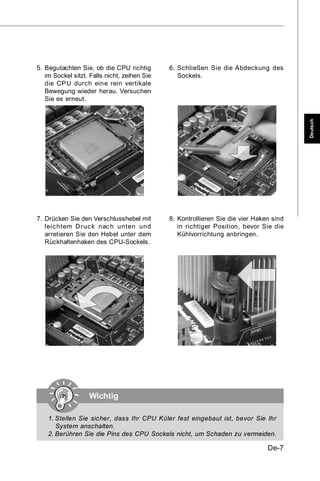
5. Begutachten Sie, ob die CPU richtig        6. Schließen Sie die Abdeckung des
   im Sockel sitzt. Falls nicht, zeihen Sie      Sockels.
   die CPU durch eine rein vertikale
   Bewegung wieder herau. Versuchen
   Sie es erneut.


                                                                                         Deutsch
7. Drücken Sie den Verschlusshebel mit        8. Kontrollieren Sie die vier Haken sind
   leic htem Dr uc k nac h unten und             in richtiger Position, bevor Sie die
   arretieren Sie den Hebel unter dem            Kühlvorrichtung anbringen.
   Rückhaltenhaken des CPU-Sockels.


                   Wichtig

    1. Stellen Sie sicher, dass Ihr CPU Küler fest eingebaut ist, bevor Sie Ihr
       System anschalten.
    2. Berühren Sie die Pins des CPU Sockels nicht, um Schaden zu vermeiden.

                                                                                De-7
M S-7566 M ainboard


9. Frühren Sie den CPU-Kühler über den     10. Drücken Sie die vier Stifte nach unten
   CPU-Sockel und positionieren Sie die        um den Kühler zu arretieren.
   Arretierungsstifte des Kühlers über
   die dafür vorgesehenen Löcher des
   Mainboards. Drücken Sie den Kühler
   nach unten bis die Stif te in den
   Löchern eingerastet.


11. Drehen Sie das Mainboard um und        12.Schließlich bringen Sie das CPU
    vergewissern Sie sich, dass das           Kühlerkabel zum CPU Kühlerstecker
    der Kühler korrekt installiert ist.       auf dem Mainboard an.


 Mainboard


             Haken


                     Wichtig


   1. Prüfen Sie die Status der CPU im BIOS.
   2. Wenn keine CPU installiert ist, schützen Sie immer den CPU-Sockel
      durch die Plastikabdeckung (Figur 1).
   3. Die Mainboard Fotos, die in diesem Abschnitt gezeigt werden, sind für Dem-
      onstration der CPU/ Kühler Installation. Das Aussehen Ihres Mainboard kann
      abhängig von dem Modell schwanken, das Sie kaufen.
   4. Beziehen Sie bitte sich die auf Unterlagen im CPU Kühlerpaket für mehr
      Details über die CPU Kühlerinstallation.


De-8
Speicher
Diese DIMM-Steckplätze nehmen Arbeitsspeichermodule auf.
Die neusten Informationen über kompatible Bauteile finden Sie unter http://global.msi.
com.tw/index.php?func=testreport


           DDR3


                                                                                               Deutsch
        240-polig, 1.5V
                           48x2=96 Pole        72x2=144 Pole


Hinweise für den Einsatz von Speichermodulen
Bitte beachten Sie die folgenden Abbildungen zum Speichereinbau.
Einkanal- M odus
Wenn Sie nur ein Speichermodule haben, verwenden Sie es immer in DIM M_A0
zuerst (Figur 1. im Folgenden gezeigt).

                    1                                          DIMM_A1
                                                               DIMM_A0
                                                               DIMM_B1
                                                               DIMM_B0
                                                               DIMM_C1
                                                               DIMM_C0


Z weikanal-M odus (Dual Channel)
Im Zweikanal-Modus können Arbeitsspeichermodule Daten über zwei Datenbus-
leitungen gleichzeitig senden und empfangen. Durch Aktivierung des Zweikanal-Modus
wird die Leistung Ihres Systems verbessert. Wenn Sie zwei Speicher-module haben,
verwenden Sie sie immer in DIMM_A0 & DIMM_B0 (Figur 2 im Folgenden gezeigt).


                    2                                          DIMM_A1
                                                               DIMM_A0
                                                               DIMM_B1
                                                               DIMM_B0
                                                               DIMM_C1
                                                               DIMM_C0


                                                                            Iinstalliert
                                                                              n s t a l le d
                                                                            leer
                                                                            E m pty


                                                                                    De-9
M S-7566 M ainboard


Drei-Kanal Modus (Triple Channel)
I m Dr ei -C hann el -M od us k ön nen Ar beit s s peic herm od ul e Daten üb er d rei
Datenbusleitungen gleichzeitig senden und empfangen. Durch Aktivierung des Drei-
Kanal-Modus wird die Leistung Ihres Systems nochmals verbessert. Wenn Sie drei
oder mehr Speichermodule haben, bitte setzen Sie s ie immer wie f olgt ein
(Abbildungen 3/ 4/ 5/ 6), um die schnellste und stabilste Systemleistung zu erhalten
ein.
                  3                                        DIMM_A1
                                                           DIMM_A0
                                                           DIMM_B1
                                                           DIMM_B0
                                                           DIMM_C1
                                                           DIMM_C0

                  4                                        DIMM_A1
                                                           DIMM_A0
                                                           DIMM_B1
                                                           DIMM_B0
                                                           DIMM_C1
                                                           DIMM_C0

                  5                                        DIMM_A1
                                                           DIMM_A0
                                                           DIMM_B1
                                                           DIMM_B0
                                                           DIMM_C1
                                                           DIMM_C0

                  6                                        DIMM_A1
                                                           DIMM_A0
                                                           DIMM_B1
                                                           DIMM_B0
                                                           DIMM_C1
                                                           DIMM_C0


   - In Anlehnung an Intel CPU SPEC, kann DIMMs mit der Spannung, die über
     1.65v einstellt, die CPU dauerhaft beschädigen. Wir empfehlen Sie anbringen
     das DIMMs mit der Spannung, die unter 1.65V einstellt.


De-10
Wichtig


- DDR3 und DDR2 können nicht untereinander getauscht werden und der Stan-
  dard DDR3 ist nicht abwärtskompatibel. Installieren Sie DDR3 Speicher-
  module stets in DDR3 DIMM Slots.


                                                                              Deutsch
- Stellen Sie im Drei-/ Zweikanalbetrieb bitte sicher, dass Sie Module des
  gleichen Typs und identischer Speicherdichte in den DIMM Slots
  unterschiedlicher Kanäle verwenden.
- Um einen sicheren Systemstart zu gewährleisten, bestücken Sie immer
  DIM M_A0 zuerst.
- Aufgrund der Chipsatzressourcennutzung wird nur eine Systemdichte bis
  23+GB (nicht volle 24GB) erkannt, wenn jeder DIMM Slot mit einem 4GB
  Speichermodul besetzt wird.
- Wenn Sie falsches Speichermodule (the SA2-Pole des Speichermodule
  schließt an Erde) in DIMM_C0/C1verwenden, leuchtet die LED roten Farbe,
  die neben DIMM5 ist. Die Position der LED wird wie nachstehend gezeigt.
  Bestätigen Sie noch einmal mit Ihrem Verkäufer der Speichermodule für die
  Unterstützung des Drei-Kanal.


                                                                      De-11
M S-7566 M ainboard


Installieren der Arbeitsspeichermodule
1. Das Arbeitsspeichermodul hat nur eine Kerbe in der Mitte und passt nur in eine
   Richtung in den Steckplatz.
2. Stecken Sie das Arbeitsspeichermodul senkrecht in den DIMM-Steckplatz ein.
   Drüc ken Sie ansc hließend das Arbeits speichermodul nach unten, bis die
   Kontaktseite richtig tief in dem DIMM-Steckplatz sitzt. Der Kunststoffbügel an jedem
   E n d e des D I M M - S t ec k p l at z es s c hn ap p t au t om at i s c h ei n , wen n d as
   Arbeitsspeichermodul richtig eingesetzt ist.


                    Wichtig


   Die goldenen Kontakte sind kaum zu sehen, wenn das Arbeitsspeichermodul
   richtig im DIMM-Steckplatz sitzt.

3. Prüfen Sie von Hand, ob das Arbeitsspeichermodul von den seitlichen Bügeln am
   DIMM-Steckplatz richtig gehalten wird.


                                     Volt              Kerbe


De-12
Stromversorgung
ATX 24-poliger Stromanschluss: JPWR1
                                                                         Pole 13
Mit diesem Anschluss verbinden Sie den ATX 24-poligen Anschluss
des Netzteils. Achten Sie bei dem Verbinden des ATX 24-poligen
Stromanschlusses darauf, dass der Anschluss des Netzteils richtig
auf den Anschluss an der Hauptplatine ausgerichtet ist. Drücken
Sie dann den Anschluss des Netzteils fest nach unten, um eine


                                                                                    Deutsch
richtige Verbindung zu gewährleisten.
Sie können auch den 20-poligen ATX-Stromanschluss des Netzteils         Pole 12
verwenden. In diesem Fall muss eine Ecke des 20-poligen ATX-
Stromanschlusses des Netzteils auf den Pol 1 bzw. Pol 13 des Anschlusses an der
Hauptplatine ausgerichtet werden (siehe Abbildung rechts).
                                          Pin Definition
               12        24      PIN    SIGNAL         PIN      SIGNAL
                                 1      +3.3V          13       +3.3V
                                 2      +3.3V          14       -12V
                                 3      GND            15       GND
                                 4      +5V            16       PS-ON#
       JPWR1                     5      GND            17       GND
                                 6      +5V            18       GND
                                 7      GND            19       GND
                                 8      PWR OK         20       Res
                                 9      5VSB           21       +5V
                                 10     +12V           22       +5V
               1         13      11     +12V           23       +5V
                                 12     +3.3V          24       GND


ATX 8-poliger Stromanschluss: JPWR2
Dieser Stromanschluss wird verwendet, um die CPU mit Strom zu versorgen.

                                                 Polzuweisung
                4        8
                                           PIN SIGNAL PIN SIGNAL
      JPWR2                                1     GND    5    +12V
                                           2     GND    6    +12V
                1        5
                                           3     GND    7    +12V
                                           4     GND    8    +12V


                    Wichtig

  1. Stellen Sie sicher, dass diese Anschlüsse mit den richtigen Anschlüssen
     des Netzteils verbunden werden, um einen stabilen Betrieb der Hauptplatine
     sicherzustellen.
  2. Für die Sy stemstabilität ist ein Netzteil mit 450 Watt (oder noch mehr)
     empfehlenswert
  3. Die ATX 12V Stromversorgung sollte mit mehr als 18A erfolgen.
                                                                            De-13
M S-7566 M ainboard


         Rücktafel
                                           1394 Port (optional)
                                                                     LAN
       Maus               USB Ports


     Tastatur


              CMOS leeren         eSATA Ports                       USB Ports           Debug LED
               Taste
  M aus/Tastatur
Die Standard PS/2® Maus/Tastatur Stecker Mini DIN ist für eine PS/2® Maus/Tastatur.
  CM OS leeren-Taste
Der CMOS Speicher wird über eine Batterie mit Strom versorgt, damit die Daten nach
Abschalten des PC-Systems erhalten bleiben. Weiterhin sind Informationen für den
Start des Systems in dem Speicher hinterlegt. Sollten Sie Fehlermeldungen während
des Startvorganges erhalten, kann ein Zurücksetzen des CMO S Speichers in
denursprünglichen Werkszustand helfen. Drücken Sie dazu leicht den Schalter.


                     Wichtig

   Stellen Sie sicher, dass das System ausgeschaltet ist, bevor Sie den CMOS
   Speicher in den Werkszustand zurücksetzen.
  1394 Port (optional)
Das IEEE 1394 Port auf das hintere Anschlusspanel zu den Vorrichtungen IEEE1394.
  eSATA Port
Der eSATA (External Serial ATA) verbindet eSATA Geräte mit Ihrem Mainboard.
   LAN
Die Standard RJ-45 Buchse ist für den Anschluss
zum an ein Lokales Netzwerk (Local Area Network                   Gelb                       Grün / Orange
- LAN). Hier kann ein Netzwerkkabel angeschlossen
werden.
 LED      Farbe     LED Status                    Zustand

                    Aus                           Keine Verbindung mit dem LAN.
 Links    Gelb      An (Dauerleuchten)            Verbindung mit dem LAN.
                    An (heller & pulsierend)      Der Computer kommuniziert mit einem anderen Rechner im LAN.

          Grün      Aus                           Gewählte Datenrate 10 MBit/s.
 Rechts             An                            Gewählte Datenrate 100 MBit/s.
          Orange    An                            Gewählte Datenrate 1000 MBit/s.

De-14
USB Port
Dieser USB (Universal Serial Bus) Anschluss zum direkten Anschluss von USB-
Geräten, wie etwa Tastatur, Maus oder weiterer USB-kompatibler Geräte.

  Debug LED


                                                                                        Deutsch
Beziehen Sie bitte sich die auf unter Tabelle , um mehr Informationen über Debug LED
Meldung zu erhalten.

   Post         Status
   FF           Anschalten und initialisieren zuerst CPU.
   C0, C1, C2 Early CPU Initialize.
   C4, C6       Frühe CPU initialisieren.
   D4, D5       Initialisieren Sie Speicher.
   08           Initialisieren Sie Tastatur.
   2A, 31       Initialisieren Sie Geräte. Laden Sie Option ROM (VGA und RAID
                Option ROM) vom BIOS zum Speicher.
   37           Anzeigen die Meldung der Anmeldeverfahrens, CPU Information,
                die Meldung des Rüst-Schlüssels und irgendwelche spezifischen
                Informationen des Originalherstellers.
   38           Initialisieren Sie USB Gerät und unterschiedlichen Geräten.
   3C           Mittlere POST-Initialisierung der Chipsetregister. Decken Sie
                unterschiedlichen Geräte (Parallel Ports, Serial Ports und der
                Coprozessor in CPU…etc.)
   75, 78       Initialisieren Sie INT 13 Geräte und IPL Geräte. (Schließt SATA/
                PATA HDD und CD/DVD ROM ein).
   87           Anrufen Einstellung Schirm. BIOS installiert, wenn es abgefragt/
                angefordert wird.
   A4           W arten auf Eingabe am Konfigurierbild, wenn es angefordert
                wird.
   A7           Zeigt den Systemkonfiguration Schirm an, wenn es aktiviert
                ist.
   B1           Speichern System Kontext für ACPI (Advanced Configuration and
                Power Interface). Bereitet es die Steuerung zum Betriebssystem
                (INT 19H), um Programm zu laden.
   00           Setzen OS ein (typischerweise INT 19H).
   AA           Eintragen OS (Vista oder W indows XP).
                                                                                De-15
M S-7566 M ainboard


     Anschlüsse

Serial ATA Anschluss: SATA1~10
Der Anschluss ist eine Hochgeschwindigkeitsschnittstelle der Serial ATA. Pro
Anschluss kann ein S-ATA Gerät angeschlossen werden.


        SATA1_3


        SATA2_4
                                    SATA1~6
                                    werden mit ICH10R
                                    unterstütz t.

        SATA5_6


        SATA7_8                    SATA7~8
                                   werden mit erstem JM B322
                                   unterstütz t.


                                   SATA9~10
        SATA9_10
                                   werden mit zweitem JM B322
                                   unterstütz t


                   Wichtig


   1. Bitte falten Sie das Serial ATA Kabel nicht in einem Winkel von 90 Grad,
      da dies zu Datenverlusten während der Datenübertragung führt.
   2. Bitte benutzen Sie immer die Stecker des Intel standard SATA SATA
      Anschlüsse (SATA1~6) zuerst.


De-16
Stromanschlüsse für Lüfter: CPUFAN1, SYSFAN1~5
Die Anschlüsse unterstützen aktive Systemlüfter mit + 12V. Wenn Sie den Anschluss
herstellen, sollten Sie immer darauf achten, dass der rote Draht der positive Pol ist,
und mit +12V verbunden werden sollte. Der schwarze Draht ist der Erdkontakt und
sollte mit GND verbunden werden. Ist Ihr Mainboard mit einem Chipsatz zur
Überwachung der Systemhardware versehen, dann brauchen Sie einen speziellen
Lüfter mit Tacho, um die Vorteile der Steuerung des CPU Lüfters zu nutzen.
        CONTROL
        SENSOR


                                                            SENSOR


                                                                                                              Deutsch
        +1 2V
  GND


                                                            +1 2V
                                                            GND


                                                                                                   +1 2V
                                                                                                   GND
                                            +1 2V
                                            GND
                                         SENSOR


                                                                                                   NC
                            GND                                                      GND
                            +12V                                                     +12V
                            SENSOR                                                   NC

 CPUFAN1               SYSFAN1           SYSFAN2          SYSFAN3           SYSFAN4            SYSFAN5


                         Wichtig

   1. Bitte informieren Sie sich auf der offiziellen Website vom Prozessor über
      empfohlene CPU Kühler oder fragen Sie Ihren Händler nach einem
      geeigneten Lüfter.
   2. C PU FA N un t er s t üt z t die Lü ft e rk on tr o lle. S ie k ö nn en d as Ut ilit y
      O v e r c l o c k i n g C e n t e r i n s t a ll ie r e n , w e l c h e s a u t o m a t i s c h d i e
      Geschwindigkeit des CPU Lüfters in Abhängigkeit von der CPU Temperatur
      steuert.
   3. SYSFAN1~3 auch unterstützt die Lüfterkontrolle. Sie können die Prozentsatz
      der Geschwindigkeit für das SYSFAN1/2/3 im BIOS vorwählen.


IEEE1394 -Sockel: J1394_1 (optional)
Mit diesem Sockel verbinden Sie ein optionales IEEE 1394-Modul, das den Anschluss
eines IEEE 1394-Gerätes ermöglicht.
                                                                     Polzuweisung
                                                    PIN     SIGNAL             PIN          SIGNAL
                       J1394_1                      1       TPA+               2            TPA-

                   9                 1              3       Ground             4            Ground
                  10                 2              5       TPB+               6            TPB-

                                                    7       Cable power        8            Cable power

                                                    9       Key (no pin)       10           Ground


                                                                     IEEE1394 Slotblech (Optional)


                                                                                                     De-17
M S-7566 M ainboard


Frontpanel Anschlüsse: JFP1, JFP2
Diese Anschlüsse sind für das Frontpanel. Sie dienen zum Anschluss der Schalter
und LEDs des Frontpanels. JFP1 erfüllt die Anforderungen des “Intel Front Panel I/O
Connectivity Design Guide“ .
                                                   JFP1 Polzuweisung

                                   PIN    SIGNAL             DESCRIPTION
          JFP1                     1      HD_LED +           Hard disk LED +

         10    9                   2      PWR/SLP LED        MSG LED
 Power -           + Reset         3      HD_LED -           Hard disk LED -
 Switch +          - Switch        4      PWR/SLP LED        MSG LED
  Power            - HDD           5      RST_SW -           Reset Switch -
  LED              + LED
          2    1                   6      PWR_SW +           Power Switch +
                                   7      RST_SW +           Reset Switch +
                                   8      PWR_SW -           Power Switch -
                                   9      RSVD               Reserved. Do not use.


                                                              JFP2 Polzuweisung

                       JFP2                          PIN     SIGNAL                  DESCRIPTION
                       8      7                      1       GND                     Ground
                   +
                       -                             2       SPK-                    Speaker-
         Speaker                  Power
                       +                             3       SLED                    Suspend LED
                   -              LED
                                                     4       BUZ+                    Buzzer+
                       2      1
                                                     5       PLED                    Power LED
                                                     6       BUZ-                    Buzzer-
                                                     7       NC                      Key (No Pin)
                                                     8       SPK+                    Speaker+


Serielle Schnittstelle: JCOM1
Bei der Seriellen Schnittstelle handelt es sich um eine 16550A Hochgeschwindigkeits-
kommunikationsschnittstelle, die 16 Bytes FIFOs sendet/empfängt. An den Stecker
können Sie direkt eine Serielles Gerät anschließen.

                                                              Polzuweisung

                                                   PIN     SIGNAL       DESCRIPTION
                    JCOM1                            1     DCD          Data Carry Detect
              2                   10                 2     SIN          Serial In or Receive Data
              1                   9                  3     SOUT         Serial Out or Transmit Data
                                                     4     DTR          Data Terminal Ready
                                                     5     GND          Ground
                                                     6     DSR          Data Set Ready
                                                     7     RTS          Request T Send
                                                                                   o
                                                     8     CTS          Clear To Send
                                                     9     RI           Ring Indicate


De-18
TPM Modul Anschluss: JTPM1
Dieser Anschluss wird für das optionale TPM Modul (Trusted Platform Module)
verwendt. W eitere Informationen über den Einsatz des optionalen TPM Modules
entnehmen Sie bitte dem TPM Plattform Handbuch.


                                                                                                  Deutsch
            2               14
            1               13

                   JTPM 1


    Pin   Signal      Description                    Pin      Signal   Description
    1     LCLK        LPC clock                      2        3V_STB   3V standby power
    3     LRST#       LPC reset                      4        VCC3     3.3V power
    5     LAD0        LPC address & data pin0        6        SIRQ     Serial IRQ
    7     LAD1        LPC address & data pin1        8        VCC5     5V power
    9     LAD2        LPC address & data pin2        10       KEY      No pin
    11    LAD3        LPC address & data pin3        12       GND      Ground
    13    LFRAME#     LPC Frame                      14       GND      Ground


D-LED2 Anschluss: JDLED2
Der Anschluss ist zur Verwendung mit dem D-LED2 (Debug-LED2) Panel (optional),
die Informationen auf dem Panel fur Sie zeigt und den gegenwärtigen Status oder den
Modus des verbundenen Systems bezeichnen. Beziehen Sie bitte sich die auf dem
D-LED2 Schnelleinstieg für mehr Details und Gebrauchen.
                                                12       11

                                  JDLED2
                                                2        1


Gehäusekontaktanschluss: JCI1
Das Gehäuse kann vor unberechtigtem Öffnen gesichert werden. Dazu wird das
Gehäuse über ein Kabel mit einem Mechanismus verbunden. Dieser Mechanismus
wird aktiviert, sollte die Gehäuse-W and entfernt werden. Das System bemerkt den
Zustand und gibt eine Warnmeldung auf den Bildschirm aus. Die Meldung kann nur
über das BIOS erneut entfernt werden.

                                           CINTRU             1
                                              GND             2

                                                     JCI1

                                                                                          De-19
M S-7566 M ainboard


USB Vorderanschluss: JUSB1/ JUSB2
Dieser Anschluss entspricht den Richtlinien des Intel® I/O Connectivity Design Guide.
Er ist bestens geeignet, Hochgeschwindigkeits- USB- Peripheriegeräte anzuschließen,
wie z.B. USB Festplattenlaufwerke, Digitalkameras, M P3-Player, Drucker,
M odems und ähnliches.

                                                         Polzuweisung

                                           PIN       SIGNAL          PIN   SIGNAL
            JUSB1/ JUSB2
                                           1         VCC             2     VCC
        2               10                 3         USBD-           4     USBD-
        1                9                 5         USBD+           6     USBD+
                                           7         GND             8     GND
                                           9         Key (no pin)    10    NC


                                                               USB 2.0 Slotblech
                                                                  (optional)


                  Wichtig

   Bitte beachten Sie, dass Sie die mit VCC (Stromführende Leitung) und GND
   (Erdleitung) bezeichneten Pins korrekt verbinden müssen, ansonsten kann es zu
   Schäden kommen.


GreenPower Genie Anschluss: JSMB1
Der Anschluss ist zur Verwendung mit dem GreenPower Genie (optional). Weitere
Informationen über GreenPower Genie entnehmen Sie bitte dem GreenPower Genie
Handbuch.


                                       2         1

                                       JSMB1


De-20
Tasten und Knopf

Das Motherboard unterstützt der folgende Taste, um die Funktion des Computers
einzustellen. Dieser Abschnitt beschreibt, wie man die Funktionen des Motherboards
durch den Gebrauch der Taste ändert.


Ein-/Aus-Schalter: POWER1


                                                                                     Deutsch
Dieser Ein-/ Aus-Schalter verwendet, um das System ein- und auszuschalten. Drücken
Sie diese Taste, um das System ein- bzw. auszuschalten.


                                   POWER1


Reset-Taste: RESET1
Diese Reset-Taste wird verwendet, um das System zurückzusetzen. Drücken Sie
diese Taste, um das System zurückzusetzen.


                                   RESET1


D-LED2 Taste: DLED2
Die Taste kann das Menü auf dem D-LED2 Panel ändern. Drücken Sie die Taste, um
das Menü auf dem D-LED2 Panel zu ändern. Beziehen Sie bitte sich die auf dem D-
LED2 Schnelleinstieg für mehr Details und Gebrauchen.


                                    DLED2

GreenPower Taste
Diese Taste kann die GreenPower-Funktion des System schalten. Wenn Sie die Taste
drücken, schält das System das GreenPower zwischen deaktivierter Modus und
automatischer Modus.


                                                                           De-21
M S-7566 M ainboard


OC Dial Taste und OC Dial Knopf
Diese Taste und dieser Knopf können das FSB stellen.


                      OC Dial Knopf           OC Dial Taste


Hier können Sie den FSB Takt unter den Betriebssystemen jederzeit ändern. Sie
brauchen nicht Software oder Neuladen anzubringen. Bitte folgen Sie den unten
Schritten, um die Frenquenz des FSB zuzunahemen oder abzunahemn.
1. Drücken Sie die OC Dial-Taste, um der Abgleich zu starten. Der OC Dial LED
   beleuchtet, um gegenwärtigen Betrieb anzuzeigen.
2. Drehen Sie den OC Dial-Knopf rechts/nach links zum niedrigen Taktgeber der
   Zunahme/der Abnahme. Sie können den W ert des OC Dial-Schrittes im BIOS
   einstellen.
3. Drücken Sie die OC Dial-Taste wieder; um der Abgleich abzusolvieren. Die OC Dial
   LED stellt automatisch ab.


                 Wichtig


   1. Vor Ihnen verwenden Sie OC Dial-Funktion zum Übertaktung das System.
      Um die Erfolgrate zu erhöhen, sollten Sie die Spannung im BIOS richtig
      einstellen.
   2. Nach jeder der Abgleich, sollte diese Eigenschaft geschlossen werden.
      Andernfalls würde es die System Leistung beeinflussen. Folglich wenn
      Sie de r A bgle ic h dur c hf ühre n, übe rprü fen Sie , o b O C Dial L ED
      eingeschaltet oder aus ist. Wenn OC Dial LED noch beleuchtet wird,
      drücken Sie die Taste und überprüfen Sie dann wieder.


De-22
Steckplätze
PCI (Peripheral Component Interconnect) Express Steckplatz
Der PCI Express-Steckplatz unterstützt eine Erweiterungskarte mit der PCI Express-
Schnittstelle.
Der PCI Express 2.0 x16 -Steckplatz unterstützt eine Transferrate von bis zu 8.0 GB/
s.


                                                                                       Deutsch
Der PCI Express 2.0 x4 -Steckplatz unterstützt eine Transferrate von bis zu 2.0 GB/
s.
Der PCI Express 1.0 x1 -Steckplatz unterstützt eine Transferrate von bis zu 250 MB/
s.


               PCI_E1 unterstützt eine Geschwindigkeit bis zu PCI Express 1.0 x1


               PCI_E2 unterstützt eine Geschwindigkeit bis zu PCI Express 2.0
               x16


               PCI_E3 unterstützt eine Geschwindigkeit bis zu PCI Express 1.0 x1


               PCI_E4 unterstützt eine Geschwindigkeit bis zu PCI Express 2.0 x16


               PCI_E5 unterstützt eine Geschwindigkeit bis zu PCI Express 2.0 x16


               PCI_E6 unterstützt eine Geschwindigkeit bis zu PCI Express 2.0 x4


                 Wichtig

   1. Das M ainboard unterstützt die ATI CrossFireX TM Technologie und di e
     Auflösung des NVIDIA SLITM Multi Grafiks.
   2 Achten Sie darauf, dass Sie zuerst das Netzkabel aus der Steckdose
     herausziehen, bevor Sie eine Erweiterungskarte installieren oder entfernen.
     Denken Sie bitte auch daran die Dokumentation der Erweiterungskarte zu
     lesen, um notwendige Hardware- oder Softwareeins tellungen fur die
     Erweiterungskarte wie z.B. Jumper-, Schalter- oder BIOS-Einstellungen
     vorzunehmen.
                                                                               De-23
M S-7566 M ainboard


ATI CrossFireXTM (Multi-GPU) Technologie
ATI CrossFireXTM ist die ultimative Multi-GPU Leistung Spielplattform. Wenn Spiel-
beherrschender Energie ermöglicht, versetzt die ATI CrossFireXTM Technologie in die
Lage zwei oder eigenstandige Graphikprozessoren zusammen zu arbeiten, um Sys-
tem Leistung zu verbessern. Die ATI CrossFireXTM Technologie kann Graphikfähigkeiten
Ihres Systems erweitern. Es erlaubt Ihnen, Graphikpferdestärken Ihres Systems
einzustufen, während Sie es benötigen und stützt bis zwei oder mehr ATI RadeonTM
HD Graphikkarten und überhaupt bildet dieses die skalierbare Spielplattform. Das
Mainboard kann den Modus CrossFireXTM durch Software automatisch detektieren,
des wegen Sie dem Cros s FireX TM im BIOS nic ht aktivieren. Die f olgenden
Detailinformationen sind die zwei-W ege CrossFireXTM Installation.
1. Installieren Sie die die HD Grafikkarte der ATI RadeonTM in den ersten PCIE x16
   (PCI_E2) Slot und bringen Sie die HD Grafikkarte des ATI RadeonTM HD in den
   dritten PCIE x16 (PCI_E4) Slot.
2. W enn zwei Karten angebracht sind, muss ein CrossFireXTM -Videoquerkabel die
   goldenen Finger verbinden, die auf die Oberseite von zwei Grafikkarten stehen
   (beziehen Sie sich die folgende Abbildung). Zur Beachtung: Obwohl Sie have
   zwei Grafikkarten angebracht haben, nur arbeiten die Video-Ausgang auf der
   Grafikkarte in den PCI_E2. So müssen Sie nur einen Monitor an die Grafikkarte.


                                                CrossFireXTM Video Link Kabel


                 Wichtig

   1. Die Mainboarddarstellungen in diesem Abschnitt dienen lediglich
      Demons trationszweck en. Die Ers cheinung Ihres Mainboards k ann in
      Abhängigkeit vom erworbenen Modell abweichen.
   2. Wenn Sie beabsichtigen, ZWEI Grafikkarten für die Modus CrossFireX
      einzusetzen, stellen Sie sicher, dass:
      a. diese Grafikkarten von identischer Marke und Spezifikationen sind;
     b. diese Grafikkarten auf zweier PCIE_E2 & PCI_E4 Slots eingebaut sind.
   3. Stellen Sie s ic her, dass Sie ein ric htige Stromv ers orgung an den
      Stromstecker auf der Graphikkarte anschließen, um beständigen Betrieb
      der Graphikkarte sicherzustellen.
   4. Nur Windows ® XP with Service Pack 2 (SP2)& Windows ® XP Professional
      x64 Edition & Windows ® Vista unterstützt die Funktion des CrossFireX TM .
De-24
3. W enn alle Hardware und Software richtig aufgestellt worden ist und angebracht
  worden, neu starten Sie das System. Nachdem Sie das Betriebssystem eingetragen
  haben,, klicken Sie auf “Catalyst™ Control Center”        Icon auf dem Desktop. Es
  gibt eine Einstellung in der Catalyst™ Control Center, die ermöglicht werden muss,
  damit CrossFire™ funktioniert. Der folgende Aspekt erscheint in Catalyst™ Control
  Center:


                                                                                       Deutsch
W ählen Sie erweiterte
Ans ic ht      vom
Ansichtaufklappmenü
aus.


                  Wichtig

   Ein CrossFireX™ System hat vier mögliche Modi des Displays:
   • SuperTiling
   • Scissor Mode
   • Alternate Frame Rendering
   • Super Anti-aliasing.
   Weitere Informationen befrangen Sie das Benutzerhandbuch der Grafikkarte
   vom Hersteller.


                                                                             De-25
M S-7566 M ainboard


NVIDIA 3-Wege-SLI-Technologie
Die NVIDIA 3-Wege-SLI-(Scalable Link Interface) Technologie ermöglicht es, drei GPUs
innerhalb eines Systems in Reihe zu betreiben, so dass sich die Leistung einer
einzigen Grafikkarte auf das Dreifache steigern lässt. Um diese Technologie zu nutzen,
müssen die drei GPU-Karten über 3-W ege-SLI-Bridge-Kabel verbunden werden. Bitte
sehen Sie sich für den Einsatz der 3-W ege-SLI-Technologie die nachfolgenden
Abbildungen an.


                                                                            K u rz e 3 - We g e -
                                                                            SLI Bridge-Kabel


                                                                       Langes 3-Wege-
                                                                       SLI-Bridge-
                                                                       Kabel


                    Wichtig

   Bitte stellen Sie vor der Konfiguration der 3-Wege-SLI-Plattform-Hardware
   Folgendes sicher:
   1. Die drei Graphikkarten müssen 3-Wege-SLI-Technologie unterstützen,
      müss en von derselben Mark e sein und die gleichen Spez ifikationen
      besitzen;
   2. Die 3-Wege-SLI-Plattform muss spezifische Anforderungen bezüglich
      der Spannungsversorgung erfüllen, so dass sie mit einer Spitzenleistung
      von mindestens 1000 W versorgt wird, um dem Bedarf von drei Grafikkarten
      im System gerecht zu werden;
   3 . 3 - W e ge - S L I- P la tt fo r m e r for d e r t e b e ns o ein G eh ä u se , d as d ie
      Voraussetzungen zum Betrieb von 3-Wege-NVIDIA-SLI erfüllt;
   4. Besuchen Sie die offizielle Website von nVIDIA, um die für 3-Wege-SLI
       zugelassenen GPUs, Spannungsversorgung und Gehäuse ausfindig zu
      machen.


De-26
1. Installieren Sie die drei Grafikkarten mit Unterstützung für 3-Wege-SLI-Technologie
   auf schwarzen PCI-Express-x16-Steckplätzen. Nach der Installation der drei
   Karten sind SLI Bridge-Kabel erforderlich, um die Goldkontakte der drei Grafikkarten
   miteinander zu verbinden (Abb.1). Bitte beachten Sie, dass nur der Video-Ausgang
   der ersten Karte (welche im PCI_E1-Steckplatz installiert ist) funktioniert, auch
   wenn Sie drei Grafikkarten installiert haben. Daher brauchen Sie den Monitor nur
   an die erste PCI-Express-Karte anzuschließen.


                                                                                          Deutsch


                 Abb.1 Anschluss der 3-Wege-SLI Bridge-Kabel


                                                                               De-27
M S-7566 M ainboard


                 Wichtig

  1. Die in dies em Absc hnitt gez eigten M ainboard-Fotos dienen nur z u
     Illus trations z weck en. Das Aus s ehen Ihres M ainboards k ann daher
     entsprechend dem von Ihnen erworbenen Modell abweichen.
  2. Wenn Sie beabsichtigen nur EINE x16-G rafikkarte zu ins tallieren, so
     installieren Sie diese bitte im ersten PCI-E-x16-Steckplatz (PCI_E2), um
     die volle x16-Geschwindigkeit zu erreichen.
  3. W enn Sie 2-W ege-SLI v erwenden möchten, müs s en Sie die zwei
     Grafikkarten in ersten und zweiten PCI-E-x16-Steckplätzen (PCI-E2 und
     PCI_E4) installieren. Anschließend verbinden Sie die zwei Grafikkarten
     über die beiden kurzen SLI-Bridge-Kabel (Abb.2). Denken Sie auch daran,
     die Funktion für SLI-Technologie zu aktivieren, wie in den nachfolgenden
     Schritten 2 und 3 beschrieben.
  4. Die 3-Wege-SLI-Technologie wird nur von Windows ® Vista unterstützt.


               Abb.2 Anschluss der 2-Wege-SLI-Bridge-Kabel


De-28
2. Nachdem die Hardware-Installation abgeschlossen ist, fahren Sie das System
   hoch und installieren die NVIDIA-ForceW are-Treiber für W indows Vista. Nach dem
   Neustart des Systems steht eine NVIDIA Systemsteuerung für Multi-GPU-
   Einstellungen zur Verfügung. Klicken Sie mit der rechten Maustaste in den W in-
   dows-Desktop und wählen Sie die NVIDIA-Systemsteuerung. Gehen Sie zu
   3D-Einstellungen ą W ählen Sie SLI-Konfiguration und aktivieren Sie das Kästchen
   bei SLI- Technolo gie akti v ieren ( empfohle n) (En able SLI Tec hnol ogy
   (recommended). Klicken Sie dann auf Ü bernehmen (Apply) (bezüglich der
   Einstellungen für mehrere Grafikkarten (Multi-GPU) ziehen Sie bitte das Handbuch


                                                                                      Deutsch
   Ihrer Grafikkarte zurate).


 Aktivieren Sie
 das Kästchen.


3. Gehen Sie zu 3D-Einstellungen im Menü oben und aktivieren Sie Visuelle SLI-
   Anzeige anzeigen (Show SLI Visual Indicators). Somit wird bei Vollbild-3D
   Anwendungen der SLI-x3 Hinweis und eine Skalierleiste eingeblendet.


                  Wichtig

   Wenn Sie die SLI-Funktion nicht verwenden möchten, denken Sie bitte daran
   die Funktion “SLI-Technologie” zu deaktivieren.

                                                                            De-29
M S-7566 M ainboard


PCI (Peripheral Component Interconnect) Steckplatz
Die PCI Steckplätze unterstützt LAN Karte, SCSI Karte, USB Karte und andere
Zusatzkarten cards,die mit PCI Spezifikationen übereinstimmen.


                 Wichtig

   Der PCI Steckplatz nicht unterstützt 64Bit PCI Karten.


PCI-Unterbrechungsanforderungs-Routing
Eine IRQ (Interrupt Reques t; Unterbrec hungs anf orderung)-Leitung is t eine
Hardwareleitung, über die ein Gerät Unterbrechungssignale zu dem Mikroprozessor
schicken kann. Die PCI IRQ-Pole werden in der Regel mit dem PCI-Bus-Polen wie folgt
verbunden:

                      Folge 1        Folge 2         Folge 3        Folge4
   PCI Steckplatz 1   INT A#         INT B#          INT C#         INT D#


De-30
LED Statusdikatoren


                                                                 DIMM Warning LED
               CPU Phase LEDs

                                CPU Load Line LED


                                                                                                  Deutsch
                                                                         DDR Phase LEDs


                   QPI Phase LEDs

   eSATA LED


                          IOH Phase LEDs


 PCIE LEDs

                                               ICH10R SATA LED
                                                                                    Power LED
                                    PCI LED
                                               JMB322 RAID LED
                                                                                  Suspend LED


                                                                                     HDD LED


                                                                 D LED              OC Dial LED


LEDs der CPU-Phase
Diese LED zeigen den gegenwärtigen CPU Strromphase Modus an. Lesen Sie die
folgenden Anweisungen.

                6 LEDs leuchten hellblau, wenn CPU in die 6 Phase Strommodus ist.
                5 LEDs leuchten hellblau, wenn CPU in die 5 Phase Strommodus ist.
                4 LEDs leuchten hellblau, when CPU in die 4 Phase Strommodus ist.
                3 LEDs leuchten hellblau, wenn CPU in die 3 Phase Strommodus ist.
                2 LEDs leuchten hellblau, wenn CPU in die 2 Phase Strommodus ist.
                1 LED leuchtet hellblau, wenn CPU in die 1 Phase Strommodus ist.

QPI Phase LEDs
Diese LED zeigen den gegenwärtigen QPI Strromphase Modus. Lesen Sie die
folgenden Anweisungen.

         2 LEDs leuchten hellblau, wenn QPI in die 2 Phase Strommodus ist.
         1 LED leuchtet hellblau, wenn QPI in die 1 Phase Strommodus ist.

                                                                                       De-31
M S-7566 M ainboard


CPU Load Line LED
Leuchtet blau wenn CPU Arbeitsgerade optimiert ist.

IOH Phase LEDs
Diese LEDs zeigen den gegenwärtigen IOH Strromphase Modus an. Lesen Sie die
folgenden Anweisungen.

         2 LEDs leuchten hellblau, wenn IOH in die 2 Phase Strommodus ist.
         1 LED leuchtet hellblau, wenn IOH in die 1 Phase Strommodus ist.

DDR Phase LEDs
Diese LEDs zeigen den gegenwärtigen Speicher Strromphase Modus an. Lesen Sie
die folgenden Anweisungen.

          3 LEDs leuchten hellblau, wenn Speicher in die 3 Phase Strommodus ist.


          2 LEDs leuchten hellblau, wenn Speicher in die 2 Phase Strommodus ist.


          1 LED leuchtet hellblau, wenn Speicher in die 1 Phase Strommodus ist.


DIMM Warning LED
Leuchtet rot, wenn falscher Speicher in DIMM_C0/ DIMM_C1 einsetzen (DIMMs des
3. Kanal).


Power LED
Leuchtet grün, wenn das System anschaltet ist (S0/S1).


Suspend LED
Leuchtet gelb, wenn wenn das System aufgehangt ist(S3/S4/S5 ).


HDD LED
Die Leutchten rot ist, wenn die Festplattenlaufwerke lesen oder erstellen.


PCIE and PCI LEDs
Leuchtet blau, wenn die Steckplätze operativ ist.


De-32
eSATA LED
Leuchtet rot, wenn die eSATA Festplattenlaufwerke lesen oder erstellen.


ICH10R SATA LED
Leuchtet rot, wenn die Festplattenlaufwerke lesen oder erstellen, die mit ICH10R.


                                                                                      Deutsch
JMB322 RAID LED
Leuchtet blau, wenn die RAID Festplattenlaufwerke lesen oder erstellen.


OC Dial LED
Die Leutchten rot ist, wenn OC Dial aktiviert ist.


                                                                              De-33
M S-7566 M ainboard


      BIOS Setup
Dieses Kapitel enthält Informationen über das BIOS Setup und ermöglicht es Ihnen, Ihr
System optimal auf Ihre Anforderungen einzustellen. Notwendigkeit zum Aufruf des
BIOS besteht, wenn:
* W ährend des Bootvorgangs des Systems eine Fehlermeldung erscheint und Sie
zum Aufruf des BIOS SETUP aufgefordert werden.
* Sie die Werkseinstellungen zugunsten individueller Einstellungen ändern wollen.


                  Wichtig

   1.Die Menüpunkte jeder BIOS Kategorie, die in diesem Kapitel beschrieben wird,
   werden permanent auf den neuesten Stand gebracht, um die Systemleistung zu
   verbessern. Aus diesem Grunde kann die Beschreibung geringfügig von der
   aktuellsten Version des BIOS abweichen und sollte dementsprechend lediglich
   als Anhaltspunkt dienen.
   2. Während des Hochfahrens, wird die BIOS Version in der ersten Zeile nach
   dem Hochzählen des Speichers angezeigt, üblicherweise im Format dieses
   Beispiels:
                           A7566IMS V1.0 010109 wobei:
   Die erste Stellen den BIOS-Hersteller bezeichnet, dabei gilt A = AMI, W =
   AWARD, und P = PHOENIX.
   2te - 5te Stelle bezeichnen die Modelnummer.
   6te Stelle bezeichen den Chipsatzhersteller, A = AMD, I = Intel, V = VIA, N =
   Nvidia, U = ULi.
   7te - 8te Stelle beziehen sich auf den Kunden, MS=alle Standardkunden.
   V1.0 bezieht sich auf die BIOS Version.
   010109 bezeichnet das Datum der Veröffentlichung des BIOS.


De-34
Aufruf des BIOS Setups
Nach dem Einschalten beginnt der Computer den POST (Power On Self Test -
Selbstüberprüfung nach Anschalten). Sobald die Meldung unten erscheint, drücken
Sie die Taste <Entf>(<Del>) um das Setup aufzurufen.

                          Press DEL to enter SETUP


                                                                                      Deutsch
         (ENTF drücken, um das Einstellungsprogramm zu öffnen)
Wenn die Nachricht verschwindet, bevor Sie reagieren und Sie möchten immer noch
ins Setup, starten Sie das System neu, indem Sie es erst AUS- und danach wieder
ANSCHALTEN, oder die “RESET”-Taste am Gehäuse betätigen. Sie können das Sys-
tem außerdem neu starten, indem Sie gleichzeitig die Tasten <Strg>,<Alt> und <Entf>
drücken (bei manchen Tastaturen <Ctrl>,<Alt> und <Del>).

Hilfe finden
Nach dem Start des Setup Menüs erscheint zuerst das Hauptmenü.


Hauptmenü
Das Hauptmenü listet Funktionen auf, die Sie ändern können. Sie können die
Steuertasten (↑↓ ) verwenden, um einen Menüpunkt auszuwählen. Die Online-
Bes c hreib ung des her vorgehoben en Menüp un ktes ers c h ein t am unt er en
Bildschirmrand.


Unt erme nüs
W enn Sie an der linken Seite bes timmter F elder ein
Dreieckssymbol finden (wie rechts dargestellt), bedeuted
dies, dass Sie über das entsprechende Feld ein Untermenü
mit zus ätzlic hen Optionen auf rufen können. Durc h die
Steuertasten (↑↓ )önnen Sie ein Feld hervorheben und durch
Drücken der Eingabetaste <Enter> in das Untermenü gelangen. Dort können Sie mit
den Steuertasten Werte eingeben und navigieren. Durch Drücken von <Esc > kommen
Sie zurück ins Hauptmenü.

Allgemeine Hilfe <F1>
Das BIOS Setup verfügt über eine Allgemeine Hilfe (General Help). Sie können diese
aus jedem Menü einfach durch Drücken der Taste <F1> aufrufen. Sie listet die Tasten
und Einstellungen zu dem hervorgehobenen Menüpunkt auf. Um die Hilfe zu verlassen,
drücken Sie <Esc>.


                                                                            De-35
M S-7566 M ainboard


Das Hauptmenü
Nachdem Sie das AMI® oder AWARD ® BIOS CMOS Setup Utility, aufgerufen haben,
erscheint das Hauptmenü. Es weist die Setup- Funktionen und zwei Arten das Menü
zu verlassen auf. Verwenden Sie die Pfeiltasten, um im Menü zu navigieren und
drücken Sie die Eingabetaste (<Enter>), um ein Untermenü aufzurufen.


Standard CMOS Features
In diesem Menü können Sie die Basiskonfiguration Ihres Systems anpassen, so z.B.
Uhrzeit, Datum usw.
Advanced BIOS Features
Verwenden Sie diesen Menüpunkt, um weitergehende Einstellungen an Ihrem Sys-
tem vorzunehmen.
Integrated Peripherals
Verwenden Sie dieses Menü, um die Einstellungen für in das Board integrierte
Peripheriegeräte vorzunehmen.
Power M anagement Setup
Verwenden Sie dieses Menü, um die Einstellungen für die Stromsparfunktionen
vorzunehmen.
H/W Monitor
Dieser Eintrag zeigt den generellen Systemstatus.
G reen Power
Verwenden Sie dieses Menü, um Einstellungen der Stromversorgung vorzunehmen.
BIOS Setting Password
Verwenden Sie dieses Menü, um das Kennwort für das BIOS einzugeben.
Cell M enu
Hier können Sie Ihre Einstellungen zur Kontrolle von Frequenz und Spannung und zur
Übertaktung vornehmen.
User Settings
Hier können Sie Ihre Einstellungen zum/ vom CMOS für BIOS abspeichern/ laden.
M -Flash
In diesem Menü können Sie das BIOS vom Speicher-Antrieb abtasten/ aufblinken(nur
FAT/ FAT32 Format).
Load Fail-Safe Defaults
In diesem Menü können Sie eine stabile, werkseitig gespeicherte Einstellung des
BIOS Speichers laden.
Load Optimized Defaults
I n d ies em M en ü k önn en S i e d ie BI O S -Vorei ns t el l u ng en l ad en, d ie der
Mainboardhersteller zur Erzielung der besten Systemleistung vorgibt.
Save & Exit Setup
Abspeichern der BIOS-Änderungen im CMOS und verlassen des BIOS.
Exit Without Saving
Verlassen des BIOS´ ohne Speicherung, vorgenommene Änderungen verfallen.
De-36
Wenn Sie das BIOS Dienstprogramm öffnen, folgen Sie den untenstehenden
Anweis ungen.
1. Laden der optimalen Voreinstellung : Verwenden Sie die Steuerschlüssel (
   ↑↓ ), um dem Laden der optimalen Voreinstellung zu wählen und drücken Sie
   auf <Eingabe>. Dann erscheint die folgende Meldung:


                                                                                   Deutsch
    Drücken Sie auf [OK] und <Enter>, um die im Werk eingestellten Standardwerte
    für eine optimale Systemleistung zu laden.


2. Die Datum/Zeit Einstellung : W ählen Sie die “Standard-CMOS Features” vor
   und drücken Sie <Eingabe> um das Standard-CMOS Features-Menü zu wählen.
   Passen Sie nun die Felder “Datum” und “Zeit” an.


3. Abspeichern u. Beenden der Einstellung: Verwenden Sie die Steuerschlüssel
   (↑↓ ), um dem Abspeichern u. Beenden der Einstellungen zu wählen und
   drücken Sie auf <Eingabe>. Es erscheint folgende Meldung:


 Drücken Sie auf [OK] und <Enter>, um die (neuen) Einstellungen zu speichern und
 das BIOS Setup zu verlassen.


                Wichtig


  Die Konfiguration oben dienen nur generellen Zwecken. Wenn Sie detaillierte
  BIOS- Einstellungen benötigen, dann s ehen Sie bitte das Handbuch in
  Englischer Sprache auf der MSI Website ein.


                                                                         De-37
M S-7566 M ainboard


4. Cell M enu Introduction : Das Menü ist für den weiteren Benutzer, der die
   Hauptplatine übertakten mögen.


                 Wichtig

   Nur wenn Sie mit dem Chipsatz vertraut sind, können Sie die Einstellung
   ändern .

  Current Core / DRAM / QPI Frequency
Zeigt die derzeitige Frequenz der CPU und die derzeitige Geschwindigkeit des
Speichers. Nur Anzeige.

De-38
CPU Specifications
    Drücken Sie die Eingabetaste <Enter>, um das folgende Untermenü aufzurufen.


                                                                                      Deutsch
      Das Untermenü zeigt die Informationen angebrachter CPU an.

        CPU Technology Support
      Drücken Sie die Eingabetaste <Enter>, um das folgende Untermenü aufzurufen.


      Das Untermenü zeigt die Technologien an, die die angebrachte CPU stützt.

  Intel EIST
Die erhöhte Intel SpeedStep Technologie erlaubt Ihnen, das Leistungsgrad des
Mikroprozessors einzustellen, ob der Computer auf Batterie oder Wechselstrom läuft.
Wenn Sie das CPU Ratio zu justieren möchten, lautet die Einstellung auf “Disabled
(ausgeschaltet)”. Nur Sie brachten die CPU an, das Speedstep Technologie stützen.

  Intel C-STATE tech
C-Status ist ein Stromsparfunktionalität-Zustand, der der Strom des Prozessor
während des Leerlaufs erheblich verringert. Es wird erscheinen, wenn der CPU der
C-Status Technologie unterstützt.

  Base Clock (MHz)
Hier können Sie den CPU Grundtakt (in MHz) angeben.

                                                                            De-39
M S-7566 M ainboard


  Intel Turbo Boost tech
Das Untermenü erscheint, wenn Sie eine CPU anbringen, die die Intel Turbo Boost
Technologie aufnehmt. Und hier können Sie die Intel Turbo Boost Technologie aktiviert/
deaktiviert. Für weitere Informationen beziehen Sie in offizielle Website des Intel.

  Turbo Boost Tech Config
Das Untermenü erscheint, wenn Sie eine CPU anbringen, die die Intel Turbo Boost
Technologie aufnehmtDrücken Sie die Eingabetaste <Enter>, um das folgende
Untermenü aufzurufen.


      Turbo Ratio Limit Program
    Hier können Sie dasTurbo Ratio Limit Program aktivieren/ deaktivieren. Lautet die
    Einstellung auf [Enabled] (eingeschaltet), aktiviert die folgenden Option, um jede
    CPU Core Ratio einzustellen.

          #-Core Ratio Limit
        Hier können Sie das CPU Core Ratio auswählen.

      TDC Limit Override
    Die Einstellungen [Enable] (eingeschaltet), aktiviert den TDC Limit Wert und
    verwenden diesen TDC Limit Wert , um den CPU TDC Value einzustellen.

          TDC Limit value (A)
        Hier können Sie den CPU TDC Wert (ampere) auswählen.

      TDP Limit Override
    Die Einstellungen [Enable] (eingeschaltet), aktiviert den TDP Limit Wert und
    verwenden diesen TDP Limit Wert , um den CPU TDP Value einzustellen.

          TDP Limit value (W)
        Hier können Sie den CPU TDP Wert (watt) auswählen.

  OC Dial Function
Hier können Sie die OC Dial-Funktion aktivieren/ deaktivieren . Lautet die Einstellung


De-40
auf [Enabled] (eingeschaltet), aktiviert die folgenden Option, um jede OC Dial-Funktion
einzustellen.


                                                                                          Deutsch
  OC Dial Step
Hier können Sie den Wert jedes Schrittes einstellen, wenn Sie den OC Dialknopf
drehen.

  OC Dial Reset
W ählen Sie [Reset] aus, wenn Sie den OC Dial Wert zurückstellen müssen.

  OC Dial Value
Hier zeigt den Übertaktungwert durch OC Dial Funktion an. Wenn Sie den OC Dialknopf,
ändert der Wert.

  OC Dial Adjusted Base Clock (MHz)
Zeigt den eingestellten FSB Takt durch OC Dial Funktion (FSB Clock +OC Dial Value).
Nur Anzeige.

  Adjusted Core Frequency (M Hz)
Gibt der verstellt Frequenz des CPU (Grundtakt x Ratio). Nur Anzeige.

  QPI Configuration
Drücken Sie die Eingabetaste <Enter>, um das folgende Untermenü aufzurufen.


      QPI Links Speed
    Hier können Sie die QPI Link Geschwindigkeittyp auswählen.

      QPI Frequency
    Hier können Sie die QPI Frequenz auswählen.

  M emory -Z
Drücken Sie die Eingabetaste <Enter>, um das folgende Untermenü aufzurufen.


                                                                               De-41
M S-7566 M ainboard


      DIMM _A0,A1,B0,B1,C0,C1 Memory SPD Information
    Drücken Sie die Eingabetaste <Enter>, um das folgende Untermenü aufzurufen.


        Das Untermenü zeigt die Informationen angebrachtes Speicheran.

      X.M.P SUPPORT Information
    Drücken Sie die Eingabetaste <Enter>, um das folgende Untermenü aufzurufen.
    Zeigt die momentane Inf ormationen der aktu ellen X.M. P an, z.B . die
    Speicherspannung, die maximale Bandweite, die SDRAM-Taktzeit, DRAM TCL,
    DRAM TRCD, DRAM TRP, DRAM TRAS, DRAM TRFC, DRAM TWR, DRAM TWTR,
    DRAM TRRD und DRAM TRTP. Sie sind schreibgeschützt.


  Advance DRAM Configuration
Drücken Sie die Eingabetaste <Enter>, um das folgende Untermenü aufzurufen.


De-42
1N/2N M emory Timing
    Können Sie hier die DRAM Timing angeben. Legt die SDRAM Kommandorate fest.
    Die Einstellung 1N lässt den SDRAM Signal Kontroller mit einem 1N ((Taktzyklus)
    laufen. Bei 2N läuft er mit zwei Zyklen. 1N ist schneller als 2N.

       CAS# Latency (CL)
    Hier wird die Verzögerung im Timing (in Taktzyklen) eingestellt, bevor das SDRAM


                                                                                                         Deutsch
    einen Lesebefehl nach dessen Erhalt auszuführen beginnt.

      tRCD
    Wenn DRAM erneuert wird, werden Reihen und Spalten separat adressiert. Dies
    gestattet es, die Anzahl der Zyklen und der Verzogerung im Timing einzustellen,
    die zwischen den CAS und RAS Abtastsignalen liegen, die verwendet werden,
    wenn der DRAM beschrieben, ausgelesen oder aufgefrischt wird. Eine hohe
    G es c h wi n d i g k ei t f ü h r t z u h öh er e r L ei s t u n g , w äh r en d l an g s am er e
    Geschwindigkeiten einen stabileren Betrieb bieten.

      tRP
    Legt die Anzahl der Taktzyklen fest, die das Reihenadressierungssignal (Row
    Address Strobe - RAS) für eine Vorladung bekommt. W ird dem RAS bis zur
    Auffrischung des DRAM nicht genug Zeit zum Aufbau seiner Ladung gegeben,
    kann der Refresh unvollständig ausfallen und das DRAM Daten verlieren. Dieser
    Menüpunkt ist nur relevant, wenn synchroner DRAM verwendet wird.

      tRAS
    Stellt die Zeit der RAS Lese- und Schreibzugriffe ein.

       Advanced M emory Setting
    Die Einstellung [Auto] ermöglicht dem vorgerückten Speicher-Timing, die von
    BIOS automatisch festgestellt wird. Lautet die Einstellung [Manual], können Sie
    hier die vorgerückte Speicher-Timing angeben.

   Extreme M emory Profile
Hier können Sie das Extreme-Memory-Profile (X.M.P.) aktiviert/ deaktiviert. Für weitere
Informationen beziehen Sie in offizielle Website des Intel.

  M emory Ratio
Hier können Sie die Speicher-Multiplikator.

  Adjusted DRAM Frequency (MHz)
Gibt den geänderten Frequenz-Wert des DDR Speicher an. Nur Anzeige.

  ClockGen Tuner
Drücken Sie die Eingabetaste <Enter>, um das folgende Untermenü aufzurufen.


                                                                                             De-43
M S-7566 M ainboard


      CPU / PCI Express Amplitude Control
    Gestattet die Wahl der CPU-Takt oder PCI-E Takt.

     CPU CLK Skew/ IOH CLK Skew
    Gestattet die W ahl der CPU/ IOH Chipsatztakt,durch Einstellung eines höheren
    CPU Taktes.

  Adjust PCI Frequency (MHz)
Gestattet die W ahl der PCI Frequenz (in MHz).

  Adjust PCI-E Frequency (MHz)
Gestattet die Wahl der PCI-E Frequenz (in MHz).

   Auto Disable DRAM /PCI Frequency
Lautet die Einstellung auf [Enabled] (eingeschaltet), deaktiviert das System die Taktung
leerer PCI Sockel, um die Elektromagnetische Störstrahlung (EMI) zu minimieren.

  CPU Load Line Calibration
Hier können Sie die CPU Ladelinie Kalibrierung aktivieren/deaktivieren.

  CPU Voltage (V)/ CPU Vcore/ QPI Voltage (V))/ CPU PLL Voltage (V)/ DRAM
Voltage (V)/ DDR_VREF_CA_A (V)/ DDR_VREF_CA_B (V)/ DDR_VREF_CA_C (V)/
DDR_VREF_DQ_A (V)/DDR_VREF_DQ_B (V), DDR_VREF_DQ_C (V)/ IOH Voltage
(V)/ IOH PCIE Voltage (V)/ ICH Voltage (V)/ nForce 200 Voltage (V)
Diese Option bietet bietet die Moglichkeit, die Spannung der CPU, des Speichers und
des QPI sowie des Chipsatz anzupassen.
For CPU Voltage:
Dieser Eintrag ermoglicht innerhalb eines Bereiches die CPU Spannung zu ändern /
anzupassen. Lesen Sie dazu die Standard CPU-Spannung “CPU Vcore” auf der “H/W
Monitor” BIOS Seite nach. Bitte beachten Sie, dass die CPU Spannung je nach
eingesetzter CPU variieren kann.
For QPI Voltage:
Dieser Eintrag ermöglicht innerhalb eines Bereiches die QPI Spannung zu ändern /
anzupassen. Die Standardspannung liegt zwischen 1.1V und 1.22V und varriiert, je
nach eingesetzter CPU. Im Green Power Center haben Sie die Möglichkeit, die QPI
Spannung zu erhalten.
Für DRAM Spannung:
Laut Intel Spezifikationen kann eine DRAM Spannung von 1,65V und mehr die CPU
beschädigen. Bitte achten Sie beim Einstellen des Wertes darauf, unter dem Wert der
Intel Vorgaben zu bleiben. Im Green Power Center haben Sie die Möglichkeit, die
DRAM Spannung zu erhalten.

   Spread Spectrum
Pulsiert der Taktgenerator des Motherboards, erzeugen die Extremwerte (Spitzen)
der Pulse EMI (Elektromagnetische Interferenzen). Die Spread Spectrum Funktion
reduziert die erzeugten EMI, indem die Pulse so moduliert werden, das die Pulsspitzen
zu flacheren Kurven reduziert werden.


De-44
Wichtig

1. Sollten Sie keine Probleme mit Interferenzen haben, belassen Sie es bei
   d e r E in s t e llu n g [ D is ab le d ] ( a u s g e s c h a l t e t ) , u m b e s t m ö g lic h e


                                                                                                         Deutsch
   Systemstabilität und -leistung zu gewährleisten. Stellt für sie EMI ein Prob-
   lem dar, wählen Sie die gewünschte Bandbreite zur Reduktion der EMI.
2. Je größer Spread Spectrum Wert ist, desto größer nimmt der EMI ab, und
   das System wird weniger stabil. Bitte befragen Sie Ihren lokalen EMI
   Regelung zum meist passend Spread Spectrum Wert.
3. Denken Sie daran Spread Spectrum zu deaktivieren, wenn Sie übertakten,
   da sogar eine leichte Schwankung eine vorübergehende Taktsteigerung
   erzeugen k ann, die gerade ausreic hen mag, um Ihren übertakteten
   Prozessor zum einfrieren zu bringen.


                                                                                                 De-45
M S-7566 M ainboard


      Software-Information
Die im Mainboard-Paket enthaltene DVD enthält alle notwendigen Treiber. Um die In-
stallation automatisch laufen zu lassen, klicken Sie einfach den Treiber oder Utiltiy
und folgen Sie dem Pop-Up Sc hirm, um die Ins tallation durchzuf ühren. Der
Treibergebrauchs-DVD enthält:
Treibermenü - das Treibermenü zeigt die vorhandenen Treiber. Aktivieren Sie den
              gewünschten Treiber.
Gebrauchsmenü - das Gebrauchsmenü zeigt die Software-Anwendungen der die
                  Mainboard Unterstützungen.
WebSite Menü - das Website Menü zeigt die betreffende Website.


                  Wichtig

   Besuchen Sie bitte die MSI Website, um die neuesten Treiber und BIOS für
   bessere System Leistung zu erhalten.


De-46
Eclipse Plus
      Séries


                         Français
Guide d’utilisation


    Français

                  Fr-1
Carte mère M S-7566


       Spécifications

          Processeurs Supportés
          - Intel ® Core i7 processeurs dans le paquet LGA1366
            (Pour plus d’informations sur le CPU, veuillez visiter
             http://global.m si.com.tw/index.php?func=cpuform 2)
          QPI supporté
          - Jusqu’à 25.6 GB/s
          Chipset
          - North Bridge : chipset Intel ® X58
          - South Bridge : chipset Intel ® ICH10R
          M émoire Supportée
          - 6 DDR3 DIMMs supportent DDR3 1600(OC)/ 1333/ 1066/ 800 SDRAM
            (24GB Max)
          - Supporte 3 canaux
            (Pour plus d’informations sur les composants compatibles, veuillez
            visiter http://global.m si.com.tw/index.php?func=testreport)
          LAN
          - Supporte 2 PCIE LAN 10/100/1000 Fast Ethernet par Realtek® 8111C
          Audio (optionnel)
          -   Sound Blaster® X-Fi™ Xtreme Audio Carte
          -   24-bit / 96KHz audio qualité
          -   100dB SNR clarté
          -   Jusqu’à 7.1ch EAX ® 5.0 Surround Sound
          SATA
          -   6 ports SATAII par Intel ® ICH10R
          -   4 ports SATAII par JMicron® JMB322
          -   2 ports E-SATA par JMicron® JMB362
          -   Supporte le stockage et un taux de transfert jusqu’à 3 Gb/s
          RAID
          - SATA1~6 supportent Intel ® Martix Storage Technology (AHCI + RAID
            0/1/5/10) par Intel ® ICH10R
          - SATA7/8 supportent le mode RAID 0/ 1 (matériel RAID) par le 1er
            JMicron® JMB322
          - SATA9/10 supportent le mode RAID 0/ 1 (matériel RAID) par le 2ème
            JMicron® JMB322
          - Deux ports E-SATA en panneau arrière supportent le mode RAID 0/
            1 et JBOD par JMicron JMB362
          IEEE1394 (optionnel)
          - 2 ports IEEE1394 (arrière*1, avant*1) par VIA ® VT6308
          NVIDIA ® nForce ® 200
          - Supporte la solution NVIDIA ® SLI™ Multi Graphic


Fr-2
ATI CrossFireX™
- Supporte ATI CrossFireX™
Connecteurs
Panneau arrière
- 1 port souris PS/2
- 1 port clavier PS/2
- 1 port 1394
- 2 ports eSATA
- 8 ports USB 2.0
- 2 jacks LAN
- 1 Debug LED
- 1 bouton d’effacement CMOS


                                                                                 Français
Connecteurs intégrés
- 2 connecteurs USB 2.0
- 1 connecteur 1394 (optionnel)
- 1 connecteur châssis intrusion
- 1 connecteur de port sérial
- 1 connecteur TPM Module
- 1 connecteur D-LED2
- 1 connecteur GreenPower Genie
- 1 bouton d’alimentation
- 1 bouton de réinitialisation
- 1 bouton D-LED2
- 1 bouton GreenPower
- 1 bouton OC Dial
- 1 poignée OC Dial
TPM
- Supporte TPM
Slots
- 3 slots PCI Express® gen2 x16
- 1 slot PCI Express® x16 supportent jusuq’à la vitesse du PCI Express®
  gen2 x4
- 2 slots PCI Express® gen1 x1
- 1 slot PCI, supporte l’Interface bus PCI 3.3V/ 5V
Dimension
- ATX (30.5cm X 24.5cm)
M ontage
- 9 trous de montage


                                                                          Fr-3
Carte mère M S-7566


               Guide rapide des composants


                                                                 CPUFAN1, Fr-17
                 JPWR2, Fr-13            CPU, Fr-5


                                                                                            DDR3, Fr-9


  Panneau
  arrière,
   Fr-14


                                                                                            JPWR1, Fr-13

SY SFA N1/ 4,
Fr-17                                                                                       JCI1, Fr-19
                                                                                            JSMB1, Fr-20


PCIE slots,
Fr-23

                                                                                           SATA1~10,
                                                                                           Fr-16

PCI slot,
Fr-30
                                                                                            JFP1, Fr-18
PCIE slots,                                                                                 JFP2, Fr-18
Fr-23                                                                                       SYSFAN2, Fr-17
                                                                          DL ED


                                                                                            JDLED2, Fr-19

                                     J C O M 1 , J US B 1 /2 ,                       POWER1, Fr-21
               SYSFAN3,                                                           RESET1, Fr-21
                                     Fr-18       Fr-20
               Fr-17
                                 JTPM1, Fr-19                             D-LED2, Fr-21
                                                                      Bouton GreenPower, Fr-21
                                                                    Bouton OC Dial, Fr-22
                       J1394_1, Fr-17                            Poignée OC Dial, Fr-22
                                                             SYSFAN5, Fr-17


        Fr-4
Processeur : CPU
Quand vous installez le CPU, veuillez vous assurer que l’unité centrale est
équipée d’un ventilateur de refroidissement attaché sur le dessus pour
éviter la surchauffe. Si vous n’en avez pas, contactez votre revendeur pour en
acheter et installez les avant d’allumer votre ordinateur.
Pour plus d’informations sur le CPU, veuillez visiter http://global.msi.com.tw/index.
php?func=cpuform2


                       Important

    Surchauffe


                                                                                                            Français
    La surchauffe endommage sérieusement l’unité centrale et le système.
    Assurez-vous toujours que le ventilateur de refroidissement fonctionne
    correctement pour protéger l’unité centrale contre la surchauffe. Assurez-
    vous d’appliquer une couche d’enduit thermique (ou film thermique) entre
    l’unité centrale et le dissipateur thermique pour améliorer la dissipation de
    la chaleur.
    Remplacement de l’unité centrale
    Lorsque vous remplacez l’unité centrale, commencez toujours par couper
    l’alimentation électrique de l’ATX ou par débrancher le cordon d’alimentation
    de la prise mise à la terre pour garantir la sécurité de l’unité centrale.
    Overclocking
    Cette carte mère supporte l’overclocking. Néanmoins, veuillez vous assurer
    que vos composants soient capables de tolérer ces configurations anormales,
    lors d’overclocking. Tout envie d’opérer au dessus des spécifications du
    produit n’est pas recommandé. Nous ne garantissons pas les dommages
    et risques causés par les opérations insuffisantes ou au dessus des
    spécifications du produit.

   Introduction du LGA 1366 CPU
   La face de la galette à contacts                  La surface du LGA 1366 CPU.
   du LGA 1366 CPU.                                  N’oubliez pas d’appliquer une
                                                     couche d’enduit thermique pour
                                                     améliorer la dissipation de la
                                                     chaleur.


                 Clé d’alignement                                 Clé d’alignement


      Le triangle jaune est l’indicateur du Pin 1.    Le triangle jaune est l’indicateur du Pin 1.


                                                                                                     Fr-5
Carte mère M S-7566


Installation du CPU et son ventilateur
Quand vous installez le CPU, veuillez vous assurer que l’unité centrale soit
équipée d’un ventilateur de refroidissement attaché sur le dessus pour
éviter la surchauffe. Méanmoins, n’oubliez pas d’appliquer une couche d’enduit
thermique sur le CPU avant d’installer le ventilateur pour une meilleure dissipation de
chaleur.
Suivez les instructions suivantes pour installer le CPU et son ventilateur correcement.
Une faute installation peut endommager votre CPU et votre carte mère.

1. Ouvrez le levier de charge.                2. Levez le levier et ouvrir le plateau de
                                                 chargement.


3. La douille du CPU pos sède une             4. Après avoir confirmé la direction du
   couverture plastique qui protège la           CPU pour joindre c orrec tement,
   contact. Avant d’installer le CPU,            déposez le CPU dans l’armature du
   toujours gardez-la pour protéger les          logement de douille. Faites attention
   pins de la douille. Retirez c ette            au bord de s a base. Notez qu’on
   couverture de la face d’articulation          aligne les coins assortis.
   du levier (comme montre la flèche).


                                                        Clé d’alignement


Fr-6
5. Inspectez visuellement si le CPU est      6. Couvrez le plat de c harge sur le
   bien posé dans le douille. Sinon,            paquet.
   sortez verticalement le CPU pur et la
   réinstallez.


                                                                                        Français
7. Abaissez le levier sur le plateau de      8. Inspectez si les quatre crochets sont
   c har gemen t , pu i s s éc ur i s er        dan s la c or rec te pos ition avant
   l’ensemble avec le mécanisme de              d’installer le ventilateur.
   rétention.


                  Important

    1. Comfirmez si votre ventilateur du CPU est fermement installé avant d’allumer
       votre système.
    2. Ne touchez pas les pins du CPU afin d’éviter tout dommage.


                                                                                 Fr-7
Carte mère M S-7566


9. Alignez les trous de la carte avec le      10. Appuyez sur les quatre crochets
   dissipateur thermique. Appuyez sur             afin de fixer le ventilateur.
   le ventilateur jusqu’à ce que les clips
   soient coincés dans les trous de la
   carte mère.


11. Retournez la carte mère pour as-          12. Finalement, attachez le câble du
    surer que le ventilateur est installé         ventilateur de CPU au connecteur
    correctement.                                 du ventilateur de CPU sur la carte.


 Carte mère


          Crochet


                    Important

   1. Lisez le statut du CPU dans le BIOS.
   2. Quand le CPU n’est pas installé, toujours protectez vos pins de la douille
      CPU avec le plastique de protection pour éviter tout dommage. (Montré dans
      la Figure 1).
   3. Les photos de la carte montrées dans cette section ne sont que pour une
      démonstration de l’installation du CPU et son ventilateur. L’apparence de votre
      carte mère peut varier selon le modèle que vous achetez.
   4. Veuillez vous-référer à la documentation dans le paquet du ventilateur de CPU
      pour plus de détails sur l’installation du ventilateur de CPU.

Fr-8
Mémoire
Ces slots de DIMM sont destinés à installer les modules de mémoire.
Pour plus d’informations sur les composants compatibles, veuillez visiter http://global.
msi.com.tw/index.php?func=testreport


             DDR3
          240-pin, 1.5V
                            48x2=96 pin         72x2=144 pin


Règles de population de la mémoire


                                                                                               Français
Veuillez vous référer aux illustrations suivantes pour les règles de population de la
mémorie.
M ode simple-canal
Quand vous n’avez qu’un seule module mémpoire, veuillez toujours l’insérer dans
DIMM_A0 d’abord (comme la façon 1 montré ci-dessous).

                    1                                          DIMM_A1
                                                               DIMM_A0
                                                               DIMM_B1
                                                               DIMM_B0
                                                               DIMM_C1
                                                               DIMM_C0


M ode double-canaux
Au mode double-canaux, les modules de mémoire peuvent tranmettre et recevoir les
données avec deux lignes bus de données sémultanément. L’activation du mode
double-canaux peut augmenter la performance. Quand vous avez deux modules de
mémoire, veuillez toujours les insérer dans DIMM_A0 et DIMM_B0 (comme la façon 2
montré ci-dessous).

                    2                                          DIMM_A1
                                                               DIMM_A0
                                                               DIMM_B1
                                                               DIMM_B0
                                                               DIMM_C1
                                                               DIMM_C0


                                                                              IInstallé d
                                                                                n s t a l le
                                                                              Vide
                                                                              E m pty


                                                                                        Fr-9
Carte mère M S-7566


M ode trois-canaux
En mode trois-canaux, les modules de mémoire peuvent transmettre et recevoir les
données avec trois lignes bus de données sémultanément. L’activation du mode
trois-canaux peut l’augmenter à la meuilleure performance du système. Quand
vous avez trois ou plus de modules de mémoire, veuillez toujours les insérer comme
les façons 3/ 4/ 5/ 6 (montré ci-dessous) afin d’obtenir la meilleure performance du
système.
                  3                                       DIMM_A1
                                                          DIMM_A0
                                                          DIMM_B1
                                                          DIMM_B0
                                                          DIMM_C1
                                                          DIMM_C0

                  4                                       DIMM_A1
                                                          DIMM_A0
                                                          DIMM_B1
                                                          DIMM_B0
                                                          DIMM_C1
                                                          DIMM_C0

                  5                                       DIMM_A1
                                                          DIMM_A0
                                                          DIMM_B1
                                                          DIMM_B0
                                                          DIMM_C1
                                                          DIMM_C0

                  6                                       DIMM_A1
                                                          DIMM_A0
                                                          DIMM_B1
                                                          DIMM_B0
                                                          DIMM_C1
                                                          DIMM_C0


   - Selon Intel CPU SPEC, DIMMs au voltage de plus de 1.65V peut endommager
     le CPU en permanence. Nous vous recommandons d’installer les DIMMs au
     voltage d’au-dessous de 1.65V.


Fr-10
Important


- Les modules de mémoire DDR3 ne sont pas interchangeables par DDR2 et
  vice versa. Vous devez toujours installer les modules de mémoire DDR3
  dans les slots DDR3 DIMM.
- En mode trois-/ double- canaux, assurez-vous que vous installez les mod-
  ules de mémoire du même type et de la même densité dans les slots DIMM
  de canaux différents.
- Pour lancer avec succès votre ordinateur, insérez toujours tout d’abord les
  modules de mémoire dans DIMM_A0 d’abord.
- A cause du développement de la ressource du chipset, la densité du système


                                                                                 Français
  sera détecté seulement jusqu’à 23+GB (non 24GB) quand chaque DIMM est
  installé avec un module de mémoire de 4GB.
- Quand vous installez un incorrect module de mémoire (le SA2-pin du module
  de mémoire se connecte à Terre) dans le DIMM_C0/C1, le LED à côté du
  DIMM_C0 s’allumera en rouge pour vou rappeler. La position du LED est
  montrée ci-dessous. Veuillez confirmer avec votre vendeur du module de
  mémoire pour le troisième support du canal.


                                                                         Fr-11
Carte mère M S-7566


Installation des modules de mémoire
1. Le module de mémoire possède une seule encoche en son centre et ne s’adaptera
   que s’il est orienté de la manière convenable.

2. Insérez le module de mémoire à la verticale dans le slot du DIMM. Poussez-le
   ensuite jusqu’à l’extrémité dorée du module de mémoire, soit profondément insérée
   dans le slot du DIMM. Les clips en plastique situés de chaque côté du module va se
   fermer automatiquement.


                  Important


   Vous pourrez à peine voir l’extrémité dorée si le module de mémoire est
   correctement inséré dans le slot du DIMM.


3. Vérifiez manuellement si la barrette mémoire a été verrouillée en place par les clips
   du slot DIMM sur les côtés.


                                  Volt            Encoche


Fr-12
Connecteurs d’alimentation
Connecteur d’alimentation ATX 24-pin : JPWR1
                                                                            pin 13
Ce connecteur vous permet de connecter l’alimentation ATX 24-pin.
Pour cela, assurez-vous que la pris e d’alimentation est bien
positionnée dans le bon sens et que les goupilles soient alignées.
Enfoncez alors la prise dans le connecteur.
Vous pourvez aussi utiliser un alimentation 20-pin selon vos besoins.
Veuillez brancher votre alimentation d’énergie avec le pin 1 et le pin
13 si vous voulez utiliser l’alimentation ATX 20-pin (Référez-vous à          pin 12
l’image à droite).
                                              Définition de pins


                                                                                        Français
                12        24       PIN     SIGNAL         PIN      SIGNAL
                                    1      +3.3V          13       +3.3V
                                    2      +3.3V          14       -12V
                                    3      GND            15       GND
                                    4      +5V            16       PS-ON#
       JPWR1                        5      GND            17       GND
                                    6      +5V            18       GND
                                    7      GND            19       GND
                                    8      PWR OK         20       Res
                                    9      5VSB           21       +5V
                                   10      +12V           22       +5V
                 1        13       11      +12V           23       +5V
                                   12      +3.3V          24       GND


Connecteur d’alimentation ATX 8-pin : JPWR2
Le connecteur d’alimentation sert à fournir de l’alimentation au CPU.

                                                    Définition de pins
                 4        8
                                              PIN SIGNAL PIN SIGNAL
      JPWR2                                   1     GND     5   +12V
                                              2     GND     6   +12V
                 1        5
                                              3     GND     7   +12V
                                              4     GND     8   +12V


                     Important

  1. Veuillez vous assurer que tous les connecteurs sont connectés aux correctes
     alimentations ATX pour garantir une opération stable de la carte mère.
  2. L’alimentation de 450 watts (et plus) est fortement recommandée pour la
     stabilité du système.
  3. La connexion de l’alimentation ATX 12V doit être plus haut que 18A.

                                                                                Fr-13
Carte mère M S-7566


         Panneau arrière
                                           Port 1394
                                           (optionnel)
                                                                        LAN
      Souris             Ports USB


    Clavier


         Bouton d’effacement      Ports eSATA                       Ports USB               Debug LED
         CMOS
   Souris/Clavier
Le standard connecteur de souris/clavier DIN de PS/2® est pour une souris ou un
clavier de PS/2® .
   Clear CMOS Button
Il y a un CMOS RAM intégré, qui possède un bloc d’alimentation alimenté par une
batterie externe, destiné à conserver les données de configuration du système.
Avec le CMOS RAM, le système peut lancer automatiquement l’OS chaque fois qu’il
est allumé. Si vous souhaitez effacer la configuration du système, utilisez ce bouton
pour effacer les données. Appuyez sur ce bouton pour effacer les données.


                      Important

   Veuillez vous assurer d’éteindre le système avant d’effacer les données
   CMOS.

  Port 1394 (optionnel)
Le port IEEE1394 sur le panneau arrière fournit une connexion aux périphériques
IEEE1394.
  LAN
La prise standard RJ-45 LAN sert à la connexion                 Jaune                        Vert / Orange
au réseau local (Local Area Network (LAN)).
Vous pouvez y relier un câble de réseau.

LED       Couleur   LED Statut                   Condition

                    Eteinte                      La connexion au réseau LAN n’est pas établie.
Gauche Jaune        Allumée (stable)             La connexion au réseau LAN est établie.

                    Allumée (plus brillant et    L’ordinateur communique avec un autre ordinateur
                    clignotante)                 sur le réseau local LAN.
           Vert     Eteinte                      Un débit de 10 Mo/sec est sélectionné.
Droite              Allumée                      Un débit de 100 Mo/sec est sélectionné.
          Orange    Allumée                      Un débit de 1000 Mo/sec est sélectionné.

Fr-14
Port eSATAA
Le port eSATA port sert à attacher un disque dur externe eSATA.
   Port USB
Le port USB (Universal Serial Bus) sert à brancher des périphériques USB tels quele
clavier, la souris, ou d’autres périphériques compatibles USB.
  Debug LED
Veuillez vous référer au tableau suivant pour plus d’informations sur le message de
Debug LED.

  Post         Statut
  FF           Allumage et la première initialisation du CPU.
  C0, C1, C2 Initialisation du CPU.


                                                                                           Français
  C4, C6       Initialisation du chipset.
  D4, D5       Initialisation de la mémoire.
  08           Initialisation du clavier.
  2A, 31       Initialisation des périphériques intégrés. Chargement de l’Option
               ROM (VGA et RAID option ROM) du BIOS à la mémoire.
  37           Affichage de l’ecran d’authentification, informations sur le CPU,
               réglage des principaux messages et des informations specifiques
               sur l’OEM.
  38           Initialisation des périphériques USB et autres.
  3C           Initialisation à mi-parc ours de l’enregistrement du chipset.
               Détection des différents périphériques (ports parallèles, ports
               série et coprocesseurs dans le CPU... etc.)
  75, 78       Initialisation du périphériques INT 13 et périphériques IPL ( y compris
               SATA/ PATA HDD et CD/DVD ROM).
  87           Entrer dans l’écran de réglage. Réglage du BIOS si nécessaire.
  A4           Att end d’ une ac tion de l’u tilis ateur s ur l’ af f ic h age de la
               configuration si nécessaire.
  A7           Affichage de l’écran de configuration de système si disponible.
  B1           Sauvegarde de paramètres système pour ACPI (Advanced Configu
               ration and Power Interface). Préparation du droit de contrôle au
               chargeur d’OS (INT 19H).
  00           Passage du droit de contrôle au chargement de l’OS (typiquement
               INT 19H).
  AA           Validation de l’OS (Vista ou W indows XP).


                                                                                   Fr-15
Carte mère M S-7566


     Connecteurs

Connecteur Sérial ATA : SATA1~10
Ce connecteur est un port d’interface de série ATA haut débit. Chaque connecteur
peut être relié à un appareil de série ATA.


        SATA1_3


        SATA2_4
                                     SATA1~6
                                     sont supportés par ICH10R


        SATA5_6


        SATA7_8                     SATA7~8
                                    sont supportés par le premier JM B322


                                    SATA9~10
        SATA9_10
                                    sont supportés par le deuxième JM B322


                   Important


   1. Veuillez ne pas plier le câble de série ATA à 90°. Autrement des pertes de
      données pourraient se produire pendant la transmission.
   2. Veuillez toujours utiliser d’abord les connecteurs Intel défaut SATA
      (SATA1~6).


Fr-16
Connecteur d’alimentation du ventilateur : CPUFAN1, SYSFAN1~5
Les connecteurs de courant du ventilateur supportent le ventilateur de refroidissement
du système avec +12V. Lors du branchement des fils aux connecteurs, faites toujours
en sorte que le fil rouge soit le fil positif devant être relié au connecteur +12V ; et que
le fil noir soit le fil de mise à la terre devant être relié au connecteur de mise à la terre
GND. Si la carte mère est équipée d’un jeu de puces intégré pour moniteur de matériel
de système, vous devrez utiliser un ventilateur spécial pourvu d’un capteur de vitesse
afin de contrôler le ventilateur de l’unité centrale.
   CONTROL
   SENSOR


                                                         SENSOR
   +1 2V
   GND


                                                         +1 2V
                                                         GND


                                                                                                +1 2V
                                                                                                GND
                                          +1 2V
                                           GND
                                       SENSOR


                                                                                                NC
                          GND                                                     GND
                          +12V                                                    +12V
                          SENSOR                                                  NC

 CPUFAN1          SYSFAN1              SYSFAN2          SYSFAN3         SYSFAN4            SYSFAN5


                                                                                                           Français
                     Important

   1. Veuillez consulter les ventilateurs d’unité centrale recommandés sur les
      sites officiels des fabricants de process eurs ou bien consultez v otre
      r e v e n d e u r p o u r o b t e n ir d e s in f o r ma t io n s s u r le v e n tila t e ur d e
      refroidissement adapté à votre unité centrale.
   2. CPUFAN1 supporte le contrôle du ventilateur. Vous pouvez installer l’unité
      Overclocking Center qui c ontrôlera automatiquement la vites se du
      ventilateur du CPU selon sa température actuelle.
   3. SYSFAN1~3 supportent aussi le contrôle du ventilateur. vous pouvez choisir
       le pourcentage de la vitesse pour SYSFAN1/2/3 dans le BIOS.

Connecteur IEEE1394 : J1394_1 (optionnel)
Ce connecteur vous permet de relier un appareil IEEE1394 via un support optionnel
IEEE1394.
                                                              Définition de pins
                                                  PIN    SIGNAL             PIN          SIGNAL
                  J1394_1
                                                  1      TPA+               2            TPA-
              9                    1              3      Ground             4            Ground
             10                    2
                                                  5      TPB+               6            TPB-

                                                  7      Cable power        8            Cable power

                                                  9      Key (no pin)       10           Ground


                                                                  Support IEEE1394 (Optionnel)


                                                                                                   Fr-17
Carte mère M S-7566


Connecteurs du panneau avant : JFP1, JFP2
Ces connecteurs sont fournis pour la connecxion électrique aux interrupteuts et
LEDs du panneau avant. Le JFP1 est c onforme au guide de conc eption de la
connectivité Entrée/sortie du panneau avant Intel®.

                                                   Définition des pins pour JFP1

                                   PIN    SIGNAL             DESCRIPTION
          JFP1
                                   1      HD_LED +           Hard disk LED +
         10    9
                                   2      PWR/SLP LED        MSG LED
 Power -           + Reset
 Switch +          - Switch        3      HD_LED -           Hard disk LED -
  Power            - HDD           4      PWR/SLP LED        MSG LED
  LED              + LED           5      RST_SW -           Reset Switch -
          2    1
                                   6      PWR_SW +           Power Switch +
                                   7      RST_SW +           Reset Switch +
                                   8      PWR_SW -           Power Switch -
                                   9      RSVD               Reserved. Do not use.


                                                           Définition de pins pour JFP2

                       JFP2                          PIN     SIGNAL                  DESCRIPTION
                       8      7                      1       GND                     Ground
                   +
                       -                             2       SPK-                    Speaker-
         Speaker                  Power
                       +                             3       SLED                    Suspend LED
                   -              LED
                                                     4       BUZ+                    Buzzer+
                       2      1
                                                     5       PLED                    Power LED
                                                     6       BUZ-                    Buzzer-
                                                     7       NC                      Key (No Pin)
                                                     8       SPK+                    Speaker+


Connecteur de port Sérial : JCOM1
Le port serial est un port de communications de haute vitesse de 16550A, qui envoie/
reçoit 16 bytes FIFOs. Vous pouvez attacher un périphérique sérail.

                                                              Définition de pins

                                                   PIN     SIGNAL       DESCRIPTION
                    JCOM1
                                                     1     DCD          Data Carry Detect
              2                   10                 2     SIN          Serial In or Receive Data
              1                   9                  3     SOUT         Serial Out or Transmit Data
                                                     4     DTR          Data Terminal Ready
                                                     5     GND          Ground
                                                     6     DSR          Data Set Ready
                                                     7     RTS          Request T Send
                                                                                   o
                                                     8     CTS          Clear To Send
                                                     9     RI           Ring Indicate


Fr-18
Connecteur du Module TPM : JTPM1
Ce connecteur est rélié à TPM (Trusted Platform Module) Module (optionnel). Veuillez
vous référer au manuel de TPM plat-forme de sécurité pour plus de détails et
d’utilisations.


             2               14
             1               13

                    JTPM 1


                                                                                                   Français
     Pin   Signal      Description                    Pin      Signal   Description
     1     LCLK        LPC clock                      2        3V_STB   3V standby power
     3     LRST#       LPC reset                      4        VCC3     3.3V power
     5     LAD0        LPC address & data pin0        6        SIRQ     Serial IRQ
     7     LAD1        LPC address & data pin1        8        VCC5     5V power
     9     LAD2        LPC address & data pin2        10       KEY      No pin
     11    LAD3        LPC address & data pin3        12       GND      Ground
     13    LFRAME#     LPC Frame                      14       GND      Ground


Connecteur D-LED2 : JDLED2
Ce connecteur est relié à un panneau D-LED2 (Debug-LED2) (optionnel), qui vous
montre l’information sur le panneau et identifie le statut ou mode actuel du système
connecté. Référez-vous au guide rapide D-LED2 pour plus de détails et d’utilisations.

                                                 12       11

                                   JDLED2
                                                 2        1


Connecteur Châssis Intrusion : JCI1
Ce connecteur est connecté à un câble châssis intrusion switch. Si le châssis est
ouvert, le switch en informera le système, qui enregistera ce statut et affichera un
écran d’alerte. Pour effacer ce message d’alerte, vous devez entrer dans le BIOS et
désactiver l’alerte.
                                            CINTRU             1
                                               GND             2

                                                      JCI1

                                                                                           Fr-19
Carte mère M S-7566


Connecteur USB avant : JUSB1/ JUSB2
Ce connecteur est conforme au guide de conception de la connectivité Entrée/sortie
du panneau avant Intel® , il est idéal pour relier les périphériques d’interface USB à
haut débit tels les USB HDD, les appareils photo numériques, les lecteurs
M P3, les imprimantes, les modems et les appareils similaires.

                                                         Définition de pins
                                           PIN       SIGNAL          PIN   SIGNAL
            JUSB1/ JUSB2
                                           1         VCC             2     VCC
        2               10                 3         USBD-           4     USBD-
        1                9                 5         USBD+           6     USBD+
                                           7         GND             8     GND
                                           9         Key (no pin)    10    NC


                                                                Support USB 2.0
                                                                  (optionnel)


                  Important

   Notez que les pins de VCC (Connexion de voie virtuelle) et GND (terre)
   doivent être branchées correctement afin d’éviter tout dommage possible.


Connecteur GreenPower Genie : JSMB1
Ce connecteur est relié à GreenPower Genie (optionnel). Veuillez vous référer au
manuel de GreenPower Genie pour plus de détails et d’utilisations.


                                       2         1

                                       JSMB1


Fr-20
Boutons et poignée

Cette carte mère vous fournit les boutons suivants (optinnel) pour régler les fonctions
de l’ordinateur. Cette partie vous explique comment changer les fonctions de votre
carte mère par ces boutons.


Bouton d’alimentation : POWER1
Ce bouton d’alimentation sert à allumer ou éteindre le système. Appuyez sur ce
bouton pour allumer ou éteindre le système. Ce bouton s’alumera après que vous
allumiez le système et la lumière s’éteindra quand vous éteignez le système.


                                                                                          Français
                                     POWER1


Bouton de réinitialisation : RESET1
Ce bouton de réinitialisation sert à réinitialiser le système. Appuyez sur ce bouton
pour réinitialiser le système. Ce bouton s’allume quand le système dans le statut S0.


                                      RESET1


Bouton D-LED2 : DLED2
Ce bouton sert à changer le menu sur le panneau D-LED2. Appuyez sur le bouton
pour changer le menu sur le bouton D-LED2. Veuillez vous référer au guide rapide de
D-LED2 pour plus de détails et d’utilisations.


                                      DLED2


Bouton GreenPower
Ce bouton sert à configurer la fonction GreenPower du système. Une fois déclenché,
le système configure cette fonction en mode désactivé ou au mode auto.


                                                                                Fr-21
Carte mère M S-7566


Bouton OC Dial et poignée OC Dial
Ce bouton et cette poignée servent à ajuster le FSB.


                     Poignée OC Dial           Bouton OC Dial


Vous pouvez les utilisez pour changer l’horloge du FSB dans le système d’opération.
Ce fonction ne nécessite pas l’installation de logiciel ou de réinitialisation. Veuillez
suivre les instructions suivantes pour augmenter ou baisser la fréquence d’horloge
de base.
1. Appuyez sur le bouton OC Dial pour commencer le réglage. Le LED d’OC Dial
   s’allume pour indiquer l’opération en cours.
2. Tournez la molette OC Dial clockwise/anti-clockwise pour augmenter/ baisser
   l’horloge de base. Vous pouvez régler la valeur des phases OC Dial dans le BIOS.
3. Appuyez de nouveau sur le bouton OC Dial pour terminer le réglage. Le LED d’OC
   Dial s’éteintra automatiquement.


                  Important


   1. Avant d’utiliser la fonction OC Dial pour overclocker le système, il faut
      régler correctement le voltage dans le BIOS afin d’augmenter les valeurs.
   2. Après chaque réglage, cette fonction doit être désactivée. Sinon il pourra
      nuire aux performances du système. Lorsque les réglages seront faits,
      vérifiez si le LED OC Dial est allumé ou éteint. S’il est encore allumé,
      veuillez appuyer sur le bouton et puis vérifier une fois de plus.


Fr-22
Slots

Slot PCI (Peripheral Component Interconnect) Express et
Le slot   PCI   Express   supporte la carte d’extension d’interface PCI Express.
Le slot   PCI   Express   2.0 x16 supporte un taux de transfert jusqu’à 8.0 GB/s.
Le slot   PCI   Express   2.0 x4 supporte un taux de transfert jusqu’à 2.0 GB/s.
Le slot   PCI   Express   1.0 x1 supporte un taux de transfert jusqu’à 250 MB/s.


                  PCI_E1 supporte jusqu’à la vitesse de PCI Express 1.0 x1


                                                                                            Français
                  PCI_E2 supporte jusqu’à la vitesse de PCI Express 2.0 x16


                  PCI_E3 supporte jusqu’à la vitesse de PCI Express 1.0 x1


                  PCI_E4 supporte jusqu’à la vitesse de PCI Express 2.0 x16


                  PCI_E5 supporte jusqu’à la vitesse de PCI Express 2.0 x16


                  PCI_E6 supporte jusqu’à la vitesse de PCI Express 2.0 x4


                     Important

   1. La carte mère supporte la technologie ATI CrossFireX TM et la solution
     NVIDIA SLITM Multi Graphic.
   2 Lorsque vous ajoutez ou retirez une carte d’extension, assurez-vous que
     le PC n’est pas relié au secteur. Lisez la documentation pour faire les
     configurations nécessaires du matériel ou du logiciel de la carte d’extension,
     tels que cavaliers, commutateurs ou la configuration du BIOS.


                                                                                    Fr-23
Carte mère M S-7566


Technologie ATI CrossFireXTM (Multi-GPU)
ATI CrossFireXTM est le plate-forme de jeux de la performance ultimate Multi-GPU.
L’alimentation game-dominating activée, la technologie ATI CrossFireXTM active deux
ou plus de processeurs graphiques discrets pour qu’ils fonctionnent ensemble pour
améliorer la performance de votre système. La technologie ATI CrossFireX vous
permet d’élargir les capacités de votre système graphic. Il vous permet d’escalader le
cheval-vapeur de votre système graphic dont vous avez besoin, supportant deux ou
plus de cartes graphiques ATI RadeonTM HD, en le faisant le plate-forme de jeux le
plus évolutif. La carte mère peut déterter automatiqument le mode CrossFireXTM par le
logiciel, donc vous n’êtes par obligé d’activer le CrossFireXTM dans le BIOS vous-
même. C’est les details de l’installation du 2-façon CrossFireXTM :
1. Installez une carte graphique de ATI RadeonTM HD dans le premier slot PCIE x16
   (PCI_E2), puis installez une carte graphique de ATI RadeonTM HD dans le deuxième
   slot PCIE x16 (PCI_E4).
2. Avec deux cartes installées, il faut un câble de CrossFireXTM Video Link pour
   connecter les doigts d’or sur le haut des deux cartes graphiques (référer a l’image
   ci-dessous). Veuillez noter que même si vous avez installé deux cartes graphiques,
   il n’y a que la sortie du vidéo sur la carte graphique dans le PCI_E2 qui fonctionne.
   Donc vous n’avez qu’à connecter un moniteur à la carte graphique.


                                                   Câble CrossFireXTM Video Link


                  Important

   1. Les photos de la carte mère montrées ici ne sont que pour une démonstration.
      L’apparence de votre carte mère peut varier selon selon le modèle que vous
      acheter.
   2. Si vous voulez installer DEUX cartes graphiques pour le mode CrossFireX TM ,
      veuillez vous assurer que :
      a. ces cartes graphiques sont de même marque de même spécifications ;
      b. ces cartes graphiques sont installées sur les slots PCIE_E2 et PCI_E4.
   3. Veuillez vous assurer de metter un fournisseur d’alimentation suffisante au
      connecteur d’alimentation sur la carte graphique pour assurer une opération
      stable de la carte graphique.
   4. Seulement Windows® XP avec Service Pack 2 (SP2) & Windows® XP Profes-
      sional x64 Edition & Windows® Vista supportent la fonction de CrossFireXTM .

Fr-24
3.Quand le matériel et le logiciel sont tous correctement installés, réinitialisez le système.
  Après entrer dans le O.S., cliquez sur l’icône de “Catalyst™ Control Center”             sur
  le bureau. Il y a un réglage dans le Catalyst™ Control Center qui doit être activé
  pour que le CrossFireX™ puisse s’opérer. L’aspect suivant apparaît dans le Cata-
  lyst™ Control Center :


 Choisissez le View
 avanc é du menu


                                                                                                 Français
 de navigation de
 view.


                    Important

   Un système CrossFireX™ a quatre modes d’affichage possibles :
   • SuperTiling
   • Scissor Mode
   • Alternate Frame Rendering
   • Super Anti-aliasing.
   Pour plus de détails, veuillez consulter le manuel de la carte graphique au
   fabricant.


                                                                                       Fr-25
Carte mère M S-7566


Technologie NVIDIA 3-Way SLI
La technologie NVIDIA 3-W ay SLI (Scalable Link Interface) permet à trois GPUs de
fonctionner en séquence dans un système afin d’achever une performance de trois
fois qu’une seule carte graphique. Pour utiliser cette technologie, les trois carte GPU
doivent être connectées par le câble de 3-Way SLI bridge. Veuillez vous référer aux
illustrations suivantes en fonction d’activer la technologie 3-W ay SLI.


                                                                  Câbles courts de
                                                                  3-Way SLI bridge


                                                              Câble long de 3-Way
                                                              SLI bridge


                  Important

   Avant de configurer le matériel de plate-forme de 3-SLI, il faut vous assurer
   que :
   1. Les trois cartes graphiques supportent la technologie 3-Way SLI et qu’elles
      sont de même marque et spécifications ;
   2. Le plate-forme de 3-Way SLI exige une revendication d’alimentation
      spécifique qui fournit au minimum 1000W d’alimentation de sommet pour
      soutenir les besoins de trois cartes graphiques dans le sytème ;
   3. Le plate-forme de 3-Way SLI exige égalment un châssis, compatible avec
      les qualifications pour le fonctionnement de 3-way NVIDIA SLI.
   4. Pour visiter le site officiel de NVIDIA et trouver les GPUs, l’alimentation et
      châssis doivent être approuvés pour 3-Way SLI.


Fr-26
1. Installez trois cartes graphiques qui supportent la technologie 3-W ay SLI sur les
   slots noirs de PCI Express x16. Après l’installation, les câbles de SLI Bridge sont
   demandés pour connecter les doigts d’or sur le haut des cartes graphiques (fig.1).
   Veuillez noter que même si vous avez installé trois cartes graphiques, il n’y en a
   que les sorties de vidéo de la première carte (celle installé dans le slot PCI_E2) qui
   fonctionnent. Donc vous n’avez qu’à connecter un moniteur à la première carte PCI
   Express.


                                                                                            Français


                 Fig.1 Connexion de câbles de 3-Way SLI Bridge


                                                                                  Fr-27
Carte mère M S-7566


                 Important

  1. Les photos de carte mère montrées ici ne sont que pour une demonstration.
     L’apparence de votre carte peut varier selon le modèle que vous achetez.
  2. Si vous avez l’intension de n’installer qu’UNE x16 carte graphique, veuillez
     installer la dans le premier slot PCIE x16 (PCI_E2) pour elle fonctionne à
     pleine vitesse x16.
  3. Si vous voulez utiliser 2-way SLI, il vous faut installer deux carte graphiques
     dans les premier et deuxième slots PCIE x16 (PCI_E2 et PCI_E4). Puis,
     connectez ces deux cartes graphiques ensemble en utilisant les câbles
     courts de 2 SLI bridge (Fig.2). Et n’oubliez pas d’activer la fonction de la
     technologie SLI selon les étapes 2 et 3 ci-dessous.
                                                                   ®
  4. La technologie de 3-Way SLI ne supporte que Windows Vista.


              Fig.2 Connexion des câbles de 2-Way SLI Bridge


Fr-28
2. Après l’installation du matériel, allumez le sytètme et installez le pilote de NVIDIA
   ForceW are W indows Vista. Réinitialisez le système, un NVIDIA Control Panel
   est fournit pour le contrôle de Multi-GPU. Cliquez droit sur le bureau de windows et
   choisissez NVIDIA Control Panel. Allez à 3D Settings --> Set SLI configuration et
   verifiez Enable SLI technology (recommended). Puis appuyez sur Apply.
   (pour plus de détails de la configuration de multi-GPU, veuillez vous référer à votre
   manuel de carte graphique).


  Vérifiez cette


                                                                                           Français
  boîte


3. Allez à 3D Settings parmi les options du menu en haut, et vérifiez Show SLI Visual
   Indicators. Il montrera la marque de SLI x3 et une bar d’écaille d’applications de 3D
   plein écran.


                   Important

   Si vous désirez quitter la fonction SLI, assurez-vous de désactiver la fonction
   "SLI technology".

                                                                                  Fr-29
Carte mère M S-7566


Slot PCI (Peripheral Component Interconnect)
Le slot PCI supporte la carte LAN, la carte SCSI, la carte USB et d’autres cartes
ajoutées qui sont compatibles avec les spécifications de PCI.


                  Important

   Ce slot PCI ne supporte pas les cartes de 64bit PCI.


Chemins de revendication d’interruption de PCI
IRQ est l’abréviation de “interrupt request line”. Les IRQ sont des lignes de matériel
sur lesquelles les périphériques peuvent émettre des signaux d’interruption au micro-
processeur. Les pins de PCI IRQ sont typiquement connectés aux picots de bus PCI
comme suivant :

                       Ordre 1         Ordre 2         Ordre 3         Ordre 4
   PCI Slot 1          INT A#          INT B#          INT C#          INT D#


Fr-30
Indicateurs de statut LED


                                                                                                      D IM M W a r n in g L E D
                     C P U P h a se L E D s

                                                 C P U L o a d L in e L E D                                    DDR Phase LEDs


                            Q P I P ha s e L E D s

    e S AT A L E D


                                                                                                                                                     Français
                                       IO H P h a se L E D s


 P C IE LE D s

                                                                              IICH10R SATA L E D
                                                                                C H 1 0 S A T A LED
                                                                                                                                  P o w er L E D
                                                     PCI LED
                                                                         J M B 3 2 2 R A ID L E D
                                                                                                                              Suspend LED


                                                                                                                                   HDD LED


                                                                                                      D L ED                      O C D ia l L E D


CPU Phase LEDs
Ces LEDs indiquent le mode actuel de phase d’alimentation du CPU. Suivez les in-
structions ci-dessous pour le lire.
                           6 des LEDs s’allument bleu lorsque le CPU est au mode d’alimentation
                           de phase 6.
                           5 des LEDs s’allument bleu lorsque le CPU est au mode d’alimentation
                           de phase 5.
                           4 des LEDs s’allument bleu lorsque le CPU est au mode d’alimentation
                           de phase 4.
                           3 des LEDs s’allument bleu lorsque le CPU est au mode d’alimentation
                           de phase 3.
                           2 des LEDs s’allument bleu lorsque le CPU est au mode d’alimentation
                           de phase 2.
                           1 des LEDs s’allume bleu lorsque le CPU est au mode d’alimentation
                           de phase 1.


                                                                                                                                         Fr-31
Carte mère M S-7566


QPI Phase LEDs
Ces LEDs indiquent le mode actuel de phase d’alimentation de QPI. Suivez les instruc-
tions ci-dessous pour le lire.
          2 des LEDs s’allument bleu lorsque le QPI est au mode d’alimentation
          de phase 2 .
          1 des LEDs s’allume bleu lorsque le QPI est au mode d’alimentation
          de phase 1.


CPU Load Line LED
S’allume bleu lorsque la ligne de charge du CPU est optimisée.


IOH Phase LEDs
Ces LEDs indiquent le mode actuel de phase d’alimentation du IOH. Suivez les instruc-
tions ci-dessous pour le lire.


          2 des LEDs s’allument bleu lorsque le IOH est au mode d’alimentation
          de phase 2.
          1 des LEDs s’allume bleu lorsque le IOH est au mode d’alimentation
          de phase 1.


DDR Phase LEDs
Ces LEDs indiquent le mode actuel de phase d’alimentation de la mémoire. Suivez les
instructions ci-dessous pour le lire.


         3 des LEDs s’allument bleu lorsque la mémoire est au mode d’alimentation
         de phase 3.


         2 des LEDs s’allument bleu lorsque la mémoire est au mode d’alimentation
         de phase 2.


         1 des LEDs s’allume bleu lorsque la mémoire est au mode d’alimentation
         de phase 1.


Fr-32
DIMM Warning LED
S’allume rouge lorsque une fausse mémoire est installée dans DIMM_C0/ DIMM_C1 (les
DIMMs du 3ème canal).


Power LED
S’allume vert lorsque le système est dans le statut allumé(S0/S1).


Suspend LED
S’allume jaune lorsque le système est au mode Attente(S3/S4/S5 ).


                                                                                            Français
HDD LED
S’allume rouge lorsque le lecteur de disque dur est en train de lire ou d’écrire.


PCIE and PCI LEDs
S’allume bleu lorsque les slots fonctionnent.


eSATA LED
S’allume rouge lorsque le lecteur de disque dur eSATA est en train de lire ou d’écrire.


ICH10R SATA LED
S’allume rouge lorsque les lecteurs de disque dur connecté à ICH10R sont en train de
lire ou d’écrire.


JMB322 RAID LED
S’allume bleu lorsque les lecteurs de disque dur RAID sont en train de lire ou d’écrire.


OC Dial LED
S’allume bleu lorsque le OC Dial est en opération.


                                                                                    Fr-33
Carte mère M S-7566


        Réglage BIOS

Ce chapitre donne des informations concernant le programme de réglage de BIOS et
vous permet de configurer le système pour obtenir des performances d’utilisation
optimum. Vous aurez peut-être besoin de lancer le programme de réglage quand :
* Un message d’erreur apparaît sur l’écran pendant le démarrage du système, qui
  vous demande de lancer BIOS SETUP (Réglage du BIOS).
* Vous souhaitez changer les réglages par défaut des fonctions personnalisées.


                 Important

   1.Les objets situés sous chaque catégorie BIOS décrits dans ce chapitre
     sont en cours de mise à jour continue pour améliorer les performances du
     système. C'est pourquoi il est possible que la description soit légèrement
     différente du BIOS le plus récent, et ne doit servir que comme référence.
   2.Au redémarrage, la première ligne qui apparaît après le compte de la mémoire,
      est la version BIOS. Elle est généralement sous la forme :
                                A7566IMS V1.0 010109 où :
   Le premier caractère se rapporte au fabricant du BIOS : A = AMI, W = AWARD,
   et P = PHOENIX.
   Les caratères du second au cinquième caractère se rapportent au numéro de
   modèle.
   Le sixième caractère se rapporte au jue de puces : A = AMD, I = Intel, V = VIA,
   N = Nvidia, U = ULi.
   Les septième et huitième caractère se rapportent au client : MS = all standard
   customers (tous les clients standards).
   V1.0 se rapporte à la version de BIOS.
   010109 se rapporte à la date à laquelle est sortie ce BIOS.


Fr-34
Réglages d’Entrée
Allumez l'ordinateur et le système lancera le processus POST (Test automatique
d'allumage). Lorsque le message ci-dessous apparaît à l'écran, appuyez sur la tou-
che <DEL> pour entrer dans les réglages.

                         Press DEL to enter SETUP
                 (Appuyez sur DEL pour entrer dans SETUP)

Si le message disparaît avant que vous ne répondiez et que vous souhaitez encore
entrer dans Setup (Réglages), redémarrez le système en OFF (éteignant) puis en On
(rallumant) en appuyant sur le bouton RESET (Réinitialiser). Vous pouvez également
redémarrer le système en appuyant simultanément sur les touches <Ctrl>, <Alt>, et
<Delete>.


                                                                                          Français
Obtenir de l’aide
Après être entré dans le menu de Réglage, le premier menu que vous verrez apparaître
sera le menu principal.

M enu principal
Le menu principal établit la liste des fonctions de réglage que vous pouvez modifier.
Vous pouvez utiliser les touches de flèche (↑↓ ) pour sélectionner l'objet. La de-
scription en ligne des fonctions de réglages illuminées est affichée au bas de l'écran.

Sous-M enu
Si vous un symbole de pointeur droit (comme indiqué sur la
vue de droite) apparaît sur la gauche de certains champs,
cela signifie qu'un sous-menu peut être lancé à partir de ce
champ. Un sous-menu contient des options supplémentaires
pour un paramètre de champ. Vous pouvez utiliser les touches
de flèche (↑↓ ) pour illuminer le champ puis appuyez sur
<Enter> pour faire apparaître le sous-menu. Vous pourrez alors utiliser les touches
de commande pour saisir des valeurs et vous déplacer d'un champ à un autre à
l'intérieur d'un sous-menu. Si vous souhaitez revenir au menu principal, appuyez
juste sur <Esc>.

Aide générale <F1>
Le programme de réglages BIOS fournit un écran d'aide générale. Vous pouvez faire
sortir cet écran à partir de n'importe quel menu en appuyant simplement sur <F1>.
L'écran d'aide donne une liste des touches appropriées à utiliser et les sélections
possibles pour l'objet illuminé. Appuyez sur <Esc> pour quitter l'écran d'aide.


                                                                                 Fr-35
Carte mère M S-7566


M enu principal
Une fois entré dans l’unité de réglages AMI® ou AWARD® BIOS CMOS, le menu princi-
pal appaît sur l’écran. Le Menu Principal vous permet de sélectionner parmi les
fonctions et les choix de sorties. Utilisez les touches de flèche pour sélectionner
parmi les objets et appuyez sur <Enter> pour accepter ou entrer dans le sous-menu.


Standard CM OS Features (Fonctions CMOS standard)
Utilisez ce menu pour les configurations du système de base, tel que l’heure, la date.
Advanced BIOS Features (Fonctions BIOS avancées)
Utilisez ce menu pour régler les objets des fonctions améliorées spéciales.
Integrated Peripherals (Périphériques intégrés)
Utilisez ce menu pour définir vos régléges des périphériques intégrés.
Power M anagement Setup (Réglages de la gestion de l’énergie)
Utilisez ce menu pour définir vos réglages de la gesion de l’énergie.
H/W M onitor (Moniteur H/W)
Cette entrée indique l’état de santé de votre PC.
Green Power (Alimentation verte)
Utilisez ce menu pour spécifier la phase d’alimentaiton.
BIOS Setting Password (M ot de passe de réglage BIOS)
Utilisez ce menu pour régler le mot de passe du BIOS.
Cell M enu (Menu cell)
Utilisez ce menu pour définir vos réglages du contrôle de la fréquence/voltage et de
l’overclocking.
User Settings (Réglages de l’utilisateur)
Utilisez ce menu pour con sauvegarder/ charger vos réglages à/ du CMOS pour le
BIOS.
M -Flash
Utilisez ce menu pour lire / flash le BIOS du lecteur de stockage (FAT/ FAT32 forme
seulement).
Load Fail-Safe Defaults (Défauts de sécurité de chargement intégrée)
Utilisez ce menu pour charger les valeur par défauts réglées par le vendeur de BIOS
afin de garantir la stabilité des performances du système.
Load Optimized Defaults (Chargement des réglages par défaut optimisés)
Utilisez ce menu pour charger les valeurs par défaut réglées par le fabricant de la
carte mère spécifiquement pour obtenir des performances optimales de la carte
mère.
Save & Exit Setup (Sauvegarder et quitter les réglages)
Sauvegardez les changements apportés au CMOS puis quittez les réglages.
Exit Without Saving (Quitter sans sauvegarder)
Abandonnez tous les changements et quittez les réglages.
Fr-36
Quand vous entrez dans l’unité de réglages BIOS, suivez les procédures suivantes
pour l’utilisation générale.
1. Load Optimized Defaults (chargement des réglages par défaut optimisés)
   : Utilisez les touches de contrôle (↑↓) afin de surligner le domaine Load Opti-
   mized Defaults et appuyez sur <Enter> , le message suivant apparaîtra :


  Choisir [Ok] et appuyer sur Enter chargera les valeurs défauts de BIOS pour un
  système minimal plus stable.


                                                                                         Français
2. Setup Date/ Time (Réglage de l’heure et de la date) : Choisissez Standard
   CM OS Features et appuyez sur <Enter> afin d’entrer dans le menu Standard
   CMOS Features. Ajustez la date et l’heure.


3. Save & Exit Setup (Sauvegarder et quitter les réglages) : Utilisez les touches
   de contrôle (↑↓) afin de surligner le domaine de Save & Exit Setup et appuyez
   sur <Enter> , le message suivant apparaîtra :


   Choisir [Ok] et appuyer sur Enter afin de sauvegarder les configurations et l’unité
   de réglages de quitter BIOS.


                 Important

    Les configurations précédantes ne sont que pour l’utilisation générale. Si
    vous avez besoin de réglages détaillés du BIOS, veuillez vous référer au
    manuel de l’édition anglaise sur la page d’internet de MSI.


                                                                                Fr-37
Carte mère M S-7566


4. Cell Menu Introduction (Introduction du Menu cell) : Ce menu est pour des
   utilisations avancée destinée à overclocker la carte mère.


                Important

   Ne changez pas ces réglages sauf que vous connaissiez bien ces chipsets.

  Current Core / DRAM / QPI Frequency
Ces articles montrent les horloges actuelles de la vitesse du CPU et la mémoire.
Lecture uniquement.

Fr-38
CPU Specifications
    Appuyez sur <Enter> pour entrer dans le sous-menu et il apparaît l’écran suivant.


                                                                                         Français
       Le sous-menu affiche les informations du CPU installé.

         CPU Technology Support
       Appuyez sur <Enter> pour entrer dans le sous-menu et il apparaît l’écran
       suivant.


       Ce sous-menu affiche les technologies supportées par le CPU installé.

  Intel EIST
La Technologie Enhanced Intel SpeedStep vous permet de configurer le niveau de
performance du microprocesseur si l’ordinateur fonctionne en batterie ou en l’adapteur
d’alimentation. Ce domaine apparaîtra après que vous installez le CPU qui supporte la
technologie de speedstep.

   Intel C-STATE tech
C-state est un statut du management de l’alimentation qui significativement réduit
l’alimentation du processeur quand il est inactif. Ce domaine apparaîtra après que
vous installiez le CPU qui supporte la Technologie c-state.

  Base Clock (MHz)
Cet article vous permet de régler l’horloge du Base du CPU (en MHz).
                                                                                Fr-39
Carte mère M S-7566


   Intel Turbo Boost tech
Cet article apparaît quand vous installez un CPU avec la technologie Intel Turbo Boost
y compris. Cet article sert à activer/ désactiver la technologie Intel Turbo Boost. Pour
plus d’informations veuillez vous référer au site officiel d’Intel.

   Turbo Boost Tech Config
Ce sous-menu apparaît quand vous installez un CPU avec la technologie Intel Turbo
Boost y compris. Appuyez sur <Enter> pour entrer dans le sous-menu et il apparaît
l’écran suivant.


      Turbo Ratio Limit Program
    Cet article sert à activer/ désactiver la programme turbo ratio limit. La mise en
    [Enabled] active les domaines suivants, et les utilise pour régler chaque CPU
    core ratio.

          #-Core Ratio Limit
        Ces articles vous permettent de choisir le CPU core ratio.

      TDC Limit Override
    La mise en [Enabled] active le domaine TDC Limit value, et utilise le domaine
    TDC Limit value pour régler la valeur CPU TDC.

          TDC Limit value (A)
        Cet article vous permet de choisir la valeur CPU TDC (ampere).

      TDP Limit Override
    La mise en [Enable] active le domaine TDP Limit value, et utilise le domaine TDP
    Limit value pour régler la valeur CPU TDP.

          TDP Limit value (W)
        Cet article vous permet de choisir la valeur CPU TDP (watt).

  OC Dial Function
Cet article vous permet d’activer/ désactiver la fonction OC Dial. La mise en [Enabled]
active les domaines suivants, et les utilise pour régler chaque fonction OC Dial.


Fr-40
OC Dial Step
Cet article vous sert à régler la valeur de chaque étape quand vous tournez la
poignée OC dial.

  OC Dial Reset
Choisissez [Reset] si vous voulez remettre la valeur OC Dial.

   OC Dial Value
Cet article indique la valeur d’overclocking par la fonction OC dial. Quand vous tournez
la poignée OC dial, cette valeur change.

   OC Dial Adjusted Base Clock (MHz)
Il montre l’horloge de base ajustée par la fonction OC Dial (Horloge de base + Valeur


                                                                                           Français
OC Dial). Lecture uniquement.

   Adjusted Core Frequency (M Hz)
Il montre la fréquence ajustée du CPU (Horloge de base x Ratio). Lecture uniquement.

  QPI Configuration
Appuyez sur <Enter> pour entrer dans le sous-menu et il apparaît l’écran suivant.


      QPI Links Speed
    Cet article vous permet de choisir le type de vitesse de lien QPI.

      QPI Frequency
    Cet article vous permet de choisir la fréquence QPI.

  M emory -Z
Appuyez sur <Enter> pour entrer dans le sous-menu et il apparaît l’écran suivant.


                                                                                 Fr-41
Carte mère M S-7566


      DIMM _A0,A1,B0,B1,C0,C1 Memory SPD Information
    Appuyez sur <Enter> pour entrer dans le sous-menu et il apparaît l’écran suivant.


        Ce sous-menu affiche les informations de la mémoire installée.

      X.M.P SUPPORT Information
    Appuyez sur <Enter> pour entrer dans le sous-menu et il apparapit l’écran suivant.
    Ces articles affichent le statut actuel de l’information de support X.M.P tels que le
    voltage de mémoire, bandwidth maximum, le temps de cycle SDRAM, DRAM TCL,
    DRAM TRCD, DRAM TRP, DRAM TRAS, DRAM TRFC, DRAM TWR, DRAM TWTR,
    DRAM TRRD et DRAM TRTP. Lecture uniquement.


  Advance DRAM Configuration
Appuyez sur <Enter> pour entrer dans le sous-menu et il apparaît l’écran suivant.


Fr-42
1N/2N M emory Timing
    Cet article contrôle le taux d’ordre du SDRAM. La sélection en [1N] fait fonctionner
    en taux de 1N (N=cycles d’horloge) au contrôleur du signaux du SDRAM. La
    sélection en [2N] fait fonctionner en taux de 2N au contrôleur du signaux du
    SDRAM.

      CAS# Latency (CL)
    Cela contrôle le latence CAS, qui détermine le retard de timing (dans les cycles
    d’horloge) avant que le SDRAM commence un ordre de lecture après l’avoir
    reçu.

       tRCD
    Quand le DRAM est rafraîchi, les rangs et les colonnes sont tous adressés
    séparément. Cet article vous permet de déterminer le timing de la transition de
    RAS (row address strobe) à CAS (column address strobe). Le moins fonctionne


                                                                                           Français
    l’horloge, le plus vite est la performance de DRAM.

      tRP
    Cet article contrôle le numéro de cycles pour que le Row Address Strobe (RAS)
    soit permit de précharger. S’il n’y a pas assez de temps pour que le RAS accumule
    son charge avant le refraîchissement de DRAM, le refraîchissement peut être
    incomplet et le DRAM peut échouer à retenir les données.Cet article applique
    seulement quand le DRAM synchrone est installé dans le système.

      tRAS
    Cet article détermine le temps que le RAS prend pour lire ou écrire sur une cellule
    de mémoire.

      Advanced M emory Setting
    La mise en [Auto] rend le timing de mémoire avancée automatiquement déterminé
    par BIOS. La mise en [Manual] vous permet de régler les timings de mémoire
    avancée.

   Extreme M emory Profile
Cet article sert à activer/désactiver le Intel Extreme Memory Profile (XMP). Pour plus
d’informations, veuillez vous référer au site officiel d’Intel.

  M emory Ratio
Cet article vous permet de régler le multiplicateur de la mémoire.

   Adjusted DRAM Frequency (MHz)
Il montre la fréquence de la mémoire DDR ajustée. Lecture uniquement.

  ClockGen Tuner
Appuyez sur <Enter> pour entrer dans le sous-menu et il apparaîtra l’écran suivant.


                                                                                 Fr-43
Carte mère M S-7566


       CPU / PCI Express Amplitude Control
     Ces articles servent à sélectionner l’amplitude d’horloge du CPU/ PCI Express.

       CPU CLK Skew/ IOH CLK Skew
     Ces articles servent à sélectionner l’obliquité d’horloge du chipset du CPU/ IOH.
     Cela aide CPU à atteindre une performance plus haute d’overclocking.

  Adjust PCI Frequency (MHz)
Ce domaine vous permet de sélectionner la fréquence de PCI (en MHz).

  Adjust PCI-E Frequency (MHz)
Ce domaine vous permet de sélectionner la fréquence de PCIE (en MHz).

  Auto Disable DRAM /PCI Frequency
Lorsqu’il est activé, le système éteindra les horloges des fentes vides de PCI pour
réduire au minimum l’interface électromagnétique (EMI).

  CPU Load Line Calibration
Cet article vous permet d’activer/ désactiver la Calibration de ligne de charge du CPU.

  CPU Voltage (V)/ CPU Vcore/ QPI Voltage (V))/ CPU PLL Voltage (V)/ DRAM
Voltage (V)/ DDR_VREF_CA_A (V)/ DDR_VREF_CA_B (V)/ DDR_VREF_CA_C (V)/
DDR_VREF_DQ_A (V)/DDR_VREF_DQ_B (V), DDR_VREF_DQ_C (V)/ IOH Voltage
(V)/ IOH PCIE Voltage (V)/ ICH Voltage (V)/ nForce 200 Voltage (V)
Ces articles servent ą ajuster le voltage du CPU, de la mémoire, du QPI et du chipset.
Pour CPU Voltage:
La valeur ici est l’offset pour vous d’ajuster/ ajouter basé sur le voltage actuel du
CPU. Veuillez lire le voltage du CPU du réel-temps dans le “CPU Vcore” en page du “H/
W monitor”. Veuillez noter que le voltage du CPU basé variera selon le différent CPU
que vous installez.
Pour QPI Voltage:
La valeur ici est l’offset pour vous d’ajuster/ ajuster basé sur le voltage actuel du QPI.
Le défaut basé sur le voltage du QPI est de 1.1V à 1.22V, et il variera selon le
différent CPU que vous installez. Vous pouvez lire le voltage du QPI dans GreenPower
Center.
Pour DRAM Voltage:
En fonction des spécifications du Inte CPU, le réglage du voltage du DRAM de 1.65V
peut endommage le CPU éternellement. Il est fortement recommendé que vous installiez
le DRAM avec le réglage du voltage au-dessous de 1.65V. Vous pouvez lire le
voltage du DRAM dans le GreenPower Center.


Fr-44
Spread Spectrum
Lorsque le générateur d’horloge de la carte mère fonctionne, les valeurs extrêmes
(spikes ) créent des interférenc es élec tromagnétiques (EMI-Elec tromagnetic
Interference). La fonction Spread Spectrum réduit ces interférences en réglant les
impultions. Si vous n’avez pas de problème d’EMI ceci vous permet d’avoir une stabilité
du système et des performances optimales. Dans le cas contraire, choisissez En-
abled pour réduire les interférences. N’oubliez pas de désactiver cette fonction si
vous voulez faire de l’overclocking, parce que la moindre modification peut entraîner
une accélération temporaire d’horloge et ainsi votre processeur overclocké se
verrouillera.


                                                                                          Français
                  Important

    1. Si vous n’avez pas de problème d’EMI, laissez l’option sur [Disabled]
       ceci vous permet d’avoir une stabilité du système et des performances
       optimales. Dans le cas contaire, choisissez Spread Spectrum pour réduire
       les EMI.
    2. Plus la valeur Spread Spectrum est importante, plus les EMI sont réduites,
       et le système devient moins stable. Pour la valeur Spread Spectrum la
       plus convenable, veuillez consulter le règlement EMI local.
    3. N’oubliez pas de désactiver la fonction Spread Spectrum si vous êtes en
       train d’overclocker parce que même un battement léger peut causer un
       accroissement temporaire de la vitesse de l’horloge qui verrouillera votre
       processeur overclcké.


                                                                                Fr-45
Carte mère M S-7566


        Information de Logiciel
Sortez le pilote/ Service du CD, qui est inclus dans le paquet de la carte mère et
placez-le dans le CD-ROM.L’installation va automatiquement se déclencher, cliquez
sur le pilote ou sur l’usage et suivez le pop-up de l’écran pour accomplir l’installation.
Le pilote/Service CD contient :
Menu de pilote – Il montre les pilotes disponibles. Installez le pilote si vous le souhaitez
                pour activer le dispositif.
Menu de services – Il montre les applications logicielles supportées par la carte mère.
Menu du site Web – Il vous indique les sites webs utiles.


                   Important

   Veuillez consulter le site Web de MSI pour obtenir les derniers pilotes et
   BIOS pour améliorer l’exécution du système de votre ordinateur.


Fr-46
Серия
Eclipse Plus
Руководство
пользователя


                      Русский


  Русский

               Ru-1
MS-7566 Системная плата


       Характеристики

          Процессоры
          - Процессоры Intel ® Core i7 в конструктиве LGA1366
            (Для получения самой новой информацией о CPU, посетите
            сайт http://global.m si.com.tw/index.php?func=cpuform 2)
          QPI
          - Скорость до 25.6 ГБ/с
          Чипсет
          - Северный мост: Intel ® X58
          - Южный мост: Intel ® ICH10R
          Память
          - 6 слотов DDR3 DIMM поддерживают DDR3 1600(OC)/ 1333/ 1066/
            800 SDRAM (24ГБ Max)
          - Поддерживает 3 канала
            (За дополнительной информацией о совместимых компонентах
            посетите сайт http://global.m si.com.tw/index.php?func=testreport)
          LAN
          - Поддержка 2 PCIE LAN 10/100/1000 Fast Ethernet на чипсете
            Realtek® 8111C
          Аудио (опционально)
          -   Звуковая карта Sound Blaster® X-Fi™ Xtreme
          -   Качество звука 24-bit / 96KHz
          -   Отношение сигнал-шум 100dB
          -   Объёмный звук до 7.1ch EAX ® 5.0
          SATA
          -   6 портов SATAII на чипсете Intel ® ICH10R
          -   4 порта SATAII на чипсете JMicron® JMB322
          -   2 порта E-SATA на чипсете JMicron® JMB362
          -   Поддержка скорости передачи данных до 3 Гб/с
          RAID
          - Порты SATA1~6 поддерживают технологию Intel ® Matrix Storage
            (AHCI + RAID 0/1/5/10) на чипсете Intel ® ICH10R
          - Порты SATA7/8 поддерживают режимы RAID 0/ 1 (hardware RAID)
            на 1-ом чипсете JMicron ® JMB322
          - Порты SATA9/10 поддерживают режимы RAID 0/ 1 (hardware RAID)
            на 2-ом чипсете JMicron ® JMB322
          - Два порта E-SATA на задней панели поддерживают режимы RAID
            0/ 1 & JBOD на чипсете JMicron JMB362
          IEEE1394 (опционально)
          - 2 порта IEEE1394 (1 задний, 1 передний) на чипсете VIA ® VT6308


Ru-2
NVIDIA ® nForce ® 200
- Поддержка технологии NVIDIA ® SLI™
ATI CrossFireX™
- Поддержка ATI CrossFireX™
Коннекторы
Задней панели
- 1 PS/2 порт мыши
- 1 PS/2 порт клавиатуры
- 1 порт 1394
- 2 порта eSATA
- 8 портов USB 2.0
- 2 разъема LAN
- 1 индикатор Debug
- 1 кнопка очистки CMOS
Разъемы, установленные на плате
- 2 разъема USB 2.0
- 1 разъем 1394


                                                                         Русский
- 1 разъем датчика открывания корпуса
- 1 разъем последовательного порта
- 1 разъем TPM модуля
- 1 разъем для панели D-LED2
- 1 разъем GreenPower Genie
- 1 кнопка питания
- 1 кнопка перезагрузки
- 1 кнопка D-LED2
- 1 кнопка GreenPower
- 1 кнопка OC Dial
- 1 регулятор OC Dial
TPM
- Поддержка TPM
Слоты
- 3 слота PCI Express® gen2 x16
- 1 слот PCI Express® x16 поддерживает скорость передачи данных
  до PCI Express® gen2 x4
- 2 слота PCI Express® gen1 x1
- 1 слот PCI, поддержка интерфейса PCI шины с питанием 3.3V/
  5V
Форм Фактор
- ATX (30.5см X 24.5см)
Крепление
- 9 отверстий для крепления


                                                                  Ru-3
MS-7566 Системная плата


            Руководство по размещению компонентов


                                                               CPUFAN1, Ru-17
                JPWR2, Ru-13           CPU, Ru-5


                                                                                         DDR3, Ru-9


  Back Panel,
  Ru-14


                                                                                         JPWR1, Ru-13

SY SFA N1/ 4,
Ru-17                                                                                    JCI1, Ru-19
                                                                                         JSMB1, Ru-20


PCIE slots,
Ru-23

                                                                                        SATA1~10,
                                                                                        Ru-16

PCI slot,
Ru-30
                                                                                         JFP1, Ru-18
PCIE slots,                                                                              JFP2, Ru-18
Ru-23                                                                                    SYSFAN2, Ru-17
                                                                        DL ED


                                                                                         JDLED2, Ru-19

                                   J C O M 1 , J US B 1 /2 ,                      POWER1, Ru-21
            SYSFAN3,                                                            RESET1, Ru-21
                                   Ru-18       Ru-20
            Ru-17
                               JTPM1, Ru-19                            D-LED2, Ru-21
                                                                    GreenPower button, Ru-21
                                                                  OC Dial button, Ru-22
                    J1394_1, Ru-17                             OC Dial knob, Ru-22
                                                           SYSFAN5, Ru-17


    Ru-4
CPU (Центральный процессор)
При установке CPU, чтобы уберечь процессор от перегрева, убедитесь в
том, что процессорный кулер установлен. Если у вас нет процессорного
кулера, пожалуйс та, свяжитес ь с дилером с цель ю приобретения и его
установки до того, как включите компьютер.
Самую последнюю информацию о CPU можно получить на сайте http://global.
msi.com.tw/index.php?func=cpuform2


                Внимание

  Перегрев
  Перегрев может серьезно повредить центральный процессор и систему.
  Чтобы у беречь процессор от перегрева, у бедитесь в том, что
  проце с с орный к у л ер раб о тает нор м ал ьно. Ч тоб ы у вел ичить
  теплорассеивание, убедитесь в том, что нанесен слой теплопроводящей
  пасты (или теплопроводящей ленты) между процессором и радиатором.
  Замена CPU


                                                                                   Русский
  При замене CPU, во избежание его повреждения, обязательно отключите
  источник питания или выньте вилку блока питания из розетки.
  Раз г он
  Эта системная плата поддерживает “разгон”. Однако, убедитесь, что
  компоненты системы способны работать в таких нестандартных
  режимах при разгоне. Не рекомендуется использовать продукт в режимах,
  не соответствующих указанным в спецификациях. Мы не гарантируем
  защиту от повреждений и рисков, вызванных неправиль ной
  экспл у атацией и установкой параметро в с превыш ением
  характеристик.

  Установка процессора LGA 1366
   Вид процессора со стороны          Внешний вид процессора.
   контактной панели LGA 775.         Чтобы увеличить теплорасс еивание,
                                      убедитес ь в том, что нанес ен с лой
                                      теплопроводящей пасты.


          Ключ для установки                      Ключ для установки


      Жёлтый треуголь ник являетс я         Жёлтый треуголь ник являетс я
      индикатором 1 конт.                   индикатором 1 конт.


                                                                            Ru-5
MS-7566 Системная плата


Установка процессора и вентилятора
Во избежание перегрева при работе обязательно установите вентилятор
процессора. Одновременно, чтобы увеличить теплорассеивание, убедитесь в
том, что нанесен слой теплопроводящей пасты на процессоре при установке
вентилятора.
Следуйте данным указаниям для правильной установки. Неправильная установка
приведет к повреждению процессора и системной платы.
1. Потяните за рычаг крепления.               2. П од н им и т е р ы чаг и от кр ой т е
                                                 м е т а л л и ч е с к ую к р ы ш к у д л я
                                                 установки процессора.


3 . Р а з ъ ем п р о ц ес с ор а з ак р ы т   4 . У б ед и в ш и с ь в п р ав и л ь н ой
   плас тиковой крышкой, которая                  ориентации процессора, положите
   защищает контакты разъема от                   процес сор в разъем. Обратите
   пов режд ений . При отс утс т вии              вн им ан ие, что вы ем ки на
   процессора, необходимо всегда                  п роц ес с ор е         д олжн ы
   закрывать разъем пластиковой                   с оот ветс тв ов ать в ыс тупам на
   крышкой для защиты его контактов.              процессорном разъеме.
   Сни мите крышку, под няв ее с
   одной стороны (как показывает
   стрелка).


                                                         Ключ для
                                                           установки


Ru-6
5. В и з у а л ь н о      проверьте            6. Опустите маталлическую крышку
   правиль нос ть ус тановки                      механизма крепления.
   п р о ц е с с о р а в р аз ъ ем . Е с л и
   процессор установлен
   н еп р а в и л ь н о , т о в ы н ьт е
   процессор и переустановите.


                                                                                           Русский
7. А к кур атн о оп ус т ит е ры ч аг н а      8. Перед ус тановкой вентилятора
   крышку механизма крепления и                   убед и т ес ь , ч т о в с е ч ет ы р е
   зафиксируйте его. Для фиксации                 з ащ ел к и        п р ав и л ь н о
   рычага в механизме крепления                   сориентированы.
   п р ед ус м от р ен с п ец и ал ь н ы й
   выс т уп.


                    Внимание

   1. Перед включением системы убедитесь, что вентилятор правильно
      установлен.
   2. Во избежание повреждений не прикасайтесь к контактам сокета
      процессора.

                                                                                  Ru-7
MS-7566 Системная плата


9. Совместите отверстия системной       10 .Нажмите на четыре защелки и
   платы с защелками крепления              закрепите вентилятор.
   вентилятора. Прижмите радиатор с
   венти лятором к процес с ору и
   проследите, чтобы четыре защелки
   вошли в отверстия системной платы.


11. Переверните системную плату и       1 2 . П о з ав ер ш ен и и п од к л ю ч и т е
    убедитесь, что защелки надежно            к аб ел ь в ен т и л я т о р а C P U к
    удерживают вентилятор.                    разъему на системной плате.


 Си сте мн ая
    плата


                Защелка


                      Внимание

  1. Информацию об установленном процессоре смотрите в BIOS.
  2. Если процессор не установлен, всегда закрывайте разъем пластиковой
     крышкой для предотвращения поломок и попадания в него грязи и пыли.
     (смотрите указание 1).
  3. Фото системной платы, размещенные в этой части, приведены только
     для демонстрации установки вентилятора. Общий вид системной
     платы зависит от модели, купленной вами.
  4. За дополнительной информацией об установке вентилятора процессора
     обратитесь к документации в упаковке вентилятора процессора.

Ru-8
Память
Слоты DIMM используются для установки модулей памяти.
За дополнительной информацией о совместимых компонентах посетите сайт
http://global.msi.com.tw/index.php?func=testreport


          DDR3
       240-конт, 1.5V
                        48x2=96 конт   72x2=144 конт


Правила установки модулей памяти
Ниже приведены правила заполнения слотов памяти.
Одноканальный режим
Если у вас только один модуль памяти, вначале установите его в DIMM _A0
(как показано на рис. 1 ниже).


                                                                                  Русский
                  1                                DIMM_A1
                                                   DIMM_A0
                                                   DIMM_B1
                                                   DIMM_B0
                                                   DIMM_C1
                                                   DIMM_C0


Двухканальный режим
В двухканальном режиме модули памяти могут передавать и принимать
данные по 2 шинам одновременно. При использовании двухканального режима
производительность системы повышается. Если у вас два модули памяти,
установите их в DIMM_A0 & DIMM B0 (как показано на рис. 2 ниже).


                  2                                DIMM_A1
                                                   DIMM_A0
                                                   DIMM_B1
                                                   DIMM_B0
                                                   DIMM_C1
                                                   DIMM_C0


                                                             InУстановленно
                                                               s t a l le d
                                                             E Неty
                                                               m p установленно


                                                                           Ru-9
MS-7566 Системная плата


Трёхканальный режим
В трёхканальном режиме модули памяти могут передавать и принимать
данные по 3 шинам одновременно. При использовании трёхканального режима
обеспечивается максимальная производительность системы. Если у вас три
или больше модулей памяти, то установите их как показано на рис. 3/ 4/ 5/ 6
для наилучшей производительности.


                3                                  DIMM_A1
                                                   DIMM_A0
                                                    DIMM_B1
                                                    DIMM_B0
                                                    DIMM_C1
                                                    DIMM_C0

                4                                  DIMM_A1
                                                   DIMM_A0
                                                    DIMM_B1
                                                    DIMM_B0
                                                    DIMM_C1
                                                    DIMM_C0

                5                                  DIMM_A1
                                                   DIMM_A0
                                                    DIMM_B1
                                                    DIMM_B0
                                                    DIMM_C1
                                                    DIMM_C0

                6                                  DIMM_A1
                                                   DIMM_A0
                                                    DIMM_B1
                                                    DIMM_B0
                                                    DIMM_C1
                                                    DIMM_C0


                Внимание


  - В соответствии со спецификацией для процессоров Intel, напряжение
    на память выше 1.65V может повредить процессор. Мы рекомендуем
    устанавливать напряжение памяти ниже 1.65V.


Ru-10
Внимание


- Модули DDR3 не взаимозаменяемы с модулями DDR2 и стандарт DDR3
  не имеет обратной совместимости. Следует устанавливать модули
  памяти DDR3 в разъемы DDR3.
- Для работы в трёхканальном/ двухканальном режиме убедитесь, что
  в разъемах разных каналов у вас установлены модули одного типа и
  одинаковой ёмкости.
- Чтобы система загрузилась, вначале установите модули в разъем
  DIM M _A0.
- Из-за специфики распределения системных ресурсов чипсета, объём
  доступной памяти может максимально составить 23+ГБ (но не 24ГБ)
  при установке модулей памяти 4ГБ в каждый из слотов.
- Если вы установили несовместимые модули памяти (SA2-контакт
  моду ля памя ти заземл ен) в DIM M _C0/C1, то предупреждающий
  индикатор возле DIMM_C0 горит красным. Расположение индикатора
  показано ниже . Обратитесь за информацией от производителя ваших


                                                                     Русский
  модулей памяти на предмет поддержки работы в третьем канале.


                                                             Ru-11
MS-7566 Системная плата


Установка модулей памяти
1. Модули памяти имеют только одну прорезь в середине. Модуль войдет в
   разьем только при правильной ориентации.

2. Вставьте модуль в DIMM слот в вертикальном направлении. Затем нажмите
   на него, чтобы золоченые контакты глубоко погрузились в DIMM слот. Если
   модуль памяти вставлен правильно, то пластиковые защелки на обоих
   концах закроются автоматически.


               Внимание

  Золотые к онтак ты едва видны, ес л и м оду ли памя ти правильно
  размещены в DIMM слоте.


3. Вручную убедитесь, что модуль закреплен в слоте DIMM защелками с обеих
   сторон.


                            Ключ          Прорезь


Ru-12
Разъем питания
24-контактный разъем питания ATX: JPWR1
                                                                               pin 13
Этот разъем позволяет подключить 24-контактный коннектор
питания ATX. Перед подключением убедитесь, что разъем и
к он н ек т ор п р ав ил ь н о с ор иен т и р ов аны . З ат ем пл от н о
вставьте его в разъем на системной плате.
Вы также можете использовать 20-контактный блок питания
ATX. При использовании 20-контактного разъема, подключайте
его вдоль контактов 1 и 13 (см. изображение справа).                             pin 12


                                               Pin Definition
                12         24       PIN     SIGNAL         PIN        SIGNAL
                                     1      +3.3V          13         +3.3V
                                     2      +3.3V          14         -12V
                                     3      GND            15         GND
                                     4      +5V            16         PS-ON#
       JPWR1                         5      GND            17         GND


                                                                                          Русский
                                     6      +5V            18         GND
                                     7      GND            19         GND
                                     8      PWR OK         20         Res
                                     9      5VSB           21         +5V
                                    10      +12V           22         +5V
                 1         13       11      +12V           23         +5V
                                    12      +3.3V          24         GND


8-контактный разъем питания ATX: JPWR2
Этот разъем питания используется для обеспечения питания процессора.

                                                     Pin Definition
                 4         8
                                                PIN SIGNAL PIN SIGNAL
      JPWR2                                     1    GND     5   +12V
                                                2    GND     6   +12V
                 1         5
                                                3    GND     7   +12V
                                                4    GND     8   +12V


                     Внимание

  1. Убедитесь в том, что все разъемы подключены к источнику питания
     ATX для стабильной работы системной платы.
  2. Для стабильности системы настоятельно рекомендуется источник
     питания мощностью 450 Вт (и выше).
  3. Линия питания ATX 12V должна быть больше 18A.

                                                                                  Ru-13
MS-7566 Системная плата


     Задняя панель
                                      Порт 1394
                                      (опционально)
   Порт                                                 Разъем LAN
   мыши             Порты USB


  Порт
  клавиатуры


 Кнопка очистки CMOS         Порты eSATA               Порты USB        Индикатор Debug

  Порт мыши/ клавиатуры
Стандартные разъемы DIN PS/2 ® для подключения мыши/клавиатуры с
интерфейсом PS/2® .
  Кнопка очистки CM OS
На плате установлена CMOS память с питанием от батарейки, хранящая данные
о конфигурации системы. Данные, хранящиеся в CMOS памяти, требуются
компь ютеру для загрузки операционной с истемы при включении. Ес ли
требуется очистить CMOS память и стереть данные о конфигурации системы,
нажмите эту кнопку.


                   Внимание

 Перед очисткой данных CMOS убедитесь в том, что питание системы
 выключено.
  Порт 1394 (опционально)
Порт IEEE1394 на задней панели позволяет подключать ус тройс тва с
интерфейсом IEEE1394.
  Порт eSATAA
Этот порт eSATA (External Serial ATA) используется для соединения с внешним
устройством SATA.
  Разъем LAN
Стандартный разъем RJ-45 для подключения                 Жёлт.                      Зелен./ Оранж.
к локальной вычислительной сети (LAN). К
нему подключается кабель локальной сети.
  LED     Цвет     Состояние LED       Описание
                   Нет                         LAN соединение не установлено.
  Лев.    Жёлт .   Есть (постоянно)            LAN соединение установлено.
                   Есть (ярче & мигает)        Связъ с другим компьютером по LAN.

          Зелен.   Нет                         Скорость передачи 10 Мб/с.
  Прав.            Есть                        Скорость передачи 100 Мб/с.
          Оранж.   Есть                        Скорость передачи 1000 Мб/с.

Ru-14
Порт USB
USB порт (Universal Serial Bus) позволяет подключать такие USB устройства,
как клавиатура, мышь и т.д.

  Индикатор загрузки (Debug LED)
Сообщения индикатора загрузки (Debug LED) перечислены в таблице ниже.


  Код         Состояние
  FF          Включение питания и первичная инициализация CPU.
  C0, C1, C2 Этапы ранней инициализации CPU.
  C4, C6      Инициализация чипсета.
  D4, D5      Инициализация памяти.
  08          Инициализация памяти.
  2A, 31      Включение интегрированных устройств. Загрузка
              дополнительных ROM (VGA и RAID ROM) из BIOS в память.


                                                                               Русский
  37          Сообщение POST, вывод информации о CPU, сообщение
              о горячих клавишах и дополнительная информация об OEM-
              производителе.
  38          Инициализация USB и других устройств.
  3C          Mid-POST инициализация регистров чипсета. Определение
              различных устройств (параллельные, последовательные
              порты и сопроцессоры в CPU и др.)
  75, 78      Инициализация устройств INT 13 и IPL (включая жесткие
              диски SATA/ PATA и CD/DVD ROM).
  87          Вход в программу настройки BIOS, если необходимо/
              требуется пользователю.
  A4          Ожидание ввода от пользователя в экране конфигурации.
  A7          Отображение экрана конфигурации, если включено.
  B1          Сохранение контекста системы для ACPI (Advanced
               Configuration and Power Interface). Подготовка к передаче
              управления загрузчику OS (INT 19H).
  00          Передача управления загрузчику OS (обычно INT 19H).
  AA          Загрузка OS (Vista или W indows XP).


                                                                       Ru-15
MS-7566 Системная плата


    Коннекторы

Разъем Serial ATA: SATA1~10
Данный разъем является высокоскоростным портом интерфейса Serial ATA.
Любой разъем Serial ATA может соединяться с одним устройством Serial ATA.


        SATA1_3


        SATA2_4
                                 SATA1~6
                                 работают на чипсете ICH10R


        SATA5_6


        SATA7_8                 SATA7~8
                                работают на первом чипсете
                                JM B322


                                SATA9~10
        SATA9_10
                                работают на втором чипсете
                                JM B322


                   Внимание

  1. Избегайте, пожал уйста, резк их изгиб ов к аб ел я Serial ATA. В
     противном случае могут возникнуть потери данных при передаче.
  2. Пожалуйста, используйте в первую очередь разъемы по умолчанию
  Intel SATA (SATA1~6).


Ru-16
Разъемы питания вентиляторов: CPUFAN1, SYSFAN1~5
Разъемы питания вентиляторов поддерживают вентиляторы с питанием +12В.
При подключении необходимо помнить, что красный провод подключается к
шине +12В, черный - к земле GND. Если на системной плате установлена
микросхема аппаратного мониторинга, необходимо использовать специальные
вентиляторы с датчиками скорос ти для реализации функции управления
вентиляторами.
  CONTROL
  SENSOR


                                                     SENSOR
  +1 2V
  GND


                                                     +1 2V
                                                     GND


                                                                                           +1 2V
                                                                                           GND
                                      +1 2V
                                      GND
                                   SENSOR


                                                                                           NC
                      GND                                                    GND
                      +12V                                                   +12V
                      SENSOR                                                 NC

 CPUFAN1         SYSFAN1           SYSFAN2          SYSFAN3         SYSFAN4           SYSFAN5


                   Внимание

 1. Чтобы узнать о моделях подходящих вентиляторов обратитесь,
    пожалуйста, на официальный веб сайт или проконсультируйтесь с


                                                                                                     Русский
    продавцом.
 2. CPUFAN поддерживает управление скоростью вращения вентилятора.
    Для автоматического контроля скорости вентилятора процессора,
    зависящей от температуры процессора, можно установить утилиту
    Overclocking Center.
 3. SYSFAN1~3 также поддерживают управление скоростью вращения
    вентилятора. Вы можете выбрать скорость SYSFAN1/2/3 в BIOS.

Разъем IEEE1394: J1394_1 (опционально)
Этот коннектор позволяет подключить порты IEEE1394 на выносной планке
IEEE1394.
                                                              Pin Definition
                                              PIN    SIGNAL            PIN          SIGNAL
                 J1394_1                      1      TPA+              2            TPA-

             9                 1              3      Ground            4            Ground
            10                 2              5      TPB+              6            TPB-

                                              7      Cable power       8            Cable power

                                              9      Key (no pin)      10           Ground


                                                              IEEE1394       Bracket
                                                               (опционально)

                                                                                             Ru-17
MS-7566 Системная плата


Коннекторы передней панели: JFP1, JFP2
Эти коннекторы ис поль зуются для подключения кнопок и индикаторов,
расположенных на передней панели корпуса. Коннектор JFP1 соответствует
руководству Intel® Front Panel I/O Connectivity Design.
                                                   JFP1 Pin Definition

                                   PIN    SIGNAL             DESCRIPTION
          JFP1                     1      HD_LED +           Hard disk LED +

         10    9                   2      PWR/SLP LED        MSG LED
 Power -           + Reset         3      HD_LED -           Hard disk LED -
 Switch +          - Switch        4      PWR/SLP LED        MSG LED
  Power            - HDD           5      RST_SW -           Reset Switch -
  LED              + LED
          2    1                   6      PWR_SW +           Power Switch +
                                   7      RST_SW +           Reset Switch +
                                   8      PWR_SW -           Power Switch -
                                   9      RSVD               Reserved. Do not use.


                                                              JFP2 Pin Definition

                       JFP2                          PIN     SIGNAL                  DESCRIPTION
                       8      7                      1       GND                     Ground
                   +
                       -                             2       SPK-                    Speaker-
         Speaker                  Power
                       +                             3       SLED                    Suspend LED
                   -              LED
                                                     4       BUZ+                    Buzzer+
                       2      1
                                                     5       PLED                    Power LED
                                                     6       BUZ-                    Buzzer-
                                                     7       NC                      Key (No Pin)
                                                     8       SPK+                    Speaker+


Разъем последовательного порта: JCOM1
Данный разъем является высокоскоростным последовательным портом связи
16550A с 16-байтной передачей FIFO. К этому разъему можно непосредственно
подключить последовательное устройство.
                                                              Pin Definition

                                                   PIN     SIGNAL       DESCRIPTION
                    JCOM1
                                                     1     DCD          Data Carry Detect
              2                   10                 2     SIN          Serial In or Receive Data
              1                   9                  3     SOUT         Serial Out or Transmit Data
                                                     4     DTR          Data Terminal Ready
                                                     5     GND          Ground
                                                     6     DSR          Data Set Ready
                                                     7     RTS          Request T Send
                                                                                   o
                                                     8     CTS          Clear To Send
                                                     9     RI           Ring Indicate


Ru-18
Разъем TPM Модуля: JTPM1
Данный разъем подключаетс я к модулю TPM (T rus ted Platf orm Module)
(опционально). За более подробной информацией и назначениями обращайтесь
к описанию модуля TPM.


            2               14
            1               13

                   JTPM 1


    Pin   Signal      Description                    Pin      Signal   Description
    1     LCLK        LPC clock                      2        3V_STB   3V standby power


                                                                                                  Русский
    3     LRST#       LPC reset                      4        VCC3     3.3V power
    5     LAD0        LPC address & data pin0        6        SIRQ     Serial IRQ
    7     LAD1        LPC address & data pin1        8        VCC5     5V power
    9     LAD2        LPC address & data pin2        10       KEY      No pin
    11    LAD3        LPC address & data pin3        12       GND      Ground
    13    LFRAME#     LPC Frame                      14       GND      Ground


Разъем D-LED2: JDLED2
Данный разъем подключается к панели D-LED2 (Debug-LED2) (опционально),
которая показывает для вас информацию о текущий с татусе или режиме
работы подклю чен ной с ис темы . За более под робн ой информацией и
назначениями обращайтесь к руководству D-LED2.
                                                12       11

                                  JDLED2
                                                2        1


Разъем датчика открывания корпуса: JCI1
К этому коннектору подключается кабель датчика, установленного в корпусе.
При открывании корпуса его механизм активизируется. Система запоминает
это событие и выдает предупреждение на экран. Предупреждение можно
отключить в настройках BIOS.

                                           CINTRU             1
                                              GND             2

                                                     JCI1

                                                                                          Ru-19
MS-7566 Системная плата


Разъем USB передней панели: JUSB1/ JUSB2
Разъем, соответствует спецификации Intel® I/O Connectivity Design, идеально
подходит для подключения таких высокоскоростных периферийных устройств,
как USB HDD, цифровые камеры, MP3 плееры, принтеры, модемы и т.п.


                                                        Pin Definition
                                      PIN       SIGNAL           PIN     SIGNAL
            JUSB1/ JUSB2
                                      1         VCC              2       VCC
        2              10             3         USBD-            4       USBD-
        1               9             5         USBD+            6       USBD+
                                      7         GND              8       GND
                                      9         Key (no pin)     10      NC


                                                           USB 2.0 Bracket
                                                           (опционально)


                  Внимание

  Помните, что во избежание повреждений, контакты VCC и GND должны
  быть правильно подключены.


Разъем GreenPower Genie: JSMB1
Данный разъем подключается к GreenPower Genie (опционально). За более
под робной ин формацией и назначениями обр ащайт ес ь к рук оводс тву
GreenPower Genie.


                                  2         1

                                  JSMB1


Ru-20
Кнопки и регулятор

На этой системной плате имеются дополнительные кнопки (опционально) для
ус т ан ов к и фун к ц и й к ом п ь ю т ер а. Э т а г л ав а п оя с н я е т в оз м ож н ос т и
использования каждой из кнопок.


Кнопка питания: POWER1
Эта кнопка используется для включения и выключения системы. Нажмите
эту кнопку, чтобы включить или выключить сис тему. Кнопка горит, когда
питание системы подключено, и гаснет при отключении питания.


                                        POWER1


Кнопка перезагрузки: RESET1


                                                                                                 Русский
Эта кнопка используется для перезагрузки сис темы. Нажмите эту кнопку,
чтобы перезагрузить систему.
Кнопка горит тогда, когда система в состоянии S0.


                                         RESET1

Кнопка управления D-LED2: DLED2
Эта кнопка используется для смены меню на панели D-LED2. Нажмите эту
кнопку, чтобы изменить меню на панели D-LED2. За более подробной
информацией и назначениями обращайтесь к руководству D-LED2.


                                         DLED2

Кнопка GreenPower
Эта кнопка используется для переключения функции GreenPower системы.
Нажатие этой кнопки приводит к переключению между режимами GreenPower
disable и auto.


                                                                                      Ru-21
MS-7566 Системная плата


Кнопка OC Dial и регулятор OC Dial
Эта кнопка и регулятор используются для установки FSB.


                Регулятор OC Dial      Кнопка OC Dial


Эти компоненты позволяют изменять частоту base clock в любое время при
загруженной операционной сис теме. Ус тановка дополнительного ПО или
перезагрузка системы не требуется. Следуйте указания ниже для изменения
тактовой частоты base clock.
1. Вначале нажмите кнопку OC Dial, чтобы разрешить изменение частоты. При
   этом загорится индикатор OC Dial, подтверждающий включение функции.
2. Поворачивайте регулятор OC Dial по часовой стрелке/против часовой
   стрелки для увеличения/уменьшения base clock. Шаг изменения частоты
   можно установить в BIOS.
3. Нажмите кнопку OC Dial ещё раз, чтобы закончить регулировку. Индикатор
   OC Dial выключится автоматически.


               Внимание

 1. Перед использованием функции OC Dial, рекомендуется правильно
    установить соответствующие напряжения в BIOS для улучшения
    возможности разгона.
 2. После установки настроек, функция обязательно должна быть
    выключена. В пративном случае это может негативно повлиять на
    производительность системы. Поэтому по окончании регулироваки,
    проверьте состояние индикатора OC Dial, если он не выключен, то
    нажмите кнопку ещё раз и проверьте состояние снова.


Ru-22
Слоты

Слот PCI (Peripheral Component Interconnect) Express
Слот PCIE поддерживает карты расширения интерфейса PCI Express.
PCI Express 2.0 x16 поддерживает скорость передачи данных до 8.0 ГБ/с.
PCI Express 2.0 x4 поддерживает скорость передачи данных до 2.0 ГБ/с.
PCI Express 1.0 x1 поддерживает скорость передачи данных до 250 МБ/с.


             PCI_E1 поддерживает скорость до PCI Express 1.0 x1


             PCI_E2 поддерживает скорость до PCI Express 2.0 x16


                                                                             Русский
             PCI_E3 поддерживает скорость до PCI Express 1.0 x1


             PCI_E4 поддерживает скорость до PCI Express 2.0 x16


             PCI_E5 поддерживает скорость до PCI Express 2.0 x16


             PCI_E6 поддерживает скорость до PCI Express 2.0 x4


                Внимание

  1. Системная плата поддерживает технологию ATI Cros sFireX TM и
    технологию NVIDIA SLITM .
  2 Перед установкой или извлечением карт расширения убедитесь, что
    кабель питания отк лючен от электрическ ой с ети. Прочтите
    доку ментацию на карту расширения и выполните необходимые
    аппаратные или програмные установки для данной платы, такие как
    перемычки, переключатели или конфигурацию BIOS.

                                                                     Ru-23
MS-7566 Системная плата


Технология ATI CrossFireXTM (Multi-GPU)
ATI CrossFireXTM обеспечивает возможность создания наиболее мощных multi-
GPU игровых платформ. ATI CrossFireXTM позволяет двум или более графическим
процес сорам работать вместе для увеличения 3D-производительности и
предоставляет возможность постепенного масштабирования графичес кой
подсистемы, позволяя добавлять дополнительные адаптеры ATI RadeonTM HD
по мере необходимости. Системная плата может автоматически определить
наличие конфигурации Cross FireXTM программными средс твами, поэтому
дополнительных настроек в BIOS не требуется. Следуйте данным указаниям
для создания системы CrossFireXTM из двух видеокарт.
1. Установите одну видеокарту ATI RadeonTM HD в первый PCIE x16 (PCI_E2)
   слот, затем установите другую карту ATI RadeonTM HD во второй PCIE x16
   (PCI_E4) слот.
2. Установите мостик CrossFireXTM на контактные разъемы вверху видеокарт
  (с мотри те из ображени е ниже) . О бр ати те вн им ани е, чт о хот я у в ас
  установлены две или более видеокарт, работают только видеовыходы на
  ведущей карте, поэтому монитор следует подключать только к ней.


                                             С о е д и н и т е л ь н ы й м о с ти к
                                             CrossFireX T M


                Внимание

  1. Фотографии системной платы в этом разделе приведены только для
     дем онс трации. Вид с ис тем ной пл аты м ожет варьировать в
     зависимости от купленной модели.
  2. Ес л и вы соб ираетес ь у становить Две видеок арты в режим е
     CrossFireXTM , убедитесь в том, что:
      a. эти видеок арты сдел аны одним производител ем и имеют
            одинаковые спецификации;
    b. эти видеокарты установлены в слотах PCIE_E2 & PCI_E4.
  3. Убедитесь, что у вас обес печено достаточное питание через
     дополнительный разъем питания на видеокарте для обеспечения ее
     стабильной работы.
  4. Функция CrossFireXTM поддерживается только в Windows ® XP Service
  Pack 2 (SP2) или более поздней, в Windows ® XP Professional x64 Edition и
  Windows ® Vista.
Ru-24
3 .П ос л е ус т ан овк и в с его ап п ар ат н ог о и п р ог рам мн ог о обес печ ен ия ,
   перезагрузите систему. После входа в операционную систему, кликните
   значок “Catalyst™ Control Center”         в системной области панели задач. Для
   работы Cros s FireX™ вам нужно включить опцию Cros s FireX, которая
   находится в Catalyst™ Control Center (см. изображение ниже):


   Выберите
   Advanced View
   из меню View.


                                                                                            Русский
                  Внимание

   Система на базе ATI CrossFireX™ может работать в 4 режимах:
   • SuperTiling
   • Scissor Mode
   • Alternate Frame Rendering
   • Super Anti-aliasing.
   За д оп ол ни тел ьн ой и нф орм ац ие й об р ат ит ес ь к р у к ов од с т ву
   пользователя от производителя видеокарты.


                                                                                 Ru-25
MS-7566 Системная плата


Технология NVIDIA 3-Way SLI
Технология NVIDIA 3-W ay SLI (Scalable Link Interface) позволяет трем GPU
работать совместно, повышая быстродействие графической подсистемы (до
3х). Для использования данной технологии, видеокарты необходимо соединить
мостами 3-W ay SLI. Смотрите следующие иллюстрации, поясняющие, как
включить технологию 3-W ay SLI.


                                                      Коротк ий м остик
                                                      3-Way SLI


                                                    Длинный мостик
                                                    3-Way SLI


               Внимание

  Перед установкой оборудования платформы 3-Way SLI, убедитесь в
  том , что:
  1. Все три видеокарты поддерживают технологию 3-Way SLI, сделаны
     одним производителем и имеют одинаковые спецификации;
  2. Платформа 3-Way SLI имеет особые требования к блоку питания,
     который должен поддерживать пиковую нагрузку как минимум 1000W,
     чтобы обеспечить потребности трёх видеокарткарт в системе;
  3. Платформа 3-Way SLI требует также использование корпуса,
     соответствующего спецификациям для 3-way NVIDIA SLI.
  4. Посетите официаль ный вейбсайт NVIDIA, чтоб ы у знать о
     видеокартах, блоках питания и корпусах, совместимых с 3-Way SLI.


Ru-26
1. Установка трех видеокарт, поддерживающих технологию 3-Way SLI в чёрных
   слотах PCI Express x16. После установки карт, вам также потребуются мосты
   SLI для соединения золоченых контактов, расположенных на вершине каждой
   карты (карт.1). Обратите внимание, что только видеовыход первой карты
   (ус тановлен ной в с л оте PCI_ E2) будет работать . Поэт ому мони тор
   необходимо присоединить только к первой карте PCI Express.


                                                                               Русский


                Карт.1 Установка мостов 3-Way SLI


                                                                     Ru-27
MS-7566 Системная плата


               Внимание

  1. Фотографии системной платы в этом разделе приведены только
     для демонстрации. Вид системной платы может варьировать в
     засимости от купленной модели.
  2. Если вы собираетесь установить только одну графическую карту
     x16, то установите эту карту в первый слот PCIE x16 (PCI_E2) для
     работы со скоростью x16.
  3. Для использования 2-way SLI, установите две видеокарты в первый
     и второй слоты PCIE x16 (PCI_E2 & PCI_E4). Потом, соедините
     карты 2 короткими мостами SLI (карт.2). Не забудьте включить
     функцию SLI, как указано в шагах 2 & 3.
                                                           ®
  4. Технология 3-Way SLI поддерживается только в Windows Vista.


             Карт.2 Установка мостов 2-Way SLI


Ru-28
2. После установки оборудования включите систему и установите драйвер
   NVIDIA ForceW are для W indows Vista. Перезагрузите систему, чтобы получить
   доступ к NVIDIA Control Panel для управления Multi-GPU конфигурацией.
   Кликните на Рабочем Столе и выберите NVIDIA Control Panel. Войдите в 3D
   Settings --> Set SLI configuration и выберите Enable SLI technology (recom-
   mended). Нажмите Apply (более подробно о настройках Multi-GPU, читайте
   в руководстве к вашей видеокарте).


 Ус т ан ов ит е
 переключатель


                                                                                 Русский
3. В верхней части меню найдите настройку 3D Settings и выберите Show SLI
   Vis ual Indi cato rs. Э то п озволит видеть зн ачок SLI x3 и ин дикатор
   масштабирования в полноэкранных 3D приложениях.


                   Внимание

   Если вам необходимо выключить функцию SLI, выберите выключение
   "SLI technology".

                                                                       Ru-29
MS-7566 Системная плата


Слот PCI (Peripheral Component Interconnect)
Слот PCI позволяет установить карты LAN, SCSI, USB и другие дополнительные
карты расширения, которые соответствуют спецификации PCI.


               Внимание

  Этот слот PCI не поддерживает 64bit PCI карты.


Маршрутизация запросов прерывания PCI
IRQ - сокращение от interrupt reques t (line) - линия запроса прерывания,
аппаратная линия, по которой устройства могут посылать сигнал прерывания
микропроцессору. Обычное подключение PCI IRQ к контактам шины PCI показано
ниже:

                    Order 1      Order 2       Order 3       Order 4
  PCI Slot 1        INT A#       INT B#        INT C#        INT D#


Ru-30
Световые индикаторы


                                                                DIMM Warning LED
              CPU Phase LEDs

                               CPU Load Line LED                        DDR Phase LEDs


                  QPI Phase LEDs

  eSATA LED


                         IOH Phase LEDs


                                                                                                 Русский
PCIE LEDs

                                              ICH10R SATA LED
                                                                                   Power LED
                                   PCI LED
                                              JMB322 RAID LED
                                                                                 Suspend LED


                                                                                    HDD LED


                                                                D LED              OC Dial LED


Индикаторы фаз CPU
Эти индикаторы показывают количес тво включённых фаз питания CPU.
Подробнее см. ниже.

                  6   индикаторов горят голубым при работе 6 фаз питания CPU.
                  5   индикаторов горят голубым при работе 5 фаз питания CPU.
                  4   индикатора горят голубым при работе 4 фаз питания CPU.
                  3   индикатора горят голубым при работе 3 фаз питания CPU.
                  2   индикатора горят голубым при работе 2 фаз питания CPU.
                  1   индикатор горит голубым при работе 1 фазы питания CPU.

Индикаторы фаз QPI
Эти индикаторы показывают количес тво включённых фаз питания Q PI.
Подробнее см. ниже.

        2 индикатора горит голубым при работе 2 фаз питания QPI.
        1 индикатор горит голубым при работе 1 фазы питания QPI.

                                                                                      Ru-31
MS-7566 Системная плата


Индикатор линии нагрузки CPU
Индикатор горит голубым, когда линия нагрузки CPU оптимизирована.

Индикаторы фаз IOH
Эти индикаторы показывают количес тво включённых фаз питания IOH.
Подробнее см. ниже.

         2 индикатора горят голубым при работе 2 фаз питания IOH.
         1 индикатор горит голубым при работе 1 фазы питания IOH.

Индикаторы фаз DDR
Эти индикаторы показывают количество включённых фаз питания памяти.
Подробнее см. ниже.

         3 индикатора горят голубым при работе 3 фаз питания памяти.


         2 индикатора горят голубым при работе 2 фаз питания памяти.


         1 индикатор горит голубым при работе 1 фазы питания памяти.


Индикатор предупреждения DIMM
Горит красным при установке несовместной памяти в слот DIMM_C0/ DIMM_C1
(слоты в 3-ем канале DIMM).


Индикатор питания
Горит зелёным при состоянии включении системы (S0/S1).


Индикатор ожидания
Горит жёлтым при спящем режиме системы (S3/S4/S5 ).


Индикатор доступа к HDD
Горит красным во время доступа к HDD.


Индикатор PCIE и PCI
Горит голубым при функционировании слотов.


Ru-32
Индикатор eSATA
Горит красным во время доступа к жёстким дискам eSATA.


Индикатор ICH10R SATA
Горит красным во время доступа к жёстким дискам, подключенным к ICH10R.

Индикатор JMB322 RAID
Горит голубым во время доступа к жёстким дискам JMB322 RAID.


Индикатор OC Dial
Горит голубым при включенной функции OC Dial.


                                                                          Русский


                                                                  Ru-33
MS-7566 Системная плата


     Настройка BIOS

В этой главе приводятся основные сведения о программе настройки BIOS
(BIOS SETUP), которая позволяет установить оптимальную конфигурацию
системы. Эта программа может потребоваться в следующих случаях:
* Во время загрузки системы появляется сообщение об ошибке с требованием
запустить BIOS SETUP.
* Вы желаете заменить заводские настройки на собственные.


               Внимание

  1.Для улучшения работы системы содержимое каждого из разделов
  BIOS, рассматриваемое в данной главе, постоянно совершенствуется.
  Поэтому, для новых версий BIOS оно может несколько отличаться
  от данного описания, которое сможет служить в качестве ориентира.
  2.При загрузке, в первой, после объема памяти строке, выводится
  обозначение BIOS . Обычно оно имеет следующий формат:
                               A7566IMS V1.0 010109 где:
  1ая буква соответствует изготовителю BIOS ( A = AMI, W = AWARD
  и P = PHOENIX)
  Следующие 4 цифры соответствуют номеру модели.
  Следующая буква обозначает поставщика чипсета (A = AMD, I = Intel, V
  = VIA, N = Nvidia, U = ULi).
  2 следующие буквы обозначают заказчика MS = стандартный заказчик.
  V1.0 соответствует номеру версии BIOS.
  010109 - дата выпуска BIOS.


Ru-34
Вход в режим настройки
Включите питание компьютера. При этом запустится процедура POST (Тест
включения питания). Когда на экране появится приведенное ниже сообщение,
нажмите клавишу <DEL> для входа в режим настройки.
                         Press DEL to enter SETUP
                  (Нажмите DEL для входа в Настройку)
Если сообщение исчезло, а вы не успели нажать клавишу, перезапустите систему,
выключив и снова включив питание, или нажав кнопку RESET. Можно, также,
перезапустить систему, нажав одновременно клавиши <Ctrl>, <Alt>, и <Delete>.

Режим настройки
Войдя в режим настройки, вы сразу увидите Главное меню.

Main Menu (Главное меню)
Главное меню содержит список настроек, которые вы можете изменить. Для
выбора можно исполь зовать клавиши со стрелками ( ↑↓ ) . Справка о
выбранной настройке отображается в нижней части экрана.


                                                                                Русский
Подм еню
Если вы обнаружите, что слева от пункта меню имеется
знак правого указателя (как показано справа) это означает
н али ч и е п одм ен ю, с од ер жащ ег о д опол н ит ел ь н ы е
нас т ройки к оторы е можно с дел ат ь в э том п ун кт е.
Используйте управляющие клавиши ( ↑↓ ) для выбора ,
а затем нажмите <Enter> чтобы вызвать подменю. Далее можно использовать
управляющие клавишиe для ввода параметров и перемещения по пунктам
подменю. Чтобы вернуться в главное меню, просто нажмите <Esc>.

Подробная справка <F1>
В режиме настройки BIOS имеется возможность получения подробной справки.
Ее можно вызвать из любого меню простым нажатием <F1>. В окне справки
будут перечислены все возможные нас тройки в выбранном пункте меню.
Нажмите <Esc> для выключения окна справки.


                                                                      Ru-35
MS-7566 Системная плата


The M ain M enu (Главное меню)
При входе в режим настройки BIOS от AMI® или AWARD ® на экране отображается
Главное меню. Главное меню позволяет выбрать из функций и имеет варианты
выхода. Для перемещения по пунктам используются клавиши со стрелками и
<Enter> для подтверждения или входа в подменю.


Standard CMOS Features(Стандартные функции CMOS)
Это меню позволяет установить основные параметры конфигурации системы
(дату, время и т.п.)
Advanced BIOS Features (Дополнительные функции BIOS)
Это меню используется для настройки специальных функций BIOS.
Integrated Peripherals (Встроенные периферийные устройста)
Это меню используется для настройки параметров встроенных периферийных
устройств.
Power M anagement Setup (Настройка управления питанием)
Это меню позволяет задать параметры управления питанием системы.
H/W Monitor (Монитор аппаратной части)
Этот пункт отображает состояние аппаратной части ПК.
G reen Power
Это меню используется для установки режима питания.
BIOS Setting Password (Пароль доступа к настройкам BIOS)
Это меню используется, чтобы задать пароль.
Cell M enu (Меню для разгона)
Это меню позволяет управлять тактовыми частотами и напряжениями при
разгоне системы.
User Settings (Установка пользователя)
Используется для сохранения/ загрузки настроек в/ из CMOS памяти BIOS.
M -Flash
Используется для чтения/ прошивки BIOS с внешнего накопителя (только FAT/
FAT32).
Load Fail-Safe Defaults
Это мен ю ис п оль з уетс я для заг рузки значений BIO S, ус тановлен ных
производителем для стабильной работы системы.
Load Optimized Defaults (Установить оптимальные настройки)
Это меню используется для установки настроек изготовителя для оптимальной
производительности системной платы.
Save & Exit Setup (Выход с сохранением настроек)
Запись изменений в CMOS и выход из режима настройки.
Exit Without Saving (Выход без сохранения)
Отмена всех изменений из режима настройки.
Ru-36
В общем случае, находясь в режиме настройки BIOS, рекомендуется выполнить
следующие действия.
1. Load Optimized Defaults : Клавишами управления (↑↓) выберите пункт
   Load Optimiz e d Defaults и нажми те <Enter>, появитс я с ледующее
   сообщение:


  Нажмите [Ok], чтобы загрузить настройки по умолчанию для оптимальной
  производительности системы.

2. Setup Date/ Time : Выберьте Standard CMOS Features и нажмите <Enter>
   для входа в меню. Установите дату и время в соответствующих полях.


                                                                            Русский
3. Save & Exit Setup : Клавишами управления (↑↓) выберьте пункт Save &
   Exit Setup и нажмите <Enter>, появится следующее сообщение:


  Нажмите [Ok], чтобы сохранить конфигурацию и выйти из BIOS Setup.


               Внимание

  Приведенная выше конфигурация подходит для общего применения.
  Если же вам требуются более тонкие настройки BIOS, обратитесь к
  английской версии руководства на веб-сайте MSI.


                                                                   Ru-37
MS-7566 Системная плата


4.    Представляем Cell M enu: Это меню предназначено для опытных
     пользователей и предоставляет возможности для разгона системы.


                Внимание

     Не меняйте эти настройки, если вы не знакомы с данным чипсетом.

  Current Core / DRAM / QPI Frequency
Эти пункты показывают текущую частоту CPU и скорость памяти. Только для
чтения.

Ru-38
CPU Specifications
    Нажмите <Enter> для входа в подменю и появляется нижеследующий экран.


      В подменю показана информация об установленном CPU.

        CPU Technology Support
      Нажмите <Enter> для входа в подменю и появляется нижеследующий


                                                                                   Русский
      экран.


      В подменю показаны технологии, поддерживаются в установленном
      CPU.

  Intel EIST
Техн ол ог ия E nh an c ed Int el S peed St ep п оз воляет ус танови ть уровень
производительности микропроцессора при работе с батареей или питанием
от с ет и. Э тот пунк т поя вл яетс я пр и ус тановке п роцес с ор а, к от ор ый
поддерживает технологию SpeedStep.

  Intel C-STATE tech
C-state - это технология управления питанием, при которой значитель но
сокращается питание процессора в спящем режиме. Этот пункт появляется,
если вы установили CPU, поддерживающий технологию C-state.

                                                                         Ru-39
MS-7566 Системная плата


  Base Clock (М Гц)
Этот пункт позволяет установить CPU Base clock (в МГц).

  Intel Turbo Boost tech
Этот п укнт появл яетс я, ког да вы ус тан овили CPU , поддержи вающий
технологию Intel T urbo Boos t. Этот пункт ис поль зуетс я для включения/
выключения технологии Intel Turbo Boost. Более подробную информацию можно
получить на оффициальном вебсайте Intel.

   Turbo Boost Tech Config
Это подменю появляется при установке CPU, поддерживающего технологию
IIntel T urbo Boost. Нажмите <Enter> для входа в подменю и появляется
нижеследующий экранs.


       Turbo Ratio Limit Program
    Этот пункт используется для включения/ выключения программы turbo
    ratio limit. Установка в [Enabled] активизирует следующие пункты, здесь вы
    можете установить множитель CPU для каждого ядра.

          #-Core Ratio Limit
        Эти пункты позволяют выбрать множитель ядра CPU.

      TDC Limit Override
    Установка в [Enabled] активизирует пункт TDC Limit value, и позволяет
    установить значение TDC CPU.

          TDC Limit value (A)
        Этот пункт позволяет выбрать CPU TDC value (амперы).

      TDP Limit Override
    Установка в [Enable] активизирует пункт TDP Limit value, и позволяет
    установить значение TDP CPU.

          TDP Limit value (W)
        Этот пункт позволяет выбрать CPU TDP value (ватты).

  OC Dial Function
Этот пункт позволяет включить/выключить функцию OC Dial. Установка в [En-
abled] активизирует соответствующие пункты, используйте их для настройки
данной функции.

Ru-40
OC Dial Step
Этот пункт ис п оль зуетс я для ус тановки шаг а изменен ия час тот ы при
использовании регулятора OC Dial.

 OC Dial Reset
Выберите [Reset], если вам нужно сбросить значение OC Dial Value.

  OC Dial Value
Этот пункт показывает величину разгона через функцию OC Dial. Когда вы
регулируйте OC Dial, это значение будет меняться.

  OC Dial Adjusted Base Clock (МГц)
Этот пункт показывает base clock, установленной с помощью OC Dial (Base
Clock +OC Dial Value). Только для чтения.

  Adjusted Core Frequency (М Гц)


                                                                            Русский
Этот пункт показывает текущее значение тактовой частоты CPU (Base clock x
Ratio). Только для чтения.

  QPI Configuration
Нажмите <Enter> для входа в подменю и появляется нижеследующий экранs.


      QPI Links Speed
    Этот пункт позволяет выбрать тип скорости передачи QPI.

      QPI Frequency
    Этот пункт позволяет установить тактовую частоту QPI.

  M emory -Z
Нажмите <Enter> для входа в подменю и появляется нижеследующий экранs.


                                                                    Ru-41
MS-7566 Системная плата


     DIMM _A0,A1,B0,B1,C0,C1 Memory SPD Information
   Нажмите <Enter> для входа в подменю и появляется нижеследующий экран.


        В подменю отображается информация об установленной памяти.
     X.M.P SUPPORT Information
   Нажмите <Enter> для входа в подменю и появляется нижеследующий
   экранs. Эти пункты показывают текущее состояние информации поддержки
   X.M.P, как: напряжения памяти, максимальной пропускной способности,
   времени цикла SDRAM, DRAM TCL, DRAM TRCD, DRAM TRP, DRAM TRAS,
   DRAM TRFC, DRAM TWR, DRAM TWTR, DRAM TRRD и DRAM TRTP. Только для
   чтения.


  Advance DRAM Configuration
Нажмите <Enter> для входа в подменю и появляется нижеследующий экран.


Ru-42
1N/2N M emory Timing
    Этот пункт определяет скорость выдачи команд SDRAM. Выбор [1N] переводит
    сигнальный котроллер SDRAM в режим работы 1N (N=clock cycles). Выбор
    [2N] переводит сигнальный котроллер SDRAM в режим работы 2N.

      CAS# Latency (CL)
    Этот пункт контролирует время задержки CAS, которое определяет период
    (в тактах генератора) между получением SDRAM команды чтения и
    началом ее выполнения.

      tRCD
    При регенерации заряда DRAM, строки и столбцы адресуются раздельно.
    Этот пункт позволяет вам определить время перехода от RAS (строб
    адреса строки) к CAS (строб адреса столбца). Чем меньше тактов, тем
    быстрее работа DRAM.

      tRP
    Этот пункт контролирует количес тво тактов, предос тавляемых для
    предзаряда Row Address Strobe (RAS). Если выделяется недостаточное время


                                                                                                     Русский
    для того, чтобы RAS набрал необходимый заряд, регенерация DRAM может
    оказаться неполной и привести к потере данных. Этот пункт применим, только
    когда в системе установлена синхронная DRAM.

      tRAS
    Эта установка определяет время, которое RAS затрачивает на чтение и
    запись в ячейку памяти.

       Advanced M emory Setting
    Установка в [Auto] даёт возможнос ть BIOS автоматически определять
    т а й м и н г и п ам я т и . Ус т а н ов к а в [ M an u al ] п о з в ол я ет ус т а н ов и т ь
    дополнительные тайминги памяти.

  Extreme M emory Profile
Этот пункт позволяет включить/выключить Intel Extreme Memory Profile (XMP).
За дополнительной информацией обращайтесь на официальный вебсайт Intel.

  M emory Ratio
Этот пункт позволяет установить множитель памяти.

  Adjusted DRAM Frequency (МГц)
Этот пункт показывает текущую частоту памяти DDR. Только для чтения.

  ClockGen Tuner
Нажмите <Enter> для входа в подменю и появляется нижеследующий экранs.


                                                                                          Ru-43
MS-7566 Системная плата


      CPU / PCI Express Amplitude Control
    Эти пункты используются для выбора амплитуды тактового сигнала CPU/
    PCI Express.

      CPU CLK Skew/ IOH CLK Skew
    Эти пункты используются для выбора задержек тактового сигнала для
    CPU/ IOH, это может улучшить результаты разгона CPU.

  Adjust PCI Frequency (М Гц)
Этот пункт позволяет установить частоту PCI (в МГц).

  Adjust PCI-E Frequency (МГц)
Этот пункт позволяет установить частоту PCIE (в МГц).

  Auto Disable DRAM /PCI Frequency
При установке значения [Enabled], система отключит неиспользуемые разъемы
памяти и PCI, что приведёт к снижению уровня электромагнитных помех (EMI).

  CPU Load Line Calibration
Этот пункт позволяет включить/выключить CPU Load Line Calibration.

  CPU Voltage (V)/ CPU Vcore/ QPI Voltage (V))/ CPU PLL Voltage (V)/ DRAM
Voltage (V)/ DDR_VREF_CA_A (V)/ DDR_VREF_CA_B (V)/ DDR_VREF_CA_C (V)/
DDR_VREF_DQ_A (V)/DDR_VREF_DQ_B (V), DDR_VREF_DQ_C (V)/ IOH Voltage
(V)/ IOH PCIE Voltage (V)/ ICH Voltage (V)/ nForce 200 Voltage (V)
Эти пункты позволяют регулировать напряжение CPU, памяти, QPI и чипсета.
For CPU Voltage:
Эт от п ун кт и с п оль зует с я д ля ус тановк и с м ещ ен ия напр яжен ия C PU
относительно текущего значения. Получить информацию о напряжении CPU
можно в пункте “CPU Vcore”. Обратите внимание на то, что номинальное
напряжение CPU варьирует в зависимости от процессора, установленного
вами.
For QPI Voltage:
Э тот п унк т и с п оль з ует с я дл я ус т анов ки с м ещен ия напр я жен ия Q P I
относительно текущего значения. Напряжение QPI по умолчанию варьирует
от 1.1V до 1.22V, в зависимости от CPU, ус тановленного вами. Значение
напряжения QPI можно увидеть в GreenPower Center.
For DRAM Voltage:
В соответствии со спецификацией Intel CPU, установка напряжения DRAM в 1.
65 V м ожет ис пор тит ь C PU. Нас тоя тел ь но рек омендуетс я ус тан ови ть
напряжение DRAM ниже 1.65V. Значение напряжения DRAM можно увидеть в
GreenPower Center.


Ru-44
Spread Spectrum
Так как тактовый генератор сис темной платы импульс ный, то его работа
вызывает электромагнитные помехи - EMI (Electromagnetic Interference). Функция
Spread Spectrum снижает эти помехи, генерируя сглаженные импульсы. Если
у вас нет проблем с помехами, оставьте значение [Disabled] (запрещено) для
лучшей стабильности и производительности. Однако, если у вас возникают
электромагнитные помехи, разрешите использование этой функции, установив
[Enabled](разрешено). Не забудьте запретить использование функции Spread
Spectrum, если вы “разгоняете” системную плату. Это необходимо, так как
даже небольшой дребезг сигналов тактового генератора может привести к
отказу “разогнанного” процессора.


                Внимание


                                                                                 Русский
  1. Если у вас нет проблем с помехами, оставьте значение [Disabled]
     (запрещено) для лучшей стабильности и производительности.
     Однако, если у вас возникают электромагнитные помехи, выберите
     Spread Spectrum для их уменьшения.
  2. Чем больше значение Spread Spectrum, тем ниже будет уровень
     электромагнитных помех, но система станет менее стабильной. Для
     выбора подходящего значения Spread Spectrum, сверьтесь со значениями
     уровней электромагнитных помех, установленных законодательством.
  3. Не забудьте запретить использование функции Spread Spectrum,
     если вы ”разгоняете” системную плату. Это необходимо, так как
     даже небольшой дребезг сигналов тактового генератора может
     привести к отказу ”разогнанного” процессора.


                                                                       Ru-45
MS-7566 Системная плата


     Сведения о программном обеспечении

Установите в DVD привод диск Driver/Utility (Драйверы и утилиты) из комплекта
поставки системной платы. Автоматически запустится инсталляция. Просто
нажмите на название драйвера/ утилиты и следуйте инструкциям на экране
для завершения инсталляции. Диск Driver/Utility содержит:
Driver menu (Меню драйверов) - Представляет перечень доступных драйверов.
                    Установите драйверы для включения необходимых
                    ус тройс тв.
Utility menu (Меню утилит) - Показывает утилиты, которые поддерживаются
                           системной платой.
Service base menu - Содержит список необходимых вебсайтов.


                Внимание

  Пожалуйста, посетите вебс айт MSI для получения самых новых
  драйверов и BIOS, которые позволят улучшить производительность
  системы.


Ru-46

06.Manual Eclipse Plus

  • 1.
    Eclipse Plus Series MS-7566 (V1.X) Mainboard G52-75661X3 i
  • 2.
    Copyright Notice T hematerial in this doc ument is the intellec tual property of M ICRO-STAR INTERNATIONAL. We take every care in the preparation of this document, but no guarantee is given as to the correctness of its contents. Our products are under continual improvement and we reserve the right to make changes without notice. Trademarks All trademarks are the properties of their respective owners. NVIDIA, the NVIDIA logo, DualNet, and nForce are registered trademarks or trade- marks of NVIDIA Corporation in the United States and/or other countries. AMD, Athlon™, Athlon™ XP, Thoroughbred™, and Duron™ are registered trade- marks of AMD Corporation. Intel® and Pentium® are registered trademarks of Intel Corporation. PS/2 and OS ® /2 are registered trademarks of International Business Machines Corporation. W indows ® 2000/NT/XP/Vista are registered trademarks of Microsoft Corporation. Netware® is a registered trademark of Novell, Inc. Award® is a registered trademark of Phoenix Technologies Ltd. AMI® is a registered trademark of American Megatrends Inc. Revision History Revision Revision History Date V1.0 First release for europe March 2009 Technical Support If a problem arises with your system and no solution can be obtained from the user’s manual, please contact your place of purchase or local distributor. Alternatively, please try the following help resources for further guidance. Visit the MSI website for FAQ, technical guide, BIOS updates, driver updates, an d ot h er i n f orm at i on: h t t p: / / g l o ba l . m s i. c o m . t w / i n d e x .p h p ? func=service Contact our technical staff at: http://ocss.msi.com.tw ii
  • 3.
    Safety Instructions 1. Always read the safety instructions carefully. 2. Keep this User’s Manual for future reference. 3. Keep this equipment away from humidity. 4. Lay this equipment on a reliable flat surface before setting it up. 5. The openings on the enclosure are for air convection hence protects the equip- ment from overheating. DO NOT COVER THE OPENINGS. 6. Make sure the voltage of the power source and adjust properly 110/220V be- fore connecting the equipment to the power inlet. 7. Place the power cord such a way that people can not step on it. Do not place anything over the power cord. 8. Always Unplug the Power Cord before inserting any add-on card or module. 9. All cautions and warnings on the equipment should be noted. 10. Never pour any liquid into the opening that could damage or cause electrical shock. 11. If any of the following situations arises, get the equipment checked by a service personnel: † The power cord or plug is damaged. † Liquid has penetrated into the equipment. † The equipment has been exposed to moisture. † The equipment has not work well or you can not get it work according to User’s Manual. † The equipment has dropped and damaged. † The equipment has obvious sign of breakage. 12. DO NOT LEAVE THIS EQUIPMENT IN AN ENVIRONMENT UNCONDITIONED, STOR- AGE TEMPERATURE ABOVE 600 C (1400F), IT MAY DAMAGE THE EQUIPMENT. CAUT ION: Danger of expl os i on if bat ter y i s i nc orrec tl y r epl ac ed. Replac e only with the same or equivalent type rec ommended by the manufacturer. iii
  • 4.
    FCC-B Radio FrequencyInterference Statement T h is eq uip men t h as been tested and found to c omply with the limits for a Class B digital device, pursuant to Part 15 of the FCC Rules. These limits are designed to provide reasonable protection against harmful interference in a residential installation. This equipment generates, uses and can radiate radio frequency energy and, if not installed and used in accor- dance with the instructions, may cause harmful interference to radio communications. However, there is no guarantee that interference will not occur in a particular installation. If this equipment does cause harmful interference to radio or television reception, which can be determined by turning the equipment off and on, the user is encouraged to try to correct the interference by one or more of the measures listed below. † Reorient or relocate the receiving antenna. † Increase the separation between the equipment and receiver. † Connect the equipment into an outlet on a circuit different from that to which the receiver is connected. † Consult the dealer or an experienced radio/television technician for help. Notice 1 The changes or modifications not expressly approved by the party responsible for compliance could void the user’s authority to operate the equipment. Notice 2 Shielded interface cables and A.C. power cord, if any, must be used in order to comply with the emission limits. VOIR LA NOTICE D’INSTALLATION AVANT DE RACCORDER AU RESEAU. Micro-Star International MS-7566 This device complies with Part 15 of the FCC Rules. Operation is subject to the following two conditions: (1) this device may not cause harmful interference, and (2) this device must accept any interference received, including interference that may cause undesired operation. iv
  • 5.
    WEEE (Waste Electricaland Electronic Equipment) Statement v
  • 6.
  • 7.
  • 8.
    CONTENTS Copyright Notice .........................................................................................................ii Tradema rks .................................................................................................................. ii Revision History ......................................................................................................... ii Technical Support ...................................................................................................... ii Safety Instructions ................................................................................................... iii FCC-B Radio Frequency Interference Statement ............................................. iv WEEE (Waste Electrical and Electronic Equipment) Statement ....................... v English ...................................................................................................................... En-1 Mainboard Specifications ................................................................................. En-2 Quick Components Guide .................................................................................. En-4 CPU (Central Processing Unit) .......................................................................... En-5 Memory ............................................................................................................... En-9 Power Supply .................................................................................................. En-13 Back Panel ........................................................................................................ En-14 Connectors ...................................................................................................... En-16 Buttons and Knob ............................................................................................ En-21 Slots .................................................................................................................. En-23 Switchs ............................................................................................................ En-28 LED Status Indicators ...................................................................................... En-31 BIOS Setup ....................................................................................................... En-34 Software Information ...................................................................................... En-46 Deutsch .................................................................................................................... De-1 Spezifikationen .................................................................................................. De-2 Komponenten-Übersicht ................................................................................... De-4 CPU (Central Processing Unit) .......................................................................... De-5 Speicher ............................................................................................................. De-9 Stromversorgung ............................................................................................ De-13 Rücktafel .......................................................................................................... De-14 Anschlüsse ...................................................................................................... De-16 Tasten und Knopf ............................................................................................ De-21 Steckplätze ...................................................................................................... De-23 Schalter ............................................................................................................ De-28 LED Statusdikatoren ........................................................................................ De-31 BIOS Setup ....................................................................................................... De-34 Software-Information ...................................................................................... De-46 Français ..................................................................................................................... Fr-1 Spécifications de la Carte Mère ........................................................................ Fr-2 Guide rapide des composants .......................................................................... Fr-4 viii
  • 9.
    Processeur : CPU............................................................................................... Fr-5 Mémoire ............................................................................................................... Fr-9 Connecteur d’alimentation ............................................................................... Fr-13 Panneau arrière ................................................................................................ Fr-14 Connecteurs ..................................................................................................... Fr-16 Boutons et poignée .......................................................................................... Fr-21 Slots ................................................................................................................... Fr-23 Interrupteur ....................................................................................................... Fr-28 Indicateurs du statut LED ................................................................................ Fr-31 Réglages BIOS .................................................................................................. Fr-34 Information de Logiciel ..................................................................................... Fr-46 Русский .................................................................................................................... Ru-1 Характеристики ............................................................................................... Ru-2 Руководство по размещению компонентов .............................................. Ru-4 CPU (Центральный процессор) ..................................................................... Ru-5 Память .............................................................................................................. Ru-9 Разъем питания ............................................................................................. Ru-13 Задняя панель ............................................................................................... Ru-14 Коннекторы .................................................................................................... Ru-16 Кнопки и регулятор ....................................................................................... Ru-21 Слоты ............................................................................................................... Ru-23 Переключатели .............................................................................................. Ru-28 Световые индикаторы ................................................................................. Ru-31 Настройка BIOS .............................................................................................. Ru-34 Сведения о программном обеспечении ................................................... Ru-46 ix
  • 10.
    English Eclipse Plus Series User’s Guide English En-1
  • 11.
    M S-7566 Mainboard Mainboard Specifications Processor Support - Intel ® Core i7 processors in the LGA1366 package (For the latest information about CPU, please visit http://global.m si.com.tw/index.php?func=cpuform 2) Supported QPI - Up to 25.6 GB/s Chipset - North Bridge: Intel ® X58 chipset - South Bridge: Intel ® ICH10R chipset M emory Support - 6 DDR3 DIMMs support DDR3 1600(OC)/ 1333/ 1066/ 800 SDRAM (24GB Max) - Supports 3 channels (For more information on compatible components, please visit http:/ /global.msi.com.tw/index.php?func=testreport) LAN - Supports 2 PCIE LAN 10/100/1000 Fast Ethernet by Realtek® 8111C Audio (optional) - Sound Blaster® X-Fi™ Xtreme Audio Card - 24-bit / 96KHz audio quality - 100dB SNR clarity - Up to 7.1ch EAX ® 5.0 Surround Sound SATA - 6 SATAII ports by Intel ® ICH10R - 4 SATAII ports by JMicron® JMB322 - 2 E-SATA ports by JMicron® JMB362 - Supports storage and data transfers up to 3 Gb/s RAID - SATA1~6 support Intel ® Martix Storage Technology (AHCI + RAID 0/ 1/5/10) by Intel ® ICH10R - SATA7/8 support RAID 0/ 1 (hardware RAID) mode by 1st JMicron ® JMB322 - SATA9/10 support RAID 0/ 1 (hardware RAID) mode by 2nd JMicron® JMB322 - Two E-SATA ports on back panel support RAID 0/ 1 & JBOD mode by JMicron JMB362 IEEE1394 (optional) - 2 IEEE1394 ports (rear*1, front*1) by VIA ® VT6308 NVIDIA ® nForce ® 200 - Supports NVIDIA ® SLI™ Multi Graphic solution En-2
  • 12.
    English ATI CrossFireX™ - SupportsATI CrossFireX™ Connectors Back panel - 1 PS/2 m ouse port - 1 PS/2 keyboard port - 1 1394 port - 2 eSATA ports - 8 USB 2.0 ports - 2 LAN jacks - 1 Debug LED - 1 Clear CMOS button On-Board Pinheaders / Connectors - 2 USB 2.0 connectors - 1 1394 connector (optional) - 1 chassis intrusion pinheader - 1 serial port pinheader - 1 TPM Module pinheader - 1 D-LED2 pinheader - 1 GreenPower Genie connector - 1 Power button - 1 Reset button - 1 D-LED2 button - 1 GreenPower button - 1 OC Dial button - 1 OC Dial knob TPM - Supports TPM Slots - 3 PCI Express® gen2 x16 slots - 1 PCI Express® x16 slot supports up to PCI Express® gen2 x4 speed - 2 PCI Express® gen1 x1 slots - 1 PCI slots, support 3.3V/ 5V PCI bus Interface Form Factor - ATX (30.5cm X 24.5cm) M ounting - 9 mounting holes En-3
  • 13.
    M S-7566 Mainboard Quick Components Guide CPUFAN1, En-17 JPWR2, En-13 CPU, En-5 DDR3, En-9 Back Panel, En-14 JPWR1, En-13 SY SFA N1/ 4, En-17 JCI1, En-19 JSMB1, En-20 PCIE slots, En-23 SATA1~10, En-16 PCI slot, En-30 JFP1, En-18 PCIE slots, JFP2, En-18 En-23 SYSFAN2, En-17 DL ED JDLED2, En-19 J C O M 1 , J US B 1 /2 , POWER1, En-21 SYSFAN3, RESET1, En-21 En-18 En-20 En-17 JTPM1, En-19 D-LED2, En-21 GreenPower button, En-21 OC Dial button, En-22 J1394_1, En-17 OC Dial knob, En-22 SYSFAN5, En-17 En-4
  • 14.
    CPU (Central ProcessingUnit) English W hen you are installing the CPU, make sure to install the cooler to prevent overheating. If you do not have the CPU cooler, consult your dealer before turning on the computer. For the latest information about CPU, please visit http://global.msi.com.tw/index.php? func=cpuform2 Important Overheating Overheating will seriously damage the CPU and system. Always make sure the cooling fan can work properly to protect the CPU from overheating. Make sure that you apply an even layer of thermal paste (or thermal tape) between the CPU and the heatsink to enhance heat dissipation. Replaceing the CPU While replacing the CPU, always turn off the ATX power supply or unplug the power supply’s power cord from the grounded outlet first to ensure the safety of CPU. Overclocking This mainboard is designed to support overclocking. However, please make sure your components are able to tolerate such abnormal setting, while doing overclocking. Any attempt to operate beyond product specifications is not recommended. We do not guarantee the damages or risks caused by inadequate operation or beyond product specifications. Introduction to LGA 1366 CPU The pin-pad side of LGA 1366 The surface of LGA 1366 CPU. CPU. Remember to apply some ther- mal paste on it for better heat dispersion. Alignment Key Alignment Key Yellow triangle is the Pin 1 indicator Yellow triangle is the Pin 1 indicator En-5
  • 15.
    M S-7566 Mainboard CPU & Cooler Installation W hen you are installing the CPU, make sure the CPU has a cooler attached on the top to prevent overheating. Meanwhile, do not forget to apply some thermal paste on CPU before installing the heat sink/cooler fan for better heat dispersion. Follow the steps below to install the CPU & cooler correctly. W rong installation will cause the damage of your CPU & mainboard. 1. Open the load level. 2. Lift the load lever up and open the load plate. 3. The CPU socket has a plastic cap on it 4. After confirming the CPU direction for to protect the contack from damage. correct mating, put down the CPU in Before you install CPU, always cover the socket housing frame. Be sure to it to protect the socket pin. Romove grasp on the edge of the CPU base. the cap from the lever hinge side (as Note that the alignment keys are the arrow shows). matched. alignment key En-6
  • 16.
    5. Visually inspectif the CPU is seated 6. C over t h e l oad p l at e on t o t h e well into the socket. If not, take out package. English the CPU with pure vertical motion and reinstall. 7. Press down the load lever lightly onto 8. Inspect the four hooks are in porper the load plate, and then secure the position before you install the cooler. lever with the hook under retention tab. Important 1. Confirm if your CPU cooler is firmly installed before turning on your system. 2. Do not touch the CPU socket pins to avoid damaging. En-7
  • 17.
    M S-7566 Mainboard 9. Align the holes on the mainboard with 10.Press the four hooks down to fas- the heatsink. Push down the cooler ten the cooler. until its four clips get wedged into the holes of the mainboard. 11. Turn over the mainboard to confirm 12. Finally, attach the CPU Fan cable to that the c lip-ends are c orrectly the C PU f an c onnec tor on the inserted. mainboard. Mainboard Hook Important 1. Read the CPU status in BIOS. 2. Whenever CPU is not installed, always protect your CPU socket pin with the plastic cap covered (shown in Figure 1) to avoid damaging. 3. Mainboard photos shown in this section are for demonstration of the CPU/ cooler installation only. The appearance of your mainboard may vary depend- ing on the model you purchase. 4. Please refer to the documentation in the CPU fan package for more details about the CPU fan installation. En-8
  • 18.
    Memory English These DIMM slots are used for installing memory modules. For more information on compatible components, please visit http://global.msi.com. tw/index.php?func=testreport DDR3 240-pin, 1.5V 48x2=96 pin 72x2=144 pin Memory Population Rules Please refer to the following illustrations for memory population rules. Single-Channel mode W hen you have only one memory module, please always insert it into the DIMM_A0 first (as way 1 shown in below). 1 DIMM_A1 DIMM_A0 DIMM_B1 DIMM_B0 DIMM_C1 DIMM_C0 Dual-Channel mode In Dual-Channel mode, the memory modules can transmit and receive data with two data bus lines simultaneously. Enabling Dual-Channel mode can enhance the system performance. W hen you have two memory modules, please always insert them into the DIMM_A0 & DIMM_B0 (as way 2 shown in below). 2 DIMM_A1 DIMM_A0 DIMM_B1 DIMM_B0 DIMM_C1 DIMM_C0 In s t a l le d Em pty En-9
  • 19.
    M S-7566 Mainboard Triple-Channel mode In Triple-Channel mode, the memory modules can transmit and receive data with three data bus lines simultaneously. Enabling Triple-Channel mode can enhance the best system performance. W hen you have three or more memory modules, please always insert them as the way 3/ 4/ 5/ 6 (shown in below) to get the best system performance. 3 DIMM_A1 DIMM_A0 DIMM_B1 DIMM_B0 DIMM_C1 DIMM_C0 4 DIMM_A1 DIMM_A0 DIMM_B1 DIMM_B0 DIMM_C1 DIMM_C0 5 DIMM_A1 DIMM_A0 DIMM_B1 DIMM_B0 DIMM_C1 DIMM_C0 6 DIMM_A1 DIMM_A0 DIMM_B1 DIMM_B0 DIMM_C1 DIMM_C0 - According to Intel CPU SPEC, DIMMs with voltage setting over 1.65V may damage the CPU permanently. We recommend you install the DIMMs with the voltage setting below 1.65V. En-10
  • 20.
    English Important - DDR3 memory modules are not interchangeable with DDR2 and the DDR3 standard is not backwards compatible. You should always install DDR3 memory modules in the DDR3 DIMM slots. - In Triple/ Dual-Channel mode, make sure that you install memory modules of the same type and density in different channel DIMM slots. - To enable successful system boot-up, always insert the memory modules into the DIMM _A0 first. - Due to the chipset resource deployment, the system density will only be detected up to 23+GB (not full 24GB) when each DIMM is installed with a 4GB memory module. - When you install incorrect memory module (the SA2-pin of the memory module connects to Ground) in the DIMM_C0/C1, the LED beside DIMM_C0 will light red color to remind you. The position of the LED is shown as below. Double confirm with your memory module vender for the third channel supports. En-11
  • 21.
    M S-7566 Mainboard Installing Memory Modules 1. The memory module has only one notch on the center and will only fit in the right orientation. 2. Insert the memory module vertically into the DIMM slot. Then push it in until the golden finger on the memory module is deeply inserted in the DIMM slot. The plastic clip at each side of the DIMM slot will automatically close when the memory module is properly seated. Important You can barely see the golden finger if the memory module is properly inserted in the DIMM slot. 3. Manually check if the memory module has been locked in place by the DIMM slot clips at the sides. Volt Notch En-12
  • 22.
    Power Supply English ATX 24-Pin Power Connector: JPWR1 pin 13 This connector allows you to connect an ATX 24-pin power supply. To connect the ATX 24-pin power supply, make sure the plug of the power supply is inserted in the proper orientation and the pins are aligned. Then push down the power supply firmly into the connector. You may use the 20-pin ATX power supply as you like. If you’d like to use the 20-pin ATX power supply, please plug your power sup- ply along with pin 1 & pin 13 (refer to the image at the right hand). pin 12 Pin Definition 12 24 PIN SIGNAL PIN SIGNAL 1 +3.3V 13 +3.3V 2 +3.3V 14 -12V 3 GND 15 GND 4 +5V 16 PS-ON# JPWR1 5 GND 17 GND 6 +5V 18 GND 7 GND 19 GND 8 PWR OK 20 Res 9 5VSB 21 +5V 10 +12V 22 +5V 1 13 11 +12V 23 +5V 12 +3.3V 24 GND ATX 8-Pin Power Connector: JPWR2 This power connector is used to provide power to the CPU. Pin Definition 4 8 PIN SIGNAL PIN SIGNAL JPWR2 1 GND 5 +12V 2 GND 6 +12V 1 5 3 GND 7 +12V 4 GND 8 +12V Important 1. Make sure that all the connectors are connected to proper ATX power sup- plies to ensure stable operation of the mainboard. 2. Power supply of 450 watts (and above) is highly recommended for system stability. 3. ATX 12V power connection should be greater than 18A. En-13
  • 23.
    M S-7566 Mainboard Back Panel 1394 Port (optional) LAN Mouse USB Ports Keyboard Clear CMOS eSATA Ports USB Ports Debug LED Button M ouse/Keyboard The standard PS/2® mouse/keyboard DIN connector is for a PS/2® mouse/keyboard. Clear CMOS Button There is a CMOS RAM on board that has a power supply from external battery to keep the system configuration data. With the CMOS RAM, the system can automati- cally boot OS every time it is turned on. If you want to clear the system configuration, use the button to clear data. Press the button to clear the data. Important Make sure that you power off the system before clearing CMOS data. 1394 Port (optional) The IEEE1394 port on the back panel provides connection to IEEE1394 devices. eSATA Port The eSATA port is for attaching the eSATA external hard drive. LAN The standard RJ-45 LAN jack is for connection to Yellow Green / Orange the Local Area Network (LAN). You can connect a network cable to it. LED Color LED State Condition Off LAN link is not established. Left Yellow On (steady state) LAN link is established. On (brighter & pulsing) The computer is communicating with another computer on the LAN. Green Off 10 Mbit/sec data rate is selected. Right On 100 Mbit/sec data rate is selected. Orange On 1000 Mbit/sec data rate is selected. En-14
  • 24.
    English USBPort The USB (Universal Serial Bus) port is for attaching USB devices such as keyboard, mouse, or other USB-compatible devices. Debug LED Please refer to the table below to get more information about the Debug LED message. Post Status FF Power on and first initialize CPU. C0, C1, C2 Early CPU Initialize. C4, C6 Initialize chipset. D4, D5 Initialize memory. 08 Initialize keyboard. 2A, 31 Initialize onboard devices. Load Option ROM (VGA and RAID option ROM) form BIOS to memory. 37 Displaying sign-on message, CPU information, setup key message and any OEM specific information. 38 Initialize USB device and different devices. 3C Mid POST initialization of chipset registers. Detect different devices (parallel ports, serial ports and coprocessor in CPU…etc.) 75, 78 Initialize INT 13 devices and IPL devices. (include SATA/ PATA HDD and CD/DVD ROM). 87 Enter setup screen. BIOS setup if needed/ requested. A4 W ait for user input at configuration display if needed. A7 Display the system configuration screen if enabled. B1 Save system context for ACPI (Advanced Configuration and Power Interface). Prepare give control to OS loader (INT 19H). 00 Pass control to OS Loader (typically INT 19H). AA Enter OS (Vista or W indows XP). En-15
  • 25.
    M S-7566 Mainboard Connectors Serial ATA Connector: SATA1~10 This connector is a high-speed Serial ATA interface port. Each connector can connect to one Serial ATA device. SATA1_3 SATA2_4 SATA1~6 are supported by ICH10R SATA5_6 SATA7_8 SATA7~8 are supported by first JM B322 SATA9~10 SATA9_10 are supported by second JM B322 Important 1. Please do not fold the Serial ATA cable into 90-degree angle. Otherwise, data loss may occur during transmission. 2. Please always use the Intel default SATA connectors (SATA1~6) first. En-16
  • 26.
    Fan Power Connectors:CPUFAN1, SYSFAN1~5 The fan power connectors support system cooling fan with +12V. W hen connecting English the wire to the connectors, always note that the red wire is the positive and should be connected to the +12V; the black wire is Ground and should be connected to GND. If the mainboard has a System Hardware Monitor chipset on-board, you must use a specially designed fan with speed sensor to take advantage of the CPU fan control. CONTROL SENSOR SENSOR +1 2V GND +1 2V GND +1 2V GND +1 2V GND SENSOR NC GND GND +12V +12V SENSOR NC CPUFAN1 SYSFAN1 SYSFAN2 SYSFAN3 SYSFAN4 SYSFAN5 Important 1. Please refer to the recommended CPU fans at processor’s official website or consult the vendors for proper CPU cooling fan. 2. CPUFAN1 supports fan control. You can install Overclocking Center util- ity that will automatically control the CPU fan speed according to the actual CPU temperature. 3. SYSFAN1~3 support fan control, too. You may select how percentage of speed for the SYSFAN1/2/3 in BIOS. IEEE1394 Connector: J1394_1 (optional) This connector allows you to connect the IEEE1394 device via an optional IEEE1394 bracket. Pin Definition PIN SIGNAL PIN SIGNAL J1394_1 1 TPA+ 2 TPA- 9 1 3 Ground 4 Ground 10 2 5 TPB+ 6 TPB- 7 Cable power 8 Cable power 9 Key (no pin) 10 Ground IEEE1394 Bracket (Optional) En-17
  • 27.
    M S-7566 Mainboard Front Panel Connectors: JFP1, JFP2 These connectors are for electrical connection to the front panel switches and LEDs. The JFP1 is compliant with Intel® Front Panel I/O Connectivity Design Guide. JFP1 Pin Definition PIN SIGNAL DESCRIPTION JFP1 1 HD_LED + Hard disk LED + 10 9 2 PWR/SLP LED MSG LED Power - + Reset 3 HD_LED - Hard disk LED - Switch + - Switch 4 PWR/SLP LED MSG LED Power - HDD 5 RST_SW - Reset Switch - LED + LED 2 1 6 PWR_SW + Power Switch + 7 RST_SW + Reset Switch + 8 PWR_SW - Power Switch - 9 RSVD Reserved. Do not use. JFP2 Pin Definition JFP2 PIN SIGNAL DESCRIPTION 8 7 1 GND Ground + - 2 SPK- Speaker- Speaker Power + 3 SLED Suspend LED - LED 4 BUZ+ Buzzer+ 2 1 5 PLED Power LED 6 BUZ- Buzzer- 7 NC Key (No Pin) 8 SPK+ Speaker+ Serial Port Connector: JCOM1 This connector is a 16550A high speed communication port that sends/receives 16 bytes FIFOs. You can attach a serial device. Pin Definition PIN SIGNAL DESCRIPTION JCOM1 1 DCD Data Carry Detect 2 10 2 SIN Serial In or Receive Data 1 9 3 SOUT Serial Out or Transmit Data 4 DTR Data Terminal Ready 5 GND Ground 6 DSR Data Set Ready 7 RTS Request T Send o 8 CTS Clear To Send 9 RI Ring Indicate En-18
  • 28.
    TPM Module Connector:JTPM1 This connector connects to a TPM (Trusted Platform Module) module (optional). Please English refer to the TPM security platform manual for more details and usages. 2 14 1 13 JTPM 1 Pin Signal Description Pin Signal Description 1 LCLK LPC clock 2 3V_STB 3V standby power 3 LRST# LPC reset 4 VCC3 3.3V power 5 LAD0 LPC address & data pin0 6 SIRQ Serial IRQ 7 LAD1 LPC address & data pin1 8 VCC5 5V power 9 LAD2 LPC address & data pin2 10 KEY No pin 11 LAD3 LPC address & data pin3 12 GND Ground 13 LFRAME# LPC Frame 14 GND Ground D-LED2 Connector: JDLED2 This connector connects to a D-LED2 (Debug-LED2) panel (optional), which shows information on the panel for you and identify the current status or mode of the connected system. Please refer to the D-LED2 quick guide for more details and usages. 12 11 JDLED2 2 1 Chassis Intrusion Connector: JCI1 This connector connects to the chassis intrusion switch cable. If the chassis is opened, the chassis intrusion mechanism will be activated. The system will record this status and show a warning message on the screen. To clear the warning, you must enter the BIOS utility and clear the record. CINTRU 1 GND 2 JCI1 En-19
  • 29.
    M S-7566 Mainboard Front USB Connector: JUSB1/ JUSB2 These connectors, compliant with Intel® I/O Connectivity Design Guide, is ideal for connecting high-speed USB interface peripherals such as USB HDD, digital cameras, M P3 players, printers, modems and the like. Pin Definition PIN SIGNAL PIN SIGNAL JUSB1/ JUSB2 1 VCC 2 VCC 2 10 3 USBD- 4 USBD- 1 9 5 USBD+ 6 USBD+ 7 GND 8 GND 9 Key (no pin) 10 NC USB 2.0 Bracket (optional) Important Note that the pins of VCC and GND must be connected correctly to avoid possible damage. GreenPower Genie Connector: JSMB1 This connector connects to GreenPower Genie (optional). Pleas e refer to the GreenPower Genie manual for more details and usages. 2 1 JSMB1 En-20
  • 30.
    Buttons and Knob English The motherboard provides the following buttons for you to set the computer’s function. This section will explain how to change your motherboard’s function through the use of button. Power Button: POWER1 This power button is used to turn-on or turn-off the system. Press the button to turn- on or turn-off the system. This button will light after you power-on the system, and the light will turn-off when you power-off the system. POWER1 Reset Button: RESET1 This reset button is used to reset the system. Press the button to reset the system. This button will light when the system is in S0 status. RESET1 D-LED2 Button: DLED2 This button is used to change the menu on D-LED2 panel. Press the button to change the menu on D-LED2 panel. Please refer to the D-LED2 quick guide for more details and usages. DLED2 GreenPower Button This button is used to switch GreenPower function of system. Once you press the button, the system will switch the GreenPower between disable and auto mode. En-21
  • 31.
    M S-7566 Mainboard OC Dial Button and OC Dial Knob These button and knob are used to adjust the FSB. OC Dial Knob OC Dial Button You can use them to change base clock at any time under the operating systems. This method does not need to install software or reboot. Please follow the steps below to increase or decrease the frequency of base clock. 1. Press the OC Dial button to start adjustment. The OC Dial LED will light to indicate current operation. 2. Turn the OC Dial knob clockwise/anti-clockwise to increase/decrease base clock. You can set the value of OC Dial Step in BIOS. 3. Press the OC Dial button again to complete adjustment. The OC Dial LED will turn off automatically. Important 1. In order to increase the success rate, you should set parameters of voltage in BIOS properly, before you use OC Dial function to overclock the system. 2. After each of the adjustments, this feature should be shut down. Otherwise, it would affect the system performance. Therefore, when you complete the adjustment, check whether OC Dial LED is on or off, if OC Dial LED is still lit, press the button and then check again. En-22
  • 32.
    Slots English PCI (Peripheral Component Interconnect) Express Slot The PCI Express slot supports the PCI Express interface expansion card. The PCI Express 2.0 x16 supports up to 8.0 GB/s transfer rate. The PCI Express 2.0 x4 supports up to 2.0 GB/s transfer rate. The PCI Express 1.0 x1 supports up to 250 MB/s transfer rate. PCI_E1 supports up to PCI Express 1.0 x1 speed PCI_E2 supports up to PCI Express 2.0 x16 speed PCI_E3 supports up to PCI Express 1.0 x1 speed PCI_E4 supports up to PCI Express 2.0 x16 speed PCI_E5 supports up to PCI Express 2.0 x16 speed PCI_E6 supports up to PCI Express 2.0 x4 speed Important 1. The mainboard supports ATI CrossFireXTM technology and NVIDIA SLITM Multi Graphic solution. 2 When adding or removing expansion cards, make sure that you unplug the power supply first. Meanwhile, read the documentation for the expansion card to configure any necessary hardware or software settings for the ex- pansion card, such as jumpers, switches or BIOS configuration. En-23
  • 33.
    M S-7566 Mainboard ATI CrossFireXTM (Multi-GPU) Technology ATI CrossFireXTM is the ultimate multi-GPU performance gaming platform. Enabling game-dominating power, ATI CrossFireXTM technology enables two or more discrete graphics processors to work together to improve system performance. ATI CrossFireX technology allows you to expand your system’s graphics capabilities. It allows you the ability to scale your system’s graphics horsepower as you need it, supporting up to two or more ATI RadeonTM HD graphics cards, making this the most scalable gaming platform ever. The mainboard can auto detect the CrossFireXTM mode by software, therefore you don’t have to enable the CrossFireXTM in BIOS by yourself. The follow- ing details the 2-way CrossFireXTM installation. 1. Install one ATI RadeonTM HD graphics card in the first PCIE x16 (PCI_E2) slot , then install one ATI RadeonTM HD graphics card in the second PCIE x16 (PCI_E4) slot. 2. W ith two cards installed, an CrossFireXTM Video Link cable is required to connect the golden fingers on the top of these two graphics cards (refer to the picture below). Please note that although you have installed two or more graphics cards, only the video outputs on the graphics card installed in PCI_E2 will work. Hence, you only need to connect a monitor to this graphics card. CrossFireXTM Video Link cable Important 1. Mainboard photos shown in this section are for demonstration only. The appearance of your mainboard may vary depending on the model you purchase. 2. If you intend to install TWO graphics cards for CrossFireXTM mode, make sure that: a. these graphics cards are of the same brand and specifications; b. these graphics cards are installed on PCIE_E2 & PCI_E4 slots. 3. Make sure that you connect an adequate power supply to the power connec- tor on the graphics card to ensure stable operation of the graphics card. 4. Only Windows® XP with Service Pack 2 (SP2)& Windows ® XP Profes -sional x64 Edition & Windows ® Vista support the CrossFireXTM function. En-24
  • 34.
    3.W hen allof the hardware and software has been properly set up and installed, English reboot the system. After entering the O.S., click the “Catalyst™ Control Center” icon on the desktop. There is a setting in the Catalyst™ Control Center that needs to be enabled for CrossFireX™ to operate. The following aspect appears in Catalyst™ Control Center: Select the Advanced View f rom t h e view drop menu. Important A CrossFireX™ system has four possible display modes: • SuperTiling • Scissor Mode • Alternate Frame Rendering • Super Anti-aliasing. for more details , pleas e c ons ult the graphic s c ard manual from the manufacturer. En-25
  • 35.
    M S-7566 Mainboard NVIDIA 3-Way SLI Technology NVIDIA 3-W ay SLI (Scalable Link Interface) technology allows three GPUs to run in sequence within a system to achieve up to triple the performance of a single graph- ics card. To utilize this technology, the three GPU cards must be connected by 3-Way SLI bridge cables. Please refer to the following illustrations for enabling the 3-W ay SLI technology. 3-Way SLI bridge short cable 3-Way SLI bridge long cable Important Before you configure the 3-SLI platform hardware, please make sure that: 1. The three graphics cards have to support 3-Way SLI technology and they are of the same brand and specifications; 2. The 3-Way SLI platform requires specific power supply requirement which provide the minimum 1000W peak power to support the needs of three graphics cards in the system; 3. The 3-Way SLI platform also requires a chassis that meet the qualifictions for running 3-way NVIDIA SLI. 4. To visit the NVIDIA official website and find the GPUs, power supply and chassis that should be approved for 3-Way SLI. En-26
  • 36.
    1. Installing threegraphics cards which support 3-W ay SLI technology on black PCI English Express x16 slots. After three cards installed, SLI Bridge cables are required to connect the golden fingers on the top of these three graphics cards (fig.1). Please note that although you have installed three graphics cards, only the video outputs on the first card (which be installed in PCI_E2 slot) will work. Hence, you only need to connect a monitor to the first PCI Express card. Fig.1 3-Way SLI Bridge cables connection En-27
  • 37.
    M S-7566 Mainboard Important 1. Mainboard photos shown in this section are for demonstration only. The appearance of your mainboard may vary depending on the model you purchase. 2. If you intend to install only ONE x16 graphics card, please install this graphics card in first PCIE x16 (PCI_E2) slot to run full x16 speed. 3. If you wish to use 2-way SLI, you must install the two graphics cards in first and second PCIE x16 slots (PCI_E2 & PCI_E4). Then, connect two graph- ics cards together using the 2 SLI bridge short cables (Fig.2). And remem- ber to enable the SLI technology function as the following step 2 & step 3. ® 4. 3-Way SLI technology supports Windows Vista only. Fig.2 2-Way SLI Bridge cables connection En-28
  • 38.
    2. After thehardware installation is completed, power on the system and install the NVIDIA ForceW are W indows Vista driver. Reboot the system, a NVIDIA Control English Panel will be provided for Multi-GPU control. Right click on windows desktop and select NVIDIA Control Panel. Go to 3D Settings --> Set SLI configuration and check Enable SLI technology (recommended). Then press Apply. (concerning the details of multi-GPU settings, please refer to your graphics card manual). Check the box 3. Go to 3D Settings on the top menu options, and check the Show SLI Visual Indicators. It will show the SLI x3 lable and a scaling bar in fullscreen 3D applications. Important If you want to quit the SLI function, make sure that you disable the "SLI technology" function. En-29
  • 39.
    M S-7566 Mainboard PCI (Peripheral Component Interconnect) Slot The PCI slot supports LAN card, SCSI card, USB card, and other add-on cards that comply with PCI specifications. Important This PCI slot doesn’t support 64bit PCI cards. PCI Interrupt Request Routing The IRQ, acronym of interrupt request line and pronounced I-R-Q, are hardware lines over which devices can send interrupt signals to the microprocessor. The PCI IRQ pins are typically connected to the PCI bus pins as follows: Order 1 Order 2 Order 3 Order 4 PCI Slot 1 INT A# INT B# INT C# INT D# En-30
  • 40.
    LED Status Indicators English DIMM Warning LED CPU Phase LEDs CPU Load Line LED DDR Phase LEDs QPI Phase LEDs eSATA LED IOH Phase LEDs PCIE LEDs ICH10R SATA LED Power LED PCI LED JMB322 RAID LED Suspend LED HDD LED D LED OC Dial LED CPU Phase LEDs These LEDs indicate the current CPU power phase mode. Follow the instructions below to read. 6 of the LEDs will light blue when CPU is in 6 phase power mode. 5 of the LEDs will light blue when CPU is in 5 phase power mode. 4 of the LEDs will light blue when CPU is in 4 phase power mode. 3 of the LEDs will light blue when CPU is in 3 phase power mode. 2 of the LEDs will light blue when CPU is in 2 phase power mode. 1 of the LEDs will light blue when CPU is in 1 phase power mode. QPI Phase LEDs These LEDs indicate the current QPI power phase mode. Follow the instructions below to read. 2 of the LEDs will light blue when QPI is in 2 phase power mode. 1 of the LEDs will light blue when QPI is in 1 phase power mode. En-31
  • 41.
    M S-7566 Mainboard CPU Load Line LED Lights blue when the CPU load line is optimized. IOH Phase LEDs These LEDs indicate the current IOH power phase mode. Follow the instructions below to read. 2 of the LEDs will light blue when IOH is in 2 phase power mode. 1 of the LEDs will light blue when IOH is in 1 phase power mode. DDR Phase LEDs These LEDs indicate the current memory power phase mode. Follow the instructions below to read. 3 of the LEDs will light blue when memory is in 3 phase power mode. 2 of the LEDs will light blue when memory is in 2 phase power mode. 1 of the LEDs will light blue when memory is in 1 phase power mode. DIMM Warning LED Lights red when the incorrect memory installed into DIMM_C0/ DIMM_C1 (the DIMMs of 3rd channel). Power LED Lights green when the system is in power-on(S0/S1) status. Suspend LED Lights yellow when the system is suspended (S3/S4/S5 ). HDD LED Lights red when hard disk drives are reading or writing. PCIE and PCI LEDs Lights blue when the slots is functional. En-32
  • 42.
    eSATA LED English Lights red when the eSATA hard disk drives are reading or writing. ICH10R SATA LED Lights red when hard disk drives which connected to ICH10R are reading or writing. JMB322 RAID LED Lights blue when the RAID hard disk drives are reading or writing. OC Dial LED Lights blue when the OC Dial is operating. En-33
  • 43.
    M S-7566 Mainboard BIOS Setup This chapter provides basic information on the BIOS Setup program and allows you to configure the system for optimum use. You may need to run the Setup program when: * An error message appears on the screen during the system booting up, and re- quests you to run BIOS SETUP. * You want to change the default settings for customized features. Important 1.The items under each BIOS category described in this chapter are under continuous update for better system performance. Therefore, the description may be slightly different from the latest BIOS and should be held for reference only. 2.Upon boot-up, the 1st line appearing after the memory count is the BIOS version. It is usually in the format: A7566IMS V1.0 010109 where: 1st digit refers to BIOS maker as A = AMI, W = AWARD, and P = PHOENIX. 2nd - 5th digit refers to the model number. 6th refers to the Chipset vender as A = AMD, I = Intel, V = VIA, N = Nvidia, U = ULi. 7th - 8th digit refers to the customer as MS = all standard customers. V1.0 refers to the BIOS version. 010109 refers to the date this BIOS was released. En-34
  • 44.
    Entering Setup English Power on the computer and the system will start POST (Power On Self Test) process. W hen the message below appears on the screen, press <DEL> key to enter Setup. Press DEL to enter SETUP If the message disappears before you respond and you still wish to enter Setup, restart the system by turning it OFF and On or pressing the RESET button. You may also restart the system by simultaneously pressing <Ctrl>, <Alt>, and <Delete> keys. Getting Help After entering the Setup menu, the first menu you will see is the Main Menu. M ain M enu The main menu lists the setup functions you can make changes to. You can use the arrow keys (↑↓ ) to select the item. The on-line description of the highlighted setup function is displayed at the bottom of the screen. Sub-M enu If you find a right pointer symbol (as shown in the right view) appears to the left of certain fields that means a sub-menu containing additional options can be launched from this field. You can use control keys (↑↓ ) to highlight the field and press <Enter> to call up the sub-menu. Then you can use the control keys to enter values and move from field to field within a sub-menu. If you want to return to the main menu, just press <Esc >. General Help <F1> The BIOS setup program provides a General Help screen. You can call up this screen from any menu by simply pressing <F1>. The Help screen lists the appropriate keys to use and the possible selections for the highlighted item. Press <Esc> to exit the Help screen. En-35
  • 45.
    M S-7566 Mainboard The M ain Menu Once you enter AMI® or AWARD ® BIOS CMOS Setup Utility, the Main Menu will appear on the screen. The Main Menu allows you to select from functions and exit choices. Use arrow keys to select among the items and press <Enter> to accept or enter the sub-menu. Standard CMOS Features Use this menu for basic system configurations, such as time, date etc. Advanced BIOS Features Use this menu to setup the items of AMI® special enhanced features. Integrated Peripherals Use this menu to specify your settings for integrated peripherals. Power M anagement Setup Use this menu to specify your settings for power management. H/W Monitor This entry shows your PC health status. G reen Power Use this menu to specify the power phase. BIOS Setting Password Use this menu to set the password for BIOS. Cell M enu Use this menu to specify your settings for frequency/voltage control and overclocking. User Settings Use this menu to save/ load your settings to/ from CMOS for BIOS. M -Flash Use this menu to read/ flash the BIOS from storage drive (FAT/ FAT32 format only). Load Fail-Safe Defaults Use this menu to load the default values set by the BIOS vendor for stable system performance. Load Optimized Defaults Use this menu to load the default values set by the mainboard manufacturer specifi- cally for optimal performance of the mainboard. Save & Exit Setup Save changes to CMOS and exit setup. Exit Without Saving Abandon all changes and exit setup. En-36
  • 46.
    W hen enterthe BIOS Setup utility, follow the processes below for general use. English 1. Load Optimized Defaults : Use control keys (↑↓) to highlight the Load Opti- mized Defaults field and press <Enter> , a message as below appears: Select [Ok] and press Enter to load the default settings for optimal system performance. 2. Setup Date/ Time : Select the Standard CMOS Features and press <Enter> to enter the Standard CMOS Features-menu. Adjust the Date, Time fields. 3. Save & Exit Setup : Use control keys (↑↓) to highlight the Save & Exit Setup field and press <Enter> , a message as below appears: Select [Ok] and press Enter to save the configurations and exit BIOS Setup utility. Important The configuration above are for general use only. If you need the detailed settings of BIOS, please see the manual in English version on MSI website. En-37
  • 47.
    M S-7566 Mainboard 4. Cell Menu Introduction : This menu is for advanced user who want to overclock the mainboard. Important Change these settings only if you are familiar with the chipset. Current Core / DRAM / QPI Frequency These items show the current clocks of CPU and Memory speed. Read-only. En-38
  • 48.
    CPU Specifications English Press <Enter> to enter the sub-menu and the following screen appears. This sub-menu displays the informations of installed CPU. CPU Technology Support Press <Enter> to enter the sub-menu and the following screen appears. This sub-menu displays the technologies that the installed CPU supported. Intel EIST The Enhanced Intel SpeedStep technology allows you to set the performance level of the microprocessor whether the computer is running on battery or AC power. This field will appear after you installed the CPU which support speedstep technology. Intel C-STATE tech C-state is a power management state that significantly reduces the power of the processor during idle. This field will appear after you installed the CPU which support c-state technology. Base Clock (MHz) This item allows you to set the CPU Base clock (in MHz). En-39
  • 49.
    M S-7566 Mainboard Intel Turbo Boost tech This item will appear when you install a CPU include Intel Turbo Boost technology. This item is used to enable/ disable Intel Turbo Boost technology. For further informa- tion please refer to Intel's official website. Turbo Boost Tech Config This sub-menu will appear when you install a CPU include Intel Turbo Boost technology. Press <Enter> to enter the sub-menu and the following screen appears. Turbo Ratio Limit Program This item is used to enable/ disable the turbo ratio limit program. Setting to [Enabled] activates the following fields, and use the following fields to set each CPU core ratio. #-Core Ratio Limit These items allow you to select the CPU core ratio. TDC Limit Override Setting to [Enabled] activates the TDC Limit value field, and use the TDC Limit value field to set the CPU TDC value. TDC Limit value (A) This item allows you to select the CPU TDC value (ampere). TDP Limit Override Setting to [Enable] activates the TDP Limit value field, and use the TDP Limit value field to set the CPU TDP value. TDP Limit value (W) This item allows you to select the CPU TDP value (watt). OC Dial Function This item allows you to enable/disable the OC Dial function. Setting to [Enabled] activates the following fields, and use the following fields to set each OC Dial function. En-40
  • 50.
    OC Dial Step English This item is used to set value of each step when you rotate the OC dial knob. OC Dial Reset Select [Reset] if you need to reset the OC Dial Value. OC Dial Value This item indicates the overclocking value by OC dial function. W hen you rotate the OC dial knob, this value will change. OC Dial Adjusted Base Clock (MHz) It shows the adjusted base clock by OC Dial function (Base Clock +OC Dial Value). Read-only. Adjusted Core Frequency (M Hz) It shows the adjusted CPU frequency (Base clock x Ratio). Read-only. QPI Configuration Press <Enter> to enter the sub-menu and the following screen appears. QPI Links Speed This item allows you to select the QPI links speed type. QPI Frequency This item allows you to select the QPI frequency. M emory -Z Press <Enter> to enter the sub-menu and the following screen appears. En-41
  • 51.
    M S-7566 Mainboard DIMM _A0,A1,B0,B1,C0,C1 Memory SPD Information Press <Enter> to enter the sub-menu and the following screen appears. This sub-menu displays the informations of installed memory. X.M.P SUPPORT Information Press <Enter> to enter the sub-menu and the following screen appears. These items display the current status of the X.M.P support information such as , memory voltage, max bandwidth, SDRAM cycle time, DRAM TCL, DRAM TRCD, DRAM TRP, DRAM TRAS, DRAM TRFC, DRAM TWR, DRAM TWTR, DRAM TRRD and DRAM TRTP. They are read only. Advance DRAM Configuration Press <Enter> to enter the sub-menu and the following screen appears. En-42
  • 52.
    1N/2N M emoryTiming English This item controls the SDRAM command rate. Select [1N] makes SDRAM signal controller to run at 1N (N=clock cycles) rate. Selecting [2N] makes SDRAM signal controller run at 2N rate. CAS# Latency (CL) This controls the CAS latency, which determines the timing delay (in clock cycles) before SDRAM starts a read command after receiving it. tRCD W hen DRAM is refreshed, both rows and columns are addressed separately. This setup item allows you to determine the timing of the transition from RAS (row address strobe) to CAS (column address strobe). The less the clock cycles, the faster the DRAM performance. tRP This setting controls the number of cycles for Row Address Strobe (RAS) to be allowed to precharge. If insufficient time is allowed for the RAS to accumulate its charge before DRAM refresh, refresh may be incomplete and DRAM may fail to retain data. This item applies only when synchronous DRAM is installed in the system. tRAS This setting determines the time RAS takes to read from and write to memory cell. Advanced M emory Setting Setting to [Auto] enables the advance memory timing automatically to be deter- mined by BIOS. Setting to [Manual] allows you to set advanced memory timings. Extreme M emory Profile This item is used to enable/disable the Intel Extreme Memory Profile (XMP). For further information please refer to Intel's official website. M emory Ratio This item allows you to set the memory multiplier. Adjusted DRAM Frequency (MHz) It shows the adjusted DDR Memory frequency. Read-only. ClockGen Tuner Press <Enter> to enter the sub-menu and the following screen appears. En-43
  • 53.
    M S-7566 Mainboard CPU / PCI Express Amplitude Control These items are used to select the CPU/ PCI Express clock amplitude. CPU CLK Skew/ IOH CLK Skew These items are used to select the CPU/ IOH chipset clock skew. They can help CPU to reach the higher overclocking performace. Adjust PCI Frequency (MHz) This field allows you to select the PCI frequency (in MHz). Adjust PCI-E Frequency (MHz) This field allows you to select the PCIE frequency (in MHz). Auto Disable DRAM /PCI Frequency W hen set to [Enabled], the system will remove (turn off) clocks from empty DIMM and PCI slots to minimize the electromagnetic interference (EMI). CPU Load Line Calibration This item allows you to enable/disable CPU Load Line Calibration. CPU Voltage (V)/ CPU Vcore/ QPI Voltage (V))/ CPU PLL Voltage (V)/ DRAM Voltage (V)/ DDR_VREF_CA_A (V)/ DDR_VREF_CA_B (V)/ DDR_VREF_CA_C (V)/ DDR_VREF_DQ_A (V)/DDR_VREF_DQ_B (V), DDR_VREF_DQ_C (V)/ IOH Voltage (V)/ IOH PCIE Voltage (V)/ ICH Voltage (V)/ nForce 200 Voltage (V) These items are used to asjust the voltage of CPU, Memory, QPI and chipset. For CPU Voltage: The value here is the offset for you to adjust/add based on the current CPU voltage. Please read the real-time CPU voltage in “CPU Vcore”. Please note the based CPU Voltage will vary depending on the different CPU you install. For QPI Voltage: The value here is the offset for you to adjust/add based on the current QPI voltage. The default based QPI Voltage is from 1.1V to 1.22V, and it will vary depending on the different CPU you install. You can read the QPI voltage in GreenPower Center. For DRAM Voltage: According to the Inte CPU spec, DRAM Voltage setting 1.65V may damage the CPU permanently. It is strongly recommended that you install the DRAM with the voltage setting below 1.65V. You can read the DRAM voltage in GreenPower Center. Spread Spectrum W hen the motherboard’s clock generator pulses, the extreme values (spikes) of the pulses create EMI (Electromagnetic Interference). The Spread Spectrum function reduces the EMI generated by modulating the pulses so that the spikes of the pulses are reduced to flatter curves. If you do not have any EMI problem, leave the setting at Disabled for optimal system stability and performance. But if you are plagued by EMI, set to Enabled for EMI reduction. Remember to disable Spread Spectrum if you are overclocking because even a slight jitter can introduce a temporary boost in clock speed which may just cause your overclocked processor to lock up. En-44
  • 54.
    English Important 1. If you do not have any EMI problem, leave the setting at [Disabled] for optimal system stability and performance. But if you are plagued by EMI, select the value of Spread Spectrum for EMI reduction. 2. The greater the Spread Spectrum value is, the greater the EMI is reduced, and the system will become less stable. For the most suitable Spread Spectrum value, please consult your local EMI regulation. 3. Remember to disable Spread Spectrum if you are overclocking because even a slight jitter can introduce a temporary boost in clock speed which may just cause your overclocked processor to lock up. En-45
  • 55.
    M S-7566 Mainboard Software Information Take out the Driver/Utility DVD that is included in the mainboard package, and place it into the DVD-ROM drive. The installation will auto-run, simply click the driver or utility and follow the pop-up screen to complete the installation. The Driver/Utility DVD con- tains the: Driver menu - The Driver menu shows the available drivers. Install the driver by your desire and to activate the device. Utility menu - The Utility menu shows the software applications that the mainboard supports. Service base menu - The Service base menu shows the necessary websites. Important Please visit the MSI website to get the latest drivers and BIOS for better system performance. En-46
  • 56.
    Eclipse Plus Deutsch Serie Benutzerhandbuch Deutsch De-1
  • 57.
    M S-7566 Mainboard Spezifikationen Proz essoren - Intel ® Core i7 Prozessoren für Sockel LGA1366 (Weitere CPU Informationen finden Sie unter http://global.m si.com.tw/index.php?func=cpuform 2) QPI - Bis zu 25.6 GB/s Chipsatz - North-Bridge: Intel ® X58 Chipsatz - South-Bridge: Intel ® ICH10R Chipsatz Speicher - 6 DDR3 DIMMs unterstützen DDR3 1600(OC)/ 1333/ 1066/ 800 SDRAM (max. 24GB) - Unterstützt 3-Kanal (Weitere Inform ationen zu kom patiblen Speicherm odulen finden Sie unter http://global.m si.com.tw/index.php?func=testreport) LAN - Unterstützt 2 PCIE LAN 10/100/1000 Fast Ethernet über Realtek® 8111C Audio (optional) - Sound Blaster® X-Fi™ Xtreme Audio Karte - 24-Bit / 96KHz Audio Qualität - 100dB SNR Clarity - Bis zu 7.1-Kanal EAX ® 5.0 Surround Sound SATA - 6 SATAII Ports über Intel ® ICH10R - 4 SATAII Ports über JMicron® JMB322 - 2 E-SATA Ports über JMicron® JMB362 - Unterstützt Datenübertragungsraten von bis zu 3 Gb/s RAID - SATA1~6 unterstützen die Intel ® Martix Storage Technologie (AHCI + RAID 0/1/5/10) über Intel ® ICH10R - SATA7/8 unterstützen die Modi RAID 0/ 1 (Hardware RAID) über 1st JMicron® JMB322 - SATA9/10 unterstützen die Modi RAID 0/ 1 (Hardware RAID) über 2nd JMicron® JMB322 - Zwei E-SATA Ports auf hinteres Anschlusspanel unterstützen die Modi RAID 0/ 1 & JBOD über JMicron JMB362 IEEE1394 (optional) - 2 IEEE1394 Ports (Rückseite*1, onBoard*1) über VIA ® VT6308 NVIDIA ® nForce ® 200 - Unterstützt NVIDIA ® SLI™ Multi Grafik Auflösung De-2
  • 58.
    ATI CrossFireX™ - UnterstütztATI CrossFireX™ Anschlüsse Hintere Ein-/ und Ausgänge - 1 PS/2 Mausanschluss Deutsch - 1 PS/2 Tastaturanschluss - 1 1394 Anschluss - 2 eSATA Anschlüsse - 8 USB 2.0 Anschlüsse - 2 LAN Anschlüsse - 1 Debug LED - 1 CMOS leeren-Taste On-Board Stiftleisten/ Anschlüsse - 2 USB 2.0 Stiftleisten - 1 1394 Stiftleiste (optional) - 1 Gehäusekontaktschalter - 1 Serielle Stiftleiste - 1 TPM Module Stiftleiste - 1 D-LED2 Stiftleiste - 1 GreenPower Genie Anschluss - 1 Ein-/ Aus-Schalter - 1 Reset-Taste - 1 D-LED2 Taste - 1 GreenPower Taste - 1 OC Dial Taste - 1 OC Dial Knopf TPM - Unterstützt TPM Steckplätze - 3 PCI Express® gen2 x16 -Steckplätze - 1 PCI Express® x16 -Steckplatz, unterstützt die Geschwindigkeit bis zu PCI Express® Gen.2 x4 - 2 PCI Express® Gen.1 x1 -Steckplätze - 1 PCI -Steckplätze, unterstützen 3.3V/ 5V PCI Bus Interface Form Faktor - ATX (30.5cm X 24.5cm) M ontage - 9 Montagebohrungen De-3
  • 59.
    M S-7566 Mainboard Komponenten-Übersicht CPUFAN1, De-17 JPWR2, De-13 CPU, De-5 DDR3, De-9 Back Panel, De-14 JPWR1, De-13 SY SFA N1/ 4, De-17 JCI1, De-19 JSMB1, De-20 PCIE slots, De-23 SATA1~10, De-16 PCI slot, De-30 JFP1, De-18 PCIE slots, JFP2, De-18 De-23 SYSFAN2, De-17 DL ED JDLED2, De-19 J C O M 1 , J US B 1 /2 , POWER1, De-21 SYSFAN3, RESET1, De-21 De-18 De-20 De-17 JTPM1, De-19 D-LED2, De-21 GreenPower button, De-21 OC Dial button, De-22 J1394_1, De-17 OC Dial knob, De-22 SYSFAN5, De-17 De-4
  • 60.
    CPU (Prozessor) Wenn Siedie CPU einbauen, stellen Sie bitte sicher, dass Sie auf der CPU einen Kühler anbringen, um Überhitzung zu vermeiden. Verfügen Sie über keinen Kühler, setzen Sie sich bitte mit Ihrem Händler in Verbindung, um einen solchen zu erwerben und zu installieren. Um die neuesten Informationen zu unterstützten Prozessoren zu erhalten, besuchen Sie bitte http://global.msi.com.tw/index.php?func=cpuform2 Deutsch Wichtig Überhitzung Überhitzung beschädigt die CPU und das System nachhaltig. Stellen Sie stets eine korrekte Funktionsweise des CPU Kühlers sicher, um die CPU vor Überhitzung zu schützen. Überprüfen Sie eine gleichmäßige Schicht der thermischen Paste (oder thermischen Klebeandes) zwischen der CPU und dem Kühlblech anwenden, um Wärmeableitung zu erhöhen. CPU Wechsel Stellen Sie vor einem Wechsel des Prozessors stets sicher, dass das ATX Netzteil ausgeschaltet und der Netzstecker gezogen ist, um die Unversehrtheit der CPU zu gewährleisten. Übertakten Dieses Motherboard wurde so entworfen, dass es Übertakten unterstützt. Stellen Sie jedoch bitte sicher, dass die betroffenen Komponenten mit den abweichenden Einstellungen während des Übertaktens zurecht kommen. Von jedem Versuch des Betriebes außerhalb der Produktspezifikationen kann nur abgeraten werden. Wir übernehmen keinerlei Garantie für die Schäden un d Ri sike n, die aus unz uläs sig em o der Bet rieb je nsei ts d er Produktspezifikationen resultieren. Erklärung zur LGA 1366 CPU Die Obserseite der LGA 1366 Die Pin-Seite der LGA 1366 CPU. CPU. Vergessen Sie nicht, etwas Siliziumwärmeleitpaste auf die C P U au f z u t r a g e n , u m ei n e Ableitung der Hitze zu erzielen. Justierung Justierung Das gelbe Dreieck des Prozessors Das gelbe Dreieck des Prozessors definiert die Position des ersten Pins definiert die Position des ersten Pins De-5
  • 61.
    M S-7566 Mainboard CPU & Kühler Einbau Wenn Sie die CPU einbauen, stellen Sie bitte sicher, dass Sie auf der CPU einen Kühler anb r i ng en, um Ü ber hi t z un g z u ver mei den . Verg es s en S i e n i c h t , et was Siliziumwärmeleitpaste auf die CPU aufzutragen, bevor Sie den Prozessorkühler installieren, um eine Ableitung der Hitze zu erzielen. Folgen Sie den Schritten unten, um die CPU und den Kühler ordnungsgemäß zu installieren. Ein fehlerhafter Einbau führt zu Schäden an der CPU und dem Mainboard. 1. Öffnen Sie den 2. Klappen Sie den Hebel ganz auf und Sockelverschlusshebel. öf fnen Sie die Metallversc hlus s- klappe. 3. Der CPU-Sockel besitzt zum Schutz 4. Vergewissern Sie sich anhand der eine Plastikabdeckung. Lassen Sie Justiermarkierungen und dem gelben vor der Installation dies e Schutz- Dreieck, daß die CPU in der korrekten kappe auf dem Sockel um Schäden Position ist. Setzen Sie anschließend zu vermeiden. Entfernen Sie zuerst die CPU in den Sockel. die Schutzkappe wie abgebildet in Pfeilrichtung. Justiermarkierungen De-6
  • 62.
    5. Begutachten Sie,ob die CPU richtig 6. Schließen Sie die Abdeckung des im Sockel sitzt. Falls nicht, zeihen Sie Sockels. die CPU durch eine rein vertikale Bewegung wieder herau. Versuchen Sie es erneut. Deutsch 7. Drücken Sie den Verschlusshebel mit 8. Kontrollieren Sie die vier Haken sind leic htem Dr uc k nac h unten und in richtiger Position, bevor Sie die arretieren Sie den Hebel unter dem Kühlvorrichtung anbringen. Rückhaltenhaken des CPU-Sockels. Wichtig 1. Stellen Sie sicher, dass Ihr CPU Küler fest eingebaut ist, bevor Sie Ihr System anschalten. 2. Berühren Sie die Pins des CPU Sockels nicht, um Schaden zu vermeiden. De-7
  • 63.
    M S-7566 Mainboard 9. Frühren Sie den CPU-Kühler über den 10. Drücken Sie die vier Stifte nach unten CPU-Sockel und positionieren Sie die um den Kühler zu arretieren. Arretierungsstifte des Kühlers über die dafür vorgesehenen Löcher des Mainboards. Drücken Sie den Kühler nach unten bis die Stif te in den Löchern eingerastet. 11. Drehen Sie das Mainboard um und 12.Schließlich bringen Sie das CPU vergewissern Sie sich, dass das Kühlerkabel zum CPU Kühlerstecker der Kühler korrekt installiert ist. auf dem Mainboard an. Mainboard Haken Wichtig 1. Prüfen Sie die Status der CPU im BIOS. 2. Wenn keine CPU installiert ist, schützen Sie immer den CPU-Sockel durch die Plastikabdeckung (Figur 1). 3. Die Mainboard Fotos, die in diesem Abschnitt gezeigt werden, sind für Dem- onstration der CPU/ Kühler Installation. Das Aussehen Ihres Mainboard kann abhängig von dem Modell schwanken, das Sie kaufen. 4. Beziehen Sie bitte sich die auf Unterlagen im CPU Kühlerpaket für mehr Details über die CPU Kühlerinstallation. De-8
  • 64.
    Speicher Diese DIMM-Steckplätze nehmenArbeitsspeichermodule auf. Die neusten Informationen über kompatible Bauteile finden Sie unter http://global.msi. com.tw/index.php?func=testreport DDR3 Deutsch 240-polig, 1.5V 48x2=96 Pole 72x2=144 Pole Hinweise für den Einsatz von Speichermodulen Bitte beachten Sie die folgenden Abbildungen zum Speichereinbau. Einkanal- M odus Wenn Sie nur ein Speichermodule haben, verwenden Sie es immer in DIM M_A0 zuerst (Figur 1. im Folgenden gezeigt). 1 DIMM_A1 DIMM_A0 DIMM_B1 DIMM_B0 DIMM_C1 DIMM_C0 Z weikanal-M odus (Dual Channel) Im Zweikanal-Modus können Arbeitsspeichermodule Daten über zwei Datenbus- leitungen gleichzeitig senden und empfangen. Durch Aktivierung des Zweikanal-Modus wird die Leistung Ihres Systems verbessert. Wenn Sie zwei Speicher-module haben, verwenden Sie sie immer in DIMM_A0 & DIMM_B0 (Figur 2 im Folgenden gezeigt). 2 DIMM_A1 DIMM_A0 DIMM_B1 DIMM_B0 DIMM_C1 DIMM_C0 Iinstalliert n s t a l le d leer E m pty De-9
  • 65.
    M S-7566 Mainboard Drei-Kanal Modus (Triple Channel) I m Dr ei -C hann el -M od us k ön nen Ar beit s s peic herm od ul e Daten üb er d rei Datenbusleitungen gleichzeitig senden und empfangen. Durch Aktivierung des Drei- Kanal-Modus wird die Leistung Ihres Systems nochmals verbessert. Wenn Sie drei oder mehr Speichermodule haben, bitte setzen Sie s ie immer wie f olgt ein (Abbildungen 3/ 4/ 5/ 6), um die schnellste und stabilste Systemleistung zu erhalten ein. 3 DIMM_A1 DIMM_A0 DIMM_B1 DIMM_B0 DIMM_C1 DIMM_C0 4 DIMM_A1 DIMM_A0 DIMM_B1 DIMM_B0 DIMM_C1 DIMM_C0 5 DIMM_A1 DIMM_A0 DIMM_B1 DIMM_B0 DIMM_C1 DIMM_C0 6 DIMM_A1 DIMM_A0 DIMM_B1 DIMM_B0 DIMM_C1 DIMM_C0 - In Anlehnung an Intel CPU SPEC, kann DIMMs mit der Spannung, die über 1.65v einstellt, die CPU dauerhaft beschädigen. Wir empfehlen Sie anbringen das DIMMs mit der Spannung, die unter 1.65V einstellt. De-10
  • 66.
    Wichtig - DDR3 undDDR2 können nicht untereinander getauscht werden und der Stan- dard DDR3 ist nicht abwärtskompatibel. Installieren Sie DDR3 Speicher- module stets in DDR3 DIMM Slots. Deutsch - Stellen Sie im Drei-/ Zweikanalbetrieb bitte sicher, dass Sie Module des gleichen Typs und identischer Speicherdichte in den DIMM Slots unterschiedlicher Kanäle verwenden. - Um einen sicheren Systemstart zu gewährleisten, bestücken Sie immer DIM M_A0 zuerst. - Aufgrund der Chipsatzressourcennutzung wird nur eine Systemdichte bis 23+GB (nicht volle 24GB) erkannt, wenn jeder DIMM Slot mit einem 4GB Speichermodul besetzt wird. - Wenn Sie falsches Speichermodule (the SA2-Pole des Speichermodule schließt an Erde) in DIMM_C0/C1verwenden, leuchtet die LED roten Farbe, die neben DIMM5 ist. Die Position der LED wird wie nachstehend gezeigt. Bestätigen Sie noch einmal mit Ihrem Verkäufer der Speichermodule für die Unterstützung des Drei-Kanal. De-11
  • 67.
    M S-7566 Mainboard Installieren der Arbeitsspeichermodule 1. Das Arbeitsspeichermodul hat nur eine Kerbe in der Mitte und passt nur in eine Richtung in den Steckplatz. 2. Stecken Sie das Arbeitsspeichermodul senkrecht in den DIMM-Steckplatz ein. Drüc ken Sie ansc hließend das Arbeits speichermodul nach unten, bis die Kontaktseite richtig tief in dem DIMM-Steckplatz sitzt. Der Kunststoffbügel an jedem E n d e des D I M M - S t ec k p l at z es s c hn ap p t au t om at i s c h ei n , wen n d as Arbeitsspeichermodul richtig eingesetzt ist. Wichtig Die goldenen Kontakte sind kaum zu sehen, wenn das Arbeitsspeichermodul richtig im DIMM-Steckplatz sitzt. 3. Prüfen Sie von Hand, ob das Arbeitsspeichermodul von den seitlichen Bügeln am DIMM-Steckplatz richtig gehalten wird. Volt Kerbe De-12
  • 68.
    Stromversorgung ATX 24-poliger Stromanschluss:JPWR1 Pole 13 Mit diesem Anschluss verbinden Sie den ATX 24-poligen Anschluss des Netzteils. Achten Sie bei dem Verbinden des ATX 24-poligen Stromanschlusses darauf, dass der Anschluss des Netzteils richtig auf den Anschluss an der Hauptplatine ausgerichtet ist. Drücken Sie dann den Anschluss des Netzteils fest nach unten, um eine Deutsch richtige Verbindung zu gewährleisten. Sie können auch den 20-poligen ATX-Stromanschluss des Netzteils Pole 12 verwenden. In diesem Fall muss eine Ecke des 20-poligen ATX- Stromanschlusses des Netzteils auf den Pol 1 bzw. Pol 13 des Anschlusses an der Hauptplatine ausgerichtet werden (siehe Abbildung rechts). Pin Definition 12 24 PIN SIGNAL PIN SIGNAL 1 +3.3V 13 +3.3V 2 +3.3V 14 -12V 3 GND 15 GND 4 +5V 16 PS-ON# JPWR1 5 GND 17 GND 6 +5V 18 GND 7 GND 19 GND 8 PWR OK 20 Res 9 5VSB 21 +5V 10 +12V 22 +5V 1 13 11 +12V 23 +5V 12 +3.3V 24 GND ATX 8-poliger Stromanschluss: JPWR2 Dieser Stromanschluss wird verwendet, um die CPU mit Strom zu versorgen. Polzuweisung 4 8 PIN SIGNAL PIN SIGNAL JPWR2 1 GND 5 +12V 2 GND 6 +12V 1 5 3 GND 7 +12V 4 GND 8 +12V Wichtig 1. Stellen Sie sicher, dass diese Anschlüsse mit den richtigen Anschlüssen des Netzteils verbunden werden, um einen stabilen Betrieb der Hauptplatine sicherzustellen. 2. Für die Sy stemstabilität ist ein Netzteil mit 450 Watt (oder noch mehr) empfehlenswert 3. Die ATX 12V Stromversorgung sollte mit mehr als 18A erfolgen. De-13
  • 69.
    M S-7566 Mainboard Rücktafel 1394 Port (optional) LAN Maus USB Ports Tastatur CMOS leeren eSATA Ports USB Ports Debug LED Taste M aus/Tastatur Die Standard PS/2® Maus/Tastatur Stecker Mini DIN ist für eine PS/2® Maus/Tastatur. CM OS leeren-Taste Der CMOS Speicher wird über eine Batterie mit Strom versorgt, damit die Daten nach Abschalten des PC-Systems erhalten bleiben. Weiterhin sind Informationen für den Start des Systems in dem Speicher hinterlegt. Sollten Sie Fehlermeldungen während des Startvorganges erhalten, kann ein Zurücksetzen des CMO S Speichers in denursprünglichen Werkszustand helfen. Drücken Sie dazu leicht den Schalter. Wichtig Stellen Sie sicher, dass das System ausgeschaltet ist, bevor Sie den CMOS Speicher in den Werkszustand zurücksetzen. 1394 Port (optional) Das IEEE 1394 Port auf das hintere Anschlusspanel zu den Vorrichtungen IEEE1394. eSATA Port Der eSATA (External Serial ATA) verbindet eSATA Geräte mit Ihrem Mainboard. LAN Die Standard RJ-45 Buchse ist für den Anschluss zum an ein Lokales Netzwerk (Local Area Network Gelb Grün / Orange - LAN). Hier kann ein Netzwerkkabel angeschlossen werden. LED Farbe LED Status Zustand Aus Keine Verbindung mit dem LAN. Links Gelb An (Dauerleuchten) Verbindung mit dem LAN. An (heller & pulsierend) Der Computer kommuniziert mit einem anderen Rechner im LAN. Grün Aus Gewählte Datenrate 10 MBit/s. Rechts An Gewählte Datenrate 100 MBit/s. Orange An Gewählte Datenrate 1000 MBit/s. De-14
  • 70.
    USB Port Dieser USB(Universal Serial Bus) Anschluss zum direkten Anschluss von USB- Geräten, wie etwa Tastatur, Maus oder weiterer USB-kompatibler Geräte. Debug LED Deutsch Beziehen Sie bitte sich die auf unter Tabelle , um mehr Informationen über Debug LED Meldung zu erhalten. Post Status FF Anschalten und initialisieren zuerst CPU. C0, C1, C2 Early CPU Initialize. C4, C6 Frühe CPU initialisieren. D4, D5 Initialisieren Sie Speicher. 08 Initialisieren Sie Tastatur. 2A, 31 Initialisieren Sie Geräte. Laden Sie Option ROM (VGA und RAID Option ROM) vom BIOS zum Speicher. 37 Anzeigen die Meldung der Anmeldeverfahrens, CPU Information, die Meldung des Rüst-Schlüssels und irgendwelche spezifischen Informationen des Originalherstellers. 38 Initialisieren Sie USB Gerät und unterschiedlichen Geräten. 3C Mittlere POST-Initialisierung der Chipsetregister. Decken Sie unterschiedlichen Geräte (Parallel Ports, Serial Ports und der Coprozessor in CPU…etc.) 75, 78 Initialisieren Sie INT 13 Geräte und IPL Geräte. (Schließt SATA/ PATA HDD und CD/DVD ROM ein). 87 Anrufen Einstellung Schirm. BIOS installiert, wenn es abgefragt/ angefordert wird. A4 W arten auf Eingabe am Konfigurierbild, wenn es angefordert wird. A7 Zeigt den Systemkonfiguration Schirm an, wenn es aktiviert ist. B1 Speichern System Kontext für ACPI (Advanced Configuration and Power Interface). Bereitet es die Steuerung zum Betriebssystem (INT 19H), um Programm zu laden. 00 Setzen OS ein (typischerweise INT 19H). AA Eintragen OS (Vista oder W indows XP). De-15
  • 71.
    M S-7566 Mainboard Anschlüsse Serial ATA Anschluss: SATA1~10 Der Anschluss ist eine Hochgeschwindigkeitsschnittstelle der Serial ATA. Pro Anschluss kann ein S-ATA Gerät angeschlossen werden. SATA1_3 SATA2_4 SATA1~6 werden mit ICH10R unterstütz t. SATA5_6 SATA7_8 SATA7~8 werden mit erstem JM B322 unterstütz t. SATA9~10 SATA9_10 werden mit zweitem JM B322 unterstütz t Wichtig 1. Bitte falten Sie das Serial ATA Kabel nicht in einem Winkel von 90 Grad, da dies zu Datenverlusten während der Datenübertragung führt. 2. Bitte benutzen Sie immer die Stecker des Intel standard SATA SATA Anschlüsse (SATA1~6) zuerst. De-16
  • 72.
    Stromanschlüsse für Lüfter:CPUFAN1, SYSFAN1~5 Die Anschlüsse unterstützen aktive Systemlüfter mit + 12V. Wenn Sie den Anschluss herstellen, sollten Sie immer darauf achten, dass der rote Draht der positive Pol ist, und mit +12V verbunden werden sollte. Der schwarze Draht ist der Erdkontakt und sollte mit GND verbunden werden. Ist Ihr Mainboard mit einem Chipsatz zur Überwachung der Systemhardware versehen, dann brauchen Sie einen speziellen Lüfter mit Tacho, um die Vorteile der Steuerung des CPU Lüfters zu nutzen. CONTROL SENSOR SENSOR Deutsch +1 2V GND +1 2V GND +1 2V GND +1 2V GND SENSOR NC GND GND +12V +12V SENSOR NC CPUFAN1 SYSFAN1 SYSFAN2 SYSFAN3 SYSFAN4 SYSFAN5 Wichtig 1. Bitte informieren Sie sich auf der offiziellen Website vom Prozessor über empfohlene CPU Kühler oder fragen Sie Ihren Händler nach einem geeigneten Lüfter. 2. C PU FA N un t er s t üt z t die Lü ft e rk on tr o lle. S ie k ö nn en d as Ut ilit y O v e r c l o c k i n g C e n t e r i n s t a ll ie r e n , w e l c h e s a u t o m a t i s c h d i e Geschwindigkeit des CPU Lüfters in Abhängigkeit von der CPU Temperatur steuert. 3. SYSFAN1~3 auch unterstützt die Lüfterkontrolle. Sie können die Prozentsatz der Geschwindigkeit für das SYSFAN1/2/3 im BIOS vorwählen. IEEE1394 -Sockel: J1394_1 (optional) Mit diesem Sockel verbinden Sie ein optionales IEEE 1394-Modul, das den Anschluss eines IEEE 1394-Gerätes ermöglicht. Polzuweisung PIN SIGNAL PIN SIGNAL J1394_1 1 TPA+ 2 TPA- 9 1 3 Ground 4 Ground 10 2 5 TPB+ 6 TPB- 7 Cable power 8 Cable power 9 Key (no pin) 10 Ground IEEE1394 Slotblech (Optional) De-17
  • 73.
    M S-7566 Mainboard Frontpanel Anschlüsse: JFP1, JFP2 Diese Anschlüsse sind für das Frontpanel. Sie dienen zum Anschluss der Schalter und LEDs des Frontpanels. JFP1 erfüllt die Anforderungen des “Intel Front Panel I/O Connectivity Design Guide“ . JFP1 Polzuweisung PIN SIGNAL DESCRIPTION JFP1 1 HD_LED + Hard disk LED + 10 9 2 PWR/SLP LED MSG LED Power - + Reset 3 HD_LED - Hard disk LED - Switch + - Switch 4 PWR/SLP LED MSG LED Power - HDD 5 RST_SW - Reset Switch - LED + LED 2 1 6 PWR_SW + Power Switch + 7 RST_SW + Reset Switch + 8 PWR_SW - Power Switch - 9 RSVD Reserved. Do not use. JFP2 Polzuweisung JFP2 PIN SIGNAL DESCRIPTION 8 7 1 GND Ground + - 2 SPK- Speaker- Speaker Power + 3 SLED Suspend LED - LED 4 BUZ+ Buzzer+ 2 1 5 PLED Power LED 6 BUZ- Buzzer- 7 NC Key (No Pin) 8 SPK+ Speaker+ Serielle Schnittstelle: JCOM1 Bei der Seriellen Schnittstelle handelt es sich um eine 16550A Hochgeschwindigkeits- kommunikationsschnittstelle, die 16 Bytes FIFOs sendet/empfängt. An den Stecker können Sie direkt eine Serielles Gerät anschließen. Polzuweisung PIN SIGNAL DESCRIPTION JCOM1 1 DCD Data Carry Detect 2 10 2 SIN Serial In or Receive Data 1 9 3 SOUT Serial Out or Transmit Data 4 DTR Data Terminal Ready 5 GND Ground 6 DSR Data Set Ready 7 RTS Request T Send o 8 CTS Clear To Send 9 RI Ring Indicate De-18
  • 74.
    TPM Modul Anschluss:JTPM1 Dieser Anschluss wird für das optionale TPM Modul (Trusted Platform Module) verwendt. W eitere Informationen über den Einsatz des optionalen TPM Modules entnehmen Sie bitte dem TPM Plattform Handbuch. Deutsch 2 14 1 13 JTPM 1 Pin Signal Description Pin Signal Description 1 LCLK LPC clock 2 3V_STB 3V standby power 3 LRST# LPC reset 4 VCC3 3.3V power 5 LAD0 LPC address & data pin0 6 SIRQ Serial IRQ 7 LAD1 LPC address & data pin1 8 VCC5 5V power 9 LAD2 LPC address & data pin2 10 KEY No pin 11 LAD3 LPC address & data pin3 12 GND Ground 13 LFRAME# LPC Frame 14 GND Ground D-LED2 Anschluss: JDLED2 Der Anschluss ist zur Verwendung mit dem D-LED2 (Debug-LED2) Panel (optional), die Informationen auf dem Panel fur Sie zeigt und den gegenwärtigen Status oder den Modus des verbundenen Systems bezeichnen. Beziehen Sie bitte sich die auf dem D-LED2 Schnelleinstieg für mehr Details und Gebrauchen. 12 11 JDLED2 2 1 Gehäusekontaktanschluss: JCI1 Das Gehäuse kann vor unberechtigtem Öffnen gesichert werden. Dazu wird das Gehäuse über ein Kabel mit einem Mechanismus verbunden. Dieser Mechanismus wird aktiviert, sollte die Gehäuse-W and entfernt werden. Das System bemerkt den Zustand und gibt eine Warnmeldung auf den Bildschirm aus. Die Meldung kann nur über das BIOS erneut entfernt werden. CINTRU 1 GND 2 JCI1 De-19
  • 75.
    M S-7566 Mainboard USB Vorderanschluss: JUSB1/ JUSB2 Dieser Anschluss entspricht den Richtlinien des Intel® I/O Connectivity Design Guide. Er ist bestens geeignet, Hochgeschwindigkeits- USB- Peripheriegeräte anzuschließen, wie z.B. USB Festplattenlaufwerke, Digitalkameras, M P3-Player, Drucker, M odems und ähnliches. Polzuweisung PIN SIGNAL PIN SIGNAL JUSB1/ JUSB2 1 VCC 2 VCC 2 10 3 USBD- 4 USBD- 1 9 5 USBD+ 6 USBD+ 7 GND 8 GND 9 Key (no pin) 10 NC USB 2.0 Slotblech (optional) Wichtig Bitte beachten Sie, dass Sie die mit VCC (Stromführende Leitung) und GND (Erdleitung) bezeichneten Pins korrekt verbinden müssen, ansonsten kann es zu Schäden kommen. GreenPower Genie Anschluss: JSMB1 Der Anschluss ist zur Verwendung mit dem GreenPower Genie (optional). Weitere Informationen über GreenPower Genie entnehmen Sie bitte dem GreenPower Genie Handbuch. 2 1 JSMB1 De-20
  • 76.
    Tasten und Knopf DasMotherboard unterstützt der folgende Taste, um die Funktion des Computers einzustellen. Dieser Abschnitt beschreibt, wie man die Funktionen des Motherboards durch den Gebrauch der Taste ändert. Ein-/Aus-Schalter: POWER1 Deutsch Dieser Ein-/ Aus-Schalter verwendet, um das System ein- und auszuschalten. Drücken Sie diese Taste, um das System ein- bzw. auszuschalten. POWER1 Reset-Taste: RESET1 Diese Reset-Taste wird verwendet, um das System zurückzusetzen. Drücken Sie diese Taste, um das System zurückzusetzen. RESET1 D-LED2 Taste: DLED2 Die Taste kann das Menü auf dem D-LED2 Panel ändern. Drücken Sie die Taste, um das Menü auf dem D-LED2 Panel zu ändern. Beziehen Sie bitte sich die auf dem D- LED2 Schnelleinstieg für mehr Details und Gebrauchen. DLED2 GreenPower Taste Diese Taste kann die GreenPower-Funktion des System schalten. Wenn Sie die Taste drücken, schält das System das GreenPower zwischen deaktivierter Modus und automatischer Modus. De-21
  • 77.
    M S-7566 Mainboard OC Dial Taste und OC Dial Knopf Diese Taste und dieser Knopf können das FSB stellen. OC Dial Knopf OC Dial Taste Hier können Sie den FSB Takt unter den Betriebssystemen jederzeit ändern. Sie brauchen nicht Software oder Neuladen anzubringen. Bitte folgen Sie den unten Schritten, um die Frenquenz des FSB zuzunahemen oder abzunahemn. 1. Drücken Sie die OC Dial-Taste, um der Abgleich zu starten. Der OC Dial LED beleuchtet, um gegenwärtigen Betrieb anzuzeigen. 2. Drehen Sie den OC Dial-Knopf rechts/nach links zum niedrigen Taktgeber der Zunahme/der Abnahme. Sie können den W ert des OC Dial-Schrittes im BIOS einstellen. 3. Drücken Sie die OC Dial-Taste wieder; um der Abgleich abzusolvieren. Die OC Dial LED stellt automatisch ab. Wichtig 1. Vor Ihnen verwenden Sie OC Dial-Funktion zum Übertaktung das System. Um die Erfolgrate zu erhöhen, sollten Sie die Spannung im BIOS richtig einstellen. 2. Nach jeder der Abgleich, sollte diese Eigenschaft geschlossen werden. Andernfalls würde es die System Leistung beeinflussen. Folglich wenn Sie de r A bgle ic h dur c hf ühre n, übe rprü fen Sie , o b O C Dial L ED eingeschaltet oder aus ist. Wenn OC Dial LED noch beleuchtet wird, drücken Sie die Taste und überprüfen Sie dann wieder. De-22
  • 78.
    Steckplätze PCI (Peripheral ComponentInterconnect) Express Steckplatz Der PCI Express-Steckplatz unterstützt eine Erweiterungskarte mit der PCI Express- Schnittstelle. Der PCI Express 2.0 x16 -Steckplatz unterstützt eine Transferrate von bis zu 8.0 GB/ s. Deutsch Der PCI Express 2.0 x4 -Steckplatz unterstützt eine Transferrate von bis zu 2.0 GB/ s. Der PCI Express 1.0 x1 -Steckplatz unterstützt eine Transferrate von bis zu 250 MB/ s. PCI_E1 unterstützt eine Geschwindigkeit bis zu PCI Express 1.0 x1 PCI_E2 unterstützt eine Geschwindigkeit bis zu PCI Express 2.0 x16 PCI_E3 unterstützt eine Geschwindigkeit bis zu PCI Express 1.0 x1 PCI_E4 unterstützt eine Geschwindigkeit bis zu PCI Express 2.0 x16 PCI_E5 unterstützt eine Geschwindigkeit bis zu PCI Express 2.0 x16 PCI_E6 unterstützt eine Geschwindigkeit bis zu PCI Express 2.0 x4 Wichtig 1. Das M ainboard unterstützt die ATI CrossFireX TM Technologie und di e Auflösung des NVIDIA SLITM Multi Grafiks. 2 Achten Sie darauf, dass Sie zuerst das Netzkabel aus der Steckdose herausziehen, bevor Sie eine Erweiterungskarte installieren oder entfernen. Denken Sie bitte auch daran die Dokumentation der Erweiterungskarte zu lesen, um notwendige Hardware- oder Softwareeins tellungen fur die Erweiterungskarte wie z.B. Jumper-, Schalter- oder BIOS-Einstellungen vorzunehmen. De-23
  • 79.
    M S-7566 Mainboard ATI CrossFireXTM (Multi-GPU) Technologie ATI CrossFireXTM ist die ultimative Multi-GPU Leistung Spielplattform. Wenn Spiel- beherrschender Energie ermöglicht, versetzt die ATI CrossFireXTM Technologie in die Lage zwei oder eigenstandige Graphikprozessoren zusammen zu arbeiten, um Sys- tem Leistung zu verbessern. Die ATI CrossFireXTM Technologie kann Graphikfähigkeiten Ihres Systems erweitern. Es erlaubt Ihnen, Graphikpferdestärken Ihres Systems einzustufen, während Sie es benötigen und stützt bis zwei oder mehr ATI RadeonTM HD Graphikkarten und überhaupt bildet dieses die skalierbare Spielplattform. Das Mainboard kann den Modus CrossFireXTM durch Software automatisch detektieren, des wegen Sie dem Cros s FireX TM im BIOS nic ht aktivieren. Die f olgenden Detailinformationen sind die zwei-W ege CrossFireXTM Installation. 1. Installieren Sie die die HD Grafikkarte der ATI RadeonTM in den ersten PCIE x16 (PCI_E2) Slot und bringen Sie die HD Grafikkarte des ATI RadeonTM HD in den dritten PCIE x16 (PCI_E4) Slot. 2. W enn zwei Karten angebracht sind, muss ein CrossFireXTM -Videoquerkabel die goldenen Finger verbinden, die auf die Oberseite von zwei Grafikkarten stehen (beziehen Sie sich die folgende Abbildung). Zur Beachtung: Obwohl Sie have zwei Grafikkarten angebracht haben, nur arbeiten die Video-Ausgang auf der Grafikkarte in den PCI_E2. So müssen Sie nur einen Monitor an die Grafikkarte. CrossFireXTM Video Link Kabel Wichtig 1. Die Mainboarddarstellungen in diesem Abschnitt dienen lediglich Demons trationszweck en. Die Ers cheinung Ihres Mainboards k ann in Abhängigkeit vom erworbenen Modell abweichen. 2. Wenn Sie beabsichtigen, ZWEI Grafikkarten für die Modus CrossFireX einzusetzen, stellen Sie sicher, dass: a. diese Grafikkarten von identischer Marke und Spezifikationen sind; b. diese Grafikkarten auf zweier PCIE_E2 & PCI_E4 Slots eingebaut sind. 3. Stellen Sie s ic her, dass Sie ein ric htige Stromv ers orgung an den Stromstecker auf der Graphikkarte anschließen, um beständigen Betrieb der Graphikkarte sicherzustellen. 4. Nur Windows ® XP with Service Pack 2 (SP2)& Windows ® XP Professional x64 Edition & Windows ® Vista unterstützt die Funktion des CrossFireX TM . De-24
  • 80.
    3. W ennalle Hardware und Software richtig aufgestellt worden ist und angebracht worden, neu starten Sie das System. Nachdem Sie das Betriebssystem eingetragen haben,, klicken Sie auf “Catalyst™ Control Center” Icon auf dem Desktop. Es gibt eine Einstellung in der Catalyst™ Control Center, die ermöglicht werden muss, damit CrossFire™ funktioniert. Der folgende Aspekt erscheint in Catalyst™ Control Center: Deutsch W ählen Sie erweiterte Ans ic ht vom Ansichtaufklappmenü aus. Wichtig Ein CrossFireX™ System hat vier mögliche Modi des Displays: • SuperTiling • Scissor Mode • Alternate Frame Rendering • Super Anti-aliasing. Weitere Informationen befrangen Sie das Benutzerhandbuch der Grafikkarte vom Hersteller. De-25
  • 81.
    M S-7566 Mainboard NVIDIA 3-Wege-SLI-Technologie Die NVIDIA 3-Wege-SLI-(Scalable Link Interface) Technologie ermöglicht es, drei GPUs innerhalb eines Systems in Reihe zu betreiben, so dass sich die Leistung einer einzigen Grafikkarte auf das Dreifache steigern lässt. Um diese Technologie zu nutzen, müssen die drei GPU-Karten über 3-W ege-SLI-Bridge-Kabel verbunden werden. Bitte sehen Sie sich für den Einsatz der 3-W ege-SLI-Technologie die nachfolgenden Abbildungen an. K u rz e 3 - We g e - SLI Bridge-Kabel Langes 3-Wege- SLI-Bridge- Kabel Wichtig Bitte stellen Sie vor der Konfiguration der 3-Wege-SLI-Plattform-Hardware Folgendes sicher: 1. Die drei Graphikkarten müssen 3-Wege-SLI-Technologie unterstützen, müss en von derselben Mark e sein und die gleichen Spez ifikationen besitzen; 2. Die 3-Wege-SLI-Plattform muss spezifische Anforderungen bezüglich der Spannungsversorgung erfüllen, so dass sie mit einer Spitzenleistung von mindestens 1000 W versorgt wird, um dem Bedarf von drei Grafikkarten im System gerecht zu werden; 3 . 3 - W e ge - S L I- P la tt fo r m e r for d e r t e b e ns o ein G eh ä u se , d as d ie Voraussetzungen zum Betrieb von 3-Wege-NVIDIA-SLI erfüllt; 4. Besuchen Sie die offizielle Website von nVIDIA, um die für 3-Wege-SLI zugelassenen GPUs, Spannungsversorgung und Gehäuse ausfindig zu machen. De-26
  • 82.
    1. Installieren Siedie drei Grafikkarten mit Unterstützung für 3-Wege-SLI-Technologie auf schwarzen PCI-Express-x16-Steckplätzen. Nach der Installation der drei Karten sind SLI Bridge-Kabel erforderlich, um die Goldkontakte der drei Grafikkarten miteinander zu verbinden (Abb.1). Bitte beachten Sie, dass nur der Video-Ausgang der ersten Karte (welche im PCI_E1-Steckplatz installiert ist) funktioniert, auch wenn Sie drei Grafikkarten installiert haben. Daher brauchen Sie den Monitor nur an die erste PCI-Express-Karte anzuschließen. Deutsch Abb.1 Anschluss der 3-Wege-SLI Bridge-Kabel De-27
  • 83.
    M S-7566 Mainboard Wichtig 1. Die in dies em Absc hnitt gez eigten M ainboard-Fotos dienen nur z u Illus trations z weck en. Das Aus s ehen Ihres M ainboards k ann daher entsprechend dem von Ihnen erworbenen Modell abweichen. 2. Wenn Sie beabsichtigen nur EINE x16-G rafikkarte zu ins tallieren, so installieren Sie diese bitte im ersten PCI-E-x16-Steckplatz (PCI_E2), um die volle x16-Geschwindigkeit zu erreichen. 3. W enn Sie 2-W ege-SLI v erwenden möchten, müs s en Sie die zwei Grafikkarten in ersten und zweiten PCI-E-x16-Steckplätzen (PCI-E2 und PCI_E4) installieren. Anschließend verbinden Sie die zwei Grafikkarten über die beiden kurzen SLI-Bridge-Kabel (Abb.2). Denken Sie auch daran, die Funktion für SLI-Technologie zu aktivieren, wie in den nachfolgenden Schritten 2 und 3 beschrieben. 4. Die 3-Wege-SLI-Technologie wird nur von Windows ® Vista unterstützt. Abb.2 Anschluss der 2-Wege-SLI-Bridge-Kabel De-28
  • 84.
    2. Nachdem dieHardware-Installation abgeschlossen ist, fahren Sie das System hoch und installieren die NVIDIA-ForceW are-Treiber für W indows Vista. Nach dem Neustart des Systems steht eine NVIDIA Systemsteuerung für Multi-GPU- Einstellungen zur Verfügung. Klicken Sie mit der rechten Maustaste in den W in- dows-Desktop und wählen Sie die NVIDIA-Systemsteuerung. Gehen Sie zu 3D-Einstellungen ą W ählen Sie SLI-Konfiguration und aktivieren Sie das Kästchen bei SLI- Technolo gie akti v ieren ( empfohle n) (En able SLI Tec hnol ogy (recommended). Klicken Sie dann auf Ü bernehmen (Apply) (bezüglich der Einstellungen für mehrere Grafikkarten (Multi-GPU) ziehen Sie bitte das Handbuch Deutsch Ihrer Grafikkarte zurate). Aktivieren Sie das Kästchen. 3. Gehen Sie zu 3D-Einstellungen im Menü oben und aktivieren Sie Visuelle SLI- Anzeige anzeigen (Show SLI Visual Indicators). Somit wird bei Vollbild-3D Anwendungen der SLI-x3 Hinweis und eine Skalierleiste eingeblendet. Wichtig Wenn Sie die SLI-Funktion nicht verwenden möchten, denken Sie bitte daran die Funktion “SLI-Technologie” zu deaktivieren. De-29
  • 85.
    M S-7566 Mainboard PCI (Peripheral Component Interconnect) Steckplatz Die PCI Steckplätze unterstützt LAN Karte, SCSI Karte, USB Karte und andere Zusatzkarten cards,die mit PCI Spezifikationen übereinstimmen. Wichtig Der PCI Steckplatz nicht unterstützt 64Bit PCI Karten. PCI-Unterbrechungsanforderungs-Routing Eine IRQ (Interrupt Reques t; Unterbrec hungs anf orderung)-Leitung is t eine Hardwareleitung, über die ein Gerät Unterbrechungssignale zu dem Mikroprozessor schicken kann. Die PCI IRQ-Pole werden in der Regel mit dem PCI-Bus-Polen wie folgt verbunden: Folge 1 Folge 2 Folge 3 Folge4 PCI Steckplatz 1 INT A# INT B# INT C# INT D# De-30
  • 86.
    LED Statusdikatoren DIMM Warning LED CPU Phase LEDs CPU Load Line LED Deutsch DDR Phase LEDs QPI Phase LEDs eSATA LED IOH Phase LEDs PCIE LEDs ICH10R SATA LED Power LED PCI LED JMB322 RAID LED Suspend LED HDD LED D LED OC Dial LED LEDs der CPU-Phase Diese LED zeigen den gegenwärtigen CPU Strromphase Modus an. Lesen Sie die folgenden Anweisungen. 6 LEDs leuchten hellblau, wenn CPU in die 6 Phase Strommodus ist. 5 LEDs leuchten hellblau, wenn CPU in die 5 Phase Strommodus ist. 4 LEDs leuchten hellblau, when CPU in die 4 Phase Strommodus ist. 3 LEDs leuchten hellblau, wenn CPU in die 3 Phase Strommodus ist. 2 LEDs leuchten hellblau, wenn CPU in die 2 Phase Strommodus ist. 1 LED leuchtet hellblau, wenn CPU in die 1 Phase Strommodus ist. QPI Phase LEDs Diese LED zeigen den gegenwärtigen QPI Strromphase Modus. Lesen Sie die folgenden Anweisungen. 2 LEDs leuchten hellblau, wenn QPI in die 2 Phase Strommodus ist. 1 LED leuchtet hellblau, wenn QPI in die 1 Phase Strommodus ist. De-31
  • 87.
    M S-7566 Mainboard CPU Load Line LED Leuchtet blau wenn CPU Arbeitsgerade optimiert ist. IOH Phase LEDs Diese LEDs zeigen den gegenwärtigen IOH Strromphase Modus an. Lesen Sie die folgenden Anweisungen. 2 LEDs leuchten hellblau, wenn IOH in die 2 Phase Strommodus ist. 1 LED leuchtet hellblau, wenn IOH in die 1 Phase Strommodus ist. DDR Phase LEDs Diese LEDs zeigen den gegenwärtigen Speicher Strromphase Modus an. Lesen Sie die folgenden Anweisungen. 3 LEDs leuchten hellblau, wenn Speicher in die 3 Phase Strommodus ist. 2 LEDs leuchten hellblau, wenn Speicher in die 2 Phase Strommodus ist. 1 LED leuchtet hellblau, wenn Speicher in die 1 Phase Strommodus ist. DIMM Warning LED Leuchtet rot, wenn falscher Speicher in DIMM_C0/ DIMM_C1 einsetzen (DIMMs des 3. Kanal). Power LED Leuchtet grün, wenn das System anschaltet ist (S0/S1). Suspend LED Leuchtet gelb, wenn wenn das System aufgehangt ist(S3/S4/S5 ). HDD LED Die Leutchten rot ist, wenn die Festplattenlaufwerke lesen oder erstellen. PCIE and PCI LEDs Leuchtet blau, wenn die Steckplätze operativ ist. De-32
  • 88.
    eSATA LED Leuchtet rot,wenn die eSATA Festplattenlaufwerke lesen oder erstellen. ICH10R SATA LED Leuchtet rot, wenn die Festplattenlaufwerke lesen oder erstellen, die mit ICH10R. Deutsch JMB322 RAID LED Leuchtet blau, wenn die RAID Festplattenlaufwerke lesen oder erstellen. OC Dial LED Die Leutchten rot ist, wenn OC Dial aktiviert ist. De-33
  • 89.
    M S-7566 Mainboard BIOS Setup Dieses Kapitel enthält Informationen über das BIOS Setup und ermöglicht es Ihnen, Ihr System optimal auf Ihre Anforderungen einzustellen. Notwendigkeit zum Aufruf des BIOS besteht, wenn: * W ährend des Bootvorgangs des Systems eine Fehlermeldung erscheint und Sie zum Aufruf des BIOS SETUP aufgefordert werden. * Sie die Werkseinstellungen zugunsten individueller Einstellungen ändern wollen. Wichtig 1.Die Menüpunkte jeder BIOS Kategorie, die in diesem Kapitel beschrieben wird, werden permanent auf den neuesten Stand gebracht, um die Systemleistung zu verbessern. Aus diesem Grunde kann die Beschreibung geringfügig von der aktuellsten Version des BIOS abweichen und sollte dementsprechend lediglich als Anhaltspunkt dienen. 2. Während des Hochfahrens, wird die BIOS Version in der ersten Zeile nach dem Hochzählen des Speichers angezeigt, üblicherweise im Format dieses Beispiels: A7566IMS V1.0 010109 wobei: Die erste Stellen den BIOS-Hersteller bezeichnet, dabei gilt A = AMI, W = AWARD, und P = PHOENIX. 2te - 5te Stelle bezeichnen die Modelnummer. 6te Stelle bezeichen den Chipsatzhersteller, A = AMD, I = Intel, V = VIA, N = Nvidia, U = ULi. 7te - 8te Stelle beziehen sich auf den Kunden, MS=alle Standardkunden. V1.0 bezieht sich auf die BIOS Version. 010109 bezeichnet das Datum der Veröffentlichung des BIOS. De-34
  • 90.
    Aufruf des BIOSSetups Nach dem Einschalten beginnt der Computer den POST (Power On Self Test - Selbstüberprüfung nach Anschalten). Sobald die Meldung unten erscheint, drücken Sie die Taste <Entf>(<Del>) um das Setup aufzurufen. Press DEL to enter SETUP Deutsch (ENTF drücken, um das Einstellungsprogramm zu öffnen) Wenn die Nachricht verschwindet, bevor Sie reagieren und Sie möchten immer noch ins Setup, starten Sie das System neu, indem Sie es erst AUS- und danach wieder ANSCHALTEN, oder die “RESET”-Taste am Gehäuse betätigen. Sie können das Sys- tem außerdem neu starten, indem Sie gleichzeitig die Tasten <Strg>,<Alt> und <Entf> drücken (bei manchen Tastaturen <Ctrl>,<Alt> und <Del>). Hilfe finden Nach dem Start des Setup Menüs erscheint zuerst das Hauptmenü. Hauptmenü Das Hauptmenü listet Funktionen auf, die Sie ändern können. Sie können die Steuertasten (↑↓ ) verwenden, um einen Menüpunkt auszuwählen. Die Online- Bes c hreib ung des her vorgehoben en Menüp un ktes ers c h ein t am unt er en Bildschirmrand. Unt erme nüs W enn Sie an der linken Seite bes timmter F elder ein Dreieckssymbol finden (wie rechts dargestellt), bedeuted dies, dass Sie über das entsprechende Feld ein Untermenü mit zus ätzlic hen Optionen auf rufen können. Durc h die Steuertasten (↑↓ )önnen Sie ein Feld hervorheben und durch Drücken der Eingabetaste <Enter> in das Untermenü gelangen. Dort können Sie mit den Steuertasten Werte eingeben und navigieren. Durch Drücken von <Esc > kommen Sie zurück ins Hauptmenü. Allgemeine Hilfe <F1> Das BIOS Setup verfügt über eine Allgemeine Hilfe (General Help). Sie können diese aus jedem Menü einfach durch Drücken der Taste <F1> aufrufen. Sie listet die Tasten und Einstellungen zu dem hervorgehobenen Menüpunkt auf. Um die Hilfe zu verlassen, drücken Sie <Esc>. De-35
  • 91.
    M S-7566 Mainboard Das Hauptmenü Nachdem Sie das AMI® oder AWARD ® BIOS CMOS Setup Utility, aufgerufen haben, erscheint das Hauptmenü. Es weist die Setup- Funktionen und zwei Arten das Menü zu verlassen auf. Verwenden Sie die Pfeiltasten, um im Menü zu navigieren und drücken Sie die Eingabetaste (<Enter>), um ein Untermenü aufzurufen. Standard CMOS Features In diesem Menü können Sie die Basiskonfiguration Ihres Systems anpassen, so z.B. Uhrzeit, Datum usw. Advanced BIOS Features Verwenden Sie diesen Menüpunkt, um weitergehende Einstellungen an Ihrem Sys- tem vorzunehmen. Integrated Peripherals Verwenden Sie dieses Menü, um die Einstellungen für in das Board integrierte Peripheriegeräte vorzunehmen. Power M anagement Setup Verwenden Sie dieses Menü, um die Einstellungen für die Stromsparfunktionen vorzunehmen. H/W Monitor Dieser Eintrag zeigt den generellen Systemstatus. G reen Power Verwenden Sie dieses Menü, um Einstellungen der Stromversorgung vorzunehmen. BIOS Setting Password Verwenden Sie dieses Menü, um das Kennwort für das BIOS einzugeben. Cell M enu Hier können Sie Ihre Einstellungen zur Kontrolle von Frequenz und Spannung und zur Übertaktung vornehmen. User Settings Hier können Sie Ihre Einstellungen zum/ vom CMOS für BIOS abspeichern/ laden. M -Flash In diesem Menü können Sie das BIOS vom Speicher-Antrieb abtasten/ aufblinken(nur FAT/ FAT32 Format). Load Fail-Safe Defaults In diesem Menü können Sie eine stabile, werkseitig gespeicherte Einstellung des BIOS Speichers laden. Load Optimized Defaults I n d ies em M en ü k önn en S i e d ie BI O S -Vorei ns t el l u ng en l ad en, d ie der Mainboardhersteller zur Erzielung der besten Systemleistung vorgibt. Save & Exit Setup Abspeichern der BIOS-Änderungen im CMOS und verlassen des BIOS. Exit Without Saving Verlassen des BIOS´ ohne Speicherung, vorgenommene Änderungen verfallen. De-36
  • 92.
    Wenn Sie dasBIOS Dienstprogramm öffnen, folgen Sie den untenstehenden Anweis ungen. 1. Laden der optimalen Voreinstellung : Verwenden Sie die Steuerschlüssel ( ↑↓ ), um dem Laden der optimalen Voreinstellung zu wählen und drücken Sie auf <Eingabe>. Dann erscheint die folgende Meldung: Deutsch Drücken Sie auf [OK] und <Enter>, um die im Werk eingestellten Standardwerte für eine optimale Systemleistung zu laden. 2. Die Datum/Zeit Einstellung : W ählen Sie die “Standard-CMOS Features” vor und drücken Sie <Eingabe> um das Standard-CMOS Features-Menü zu wählen. Passen Sie nun die Felder “Datum” und “Zeit” an. 3. Abspeichern u. Beenden der Einstellung: Verwenden Sie die Steuerschlüssel (↑↓ ), um dem Abspeichern u. Beenden der Einstellungen zu wählen und drücken Sie auf <Eingabe>. Es erscheint folgende Meldung: Drücken Sie auf [OK] und <Enter>, um die (neuen) Einstellungen zu speichern und das BIOS Setup zu verlassen. Wichtig Die Konfiguration oben dienen nur generellen Zwecken. Wenn Sie detaillierte BIOS- Einstellungen benötigen, dann s ehen Sie bitte das Handbuch in Englischer Sprache auf der MSI Website ein. De-37
  • 93.
    M S-7566 Mainboard 4. Cell M enu Introduction : Das Menü ist für den weiteren Benutzer, der die Hauptplatine übertakten mögen. Wichtig Nur wenn Sie mit dem Chipsatz vertraut sind, können Sie die Einstellung ändern . Current Core / DRAM / QPI Frequency Zeigt die derzeitige Frequenz der CPU und die derzeitige Geschwindigkeit des Speichers. Nur Anzeige. De-38
  • 94.
    CPU Specifications Drücken Sie die Eingabetaste <Enter>, um das folgende Untermenü aufzurufen. Deutsch Das Untermenü zeigt die Informationen angebrachter CPU an. CPU Technology Support Drücken Sie die Eingabetaste <Enter>, um das folgende Untermenü aufzurufen. Das Untermenü zeigt die Technologien an, die die angebrachte CPU stützt. Intel EIST Die erhöhte Intel SpeedStep Technologie erlaubt Ihnen, das Leistungsgrad des Mikroprozessors einzustellen, ob der Computer auf Batterie oder Wechselstrom läuft. Wenn Sie das CPU Ratio zu justieren möchten, lautet die Einstellung auf “Disabled (ausgeschaltet)”. Nur Sie brachten die CPU an, das Speedstep Technologie stützen. Intel C-STATE tech C-Status ist ein Stromsparfunktionalität-Zustand, der der Strom des Prozessor während des Leerlaufs erheblich verringert. Es wird erscheinen, wenn der CPU der C-Status Technologie unterstützt. Base Clock (MHz) Hier können Sie den CPU Grundtakt (in MHz) angeben. De-39
  • 95.
    M S-7566 Mainboard Intel Turbo Boost tech Das Untermenü erscheint, wenn Sie eine CPU anbringen, die die Intel Turbo Boost Technologie aufnehmt. Und hier können Sie die Intel Turbo Boost Technologie aktiviert/ deaktiviert. Für weitere Informationen beziehen Sie in offizielle Website des Intel. Turbo Boost Tech Config Das Untermenü erscheint, wenn Sie eine CPU anbringen, die die Intel Turbo Boost Technologie aufnehmtDrücken Sie die Eingabetaste <Enter>, um das folgende Untermenü aufzurufen. Turbo Ratio Limit Program Hier können Sie dasTurbo Ratio Limit Program aktivieren/ deaktivieren. Lautet die Einstellung auf [Enabled] (eingeschaltet), aktiviert die folgenden Option, um jede CPU Core Ratio einzustellen. #-Core Ratio Limit Hier können Sie das CPU Core Ratio auswählen. TDC Limit Override Die Einstellungen [Enable] (eingeschaltet), aktiviert den TDC Limit Wert und verwenden diesen TDC Limit Wert , um den CPU TDC Value einzustellen. TDC Limit value (A) Hier können Sie den CPU TDC Wert (ampere) auswählen. TDP Limit Override Die Einstellungen [Enable] (eingeschaltet), aktiviert den TDP Limit Wert und verwenden diesen TDP Limit Wert , um den CPU TDP Value einzustellen. TDP Limit value (W) Hier können Sie den CPU TDP Wert (watt) auswählen. OC Dial Function Hier können Sie die OC Dial-Funktion aktivieren/ deaktivieren . Lautet die Einstellung De-40
  • 96.
    auf [Enabled] (eingeschaltet),aktiviert die folgenden Option, um jede OC Dial-Funktion einzustellen. Deutsch OC Dial Step Hier können Sie den Wert jedes Schrittes einstellen, wenn Sie den OC Dialknopf drehen. OC Dial Reset W ählen Sie [Reset] aus, wenn Sie den OC Dial Wert zurückstellen müssen. OC Dial Value Hier zeigt den Übertaktungwert durch OC Dial Funktion an. Wenn Sie den OC Dialknopf, ändert der Wert. OC Dial Adjusted Base Clock (MHz) Zeigt den eingestellten FSB Takt durch OC Dial Funktion (FSB Clock +OC Dial Value). Nur Anzeige. Adjusted Core Frequency (M Hz) Gibt der verstellt Frequenz des CPU (Grundtakt x Ratio). Nur Anzeige. QPI Configuration Drücken Sie die Eingabetaste <Enter>, um das folgende Untermenü aufzurufen. QPI Links Speed Hier können Sie die QPI Link Geschwindigkeittyp auswählen. QPI Frequency Hier können Sie die QPI Frequenz auswählen. M emory -Z Drücken Sie die Eingabetaste <Enter>, um das folgende Untermenü aufzurufen. De-41
  • 97.
    M S-7566 Mainboard DIMM _A0,A1,B0,B1,C0,C1 Memory SPD Information Drücken Sie die Eingabetaste <Enter>, um das folgende Untermenü aufzurufen. Das Untermenü zeigt die Informationen angebrachtes Speicheran. X.M.P SUPPORT Information Drücken Sie die Eingabetaste <Enter>, um das folgende Untermenü aufzurufen. Zeigt die momentane Inf ormationen der aktu ellen X.M. P an, z.B . die Speicherspannung, die maximale Bandweite, die SDRAM-Taktzeit, DRAM TCL, DRAM TRCD, DRAM TRP, DRAM TRAS, DRAM TRFC, DRAM TWR, DRAM TWTR, DRAM TRRD und DRAM TRTP. Sie sind schreibgeschützt. Advance DRAM Configuration Drücken Sie die Eingabetaste <Enter>, um das folgende Untermenü aufzurufen. De-42
  • 98.
    1N/2N M emoryTiming Können Sie hier die DRAM Timing angeben. Legt die SDRAM Kommandorate fest. Die Einstellung 1N lässt den SDRAM Signal Kontroller mit einem 1N ((Taktzyklus) laufen. Bei 2N läuft er mit zwei Zyklen. 1N ist schneller als 2N. CAS# Latency (CL) Hier wird die Verzögerung im Timing (in Taktzyklen) eingestellt, bevor das SDRAM Deutsch einen Lesebefehl nach dessen Erhalt auszuführen beginnt. tRCD Wenn DRAM erneuert wird, werden Reihen und Spalten separat adressiert. Dies gestattet es, die Anzahl der Zyklen und der Verzogerung im Timing einzustellen, die zwischen den CAS und RAS Abtastsignalen liegen, die verwendet werden, wenn der DRAM beschrieben, ausgelesen oder aufgefrischt wird. Eine hohe G es c h wi n d i g k ei t f ü h r t z u h öh er e r L ei s t u n g , w äh r en d l an g s am er e Geschwindigkeiten einen stabileren Betrieb bieten. tRP Legt die Anzahl der Taktzyklen fest, die das Reihenadressierungssignal (Row Address Strobe - RAS) für eine Vorladung bekommt. W ird dem RAS bis zur Auffrischung des DRAM nicht genug Zeit zum Aufbau seiner Ladung gegeben, kann der Refresh unvollständig ausfallen und das DRAM Daten verlieren. Dieser Menüpunkt ist nur relevant, wenn synchroner DRAM verwendet wird. tRAS Stellt die Zeit der RAS Lese- und Schreibzugriffe ein. Advanced M emory Setting Die Einstellung [Auto] ermöglicht dem vorgerückten Speicher-Timing, die von BIOS automatisch festgestellt wird. Lautet die Einstellung [Manual], können Sie hier die vorgerückte Speicher-Timing angeben. Extreme M emory Profile Hier können Sie das Extreme-Memory-Profile (X.M.P.) aktiviert/ deaktiviert. Für weitere Informationen beziehen Sie in offizielle Website des Intel. M emory Ratio Hier können Sie die Speicher-Multiplikator. Adjusted DRAM Frequency (MHz) Gibt den geänderten Frequenz-Wert des DDR Speicher an. Nur Anzeige. ClockGen Tuner Drücken Sie die Eingabetaste <Enter>, um das folgende Untermenü aufzurufen. De-43
  • 99.
    M S-7566 Mainboard CPU / PCI Express Amplitude Control Gestattet die Wahl der CPU-Takt oder PCI-E Takt. CPU CLK Skew/ IOH CLK Skew Gestattet die W ahl der CPU/ IOH Chipsatztakt,durch Einstellung eines höheren CPU Taktes. Adjust PCI Frequency (MHz) Gestattet die W ahl der PCI Frequenz (in MHz). Adjust PCI-E Frequency (MHz) Gestattet die Wahl der PCI-E Frequenz (in MHz). Auto Disable DRAM /PCI Frequency Lautet die Einstellung auf [Enabled] (eingeschaltet), deaktiviert das System die Taktung leerer PCI Sockel, um die Elektromagnetische Störstrahlung (EMI) zu minimieren. CPU Load Line Calibration Hier können Sie die CPU Ladelinie Kalibrierung aktivieren/deaktivieren. CPU Voltage (V)/ CPU Vcore/ QPI Voltage (V))/ CPU PLL Voltage (V)/ DRAM Voltage (V)/ DDR_VREF_CA_A (V)/ DDR_VREF_CA_B (V)/ DDR_VREF_CA_C (V)/ DDR_VREF_DQ_A (V)/DDR_VREF_DQ_B (V), DDR_VREF_DQ_C (V)/ IOH Voltage (V)/ IOH PCIE Voltage (V)/ ICH Voltage (V)/ nForce 200 Voltage (V) Diese Option bietet bietet die Moglichkeit, die Spannung der CPU, des Speichers und des QPI sowie des Chipsatz anzupassen. For CPU Voltage: Dieser Eintrag ermoglicht innerhalb eines Bereiches die CPU Spannung zu ändern / anzupassen. Lesen Sie dazu die Standard CPU-Spannung “CPU Vcore” auf der “H/W Monitor” BIOS Seite nach. Bitte beachten Sie, dass die CPU Spannung je nach eingesetzter CPU variieren kann. For QPI Voltage: Dieser Eintrag ermöglicht innerhalb eines Bereiches die QPI Spannung zu ändern / anzupassen. Die Standardspannung liegt zwischen 1.1V und 1.22V und varriiert, je nach eingesetzter CPU. Im Green Power Center haben Sie die Möglichkeit, die QPI Spannung zu erhalten. Für DRAM Spannung: Laut Intel Spezifikationen kann eine DRAM Spannung von 1,65V und mehr die CPU beschädigen. Bitte achten Sie beim Einstellen des Wertes darauf, unter dem Wert der Intel Vorgaben zu bleiben. Im Green Power Center haben Sie die Möglichkeit, die DRAM Spannung zu erhalten. Spread Spectrum Pulsiert der Taktgenerator des Motherboards, erzeugen die Extremwerte (Spitzen) der Pulse EMI (Elektromagnetische Interferenzen). Die Spread Spectrum Funktion reduziert die erzeugten EMI, indem die Pulse so moduliert werden, das die Pulsspitzen zu flacheren Kurven reduziert werden. De-44
  • 100.
    Wichtig 1. Sollten Siekeine Probleme mit Interferenzen haben, belassen Sie es bei d e r E in s t e llu n g [ D is ab le d ] ( a u s g e s c h a l t e t ) , u m b e s t m ö g lic h e Deutsch Systemstabilität und -leistung zu gewährleisten. Stellt für sie EMI ein Prob- lem dar, wählen Sie die gewünschte Bandbreite zur Reduktion der EMI. 2. Je größer Spread Spectrum Wert ist, desto größer nimmt der EMI ab, und das System wird weniger stabil. Bitte befragen Sie Ihren lokalen EMI Regelung zum meist passend Spread Spectrum Wert. 3. Denken Sie daran Spread Spectrum zu deaktivieren, wenn Sie übertakten, da sogar eine leichte Schwankung eine vorübergehende Taktsteigerung erzeugen k ann, die gerade ausreic hen mag, um Ihren übertakteten Prozessor zum einfrieren zu bringen. De-45
  • 101.
    M S-7566 Mainboard Software-Information Die im Mainboard-Paket enthaltene DVD enthält alle notwendigen Treiber. Um die In- stallation automatisch laufen zu lassen, klicken Sie einfach den Treiber oder Utiltiy und folgen Sie dem Pop-Up Sc hirm, um die Ins tallation durchzuf ühren. Der Treibergebrauchs-DVD enthält: Treibermenü - das Treibermenü zeigt die vorhandenen Treiber. Aktivieren Sie den gewünschten Treiber. Gebrauchsmenü - das Gebrauchsmenü zeigt die Software-Anwendungen der die Mainboard Unterstützungen. WebSite Menü - das Website Menü zeigt die betreffende Website. Wichtig Besuchen Sie bitte die MSI Website, um die neuesten Treiber und BIOS für bessere System Leistung zu erhalten. De-46
  • 102.
    Eclipse Plus Séries Français Guide d’utilisation Français Fr-1
  • 103.
    Carte mère MS-7566 Spécifications Processeurs Supportés - Intel ® Core i7 processeurs dans le paquet LGA1366 (Pour plus d’informations sur le CPU, veuillez visiter http://global.m si.com.tw/index.php?func=cpuform 2) QPI supporté - Jusqu’à 25.6 GB/s Chipset - North Bridge : chipset Intel ® X58 - South Bridge : chipset Intel ® ICH10R M émoire Supportée - 6 DDR3 DIMMs supportent DDR3 1600(OC)/ 1333/ 1066/ 800 SDRAM (24GB Max) - Supporte 3 canaux (Pour plus d’informations sur les composants compatibles, veuillez visiter http://global.m si.com.tw/index.php?func=testreport) LAN - Supporte 2 PCIE LAN 10/100/1000 Fast Ethernet par Realtek® 8111C Audio (optionnel) - Sound Blaster® X-Fi™ Xtreme Audio Carte - 24-bit / 96KHz audio qualité - 100dB SNR clarté - Jusqu’à 7.1ch EAX ® 5.0 Surround Sound SATA - 6 ports SATAII par Intel ® ICH10R - 4 ports SATAII par JMicron® JMB322 - 2 ports E-SATA par JMicron® JMB362 - Supporte le stockage et un taux de transfert jusqu’à 3 Gb/s RAID - SATA1~6 supportent Intel ® Martix Storage Technology (AHCI + RAID 0/1/5/10) par Intel ® ICH10R - SATA7/8 supportent le mode RAID 0/ 1 (matériel RAID) par le 1er JMicron® JMB322 - SATA9/10 supportent le mode RAID 0/ 1 (matériel RAID) par le 2ème JMicron® JMB322 - Deux ports E-SATA en panneau arrière supportent le mode RAID 0/ 1 et JBOD par JMicron JMB362 IEEE1394 (optionnel) - 2 ports IEEE1394 (arrière*1, avant*1) par VIA ® VT6308 NVIDIA ® nForce ® 200 - Supporte la solution NVIDIA ® SLI™ Multi Graphic Fr-2
  • 104.
    ATI CrossFireX™ - SupporteATI CrossFireX™ Connecteurs Panneau arrière - 1 port souris PS/2 - 1 port clavier PS/2 - 1 port 1394 - 2 ports eSATA - 8 ports USB 2.0 - 2 jacks LAN - 1 Debug LED - 1 bouton d’effacement CMOS Français Connecteurs intégrés - 2 connecteurs USB 2.0 - 1 connecteur 1394 (optionnel) - 1 connecteur châssis intrusion - 1 connecteur de port sérial - 1 connecteur TPM Module - 1 connecteur D-LED2 - 1 connecteur GreenPower Genie - 1 bouton d’alimentation - 1 bouton de réinitialisation - 1 bouton D-LED2 - 1 bouton GreenPower - 1 bouton OC Dial - 1 poignée OC Dial TPM - Supporte TPM Slots - 3 slots PCI Express® gen2 x16 - 1 slot PCI Express® x16 supportent jusuq’à la vitesse du PCI Express® gen2 x4 - 2 slots PCI Express® gen1 x1 - 1 slot PCI, supporte l’Interface bus PCI 3.3V/ 5V Dimension - ATX (30.5cm X 24.5cm) M ontage - 9 trous de montage Fr-3
  • 105.
    Carte mère MS-7566 Guide rapide des composants CPUFAN1, Fr-17 JPWR2, Fr-13 CPU, Fr-5 DDR3, Fr-9 Panneau arrière, Fr-14 JPWR1, Fr-13 SY SFA N1/ 4, Fr-17 JCI1, Fr-19 JSMB1, Fr-20 PCIE slots, Fr-23 SATA1~10, Fr-16 PCI slot, Fr-30 JFP1, Fr-18 PCIE slots, JFP2, Fr-18 Fr-23 SYSFAN2, Fr-17 DL ED JDLED2, Fr-19 J C O M 1 , J US B 1 /2 , POWER1, Fr-21 SYSFAN3, RESET1, Fr-21 Fr-18 Fr-20 Fr-17 JTPM1, Fr-19 D-LED2, Fr-21 Bouton GreenPower, Fr-21 Bouton OC Dial, Fr-22 J1394_1, Fr-17 Poignée OC Dial, Fr-22 SYSFAN5, Fr-17 Fr-4
  • 106.
    Processeur : CPU Quandvous installez le CPU, veuillez vous assurer que l’unité centrale est équipée d’un ventilateur de refroidissement attaché sur le dessus pour éviter la surchauffe. Si vous n’en avez pas, contactez votre revendeur pour en acheter et installez les avant d’allumer votre ordinateur. Pour plus d’informations sur le CPU, veuillez visiter http://global.msi.com.tw/index. php?func=cpuform2 Important Surchauffe Français La surchauffe endommage sérieusement l’unité centrale et le système. Assurez-vous toujours que le ventilateur de refroidissement fonctionne correctement pour protéger l’unité centrale contre la surchauffe. Assurez- vous d’appliquer une couche d’enduit thermique (ou film thermique) entre l’unité centrale et le dissipateur thermique pour améliorer la dissipation de la chaleur. Remplacement de l’unité centrale Lorsque vous remplacez l’unité centrale, commencez toujours par couper l’alimentation électrique de l’ATX ou par débrancher le cordon d’alimentation de la prise mise à la terre pour garantir la sécurité de l’unité centrale. Overclocking Cette carte mère supporte l’overclocking. Néanmoins, veuillez vous assurer que vos composants soient capables de tolérer ces configurations anormales, lors d’overclocking. Tout envie d’opérer au dessus des spécifications du produit n’est pas recommandé. Nous ne garantissons pas les dommages et risques causés par les opérations insuffisantes ou au dessus des spécifications du produit. Introduction du LGA 1366 CPU La face de la galette à contacts La surface du LGA 1366 CPU. du LGA 1366 CPU. N’oubliez pas d’appliquer une couche d’enduit thermique pour améliorer la dissipation de la chaleur. Clé d’alignement Clé d’alignement Le triangle jaune est l’indicateur du Pin 1. Le triangle jaune est l’indicateur du Pin 1. Fr-5
  • 107.
    Carte mère MS-7566 Installation du CPU et son ventilateur Quand vous installez le CPU, veuillez vous assurer que l’unité centrale soit équipée d’un ventilateur de refroidissement attaché sur le dessus pour éviter la surchauffe. Méanmoins, n’oubliez pas d’appliquer une couche d’enduit thermique sur le CPU avant d’installer le ventilateur pour une meilleure dissipation de chaleur. Suivez les instructions suivantes pour installer le CPU et son ventilateur correcement. Une faute installation peut endommager votre CPU et votre carte mère. 1. Ouvrez le levier de charge. 2. Levez le levier et ouvrir le plateau de chargement. 3. La douille du CPU pos sède une 4. Après avoir confirmé la direction du couverture plastique qui protège la CPU pour joindre c orrec tement, contact. Avant d’installer le CPU, déposez le CPU dans l’armature du toujours gardez-la pour protéger les logement de douille. Faites attention pins de la douille. Retirez c ette au bord de s a base. Notez qu’on couverture de la face d’articulation aligne les coins assortis. du levier (comme montre la flèche). Clé d’alignement Fr-6
  • 108.
    5. Inspectez visuellementsi le CPU est 6. Couvrez le plat de c harge sur le bien posé dans le douille. Sinon, paquet. sortez verticalement le CPU pur et la réinstallez. Français 7. Abaissez le levier sur le plateau de 8. Inspectez si les quatre crochets sont c har gemen t , pu i s s éc ur i s er dan s la c or rec te pos ition avant l’ensemble avec le mécanisme de d’installer le ventilateur. rétention. Important 1. Comfirmez si votre ventilateur du CPU est fermement installé avant d’allumer votre système. 2. Ne touchez pas les pins du CPU afin d’éviter tout dommage. Fr-7
  • 109.
    Carte mère MS-7566 9. Alignez les trous de la carte avec le 10. Appuyez sur les quatre crochets dissipateur thermique. Appuyez sur afin de fixer le ventilateur. le ventilateur jusqu’à ce que les clips soient coincés dans les trous de la carte mère. 11. Retournez la carte mère pour as- 12. Finalement, attachez le câble du surer que le ventilateur est installé ventilateur de CPU au connecteur correctement. du ventilateur de CPU sur la carte. Carte mère Crochet Important 1. Lisez le statut du CPU dans le BIOS. 2. Quand le CPU n’est pas installé, toujours protectez vos pins de la douille CPU avec le plastique de protection pour éviter tout dommage. (Montré dans la Figure 1). 3. Les photos de la carte montrées dans cette section ne sont que pour une démonstration de l’installation du CPU et son ventilateur. L’apparence de votre carte mère peut varier selon le modèle que vous achetez. 4. Veuillez vous-référer à la documentation dans le paquet du ventilateur de CPU pour plus de détails sur l’installation du ventilateur de CPU. Fr-8
  • 110.
    Mémoire Ces slots deDIMM sont destinés à installer les modules de mémoire. Pour plus d’informations sur les composants compatibles, veuillez visiter http://global. msi.com.tw/index.php?func=testreport DDR3 240-pin, 1.5V 48x2=96 pin 72x2=144 pin Règles de population de la mémoire Français Veuillez vous référer aux illustrations suivantes pour les règles de population de la mémorie. M ode simple-canal Quand vous n’avez qu’un seule module mémpoire, veuillez toujours l’insérer dans DIMM_A0 d’abord (comme la façon 1 montré ci-dessous). 1 DIMM_A1 DIMM_A0 DIMM_B1 DIMM_B0 DIMM_C1 DIMM_C0 M ode double-canaux Au mode double-canaux, les modules de mémoire peuvent tranmettre et recevoir les données avec deux lignes bus de données sémultanément. L’activation du mode double-canaux peut augmenter la performance. Quand vous avez deux modules de mémoire, veuillez toujours les insérer dans DIMM_A0 et DIMM_B0 (comme la façon 2 montré ci-dessous). 2 DIMM_A1 DIMM_A0 DIMM_B1 DIMM_B0 DIMM_C1 DIMM_C0 IInstallé d n s t a l le Vide E m pty Fr-9
  • 111.
    Carte mère MS-7566 M ode trois-canaux En mode trois-canaux, les modules de mémoire peuvent transmettre et recevoir les données avec trois lignes bus de données sémultanément. L’activation du mode trois-canaux peut l’augmenter à la meuilleure performance du système. Quand vous avez trois ou plus de modules de mémoire, veuillez toujours les insérer comme les façons 3/ 4/ 5/ 6 (montré ci-dessous) afin d’obtenir la meilleure performance du système. 3 DIMM_A1 DIMM_A0 DIMM_B1 DIMM_B0 DIMM_C1 DIMM_C0 4 DIMM_A1 DIMM_A0 DIMM_B1 DIMM_B0 DIMM_C1 DIMM_C0 5 DIMM_A1 DIMM_A0 DIMM_B1 DIMM_B0 DIMM_C1 DIMM_C0 6 DIMM_A1 DIMM_A0 DIMM_B1 DIMM_B0 DIMM_C1 DIMM_C0 - Selon Intel CPU SPEC, DIMMs au voltage de plus de 1.65V peut endommager le CPU en permanence. Nous vous recommandons d’installer les DIMMs au voltage d’au-dessous de 1.65V. Fr-10
  • 112.
    Important - Les modulesde mémoire DDR3 ne sont pas interchangeables par DDR2 et vice versa. Vous devez toujours installer les modules de mémoire DDR3 dans les slots DDR3 DIMM. - En mode trois-/ double- canaux, assurez-vous que vous installez les mod- ules de mémoire du même type et de la même densité dans les slots DIMM de canaux différents. - Pour lancer avec succès votre ordinateur, insérez toujours tout d’abord les modules de mémoire dans DIMM_A0 d’abord. - A cause du développement de la ressource du chipset, la densité du système Français sera détecté seulement jusqu’à 23+GB (non 24GB) quand chaque DIMM est installé avec un module de mémoire de 4GB. - Quand vous installez un incorrect module de mémoire (le SA2-pin du module de mémoire se connecte à Terre) dans le DIMM_C0/C1, le LED à côté du DIMM_C0 s’allumera en rouge pour vou rappeler. La position du LED est montrée ci-dessous. Veuillez confirmer avec votre vendeur du module de mémoire pour le troisième support du canal. Fr-11
  • 113.
    Carte mère MS-7566 Installation des modules de mémoire 1. Le module de mémoire possède une seule encoche en son centre et ne s’adaptera que s’il est orienté de la manière convenable. 2. Insérez le module de mémoire à la verticale dans le slot du DIMM. Poussez-le ensuite jusqu’à l’extrémité dorée du module de mémoire, soit profondément insérée dans le slot du DIMM. Les clips en plastique situés de chaque côté du module va se fermer automatiquement. Important Vous pourrez à peine voir l’extrémité dorée si le module de mémoire est correctement inséré dans le slot du DIMM. 3. Vérifiez manuellement si la barrette mémoire a été verrouillée en place par les clips du slot DIMM sur les côtés. Volt Encoche Fr-12
  • 114.
    Connecteurs d’alimentation Connecteur d’alimentationATX 24-pin : JPWR1 pin 13 Ce connecteur vous permet de connecter l’alimentation ATX 24-pin. Pour cela, assurez-vous que la pris e d’alimentation est bien positionnée dans le bon sens et que les goupilles soient alignées. Enfoncez alors la prise dans le connecteur. Vous pourvez aussi utiliser un alimentation 20-pin selon vos besoins. Veuillez brancher votre alimentation d’énergie avec le pin 1 et le pin 13 si vous voulez utiliser l’alimentation ATX 20-pin (Référez-vous à pin 12 l’image à droite). Définition de pins Français 12 24 PIN SIGNAL PIN SIGNAL 1 +3.3V 13 +3.3V 2 +3.3V 14 -12V 3 GND 15 GND 4 +5V 16 PS-ON# JPWR1 5 GND 17 GND 6 +5V 18 GND 7 GND 19 GND 8 PWR OK 20 Res 9 5VSB 21 +5V 10 +12V 22 +5V 1 13 11 +12V 23 +5V 12 +3.3V 24 GND Connecteur d’alimentation ATX 8-pin : JPWR2 Le connecteur d’alimentation sert à fournir de l’alimentation au CPU. Définition de pins 4 8 PIN SIGNAL PIN SIGNAL JPWR2 1 GND 5 +12V 2 GND 6 +12V 1 5 3 GND 7 +12V 4 GND 8 +12V Important 1. Veuillez vous assurer que tous les connecteurs sont connectés aux correctes alimentations ATX pour garantir une opération stable de la carte mère. 2. L’alimentation de 450 watts (et plus) est fortement recommandée pour la stabilité du système. 3. La connexion de l’alimentation ATX 12V doit être plus haut que 18A. Fr-13
  • 115.
    Carte mère MS-7566 Panneau arrière Port 1394 (optionnel) LAN Souris Ports USB Clavier Bouton d’effacement Ports eSATA Ports USB Debug LED CMOS Souris/Clavier Le standard connecteur de souris/clavier DIN de PS/2® est pour une souris ou un clavier de PS/2® . Clear CMOS Button Il y a un CMOS RAM intégré, qui possède un bloc d’alimentation alimenté par une batterie externe, destiné à conserver les données de configuration du système. Avec le CMOS RAM, le système peut lancer automatiquement l’OS chaque fois qu’il est allumé. Si vous souhaitez effacer la configuration du système, utilisez ce bouton pour effacer les données. Appuyez sur ce bouton pour effacer les données. Important Veuillez vous assurer d’éteindre le système avant d’effacer les données CMOS. Port 1394 (optionnel) Le port IEEE1394 sur le panneau arrière fournit une connexion aux périphériques IEEE1394. LAN La prise standard RJ-45 LAN sert à la connexion Jaune Vert / Orange au réseau local (Local Area Network (LAN)). Vous pouvez y relier un câble de réseau. LED Couleur LED Statut Condition Eteinte La connexion au réseau LAN n’est pas établie. Gauche Jaune Allumée (stable) La connexion au réseau LAN est établie. Allumée (plus brillant et L’ordinateur communique avec un autre ordinateur clignotante) sur le réseau local LAN. Vert Eteinte Un débit de 10 Mo/sec est sélectionné. Droite Allumée Un débit de 100 Mo/sec est sélectionné. Orange Allumée Un débit de 1000 Mo/sec est sélectionné. Fr-14
  • 116.
    Port eSATAA Le porteSATA port sert à attacher un disque dur externe eSATA. Port USB Le port USB (Universal Serial Bus) sert à brancher des périphériques USB tels quele clavier, la souris, ou d’autres périphériques compatibles USB. Debug LED Veuillez vous référer au tableau suivant pour plus d’informations sur le message de Debug LED. Post Statut FF Allumage et la première initialisation du CPU. C0, C1, C2 Initialisation du CPU. Français C4, C6 Initialisation du chipset. D4, D5 Initialisation de la mémoire. 08 Initialisation du clavier. 2A, 31 Initialisation des périphériques intégrés. Chargement de l’Option ROM (VGA et RAID option ROM) du BIOS à la mémoire. 37 Affichage de l’ecran d’authentification, informations sur le CPU, réglage des principaux messages et des informations specifiques sur l’OEM. 38 Initialisation des périphériques USB et autres. 3C Initialisation à mi-parc ours de l’enregistrement du chipset. Détection des différents périphériques (ports parallèles, ports série et coprocesseurs dans le CPU... etc.) 75, 78 Initialisation du périphériques INT 13 et périphériques IPL ( y compris SATA/ PATA HDD et CD/DVD ROM). 87 Entrer dans l’écran de réglage. Réglage du BIOS si nécessaire. A4 Att end d’ une ac tion de l’u tilis ateur s ur l’ af f ic h age de la configuration si nécessaire. A7 Affichage de l’écran de configuration de système si disponible. B1 Sauvegarde de paramètres système pour ACPI (Advanced Configu ration and Power Interface). Préparation du droit de contrôle au chargeur d’OS (INT 19H). 00 Passage du droit de contrôle au chargement de l’OS (typiquement INT 19H). AA Validation de l’OS (Vista ou W indows XP). Fr-15
  • 117.
    Carte mère MS-7566 Connecteurs Connecteur Sérial ATA : SATA1~10 Ce connecteur est un port d’interface de série ATA haut débit. Chaque connecteur peut être relié à un appareil de série ATA. SATA1_3 SATA2_4 SATA1~6 sont supportés par ICH10R SATA5_6 SATA7_8 SATA7~8 sont supportés par le premier JM B322 SATA9~10 SATA9_10 sont supportés par le deuxième JM B322 Important 1. Veuillez ne pas plier le câble de série ATA à 90°. Autrement des pertes de données pourraient se produire pendant la transmission. 2. Veuillez toujours utiliser d’abord les connecteurs Intel défaut SATA (SATA1~6). Fr-16
  • 118.
    Connecteur d’alimentation duventilateur : CPUFAN1, SYSFAN1~5 Les connecteurs de courant du ventilateur supportent le ventilateur de refroidissement du système avec +12V. Lors du branchement des fils aux connecteurs, faites toujours en sorte que le fil rouge soit le fil positif devant être relié au connecteur +12V ; et que le fil noir soit le fil de mise à la terre devant être relié au connecteur de mise à la terre GND. Si la carte mère est équipée d’un jeu de puces intégré pour moniteur de matériel de système, vous devrez utiliser un ventilateur spécial pourvu d’un capteur de vitesse afin de contrôler le ventilateur de l’unité centrale. CONTROL SENSOR SENSOR +1 2V GND +1 2V GND +1 2V GND +1 2V GND SENSOR NC GND GND +12V +12V SENSOR NC CPUFAN1 SYSFAN1 SYSFAN2 SYSFAN3 SYSFAN4 SYSFAN5 Français Important 1. Veuillez consulter les ventilateurs d’unité centrale recommandés sur les sites officiels des fabricants de process eurs ou bien consultez v otre r e v e n d e u r p o u r o b t e n ir d e s in f o r ma t io n s s u r le v e n tila t e ur d e refroidissement adapté à votre unité centrale. 2. CPUFAN1 supporte le contrôle du ventilateur. Vous pouvez installer l’unité Overclocking Center qui c ontrôlera automatiquement la vites se du ventilateur du CPU selon sa température actuelle. 3. SYSFAN1~3 supportent aussi le contrôle du ventilateur. vous pouvez choisir le pourcentage de la vitesse pour SYSFAN1/2/3 dans le BIOS. Connecteur IEEE1394 : J1394_1 (optionnel) Ce connecteur vous permet de relier un appareil IEEE1394 via un support optionnel IEEE1394. Définition de pins PIN SIGNAL PIN SIGNAL J1394_1 1 TPA+ 2 TPA- 9 1 3 Ground 4 Ground 10 2 5 TPB+ 6 TPB- 7 Cable power 8 Cable power 9 Key (no pin) 10 Ground Support IEEE1394 (Optionnel) Fr-17
  • 119.
    Carte mère MS-7566 Connecteurs du panneau avant : JFP1, JFP2 Ces connecteurs sont fournis pour la connecxion électrique aux interrupteuts et LEDs du panneau avant. Le JFP1 est c onforme au guide de conc eption de la connectivité Entrée/sortie du panneau avant Intel®. Définition des pins pour JFP1 PIN SIGNAL DESCRIPTION JFP1 1 HD_LED + Hard disk LED + 10 9 2 PWR/SLP LED MSG LED Power - + Reset Switch + - Switch 3 HD_LED - Hard disk LED - Power - HDD 4 PWR/SLP LED MSG LED LED + LED 5 RST_SW - Reset Switch - 2 1 6 PWR_SW + Power Switch + 7 RST_SW + Reset Switch + 8 PWR_SW - Power Switch - 9 RSVD Reserved. Do not use. Définition de pins pour JFP2 JFP2 PIN SIGNAL DESCRIPTION 8 7 1 GND Ground + - 2 SPK- Speaker- Speaker Power + 3 SLED Suspend LED - LED 4 BUZ+ Buzzer+ 2 1 5 PLED Power LED 6 BUZ- Buzzer- 7 NC Key (No Pin) 8 SPK+ Speaker+ Connecteur de port Sérial : JCOM1 Le port serial est un port de communications de haute vitesse de 16550A, qui envoie/ reçoit 16 bytes FIFOs. Vous pouvez attacher un périphérique sérail. Définition de pins PIN SIGNAL DESCRIPTION JCOM1 1 DCD Data Carry Detect 2 10 2 SIN Serial In or Receive Data 1 9 3 SOUT Serial Out or Transmit Data 4 DTR Data Terminal Ready 5 GND Ground 6 DSR Data Set Ready 7 RTS Request T Send o 8 CTS Clear To Send 9 RI Ring Indicate Fr-18
  • 120.
    Connecteur du ModuleTPM : JTPM1 Ce connecteur est rélié à TPM (Trusted Platform Module) Module (optionnel). Veuillez vous référer au manuel de TPM plat-forme de sécurité pour plus de détails et d’utilisations. 2 14 1 13 JTPM 1 Français Pin Signal Description Pin Signal Description 1 LCLK LPC clock 2 3V_STB 3V standby power 3 LRST# LPC reset 4 VCC3 3.3V power 5 LAD0 LPC address & data pin0 6 SIRQ Serial IRQ 7 LAD1 LPC address & data pin1 8 VCC5 5V power 9 LAD2 LPC address & data pin2 10 KEY No pin 11 LAD3 LPC address & data pin3 12 GND Ground 13 LFRAME# LPC Frame 14 GND Ground Connecteur D-LED2 : JDLED2 Ce connecteur est relié à un panneau D-LED2 (Debug-LED2) (optionnel), qui vous montre l’information sur le panneau et identifie le statut ou mode actuel du système connecté. Référez-vous au guide rapide D-LED2 pour plus de détails et d’utilisations. 12 11 JDLED2 2 1 Connecteur Châssis Intrusion : JCI1 Ce connecteur est connecté à un câble châssis intrusion switch. Si le châssis est ouvert, le switch en informera le système, qui enregistera ce statut et affichera un écran d’alerte. Pour effacer ce message d’alerte, vous devez entrer dans le BIOS et désactiver l’alerte. CINTRU 1 GND 2 JCI1 Fr-19
  • 121.
    Carte mère MS-7566 Connecteur USB avant : JUSB1/ JUSB2 Ce connecteur est conforme au guide de conception de la connectivité Entrée/sortie du panneau avant Intel® , il est idéal pour relier les périphériques d’interface USB à haut débit tels les USB HDD, les appareils photo numériques, les lecteurs M P3, les imprimantes, les modems et les appareils similaires. Définition de pins PIN SIGNAL PIN SIGNAL JUSB1/ JUSB2 1 VCC 2 VCC 2 10 3 USBD- 4 USBD- 1 9 5 USBD+ 6 USBD+ 7 GND 8 GND 9 Key (no pin) 10 NC Support USB 2.0 (optionnel) Important Notez que les pins de VCC (Connexion de voie virtuelle) et GND (terre) doivent être branchées correctement afin d’éviter tout dommage possible. Connecteur GreenPower Genie : JSMB1 Ce connecteur est relié à GreenPower Genie (optionnel). Veuillez vous référer au manuel de GreenPower Genie pour plus de détails et d’utilisations. 2 1 JSMB1 Fr-20
  • 122.
    Boutons et poignée Cettecarte mère vous fournit les boutons suivants (optinnel) pour régler les fonctions de l’ordinateur. Cette partie vous explique comment changer les fonctions de votre carte mère par ces boutons. Bouton d’alimentation : POWER1 Ce bouton d’alimentation sert à allumer ou éteindre le système. Appuyez sur ce bouton pour allumer ou éteindre le système. Ce bouton s’alumera après que vous allumiez le système et la lumière s’éteindra quand vous éteignez le système. Français POWER1 Bouton de réinitialisation : RESET1 Ce bouton de réinitialisation sert à réinitialiser le système. Appuyez sur ce bouton pour réinitialiser le système. Ce bouton s’allume quand le système dans le statut S0. RESET1 Bouton D-LED2 : DLED2 Ce bouton sert à changer le menu sur le panneau D-LED2. Appuyez sur le bouton pour changer le menu sur le bouton D-LED2. Veuillez vous référer au guide rapide de D-LED2 pour plus de détails et d’utilisations. DLED2 Bouton GreenPower Ce bouton sert à configurer la fonction GreenPower du système. Une fois déclenché, le système configure cette fonction en mode désactivé ou au mode auto. Fr-21
  • 123.
    Carte mère MS-7566 Bouton OC Dial et poignée OC Dial Ce bouton et cette poignée servent à ajuster le FSB. Poignée OC Dial Bouton OC Dial Vous pouvez les utilisez pour changer l’horloge du FSB dans le système d’opération. Ce fonction ne nécessite pas l’installation de logiciel ou de réinitialisation. Veuillez suivre les instructions suivantes pour augmenter ou baisser la fréquence d’horloge de base. 1. Appuyez sur le bouton OC Dial pour commencer le réglage. Le LED d’OC Dial s’allume pour indiquer l’opération en cours. 2. Tournez la molette OC Dial clockwise/anti-clockwise pour augmenter/ baisser l’horloge de base. Vous pouvez régler la valeur des phases OC Dial dans le BIOS. 3. Appuyez de nouveau sur le bouton OC Dial pour terminer le réglage. Le LED d’OC Dial s’éteintra automatiquement. Important 1. Avant d’utiliser la fonction OC Dial pour overclocker le système, il faut régler correctement le voltage dans le BIOS afin d’augmenter les valeurs. 2. Après chaque réglage, cette fonction doit être désactivée. Sinon il pourra nuire aux performances du système. Lorsque les réglages seront faits, vérifiez si le LED OC Dial est allumé ou éteint. S’il est encore allumé, veuillez appuyer sur le bouton et puis vérifier une fois de plus. Fr-22
  • 124.
    Slots Slot PCI (PeripheralComponent Interconnect) Express et Le slot PCI Express supporte la carte d’extension d’interface PCI Express. Le slot PCI Express 2.0 x16 supporte un taux de transfert jusqu’à 8.0 GB/s. Le slot PCI Express 2.0 x4 supporte un taux de transfert jusqu’à 2.0 GB/s. Le slot PCI Express 1.0 x1 supporte un taux de transfert jusqu’à 250 MB/s. PCI_E1 supporte jusqu’à la vitesse de PCI Express 1.0 x1 Français PCI_E2 supporte jusqu’à la vitesse de PCI Express 2.0 x16 PCI_E3 supporte jusqu’à la vitesse de PCI Express 1.0 x1 PCI_E4 supporte jusqu’à la vitesse de PCI Express 2.0 x16 PCI_E5 supporte jusqu’à la vitesse de PCI Express 2.0 x16 PCI_E6 supporte jusqu’à la vitesse de PCI Express 2.0 x4 Important 1. La carte mère supporte la technologie ATI CrossFireX TM et la solution NVIDIA SLITM Multi Graphic. 2 Lorsque vous ajoutez ou retirez une carte d’extension, assurez-vous que le PC n’est pas relié au secteur. Lisez la documentation pour faire les configurations nécessaires du matériel ou du logiciel de la carte d’extension, tels que cavaliers, commutateurs ou la configuration du BIOS. Fr-23
  • 125.
    Carte mère MS-7566 Technologie ATI CrossFireXTM (Multi-GPU) ATI CrossFireXTM est le plate-forme de jeux de la performance ultimate Multi-GPU. L’alimentation game-dominating activée, la technologie ATI CrossFireXTM active deux ou plus de processeurs graphiques discrets pour qu’ils fonctionnent ensemble pour améliorer la performance de votre système. La technologie ATI CrossFireX vous permet d’élargir les capacités de votre système graphic. Il vous permet d’escalader le cheval-vapeur de votre système graphic dont vous avez besoin, supportant deux ou plus de cartes graphiques ATI RadeonTM HD, en le faisant le plate-forme de jeux le plus évolutif. La carte mère peut déterter automatiqument le mode CrossFireXTM par le logiciel, donc vous n’êtes par obligé d’activer le CrossFireXTM dans le BIOS vous- même. C’est les details de l’installation du 2-façon CrossFireXTM : 1. Installez une carte graphique de ATI RadeonTM HD dans le premier slot PCIE x16 (PCI_E2), puis installez une carte graphique de ATI RadeonTM HD dans le deuxième slot PCIE x16 (PCI_E4). 2. Avec deux cartes installées, il faut un câble de CrossFireXTM Video Link pour connecter les doigts d’or sur le haut des deux cartes graphiques (référer a l’image ci-dessous). Veuillez noter que même si vous avez installé deux cartes graphiques, il n’y a que la sortie du vidéo sur la carte graphique dans le PCI_E2 qui fonctionne. Donc vous n’avez qu’à connecter un moniteur à la carte graphique. Câble CrossFireXTM Video Link Important 1. Les photos de la carte mère montrées ici ne sont que pour une démonstration. L’apparence de votre carte mère peut varier selon selon le modèle que vous acheter. 2. Si vous voulez installer DEUX cartes graphiques pour le mode CrossFireX TM , veuillez vous assurer que : a. ces cartes graphiques sont de même marque de même spécifications ; b. ces cartes graphiques sont installées sur les slots PCIE_E2 et PCI_E4. 3. Veuillez vous assurer de metter un fournisseur d’alimentation suffisante au connecteur d’alimentation sur la carte graphique pour assurer une opération stable de la carte graphique. 4. Seulement Windows® XP avec Service Pack 2 (SP2) & Windows® XP Profes- sional x64 Edition & Windows® Vista supportent la fonction de CrossFireXTM . Fr-24
  • 126.
    3.Quand le matérielet le logiciel sont tous correctement installés, réinitialisez le système. Après entrer dans le O.S., cliquez sur l’icône de “Catalyst™ Control Center” sur le bureau. Il y a un réglage dans le Catalyst™ Control Center qui doit être activé pour que le CrossFireX™ puisse s’opérer. L’aspect suivant apparaît dans le Cata- lyst™ Control Center : Choisissez le View avanc é du menu Français de navigation de view. Important Un système CrossFireX™ a quatre modes d’affichage possibles : • SuperTiling • Scissor Mode • Alternate Frame Rendering • Super Anti-aliasing. Pour plus de détails, veuillez consulter le manuel de la carte graphique au fabricant. Fr-25
  • 127.
    Carte mère MS-7566 Technologie NVIDIA 3-Way SLI La technologie NVIDIA 3-W ay SLI (Scalable Link Interface) permet à trois GPUs de fonctionner en séquence dans un système afin d’achever une performance de trois fois qu’une seule carte graphique. Pour utiliser cette technologie, les trois carte GPU doivent être connectées par le câble de 3-Way SLI bridge. Veuillez vous référer aux illustrations suivantes en fonction d’activer la technologie 3-W ay SLI. Câbles courts de 3-Way SLI bridge Câble long de 3-Way SLI bridge Important Avant de configurer le matériel de plate-forme de 3-SLI, il faut vous assurer que : 1. Les trois cartes graphiques supportent la technologie 3-Way SLI et qu’elles sont de même marque et spécifications ; 2. Le plate-forme de 3-Way SLI exige une revendication d’alimentation spécifique qui fournit au minimum 1000W d’alimentation de sommet pour soutenir les besoins de trois cartes graphiques dans le sytème ; 3. Le plate-forme de 3-Way SLI exige égalment un châssis, compatible avec les qualifications pour le fonctionnement de 3-way NVIDIA SLI. 4. Pour visiter le site officiel de NVIDIA et trouver les GPUs, l’alimentation et châssis doivent être approuvés pour 3-Way SLI. Fr-26
  • 128.
    1. Installez troiscartes graphiques qui supportent la technologie 3-W ay SLI sur les slots noirs de PCI Express x16. Après l’installation, les câbles de SLI Bridge sont demandés pour connecter les doigts d’or sur le haut des cartes graphiques (fig.1). Veuillez noter que même si vous avez installé trois cartes graphiques, il n’y en a que les sorties de vidéo de la première carte (celle installé dans le slot PCI_E2) qui fonctionnent. Donc vous n’avez qu’à connecter un moniteur à la première carte PCI Express. Français Fig.1 Connexion de câbles de 3-Way SLI Bridge Fr-27
  • 129.
    Carte mère MS-7566 Important 1. Les photos de carte mère montrées ici ne sont que pour une demonstration. L’apparence de votre carte peut varier selon le modèle que vous achetez. 2. Si vous avez l’intension de n’installer qu’UNE x16 carte graphique, veuillez installer la dans le premier slot PCIE x16 (PCI_E2) pour elle fonctionne à pleine vitesse x16. 3. Si vous voulez utiliser 2-way SLI, il vous faut installer deux carte graphiques dans les premier et deuxième slots PCIE x16 (PCI_E2 et PCI_E4). Puis, connectez ces deux cartes graphiques ensemble en utilisant les câbles courts de 2 SLI bridge (Fig.2). Et n’oubliez pas d’activer la fonction de la technologie SLI selon les étapes 2 et 3 ci-dessous. ® 4. La technologie de 3-Way SLI ne supporte que Windows Vista. Fig.2 Connexion des câbles de 2-Way SLI Bridge Fr-28
  • 130.
    2. Après l’installationdu matériel, allumez le sytètme et installez le pilote de NVIDIA ForceW are W indows Vista. Réinitialisez le système, un NVIDIA Control Panel est fournit pour le contrôle de Multi-GPU. Cliquez droit sur le bureau de windows et choisissez NVIDIA Control Panel. Allez à 3D Settings --> Set SLI configuration et verifiez Enable SLI technology (recommended). Puis appuyez sur Apply. (pour plus de détails de la configuration de multi-GPU, veuillez vous référer à votre manuel de carte graphique). Vérifiez cette Français boîte 3. Allez à 3D Settings parmi les options du menu en haut, et vérifiez Show SLI Visual Indicators. Il montrera la marque de SLI x3 et une bar d’écaille d’applications de 3D plein écran. Important Si vous désirez quitter la fonction SLI, assurez-vous de désactiver la fonction "SLI technology". Fr-29
  • 131.
    Carte mère MS-7566 Slot PCI (Peripheral Component Interconnect) Le slot PCI supporte la carte LAN, la carte SCSI, la carte USB et d’autres cartes ajoutées qui sont compatibles avec les spécifications de PCI. Important Ce slot PCI ne supporte pas les cartes de 64bit PCI. Chemins de revendication d’interruption de PCI IRQ est l’abréviation de “interrupt request line”. Les IRQ sont des lignes de matériel sur lesquelles les périphériques peuvent émettre des signaux d’interruption au micro- processeur. Les pins de PCI IRQ sont typiquement connectés aux picots de bus PCI comme suivant : Ordre 1 Ordre 2 Ordre 3 Ordre 4 PCI Slot 1 INT A# INT B# INT C# INT D# Fr-30
  • 132.
    Indicateurs de statutLED D IM M W a r n in g L E D C P U P h a se L E D s C P U L o a d L in e L E D DDR Phase LEDs Q P I P ha s e L E D s e S AT A L E D Français IO H P h a se L E D s P C IE LE D s IICH10R SATA L E D C H 1 0 S A T A LED P o w er L E D PCI LED J M B 3 2 2 R A ID L E D Suspend LED HDD LED D L ED O C D ia l L E D CPU Phase LEDs Ces LEDs indiquent le mode actuel de phase d’alimentation du CPU. Suivez les in- structions ci-dessous pour le lire. 6 des LEDs s’allument bleu lorsque le CPU est au mode d’alimentation de phase 6. 5 des LEDs s’allument bleu lorsque le CPU est au mode d’alimentation de phase 5. 4 des LEDs s’allument bleu lorsque le CPU est au mode d’alimentation de phase 4. 3 des LEDs s’allument bleu lorsque le CPU est au mode d’alimentation de phase 3. 2 des LEDs s’allument bleu lorsque le CPU est au mode d’alimentation de phase 2. 1 des LEDs s’allume bleu lorsque le CPU est au mode d’alimentation de phase 1. Fr-31
  • 133.
    Carte mère MS-7566 QPI Phase LEDs Ces LEDs indiquent le mode actuel de phase d’alimentation de QPI. Suivez les instruc- tions ci-dessous pour le lire. 2 des LEDs s’allument bleu lorsque le QPI est au mode d’alimentation de phase 2 . 1 des LEDs s’allume bleu lorsque le QPI est au mode d’alimentation de phase 1. CPU Load Line LED S’allume bleu lorsque la ligne de charge du CPU est optimisée. IOH Phase LEDs Ces LEDs indiquent le mode actuel de phase d’alimentation du IOH. Suivez les instruc- tions ci-dessous pour le lire. 2 des LEDs s’allument bleu lorsque le IOH est au mode d’alimentation de phase 2. 1 des LEDs s’allume bleu lorsque le IOH est au mode d’alimentation de phase 1. DDR Phase LEDs Ces LEDs indiquent le mode actuel de phase d’alimentation de la mémoire. Suivez les instructions ci-dessous pour le lire. 3 des LEDs s’allument bleu lorsque la mémoire est au mode d’alimentation de phase 3. 2 des LEDs s’allument bleu lorsque la mémoire est au mode d’alimentation de phase 2. 1 des LEDs s’allume bleu lorsque la mémoire est au mode d’alimentation de phase 1. Fr-32
  • 134.
    DIMM Warning LED S’allumerouge lorsque une fausse mémoire est installée dans DIMM_C0/ DIMM_C1 (les DIMMs du 3ème canal). Power LED S’allume vert lorsque le système est dans le statut allumé(S0/S1). Suspend LED S’allume jaune lorsque le système est au mode Attente(S3/S4/S5 ). Français HDD LED S’allume rouge lorsque le lecteur de disque dur est en train de lire ou d’écrire. PCIE and PCI LEDs S’allume bleu lorsque les slots fonctionnent. eSATA LED S’allume rouge lorsque le lecteur de disque dur eSATA est en train de lire ou d’écrire. ICH10R SATA LED S’allume rouge lorsque les lecteurs de disque dur connecté à ICH10R sont en train de lire ou d’écrire. JMB322 RAID LED S’allume bleu lorsque les lecteurs de disque dur RAID sont en train de lire ou d’écrire. OC Dial LED S’allume bleu lorsque le OC Dial est en opération. Fr-33
  • 135.
    Carte mère MS-7566 Réglage BIOS Ce chapitre donne des informations concernant le programme de réglage de BIOS et vous permet de configurer le système pour obtenir des performances d’utilisation optimum. Vous aurez peut-être besoin de lancer le programme de réglage quand : * Un message d’erreur apparaît sur l’écran pendant le démarrage du système, qui vous demande de lancer BIOS SETUP (Réglage du BIOS). * Vous souhaitez changer les réglages par défaut des fonctions personnalisées. Important 1.Les objets situés sous chaque catégorie BIOS décrits dans ce chapitre sont en cours de mise à jour continue pour améliorer les performances du système. C'est pourquoi il est possible que la description soit légèrement différente du BIOS le plus récent, et ne doit servir que comme référence. 2.Au redémarrage, la première ligne qui apparaît après le compte de la mémoire, est la version BIOS. Elle est généralement sous la forme : A7566IMS V1.0 010109 où : Le premier caractère se rapporte au fabricant du BIOS : A = AMI, W = AWARD, et P = PHOENIX. Les caratères du second au cinquième caractère se rapportent au numéro de modèle. Le sixième caractère se rapporte au jue de puces : A = AMD, I = Intel, V = VIA, N = Nvidia, U = ULi. Les septième et huitième caractère se rapportent au client : MS = all standard customers (tous les clients standards). V1.0 se rapporte à la version de BIOS. 010109 se rapporte à la date à laquelle est sortie ce BIOS. Fr-34
  • 136.
    Réglages d’Entrée Allumez l'ordinateuret le système lancera le processus POST (Test automatique d'allumage). Lorsque le message ci-dessous apparaît à l'écran, appuyez sur la tou- che <DEL> pour entrer dans les réglages. Press DEL to enter SETUP (Appuyez sur DEL pour entrer dans SETUP) Si le message disparaît avant que vous ne répondiez et que vous souhaitez encore entrer dans Setup (Réglages), redémarrez le système en OFF (éteignant) puis en On (rallumant) en appuyant sur le bouton RESET (Réinitialiser). Vous pouvez également redémarrer le système en appuyant simultanément sur les touches <Ctrl>, <Alt>, et <Delete>. Français Obtenir de l’aide Après être entré dans le menu de Réglage, le premier menu que vous verrez apparaître sera le menu principal. M enu principal Le menu principal établit la liste des fonctions de réglage que vous pouvez modifier. Vous pouvez utiliser les touches de flèche (↑↓ ) pour sélectionner l'objet. La de- scription en ligne des fonctions de réglages illuminées est affichée au bas de l'écran. Sous-M enu Si vous un symbole de pointeur droit (comme indiqué sur la vue de droite) apparaît sur la gauche de certains champs, cela signifie qu'un sous-menu peut être lancé à partir de ce champ. Un sous-menu contient des options supplémentaires pour un paramètre de champ. Vous pouvez utiliser les touches de flèche (↑↓ ) pour illuminer le champ puis appuyez sur <Enter> pour faire apparaître le sous-menu. Vous pourrez alors utiliser les touches de commande pour saisir des valeurs et vous déplacer d'un champ à un autre à l'intérieur d'un sous-menu. Si vous souhaitez revenir au menu principal, appuyez juste sur <Esc>. Aide générale <F1> Le programme de réglages BIOS fournit un écran d'aide générale. Vous pouvez faire sortir cet écran à partir de n'importe quel menu en appuyant simplement sur <F1>. L'écran d'aide donne une liste des touches appropriées à utiliser et les sélections possibles pour l'objet illuminé. Appuyez sur <Esc> pour quitter l'écran d'aide. Fr-35
  • 137.
    Carte mère MS-7566 M enu principal Une fois entré dans l’unité de réglages AMI® ou AWARD® BIOS CMOS, le menu princi- pal appaît sur l’écran. Le Menu Principal vous permet de sélectionner parmi les fonctions et les choix de sorties. Utilisez les touches de flèche pour sélectionner parmi les objets et appuyez sur <Enter> pour accepter ou entrer dans le sous-menu. Standard CM OS Features (Fonctions CMOS standard) Utilisez ce menu pour les configurations du système de base, tel que l’heure, la date. Advanced BIOS Features (Fonctions BIOS avancées) Utilisez ce menu pour régler les objets des fonctions améliorées spéciales. Integrated Peripherals (Périphériques intégrés) Utilisez ce menu pour définir vos régléges des périphériques intégrés. Power M anagement Setup (Réglages de la gestion de l’énergie) Utilisez ce menu pour définir vos réglages de la gesion de l’énergie. H/W M onitor (Moniteur H/W) Cette entrée indique l’état de santé de votre PC. Green Power (Alimentation verte) Utilisez ce menu pour spécifier la phase d’alimentaiton. BIOS Setting Password (M ot de passe de réglage BIOS) Utilisez ce menu pour régler le mot de passe du BIOS. Cell M enu (Menu cell) Utilisez ce menu pour définir vos réglages du contrôle de la fréquence/voltage et de l’overclocking. User Settings (Réglages de l’utilisateur) Utilisez ce menu pour con sauvegarder/ charger vos réglages à/ du CMOS pour le BIOS. M -Flash Utilisez ce menu pour lire / flash le BIOS du lecteur de stockage (FAT/ FAT32 forme seulement). Load Fail-Safe Defaults (Défauts de sécurité de chargement intégrée) Utilisez ce menu pour charger les valeur par défauts réglées par le vendeur de BIOS afin de garantir la stabilité des performances du système. Load Optimized Defaults (Chargement des réglages par défaut optimisés) Utilisez ce menu pour charger les valeurs par défaut réglées par le fabricant de la carte mère spécifiquement pour obtenir des performances optimales de la carte mère. Save & Exit Setup (Sauvegarder et quitter les réglages) Sauvegardez les changements apportés au CMOS puis quittez les réglages. Exit Without Saving (Quitter sans sauvegarder) Abandonnez tous les changements et quittez les réglages. Fr-36
  • 138.
    Quand vous entrezdans l’unité de réglages BIOS, suivez les procédures suivantes pour l’utilisation générale. 1. Load Optimized Defaults (chargement des réglages par défaut optimisés) : Utilisez les touches de contrôle (↑↓) afin de surligner le domaine Load Opti- mized Defaults et appuyez sur <Enter> , le message suivant apparaîtra : Choisir [Ok] et appuyer sur Enter chargera les valeurs défauts de BIOS pour un système minimal plus stable. Français 2. Setup Date/ Time (Réglage de l’heure et de la date) : Choisissez Standard CM OS Features et appuyez sur <Enter> afin d’entrer dans le menu Standard CMOS Features. Ajustez la date et l’heure. 3. Save & Exit Setup (Sauvegarder et quitter les réglages) : Utilisez les touches de contrôle (↑↓) afin de surligner le domaine de Save & Exit Setup et appuyez sur <Enter> , le message suivant apparaîtra : Choisir [Ok] et appuyer sur Enter afin de sauvegarder les configurations et l’unité de réglages de quitter BIOS. Important Les configurations précédantes ne sont que pour l’utilisation générale. Si vous avez besoin de réglages détaillés du BIOS, veuillez vous référer au manuel de l’édition anglaise sur la page d’internet de MSI. Fr-37
  • 139.
    Carte mère MS-7566 4. Cell Menu Introduction (Introduction du Menu cell) : Ce menu est pour des utilisations avancée destinée à overclocker la carte mère. Important Ne changez pas ces réglages sauf que vous connaissiez bien ces chipsets. Current Core / DRAM / QPI Frequency Ces articles montrent les horloges actuelles de la vitesse du CPU et la mémoire. Lecture uniquement. Fr-38
  • 140.
    CPU Specifications Appuyez sur <Enter> pour entrer dans le sous-menu et il apparaît l’écran suivant. Français Le sous-menu affiche les informations du CPU installé. CPU Technology Support Appuyez sur <Enter> pour entrer dans le sous-menu et il apparaît l’écran suivant. Ce sous-menu affiche les technologies supportées par le CPU installé. Intel EIST La Technologie Enhanced Intel SpeedStep vous permet de configurer le niveau de performance du microprocesseur si l’ordinateur fonctionne en batterie ou en l’adapteur d’alimentation. Ce domaine apparaîtra après que vous installez le CPU qui supporte la technologie de speedstep. Intel C-STATE tech C-state est un statut du management de l’alimentation qui significativement réduit l’alimentation du processeur quand il est inactif. Ce domaine apparaîtra après que vous installiez le CPU qui supporte la Technologie c-state. Base Clock (MHz) Cet article vous permet de régler l’horloge du Base du CPU (en MHz). Fr-39
  • 141.
    Carte mère MS-7566 Intel Turbo Boost tech Cet article apparaît quand vous installez un CPU avec la technologie Intel Turbo Boost y compris. Cet article sert à activer/ désactiver la technologie Intel Turbo Boost. Pour plus d’informations veuillez vous référer au site officiel d’Intel. Turbo Boost Tech Config Ce sous-menu apparaît quand vous installez un CPU avec la technologie Intel Turbo Boost y compris. Appuyez sur <Enter> pour entrer dans le sous-menu et il apparaît l’écran suivant. Turbo Ratio Limit Program Cet article sert à activer/ désactiver la programme turbo ratio limit. La mise en [Enabled] active les domaines suivants, et les utilise pour régler chaque CPU core ratio. #-Core Ratio Limit Ces articles vous permettent de choisir le CPU core ratio. TDC Limit Override La mise en [Enabled] active le domaine TDC Limit value, et utilise le domaine TDC Limit value pour régler la valeur CPU TDC. TDC Limit value (A) Cet article vous permet de choisir la valeur CPU TDC (ampere). TDP Limit Override La mise en [Enable] active le domaine TDP Limit value, et utilise le domaine TDP Limit value pour régler la valeur CPU TDP. TDP Limit value (W) Cet article vous permet de choisir la valeur CPU TDP (watt). OC Dial Function Cet article vous permet d’activer/ désactiver la fonction OC Dial. La mise en [Enabled] active les domaines suivants, et les utilise pour régler chaque fonction OC Dial. Fr-40
  • 142.
    OC Dial Step Cetarticle vous sert à régler la valeur de chaque étape quand vous tournez la poignée OC dial. OC Dial Reset Choisissez [Reset] si vous voulez remettre la valeur OC Dial. OC Dial Value Cet article indique la valeur d’overclocking par la fonction OC dial. Quand vous tournez la poignée OC dial, cette valeur change. OC Dial Adjusted Base Clock (MHz) Il montre l’horloge de base ajustée par la fonction OC Dial (Horloge de base + Valeur Français OC Dial). Lecture uniquement. Adjusted Core Frequency (M Hz) Il montre la fréquence ajustée du CPU (Horloge de base x Ratio). Lecture uniquement. QPI Configuration Appuyez sur <Enter> pour entrer dans le sous-menu et il apparaît l’écran suivant. QPI Links Speed Cet article vous permet de choisir le type de vitesse de lien QPI. QPI Frequency Cet article vous permet de choisir la fréquence QPI. M emory -Z Appuyez sur <Enter> pour entrer dans le sous-menu et il apparaît l’écran suivant. Fr-41
  • 143.
    Carte mère MS-7566 DIMM _A0,A1,B0,B1,C0,C1 Memory SPD Information Appuyez sur <Enter> pour entrer dans le sous-menu et il apparaît l’écran suivant. Ce sous-menu affiche les informations de la mémoire installée. X.M.P SUPPORT Information Appuyez sur <Enter> pour entrer dans le sous-menu et il apparapit l’écran suivant. Ces articles affichent le statut actuel de l’information de support X.M.P tels que le voltage de mémoire, bandwidth maximum, le temps de cycle SDRAM, DRAM TCL, DRAM TRCD, DRAM TRP, DRAM TRAS, DRAM TRFC, DRAM TWR, DRAM TWTR, DRAM TRRD et DRAM TRTP. Lecture uniquement. Advance DRAM Configuration Appuyez sur <Enter> pour entrer dans le sous-menu et il apparaît l’écran suivant. Fr-42
  • 144.
    1N/2N M emoryTiming Cet article contrôle le taux d’ordre du SDRAM. La sélection en [1N] fait fonctionner en taux de 1N (N=cycles d’horloge) au contrôleur du signaux du SDRAM. La sélection en [2N] fait fonctionner en taux de 2N au contrôleur du signaux du SDRAM. CAS# Latency (CL) Cela contrôle le latence CAS, qui détermine le retard de timing (dans les cycles d’horloge) avant que le SDRAM commence un ordre de lecture après l’avoir reçu. tRCD Quand le DRAM est rafraîchi, les rangs et les colonnes sont tous adressés séparément. Cet article vous permet de déterminer le timing de la transition de RAS (row address strobe) à CAS (column address strobe). Le moins fonctionne Français l’horloge, le plus vite est la performance de DRAM. tRP Cet article contrôle le numéro de cycles pour que le Row Address Strobe (RAS) soit permit de précharger. S’il n’y a pas assez de temps pour que le RAS accumule son charge avant le refraîchissement de DRAM, le refraîchissement peut être incomplet et le DRAM peut échouer à retenir les données.Cet article applique seulement quand le DRAM synchrone est installé dans le système. tRAS Cet article détermine le temps que le RAS prend pour lire ou écrire sur une cellule de mémoire. Advanced M emory Setting La mise en [Auto] rend le timing de mémoire avancée automatiquement déterminé par BIOS. La mise en [Manual] vous permet de régler les timings de mémoire avancée. Extreme M emory Profile Cet article sert à activer/désactiver le Intel Extreme Memory Profile (XMP). Pour plus d’informations, veuillez vous référer au site officiel d’Intel. M emory Ratio Cet article vous permet de régler le multiplicateur de la mémoire. Adjusted DRAM Frequency (MHz) Il montre la fréquence de la mémoire DDR ajustée. Lecture uniquement. ClockGen Tuner Appuyez sur <Enter> pour entrer dans le sous-menu et il apparaîtra l’écran suivant. Fr-43
  • 145.
    Carte mère MS-7566 CPU / PCI Express Amplitude Control Ces articles servent à sélectionner l’amplitude d’horloge du CPU/ PCI Express. CPU CLK Skew/ IOH CLK Skew Ces articles servent à sélectionner l’obliquité d’horloge du chipset du CPU/ IOH. Cela aide CPU à atteindre une performance plus haute d’overclocking. Adjust PCI Frequency (MHz) Ce domaine vous permet de sélectionner la fréquence de PCI (en MHz). Adjust PCI-E Frequency (MHz) Ce domaine vous permet de sélectionner la fréquence de PCIE (en MHz). Auto Disable DRAM /PCI Frequency Lorsqu’il est activé, le système éteindra les horloges des fentes vides de PCI pour réduire au minimum l’interface électromagnétique (EMI). CPU Load Line Calibration Cet article vous permet d’activer/ désactiver la Calibration de ligne de charge du CPU. CPU Voltage (V)/ CPU Vcore/ QPI Voltage (V))/ CPU PLL Voltage (V)/ DRAM Voltage (V)/ DDR_VREF_CA_A (V)/ DDR_VREF_CA_B (V)/ DDR_VREF_CA_C (V)/ DDR_VREF_DQ_A (V)/DDR_VREF_DQ_B (V), DDR_VREF_DQ_C (V)/ IOH Voltage (V)/ IOH PCIE Voltage (V)/ ICH Voltage (V)/ nForce 200 Voltage (V) Ces articles servent ą ajuster le voltage du CPU, de la mémoire, du QPI et du chipset. Pour CPU Voltage: La valeur ici est l’offset pour vous d’ajuster/ ajouter basé sur le voltage actuel du CPU. Veuillez lire le voltage du CPU du réel-temps dans le “CPU Vcore” en page du “H/ W monitor”. Veuillez noter que le voltage du CPU basé variera selon le différent CPU que vous installez. Pour QPI Voltage: La valeur ici est l’offset pour vous d’ajuster/ ajuster basé sur le voltage actuel du QPI. Le défaut basé sur le voltage du QPI est de 1.1V à 1.22V, et il variera selon le différent CPU que vous installez. Vous pouvez lire le voltage du QPI dans GreenPower Center. Pour DRAM Voltage: En fonction des spécifications du Inte CPU, le réglage du voltage du DRAM de 1.65V peut endommage le CPU éternellement. Il est fortement recommendé que vous installiez le DRAM avec le réglage du voltage au-dessous de 1.65V. Vous pouvez lire le voltage du DRAM dans le GreenPower Center. Fr-44
  • 146.
    Spread Spectrum Lorsque legénérateur d’horloge de la carte mère fonctionne, les valeurs extrêmes (spikes ) créent des interférenc es élec tromagnétiques (EMI-Elec tromagnetic Interference). La fonction Spread Spectrum réduit ces interférences en réglant les impultions. Si vous n’avez pas de problème d’EMI ceci vous permet d’avoir une stabilité du système et des performances optimales. Dans le cas contraire, choisissez En- abled pour réduire les interférences. N’oubliez pas de désactiver cette fonction si vous voulez faire de l’overclocking, parce que la moindre modification peut entraîner une accélération temporaire d’horloge et ainsi votre processeur overclocké se verrouillera. Français Important 1. Si vous n’avez pas de problème d’EMI, laissez l’option sur [Disabled] ceci vous permet d’avoir une stabilité du système et des performances optimales. Dans le cas contaire, choisissez Spread Spectrum pour réduire les EMI. 2. Plus la valeur Spread Spectrum est importante, plus les EMI sont réduites, et le système devient moins stable. Pour la valeur Spread Spectrum la plus convenable, veuillez consulter le règlement EMI local. 3. N’oubliez pas de désactiver la fonction Spread Spectrum si vous êtes en train d’overclocker parce que même un battement léger peut causer un accroissement temporaire de la vitesse de l’horloge qui verrouillera votre processeur overclcké. Fr-45
  • 147.
    Carte mère MS-7566 Information de Logiciel Sortez le pilote/ Service du CD, qui est inclus dans le paquet de la carte mère et placez-le dans le CD-ROM.L’installation va automatiquement se déclencher, cliquez sur le pilote ou sur l’usage et suivez le pop-up de l’écran pour accomplir l’installation. Le pilote/Service CD contient : Menu de pilote – Il montre les pilotes disponibles. Installez le pilote si vous le souhaitez pour activer le dispositif. Menu de services – Il montre les applications logicielles supportées par la carte mère. Menu du site Web – Il vous indique les sites webs utiles. Important Veuillez consulter le site Web de MSI pour obtenir les derniers pilotes et BIOS pour améliorer l’exécution du système de votre ordinateur. Fr-46
  • 148.
  • 149.
    MS-7566 Системная плата Характеристики Процессоры - Процессоры Intel ® Core i7 в конструктиве LGA1366 (Для получения самой новой информацией о CPU, посетите сайт http://global.m si.com.tw/index.php?func=cpuform 2) QPI - Скорость до 25.6 ГБ/с Чипсет - Северный мост: Intel ® X58 - Южный мост: Intel ® ICH10R Память - 6 слотов DDR3 DIMM поддерживают DDR3 1600(OC)/ 1333/ 1066/ 800 SDRAM (24ГБ Max) - Поддерживает 3 канала (За дополнительной информацией о совместимых компонентах посетите сайт http://global.m si.com.tw/index.php?func=testreport) LAN - Поддержка 2 PCIE LAN 10/100/1000 Fast Ethernet на чипсете Realtek® 8111C Аудио (опционально) - Звуковая карта Sound Blaster® X-Fi™ Xtreme - Качество звука 24-bit / 96KHz - Отношение сигнал-шум 100dB - Объёмный звук до 7.1ch EAX ® 5.0 SATA - 6 портов SATAII на чипсете Intel ® ICH10R - 4 порта SATAII на чипсете JMicron® JMB322 - 2 порта E-SATA на чипсете JMicron® JMB362 - Поддержка скорости передачи данных до 3 Гб/с RAID - Порты SATA1~6 поддерживают технологию Intel ® Matrix Storage (AHCI + RAID 0/1/5/10) на чипсете Intel ® ICH10R - Порты SATA7/8 поддерживают режимы RAID 0/ 1 (hardware RAID) на 1-ом чипсете JMicron ® JMB322 - Порты SATA9/10 поддерживают режимы RAID 0/ 1 (hardware RAID) на 2-ом чипсете JMicron ® JMB322 - Два порта E-SATA на задней панели поддерживают режимы RAID 0/ 1 & JBOD на чипсете JMicron JMB362 IEEE1394 (опционально) - 2 порта IEEE1394 (1 задний, 1 передний) на чипсете VIA ® VT6308 Ru-2
  • 150.
    NVIDIA ® nForce® 200 - Поддержка технологии NVIDIA ® SLI™ ATI CrossFireX™ - Поддержка ATI CrossFireX™ Коннекторы Задней панели - 1 PS/2 порт мыши - 1 PS/2 порт клавиатуры - 1 порт 1394 - 2 порта eSATA - 8 портов USB 2.0 - 2 разъема LAN - 1 индикатор Debug - 1 кнопка очистки CMOS Разъемы, установленные на плате - 2 разъема USB 2.0 - 1 разъем 1394 Русский - 1 разъем датчика открывания корпуса - 1 разъем последовательного порта - 1 разъем TPM модуля - 1 разъем для панели D-LED2 - 1 разъем GreenPower Genie - 1 кнопка питания - 1 кнопка перезагрузки - 1 кнопка D-LED2 - 1 кнопка GreenPower - 1 кнопка OC Dial - 1 регулятор OC Dial TPM - Поддержка TPM Слоты - 3 слота PCI Express® gen2 x16 - 1 слот PCI Express® x16 поддерживает скорость передачи данных до PCI Express® gen2 x4 - 2 слота PCI Express® gen1 x1 - 1 слот PCI, поддержка интерфейса PCI шины с питанием 3.3V/ 5V Форм Фактор - ATX (30.5см X 24.5см) Крепление - 9 отверстий для крепления Ru-3
  • 151.
    MS-7566 Системная плата Руководство по размещению компонентов CPUFAN1, Ru-17 JPWR2, Ru-13 CPU, Ru-5 DDR3, Ru-9 Back Panel, Ru-14 JPWR1, Ru-13 SY SFA N1/ 4, Ru-17 JCI1, Ru-19 JSMB1, Ru-20 PCIE slots, Ru-23 SATA1~10, Ru-16 PCI slot, Ru-30 JFP1, Ru-18 PCIE slots, JFP2, Ru-18 Ru-23 SYSFAN2, Ru-17 DL ED JDLED2, Ru-19 J C O M 1 , J US B 1 /2 , POWER1, Ru-21 SYSFAN3, RESET1, Ru-21 Ru-18 Ru-20 Ru-17 JTPM1, Ru-19 D-LED2, Ru-21 GreenPower button, Ru-21 OC Dial button, Ru-22 J1394_1, Ru-17 OC Dial knob, Ru-22 SYSFAN5, Ru-17 Ru-4
  • 152.
    CPU (Центральный процессор) Приустановке CPU, чтобы уберечь процессор от перегрева, убедитесь в том, что процессорный кулер установлен. Если у вас нет процессорного кулера, пожалуйс та, свяжитес ь с дилером с цель ю приобретения и его установки до того, как включите компьютер. Самую последнюю информацию о CPU можно получить на сайте http://global. msi.com.tw/index.php?func=cpuform2 Внимание Перегрев Перегрев может серьезно повредить центральный процессор и систему. Чтобы у беречь процессор от перегрева, у бедитесь в том, что проце с с орный к у л ер раб о тает нор м ал ьно. Ч тоб ы у вел ичить теплорассеивание, убедитесь в том, что нанесен слой теплопроводящей пасты (или теплопроводящей ленты) между процессором и радиатором. Замена CPU Русский При замене CPU, во избежание его повреждения, обязательно отключите источник питания или выньте вилку блока питания из розетки. Раз г он Эта системная плата поддерживает “разгон”. Однако, убедитесь, что компоненты системы способны работать в таких нестандартных режимах при разгоне. Не рекомендуется использовать продукт в режимах, не соответствующих указанным в спецификациях. Мы не гарантируем защиту от повреждений и рисков, вызванных неправиль ной экспл у атацией и установкой параметро в с превыш ением характеристик. Установка процессора LGA 1366 Вид процессора со стороны Внешний вид процессора. контактной панели LGA 775. Чтобы увеличить теплорасс еивание, убедитес ь в том, что нанес ен с лой теплопроводящей пасты. Ключ для установки Ключ для установки Жёлтый треуголь ник являетс я Жёлтый треуголь ник являетс я индикатором 1 конт. индикатором 1 конт. Ru-5
  • 153.
    MS-7566 Системная плата Установкапроцессора и вентилятора Во избежание перегрева при работе обязательно установите вентилятор процессора. Одновременно, чтобы увеличить теплорассеивание, убедитесь в том, что нанесен слой теплопроводящей пасты на процессоре при установке вентилятора. Следуйте данным указаниям для правильной установки. Неправильная установка приведет к повреждению процессора и системной платы. 1. Потяните за рычаг крепления. 2. П од н им и т е р ы чаг и от кр ой т е м е т а л л и ч е с к ую к р ы ш к у д л я установки процессора. 3 . Р а з ъ ем п р о ц ес с ор а з ак р ы т 4 . У б ед и в ш и с ь в п р ав и л ь н ой плас тиковой крышкой, которая ориентации процессора, положите защищает контакты разъема от процес сор в разъем. Обратите пов режд ений . При отс утс т вии вн им ан ие, что вы ем ки на процессора, необходимо всегда п роц ес с ор е д олжн ы закрывать разъем пластиковой с оот ветс тв ов ать в ыс тупам на крышкой для защиты его контактов. процессорном разъеме. Сни мите крышку, под няв ее с одной стороны (как показывает стрелка). Ключ для установки Ru-6
  • 154.
    5. В из у а л ь н о проверьте 6. Опустите маталлическую крышку правиль нос ть ус тановки механизма крепления. п р о ц е с с о р а в р аз ъ ем . Е с л и процессор установлен н еп р а в и л ь н о , т о в ы н ьт е процессор и переустановите. Русский 7. А к кур атн о оп ус т ит е ры ч аг н а 8. Перед ус тановкой вентилятора крышку механизма крепления и убед и т ес ь , ч т о в с е ч ет ы р е зафиксируйте его. Для фиксации з ащ ел к и п р ав и л ь н о рычага в механизме крепления сориентированы. п р ед ус м от р ен с п ец и ал ь н ы й выс т уп. Внимание 1. Перед включением системы убедитесь, что вентилятор правильно установлен. 2. Во избежание повреждений не прикасайтесь к контактам сокета процессора. Ru-7
  • 155.
    MS-7566 Системная плата 9.Совместите отверстия системной 10 .Нажмите на четыре защелки и платы с защелками крепления закрепите вентилятор. вентилятора. Прижмите радиатор с венти лятором к процес с ору и проследите, чтобы четыре защелки вошли в отверстия системной платы. 11. Переверните системную плату и 1 2 . П о з ав ер ш ен и и п од к л ю ч и т е убедитесь, что защелки надежно к аб ел ь в ен т и л я т о р а C P U к удерживают вентилятор. разъему на системной плате. Си сте мн ая плата Защелка Внимание 1. Информацию об установленном процессоре смотрите в BIOS. 2. Если процессор не установлен, всегда закрывайте разъем пластиковой крышкой для предотвращения поломок и попадания в него грязи и пыли. (смотрите указание 1). 3. Фото системной платы, размещенные в этой части, приведены только для демонстрации установки вентилятора. Общий вид системной платы зависит от модели, купленной вами. 4. За дополнительной информацией об установке вентилятора процессора обратитесь к документации в упаковке вентилятора процессора. Ru-8
  • 156.
    Память Слоты DIMM используютсядля установки модулей памяти. За дополнительной информацией о совместимых компонентах посетите сайт http://global.msi.com.tw/index.php?func=testreport DDR3 240-конт, 1.5V 48x2=96 конт 72x2=144 конт Правила установки модулей памяти Ниже приведены правила заполнения слотов памяти. Одноканальный режим Если у вас только один модуль памяти, вначале установите его в DIMM _A0 (как показано на рис. 1 ниже). Русский 1 DIMM_A1 DIMM_A0 DIMM_B1 DIMM_B0 DIMM_C1 DIMM_C0 Двухканальный режим В двухканальном режиме модули памяти могут передавать и принимать данные по 2 шинам одновременно. При использовании двухканального режима производительность системы повышается. Если у вас два модули памяти, установите их в DIMM_A0 & DIMM B0 (как показано на рис. 2 ниже). 2 DIMM_A1 DIMM_A0 DIMM_B1 DIMM_B0 DIMM_C1 DIMM_C0 InУстановленно s t a l le d E Неty m p установленно Ru-9
  • 157.
    MS-7566 Системная плата Трёхканальныйрежим В трёхканальном режиме модули памяти могут передавать и принимать данные по 3 шинам одновременно. При использовании трёхканального режима обеспечивается максимальная производительность системы. Если у вас три или больше модулей памяти, то установите их как показано на рис. 3/ 4/ 5/ 6 для наилучшей производительности. 3 DIMM_A1 DIMM_A0 DIMM_B1 DIMM_B0 DIMM_C1 DIMM_C0 4 DIMM_A1 DIMM_A0 DIMM_B1 DIMM_B0 DIMM_C1 DIMM_C0 5 DIMM_A1 DIMM_A0 DIMM_B1 DIMM_B0 DIMM_C1 DIMM_C0 6 DIMM_A1 DIMM_A0 DIMM_B1 DIMM_B0 DIMM_C1 DIMM_C0 Внимание - В соответствии со спецификацией для процессоров Intel, напряжение на память выше 1.65V может повредить процессор. Мы рекомендуем устанавливать напряжение памяти ниже 1.65V. Ru-10
  • 158.
    Внимание - Модули DDR3не взаимозаменяемы с модулями DDR2 и стандарт DDR3 не имеет обратной совместимости. Следует устанавливать модули памяти DDR3 в разъемы DDR3. - Для работы в трёхканальном/ двухканальном режиме убедитесь, что в разъемах разных каналов у вас установлены модули одного типа и одинаковой ёмкости. - Чтобы система загрузилась, вначале установите модули в разъем DIM M _A0. - Из-за специфики распределения системных ресурсов чипсета, объём доступной памяти может максимально составить 23+ГБ (но не 24ГБ) при установке модулей памяти 4ГБ в каждый из слотов. - Если вы установили несовместимые модули памяти (SA2-контакт моду ля памя ти заземл ен) в DIM M _C0/C1, то предупреждающий индикатор возле DIMM_C0 горит красным. Расположение индикатора показано ниже . Обратитесь за информацией от производителя ваших Русский модулей памяти на предмет поддержки работы в третьем канале. Ru-11
  • 159.
    MS-7566 Системная плата Установкамодулей памяти 1. Модули памяти имеют только одну прорезь в середине. Модуль войдет в разьем только при правильной ориентации. 2. Вставьте модуль в DIMM слот в вертикальном направлении. Затем нажмите на него, чтобы золоченые контакты глубоко погрузились в DIMM слот. Если модуль памяти вставлен правильно, то пластиковые защелки на обоих концах закроются автоматически. Внимание Золотые к онтак ты едва видны, ес л и м оду ли памя ти правильно размещены в DIMM слоте. 3. Вручную убедитесь, что модуль закреплен в слоте DIMM защелками с обеих сторон. Ключ Прорезь Ru-12
  • 160.
    Разъем питания 24-контактный разъемпитания ATX: JPWR1 pin 13 Этот разъем позволяет подключить 24-контактный коннектор питания ATX. Перед подключением убедитесь, что разъем и к он н ек т ор п р ав ил ь н о с ор иен т и р ов аны . З ат ем пл от н о вставьте его в разъем на системной плате. Вы также можете использовать 20-контактный блок питания ATX. При использовании 20-контактного разъема, подключайте его вдоль контактов 1 и 13 (см. изображение справа). pin 12 Pin Definition 12 24 PIN SIGNAL PIN SIGNAL 1 +3.3V 13 +3.3V 2 +3.3V 14 -12V 3 GND 15 GND 4 +5V 16 PS-ON# JPWR1 5 GND 17 GND Русский 6 +5V 18 GND 7 GND 19 GND 8 PWR OK 20 Res 9 5VSB 21 +5V 10 +12V 22 +5V 1 13 11 +12V 23 +5V 12 +3.3V 24 GND 8-контактный разъем питания ATX: JPWR2 Этот разъем питания используется для обеспечения питания процессора. Pin Definition 4 8 PIN SIGNAL PIN SIGNAL JPWR2 1 GND 5 +12V 2 GND 6 +12V 1 5 3 GND 7 +12V 4 GND 8 +12V Внимание 1. Убедитесь в том, что все разъемы подключены к источнику питания ATX для стабильной работы системной платы. 2. Для стабильности системы настоятельно рекомендуется источник питания мощностью 450 Вт (и выше). 3. Линия питания ATX 12V должна быть больше 18A. Ru-13
  • 161.
    MS-7566 Системная плата Задняя панель Порт 1394 (опционально) Порт Разъем LAN мыши Порты USB Порт клавиатуры Кнопка очистки CMOS Порты eSATA Порты USB Индикатор Debug Порт мыши/ клавиатуры Стандартные разъемы DIN PS/2 ® для подключения мыши/клавиатуры с интерфейсом PS/2® . Кнопка очистки CM OS На плате установлена CMOS память с питанием от батарейки, хранящая данные о конфигурации системы. Данные, хранящиеся в CMOS памяти, требуются компь ютеру для загрузки операционной с истемы при включении. Ес ли требуется очистить CMOS память и стереть данные о конфигурации системы, нажмите эту кнопку. Внимание Перед очисткой данных CMOS убедитесь в том, что питание системы выключено. Порт 1394 (опционально) Порт IEEE1394 на задней панели позволяет подключать ус тройс тва с интерфейсом IEEE1394. Порт eSATAA Этот порт eSATA (External Serial ATA) используется для соединения с внешним устройством SATA. Разъем LAN Стандартный разъем RJ-45 для подключения Жёлт. Зелен./ Оранж. к локальной вычислительной сети (LAN). К нему подключается кабель локальной сети. LED Цвет Состояние LED Описание Нет LAN соединение не установлено. Лев. Жёлт . Есть (постоянно) LAN соединение установлено. Есть (ярче & мигает) Связъ с другим компьютером по LAN. Зелен. Нет Скорость передачи 10 Мб/с. Прав. Есть Скорость передачи 100 Мб/с. Оранж. Есть Скорость передачи 1000 Мб/с. Ru-14
  • 162.
    Порт USB USB порт(Universal Serial Bus) позволяет подключать такие USB устройства, как клавиатура, мышь и т.д. Индикатор загрузки (Debug LED) Сообщения индикатора загрузки (Debug LED) перечислены в таблице ниже. Код Состояние FF Включение питания и первичная инициализация CPU. C0, C1, C2 Этапы ранней инициализации CPU. C4, C6 Инициализация чипсета. D4, D5 Инициализация памяти. 08 Инициализация памяти. 2A, 31 Включение интегрированных устройств. Загрузка дополнительных ROM (VGA и RAID ROM) из BIOS в память. Русский 37 Сообщение POST, вывод информации о CPU, сообщение о горячих клавишах и дополнительная информация об OEM- производителе. 38 Инициализация USB и других устройств. 3C Mid-POST инициализация регистров чипсета. Определение различных устройств (параллельные, последовательные порты и сопроцессоры в CPU и др.) 75, 78 Инициализация устройств INT 13 и IPL (включая жесткие диски SATA/ PATA и CD/DVD ROM). 87 Вход в программу настройки BIOS, если необходимо/ требуется пользователю. A4 Ожидание ввода от пользователя в экране конфигурации. A7 Отображение экрана конфигурации, если включено. B1 Сохранение контекста системы для ACPI (Advanced Configuration and Power Interface). Подготовка к передаче управления загрузчику OS (INT 19H). 00 Передача управления загрузчику OS (обычно INT 19H). AA Загрузка OS (Vista или W indows XP). Ru-15
  • 163.
    MS-7566 Системная плата Коннекторы Разъем Serial ATA: SATA1~10 Данный разъем является высокоскоростным портом интерфейса Serial ATA. Любой разъем Serial ATA может соединяться с одним устройством Serial ATA. SATA1_3 SATA2_4 SATA1~6 работают на чипсете ICH10R SATA5_6 SATA7_8 SATA7~8 работают на первом чипсете JM B322 SATA9~10 SATA9_10 работают на втором чипсете JM B322 Внимание 1. Избегайте, пожал уйста, резк их изгиб ов к аб ел я Serial ATA. В противном случае могут возникнуть потери данных при передаче. 2. Пожалуйста, используйте в первую очередь разъемы по умолчанию Intel SATA (SATA1~6). Ru-16
  • 164.
    Разъемы питания вентиляторов:CPUFAN1, SYSFAN1~5 Разъемы питания вентиляторов поддерживают вентиляторы с питанием +12В. При подключении необходимо помнить, что красный провод подключается к шине +12В, черный - к земле GND. Если на системной плате установлена микросхема аппаратного мониторинга, необходимо использовать специальные вентиляторы с датчиками скорос ти для реализации функции управления вентиляторами. CONTROL SENSOR SENSOR +1 2V GND +1 2V GND +1 2V GND +1 2V GND SENSOR NC GND GND +12V +12V SENSOR NC CPUFAN1 SYSFAN1 SYSFAN2 SYSFAN3 SYSFAN4 SYSFAN5 Внимание 1. Чтобы узнать о моделях подходящих вентиляторов обратитесь, пожалуйста, на официальный веб сайт или проконсультируйтесь с Русский продавцом. 2. CPUFAN поддерживает управление скоростью вращения вентилятора. Для автоматического контроля скорости вентилятора процессора, зависящей от температуры процессора, можно установить утилиту Overclocking Center. 3. SYSFAN1~3 также поддерживают управление скоростью вращения вентилятора. Вы можете выбрать скорость SYSFAN1/2/3 в BIOS. Разъем IEEE1394: J1394_1 (опционально) Этот коннектор позволяет подключить порты IEEE1394 на выносной планке IEEE1394. Pin Definition PIN SIGNAL PIN SIGNAL J1394_1 1 TPA+ 2 TPA- 9 1 3 Ground 4 Ground 10 2 5 TPB+ 6 TPB- 7 Cable power 8 Cable power 9 Key (no pin) 10 Ground IEEE1394 Bracket (опционально) Ru-17
  • 165.
    MS-7566 Системная плата Коннекторыпередней панели: JFP1, JFP2 Эти коннекторы ис поль зуются для подключения кнопок и индикаторов, расположенных на передней панели корпуса. Коннектор JFP1 соответствует руководству Intel® Front Panel I/O Connectivity Design. JFP1 Pin Definition PIN SIGNAL DESCRIPTION JFP1 1 HD_LED + Hard disk LED + 10 9 2 PWR/SLP LED MSG LED Power - + Reset 3 HD_LED - Hard disk LED - Switch + - Switch 4 PWR/SLP LED MSG LED Power - HDD 5 RST_SW - Reset Switch - LED + LED 2 1 6 PWR_SW + Power Switch + 7 RST_SW + Reset Switch + 8 PWR_SW - Power Switch - 9 RSVD Reserved. Do not use. JFP2 Pin Definition JFP2 PIN SIGNAL DESCRIPTION 8 7 1 GND Ground + - 2 SPK- Speaker- Speaker Power + 3 SLED Suspend LED - LED 4 BUZ+ Buzzer+ 2 1 5 PLED Power LED 6 BUZ- Buzzer- 7 NC Key (No Pin) 8 SPK+ Speaker+ Разъем последовательного порта: JCOM1 Данный разъем является высокоскоростным последовательным портом связи 16550A с 16-байтной передачей FIFO. К этому разъему можно непосредственно подключить последовательное устройство. Pin Definition PIN SIGNAL DESCRIPTION JCOM1 1 DCD Data Carry Detect 2 10 2 SIN Serial In or Receive Data 1 9 3 SOUT Serial Out or Transmit Data 4 DTR Data Terminal Ready 5 GND Ground 6 DSR Data Set Ready 7 RTS Request T Send o 8 CTS Clear To Send 9 RI Ring Indicate Ru-18
  • 166.
    Разъем TPM Модуля:JTPM1 Данный разъем подключаетс я к модулю TPM (T rus ted Platf orm Module) (опционально). За более подробной информацией и назначениями обращайтесь к описанию модуля TPM. 2 14 1 13 JTPM 1 Pin Signal Description Pin Signal Description 1 LCLK LPC clock 2 3V_STB 3V standby power Русский 3 LRST# LPC reset 4 VCC3 3.3V power 5 LAD0 LPC address & data pin0 6 SIRQ Serial IRQ 7 LAD1 LPC address & data pin1 8 VCC5 5V power 9 LAD2 LPC address & data pin2 10 KEY No pin 11 LAD3 LPC address & data pin3 12 GND Ground 13 LFRAME# LPC Frame 14 GND Ground Разъем D-LED2: JDLED2 Данный разъем подключается к панели D-LED2 (Debug-LED2) (опционально), которая показывает для вас информацию о текущий с татусе или режиме работы подклю чен ной с ис темы . За более под робн ой информацией и назначениями обращайтесь к руководству D-LED2. 12 11 JDLED2 2 1 Разъем датчика открывания корпуса: JCI1 К этому коннектору подключается кабель датчика, установленного в корпусе. При открывании корпуса его механизм активизируется. Система запоминает это событие и выдает предупреждение на экран. Предупреждение можно отключить в настройках BIOS. CINTRU 1 GND 2 JCI1 Ru-19
  • 167.
    MS-7566 Системная плата РазъемUSB передней панели: JUSB1/ JUSB2 Разъем, соответствует спецификации Intel® I/O Connectivity Design, идеально подходит для подключения таких высокоскоростных периферийных устройств, как USB HDD, цифровые камеры, MP3 плееры, принтеры, модемы и т.п. Pin Definition PIN SIGNAL PIN SIGNAL JUSB1/ JUSB2 1 VCC 2 VCC 2 10 3 USBD- 4 USBD- 1 9 5 USBD+ 6 USBD+ 7 GND 8 GND 9 Key (no pin) 10 NC USB 2.0 Bracket (опционально) Внимание Помните, что во избежание повреждений, контакты VCC и GND должны быть правильно подключены. Разъем GreenPower Genie: JSMB1 Данный разъем подключается к GreenPower Genie (опционально). За более под робной ин формацией и назначениями обр ащайт ес ь к рук оводс тву GreenPower Genie. 2 1 JSMB1 Ru-20
  • 168.
    Кнопки и регулятор Наэтой системной плате имеются дополнительные кнопки (опционально) для ус т ан ов к и фун к ц и й к ом п ь ю т ер а. Э т а г л ав а п оя с н я е т в оз м ож н ос т и использования каждой из кнопок. Кнопка питания: POWER1 Эта кнопка используется для включения и выключения системы. Нажмите эту кнопку, чтобы включить или выключить сис тему. Кнопка горит, когда питание системы подключено, и гаснет при отключении питания. POWER1 Кнопка перезагрузки: RESET1 Русский Эта кнопка используется для перезагрузки сис темы. Нажмите эту кнопку, чтобы перезагрузить систему. Кнопка горит тогда, когда система в состоянии S0. RESET1 Кнопка управления D-LED2: DLED2 Эта кнопка используется для смены меню на панели D-LED2. Нажмите эту кнопку, чтобы изменить меню на панели D-LED2. За более подробной информацией и назначениями обращайтесь к руководству D-LED2. DLED2 Кнопка GreenPower Эта кнопка используется для переключения функции GreenPower системы. Нажатие этой кнопки приводит к переключению между режимами GreenPower disable и auto. Ru-21
  • 169.
    MS-7566 Системная плата КнопкаOC Dial и регулятор OC Dial Эта кнопка и регулятор используются для установки FSB. Регулятор OC Dial Кнопка OC Dial Эти компоненты позволяют изменять частоту base clock в любое время при загруженной операционной сис теме. Ус тановка дополнительного ПО или перезагрузка системы не требуется. Следуйте указания ниже для изменения тактовой частоты base clock. 1. Вначале нажмите кнопку OC Dial, чтобы разрешить изменение частоты. При этом загорится индикатор OC Dial, подтверждающий включение функции. 2. Поворачивайте регулятор OC Dial по часовой стрелке/против часовой стрелки для увеличения/уменьшения base clock. Шаг изменения частоты можно установить в BIOS. 3. Нажмите кнопку OC Dial ещё раз, чтобы закончить регулировку. Индикатор OC Dial выключится автоматически. Внимание 1. Перед использованием функции OC Dial, рекомендуется правильно установить соответствующие напряжения в BIOS для улучшения возможности разгона. 2. После установки настроек, функция обязательно должна быть выключена. В пративном случае это может негативно повлиять на производительность системы. Поэтому по окончании регулироваки, проверьте состояние индикатора OC Dial, если он не выключен, то нажмите кнопку ещё раз и проверьте состояние снова. Ru-22
  • 170.
    Слоты Слот PCI (PeripheralComponent Interconnect) Express Слот PCIE поддерживает карты расширения интерфейса PCI Express. PCI Express 2.0 x16 поддерживает скорость передачи данных до 8.0 ГБ/с. PCI Express 2.0 x4 поддерживает скорость передачи данных до 2.0 ГБ/с. PCI Express 1.0 x1 поддерживает скорость передачи данных до 250 МБ/с. PCI_E1 поддерживает скорость до PCI Express 1.0 x1 PCI_E2 поддерживает скорость до PCI Express 2.0 x16 Русский PCI_E3 поддерживает скорость до PCI Express 1.0 x1 PCI_E4 поддерживает скорость до PCI Express 2.0 x16 PCI_E5 поддерживает скорость до PCI Express 2.0 x16 PCI_E6 поддерживает скорость до PCI Express 2.0 x4 Внимание 1. Системная плата поддерживает технологию ATI Cros sFireX TM и технологию NVIDIA SLITM . 2 Перед установкой или извлечением карт расширения убедитесь, что кабель питания отк лючен от электрическ ой с ети. Прочтите доку ментацию на карту расширения и выполните необходимые аппаратные или програмные установки для данной платы, такие как перемычки, переключатели или конфигурацию BIOS. Ru-23
  • 171.
    MS-7566 Системная плата ТехнологияATI CrossFireXTM (Multi-GPU) ATI CrossFireXTM обеспечивает возможность создания наиболее мощных multi- GPU игровых платформ. ATI CrossFireXTM позволяет двум или более графическим процес сорам работать вместе для увеличения 3D-производительности и предоставляет возможность постепенного масштабирования графичес кой подсистемы, позволяя добавлять дополнительные адаптеры ATI RadeonTM HD по мере необходимости. Системная плата может автоматически определить наличие конфигурации Cross FireXTM программными средс твами, поэтому дополнительных настроек в BIOS не требуется. Следуйте данным указаниям для создания системы CrossFireXTM из двух видеокарт. 1. Установите одну видеокарту ATI RadeonTM HD в первый PCIE x16 (PCI_E2) слот, затем установите другую карту ATI RadeonTM HD во второй PCIE x16 (PCI_E4) слот. 2. Установите мостик CrossFireXTM на контактные разъемы вверху видеокарт (с мотри те из ображени е ниже) . О бр ати те вн им ани е, чт о хот я у в ас установлены две или более видеокарт, работают только видеовыходы на ведущей карте, поэтому монитор следует подключать только к ней. С о е д и н и т е л ь н ы й м о с ти к CrossFireX T M Внимание 1. Фотографии системной платы в этом разделе приведены только для дем онс трации. Вид с ис тем ной пл аты м ожет варьировать в зависимости от купленной модели. 2. Ес л и вы соб ираетес ь у становить Две видеок арты в режим е CrossFireXTM , убедитесь в том, что: a. эти видеок арты сдел аны одним производител ем и имеют одинаковые спецификации; b. эти видеокарты установлены в слотах PCIE_E2 & PCI_E4. 3. Убедитесь, что у вас обес печено достаточное питание через дополнительный разъем питания на видеокарте для обеспечения ее стабильной работы. 4. Функция CrossFireXTM поддерживается только в Windows ® XP Service Pack 2 (SP2) или более поздней, в Windows ® XP Professional x64 Edition и Windows ® Vista. Ru-24
  • 172.
    3 .П осл е ус т ан овк и в с его ап п ар ат н ог о и п р ог рам мн ог о обес печ ен ия , перезагрузите систему. После входа в операционную систему, кликните значок “Catalyst™ Control Center” в системной области панели задач. Для работы Cros s FireX™ вам нужно включить опцию Cros s FireX, которая находится в Catalyst™ Control Center (см. изображение ниже): Выберите Advanced View из меню View. Русский Внимание Система на базе ATI CrossFireX™ может работать в 4 режимах: • SuperTiling • Scissor Mode • Alternate Frame Rendering • Super Anti-aliasing. За д оп ол ни тел ьн ой и нф орм ац ие й об р ат ит ес ь к р у к ов од с т ву пользователя от производителя видеокарты. Ru-25
  • 173.
    MS-7566 Системная плата ТехнологияNVIDIA 3-Way SLI Технология NVIDIA 3-W ay SLI (Scalable Link Interface) позволяет трем GPU работать совместно, повышая быстродействие графической подсистемы (до 3х). Для использования данной технологии, видеокарты необходимо соединить мостами 3-W ay SLI. Смотрите следующие иллюстрации, поясняющие, как включить технологию 3-W ay SLI. Коротк ий м остик 3-Way SLI Длинный мостик 3-Way SLI Внимание Перед установкой оборудования платформы 3-Way SLI, убедитесь в том , что: 1. Все три видеокарты поддерживают технологию 3-Way SLI, сделаны одним производителем и имеют одинаковые спецификации; 2. Платформа 3-Way SLI имеет особые требования к блоку питания, который должен поддерживать пиковую нагрузку как минимум 1000W, чтобы обеспечить потребности трёх видеокарткарт в системе; 3. Платформа 3-Way SLI требует также использование корпуса, соответствующего спецификациям для 3-way NVIDIA SLI. 4. Посетите официаль ный вейбсайт NVIDIA, чтоб ы у знать о видеокартах, блоках питания и корпусах, совместимых с 3-Way SLI. Ru-26
  • 174.
    1. Установка трехвидеокарт, поддерживающих технологию 3-Way SLI в чёрных слотах PCI Express x16. После установки карт, вам также потребуются мосты SLI для соединения золоченых контактов, расположенных на вершине каждой карты (карт.1). Обратите внимание, что только видеовыход первой карты (ус тановлен ной в с л оте PCI_ E2) будет работать . Поэт ому мони тор необходимо присоединить только к первой карте PCI Express. Русский Карт.1 Установка мостов 3-Way SLI Ru-27
  • 175.
    MS-7566 Системная плата Внимание 1. Фотографии системной платы в этом разделе приведены только для демонстрации. Вид системной платы может варьировать в засимости от купленной модели. 2. Если вы собираетесь установить только одну графическую карту x16, то установите эту карту в первый слот PCIE x16 (PCI_E2) для работы со скоростью x16. 3. Для использования 2-way SLI, установите две видеокарты в первый и второй слоты PCIE x16 (PCI_E2 & PCI_E4). Потом, соедините карты 2 короткими мостами SLI (карт.2). Не забудьте включить функцию SLI, как указано в шагах 2 & 3. ® 4. Технология 3-Way SLI поддерживается только в Windows Vista. Карт.2 Установка мостов 2-Way SLI Ru-28
  • 176.
    2. После установкиоборудования включите систему и установите драйвер NVIDIA ForceW are для W indows Vista. Перезагрузите систему, чтобы получить доступ к NVIDIA Control Panel для управления Multi-GPU конфигурацией. Кликните на Рабочем Столе и выберите NVIDIA Control Panel. Войдите в 3D Settings --> Set SLI configuration и выберите Enable SLI technology (recom- mended). Нажмите Apply (более подробно о настройках Multi-GPU, читайте в руководстве к вашей видеокарте). Ус т ан ов ит е переключатель Русский 3. В верхней части меню найдите настройку 3D Settings и выберите Show SLI Vis ual Indi cato rs. Э то п озволит видеть зн ачок SLI x3 и ин дикатор масштабирования в полноэкранных 3D приложениях. Внимание Если вам необходимо выключить функцию SLI, выберите выключение "SLI technology". Ru-29
  • 177.
    MS-7566 Системная плата СлотPCI (Peripheral Component Interconnect) Слот PCI позволяет установить карты LAN, SCSI, USB и другие дополнительные карты расширения, которые соответствуют спецификации PCI. Внимание Этот слот PCI не поддерживает 64bit PCI карты. Маршрутизация запросов прерывания PCI IRQ - сокращение от interrupt reques t (line) - линия запроса прерывания, аппаратная линия, по которой устройства могут посылать сигнал прерывания микропроцессору. Обычное подключение PCI IRQ к контактам шины PCI показано ниже: Order 1 Order 2 Order 3 Order 4 PCI Slot 1 INT A# INT B# INT C# INT D# Ru-30
  • 178.
    Световые индикаторы DIMM Warning LED CPU Phase LEDs CPU Load Line LED DDR Phase LEDs QPI Phase LEDs eSATA LED IOH Phase LEDs Русский PCIE LEDs ICH10R SATA LED Power LED PCI LED JMB322 RAID LED Suspend LED HDD LED D LED OC Dial LED Индикаторы фаз CPU Эти индикаторы показывают количес тво включённых фаз питания CPU. Подробнее см. ниже. 6 индикаторов горят голубым при работе 6 фаз питания CPU. 5 индикаторов горят голубым при работе 5 фаз питания CPU. 4 индикатора горят голубым при работе 4 фаз питания CPU. 3 индикатора горят голубым при работе 3 фаз питания CPU. 2 индикатора горят голубым при работе 2 фаз питания CPU. 1 индикатор горит голубым при работе 1 фазы питания CPU. Индикаторы фаз QPI Эти индикаторы показывают количес тво включённых фаз питания Q PI. Подробнее см. ниже. 2 индикатора горит голубым при работе 2 фаз питания QPI. 1 индикатор горит голубым при работе 1 фазы питания QPI. Ru-31
  • 179.
    MS-7566 Системная плата Индикаторлинии нагрузки CPU Индикатор горит голубым, когда линия нагрузки CPU оптимизирована. Индикаторы фаз IOH Эти индикаторы показывают количес тво включённых фаз питания IOH. Подробнее см. ниже. 2 индикатора горят голубым при работе 2 фаз питания IOH. 1 индикатор горит голубым при работе 1 фазы питания IOH. Индикаторы фаз DDR Эти индикаторы показывают количество включённых фаз питания памяти. Подробнее см. ниже. 3 индикатора горят голубым при работе 3 фаз питания памяти. 2 индикатора горят голубым при работе 2 фаз питания памяти. 1 индикатор горит голубым при работе 1 фазы питания памяти. Индикатор предупреждения DIMM Горит красным при установке несовместной памяти в слот DIMM_C0/ DIMM_C1 (слоты в 3-ем канале DIMM). Индикатор питания Горит зелёным при состоянии включении системы (S0/S1). Индикатор ожидания Горит жёлтым при спящем режиме системы (S3/S4/S5 ). Индикатор доступа к HDD Горит красным во время доступа к HDD. Индикатор PCIE и PCI Горит голубым при функционировании слотов. Ru-32
  • 180.
    Индикатор eSATA Горит краснымво время доступа к жёстким дискам eSATA. Индикатор ICH10R SATA Горит красным во время доступа к жёстким дискам, подключенным к ICH10R. Индикатор JMB322 RAID Горит голубым во время доступа к жёстким дискам JMB322 RAID. Индикатор OC Dial Горит голубым при включенной функции OC Dial. Русский Ru-33
  • 181.
    MS-7566 Системная плата Настройка BIOS В этой главе приводятся основные сведения о программе настройки BIOS (BIOS SETUP), которая позволяет установить оптимальную конфигурацию системы. Эта программа может потребоваться в следующих случаях: * Во время загрузки системы появляется сообщение об ошибке с требованием запустить BIOS SETUP. * Вы желаете заменить заводские настройки на собственные. Внимание 1.Для улучшения работы системы содержимое каждого из разделов BIOS, рассматриваемое в данной главе, постоянно совершенствуется. Поэтому, для новых версий BIOS оно может несколько отличаться от данного описания, которое сможет служить в качестве ориентира. 2.При загрузке, в первой, после объема памяти строке, выводится обозначение BIOS . Обычно оно имеет следующий формат: A7566IMS V1.0 010109 где: 1ая буква соответствует изготовителю BIOS ( A = AMI, W = AWARD и P = PHOENIX) Следующие 4 цифры соответствуют номеру модели. Следующая буква обозначает поставщика чипсета (A = AMD, I = Intel, V = VIA, N = Nvidia, U = ULi). 2 следующие буквы обозначают заказчика MS = стандартный заказчик. V1.0 соответствует номеру версии BIOS. 010109 - дата выпуска BIOS. Ru-34
  • 182.
    Вход в режимнастройки Включите питание компьютера. При этом запустится процедура POST (Тест включения питания). Когда на экране появится приведенное ниже сообщение, нажмите клавишу <DEL> для входа в режим настройки. Press DEL to enter SETUP (Нажмите DEL для входа в Настройку) Если сообщение исчезло, а вы не успели нажать клавишу, перезапустите систему, выключив и снова включив питание, или нажав кнопку RESET. Можно, также, перезапустить систему, нажав одновременно клавиши <Ctrl>, <Alt>, и <Delete>. Режим настройки Войдя в режим настройки, вы сразу увидите Главное меню. Main Menu (Главное меню) Главное меню содержит список настроек, которые вы можете изменить. Для выбора можно исполь зовать клавиши со стрелками ( ↑↓ ) . Справка о выбранной настройке отображается в нижней части экрана. Русский Подм еню Если вы обнаружите, что слева от пункта меню имеется знак правого указателя (как показано справа) это означает н али ч и е п одм ен ю, с од ер жащ ег о д опол н ит ел ь н ы е нас т ройки к оторы е можно с дел ат ь в э том п ун кт е. Используйте управляющие клавиши ( ↑↓ ) для выбора , а затем нажмите <Enter> чтобы вызвать подменю. Далее можно использовать управляющие клавишиe для ввода параметров и перемещения по пунктам подменю. Чтобы вернуться в главное меню, просто нажмите <Esc>. Подробная справка <F1> В режиме настройки BIOS имеется возможность получения подробной справки. Ее можно вызвать из любого меню простым нажатием <F1>. В окне справки будут перечислены все возможные нас тройки в выбранном пункте меню. Нажмите <Esc> для выключения окна справки. Ru-35
  • 183.
    MS-7566 Системная плата TheM ain M enu (Главное меню) При входе в режим настройки BIOS от AMI® или AWARD ® на экране отображается Главное меню. Главное меню позволяет выбрать из функций и имеет варианты выхода. Для перемещения по пунктам используются клавиши со стрелками и <Enter> для подтверждения или входа в подменю. Standard CMOS Features(Стандартные функции CMOS) Это меню позволяет установить основные параметры конфигурации системы (дату, время и т.п.) Advanced BIOS Features (Дополнительные функции BIOS) Это меню используется для настройки специальных функций BIOS. Integrated Peripherals (Встроенные периферийные устройста) Это меню используется для настройки параметров встроенных периферийных устройств. Power M anagement Setup (Настройка управления питанием) Это меню позволяет задать параметры управления питанием системы. H/W Monitor (Монитор аппаратной части) Этот пункт отображает состояние аппаратной части ПК. G reen Power Это меню используется для установки режима питания. BIOS Setting Password (Пароль доступа к настройкам BIOS) Это меню используется, чтобы задать пароль. Cell M enu (Меню для разгона) Это меню позволяет управлять тактовыми частотами и напряжениями при разгоне системы. User Settings (Установка пользователя) Используется для сохранения/ загрузки настроек в/ из CMOS памяти BIOS. M -Flash Используется для чтения/ прошивки BIOS с внешнего накопителя (только FAT/ FAT32). Load Fail-Safe Defaults Это мен ю ис п оль з уетс я для заг рузки значений BIO S, ус тановлен ных производителем для стабильной работы системы. Load Optimized Defaults (Установить оптимальные настройки) Это меню используется для установки настроек изготовителя для оптимальной производительности системной платы. Save & Exit Setup (Выход с сохранением настроек) Запись изменений в CMOS и выход из режима настройки. Exit Without Saving (Выход без сохранения) Отмена всех изменений из режима настройки. Ru-36
  • 184.
    В общем случае,находясь в режиме настройки BIOS, рекомендуется выполнить следующие действия. 1. Load Optimized Defaults : Клавишами управления (↑↓) выберите пункт Load Optimiz e d Defaults и нажми те <Enter>, появитс я с ледующее сообщение: Нажмите [Ok], чтобы загрузить настройки по умолчанию для оптимальной производительности системы. 2. Setup Date/ Time : Выберьте Standard CMOS Features и нажмите <Enter> для входа в меню. Установите дату и время в соответствующих полях. Русский 3. Save & Exit Setup : Клавишами управления (↑↓) выберьте пункт Save & Exit Setup и нажмите <Enter>, появится следующее сообщение: Нажмите [Ok], чтобы сохранить конфигурацию и выйти из BIOS Setup. Внимание Приведенная выше конфигурация подходит для общего применения. Если же вам требуются более тонкие настройки BIOS, обратитесь к английской версии руководства на веб-сайте MSI. Ru-37
  • 185.
    MS-7566 Системная плата 4. Представляем Cell M enu: Это меню предназначено для опытных пользователей и предоставляет возможности для разгона системы. Внимание Не меняйте эти настройки, если вы не знакомы с данным чипсетом. Current Core / DRAM / QPI Frequency Эти пункты показывают текущую частоту CPU и скорость памяти. Только для чтения. Ru-38
  • 186.
    CPU Specifications Нажмите <Enter> для входа в подменю и появляется нижеследующий экран. В подменю показана информация об установленном CPU. CPU Technology Support Нажмите <Enter> для входа в подменю и появляется нижеследующий Русский экран. В подменю показаны технологии, поддерживаются в установленном CPU. Intel EIST Техн ол ог ия E nh an c ed Int el S peed St ep п оз воляет ус танови ть уровень производительности микропроцессора при работе с батареей или питанием от с ет и. Э тот пунк т поя вл яетс я пр и ус тановке п роцес с ор а, к от ор ый поддерживает технологию SpeedStep. Intel C-STATE tech C-state - это технология управления питанием, при которой значитель но сокращается питание процессора в спящем режиме. Этот пункт появляется, если вы установили CPU, поддерживающий технологию C-state. Ru-39
  • 187.
    MS-7566 Системная плата Base Clock (М Гц) Этот пункт позволяет установить CPU Base clock (в МГц). Intel Turbo Boost tech Этот п укнт появл яетс я, ког да вы ус тан овили CPU , поддержи вающий технологию Intel T urbo Boos t. Этот пункт ис поль зуетс я для включения/ выключения технологии Intel Turbo Boost. Более подробную информацию можно получить на оффициальном вебсайте Intel. Turbo Boost Tech Config Это подменю появляется при установке CPU, поддерживающего технологию IIntel T urbo Boost. Нажмите <Enter> для входа в подменю и появляется нижеследующий экранs. Turbo Ratio Limit Program Этот пункт используется для включения/ выключения программы turbo ratio limit. Установка в [Enabled] активизирует следующие пункты, здесь вы можете установить множитель CPU для каждого ядра. #-Core Ratio Limit Эти пункты позволяют выбрать множитель ядра CPU. TDC Limit Override Установка в [Enabled] активизирует пункт TDC Limit value, и позволяет установить значение TDC CPU. TDC Limit value (A) Этот пункт позволяет выбрать CPU TDC value (амперы). TDP Limit Override Установка в [Enable] активизирует пункт TDP Limit value, и позволяет установить значение TDP CPU. TDP Limit value (W) Этот пункт позволяет выбрать CPU TDP value (ватты). OC Dial Function Этот пункт позволяет включить/выключить функцию OC Dial. Установка в [En- abled] активизирует соответствующие пункты, используйте их для настройки данной функции. Ru-40
  • 188.
    OC Dial Step Этотпункт ис п оль зуетс я для ус тановки шаг а изменен ия час тот ы при использовании регулятора OC Dial. OC Dial Reset Выберите [Reset], если вам нужно сбросить значение OC Dial Value. OC Dial Value Этот пункт показывает величину разгона через функцию OC Dial. Когда вы регулируйте OC Dial, это значение будет меняться. OC Dial Adjusted Base Clock (МГц) Этот пункт показывает base clock, установленной с помощью OC Dial (Base Clock +OC Dial Value). Только для чтения. Adjusted Core Frequency (М Гц) Русский Этот пункт показывает текущее значение тактовой частоты CPU (Base clock x Ratio). Только для чтения. QPI Configuration Нажмите <Enter> для входа в подменю и появляется нижеследующий экранs. QPI Links Speed Этот пункт позволяет выбрать тип скорости передачи QPI. QPI Frequency Этот пункт позволяет установить тактовую частоту QPI. M emory -Z Нажмите <Enter> для входа в подменю и появляется нижеследующий экранs. Ru-41
  • 189.
    MS-7566 Системная плата DIMM _A0,A1,B0,B1,C0,C1 Memory SPD Information Нажмите <Enter> для входа в подменю и появляется нижеследующий экран. В подменю отображается информация об установленной памяти. X.M.P SUPPORT Information Нажмите <Enter> для входа в подменю и появляется нижеследующий экранs. Эти пункты показывают текущее состояние информации поддержки X.M.P, как: напряжения памяти, максимальной пропускной способности, времени цикла SDRAM, DRAM TCL, DRAM TRCD, DRAM TRP, DRAM TRAS, DRAM TRFC, DRAM TWR, DRAM TWTR, DRAM TRRD и DRAM TRTP. Только для чтения. Advance DRAM Configuration Нажмите <Enter> для входа в подменю и появляется нижеследующий экран. Ru-42
  • 190.
    1N/2N M emoryTiming Этот пункт определяет скорость выдачи команд SDRAM. Выбор [1N] переводит сигнальный котроллер SDRAM в режим работы 1N (N=clock cycles). Выбор [2N] переводит сигнальный котроллер SDRAM в режим работы 2N. CAS# Latency (CL) Этот пункт контролирует время задержки CAS, которое определяет период (в тактах генератора) между получением SDRAM команды чтения и началом ее выполнения. tRCD При регенерации заряда DRAM, строки и столбцы адресуются раздельно. Этот пункт позволяет вам определить время перехода от RAS (строб адреса строки) к CAS (строб адреса столбца). Чем меньше тактов, тем быстрее работа DRAM. tRP Этот пункт контролирует количес тво тактов, предос тавляемых для предзаряда Row Address Strobe (RAS). Если выделяется недостаточное время Русский для того, чтобы RAS набрал необходимый заряд, регенерация DRAM может оказаться неполной и привести к потере данных. Этот пункт применим, только когда в системе установлена синхронная DRAM. tRAS Эта установка определяет время, которое RAS затрачивает на чтение и запись в ячейку памяти. Advanced M emory Setting Установка в [Auto] даёт возможнос ть BIOS автоматически определять т а й м и н г и п ам я т и . Ус т а н ов к а в [ M an u al ] п о з в ол я ет ус т а н ов и т ь дополнительные тайминги памяти. Extreme M emory Profile Этот пункт позволяет включить/выключить Intel Extreme Memory Profile (XMP). За дополнительной информацией обращайтесь на официальный вебсайт Intel. M emory Ratio Этот пункт позволяет установить множитель памяти. Adjusted DRAM Frequency (МГц) Этот пункт показывает текущую частоту памяти DDR. Только для чтения. ClockGen Tuner Нажмите <Enter> для входа в подменю и появляется нижеследующий экранs. Ru-43
  • 191.
    MS-7566 Системная плата CPU / PCI Express Amplitude Control Эти пункты используются для выбора амплитуды тактового сигнала CPU/ PCI Express. CPU CLK Skew/ IOH CLK Skew Эти пункты используются для выбора задержек тактового сигнала для CPU/ IOH, это может улучшить результаты разгона CPU. Adjust PCI Frequency (М Гц) Этот пункт позволяет установить частоту PCI (в МГц). Adjust PCI-E Frequency (МГц) Этот пункт позволяет установить частоту PCIE (в МГц). Auto Disable DRAM /PCI Frequency При установке значения [Enabled], система отключит неиспользуемые разъемы памяти и PCI, что приведёт к снижению уровня электромагнитных помех (EMI). CPU Load Line Calibration Этот пункт позволяет включить/выключить CPU Load Line Calibration. CPU Voltage (V)/ CPU Vcore/ QPI Voltage (V))/ CPU PLL Voltage (V)/ DRAM Voltage (V)/ DDR_VREF_CA_A (V)/ DDR_VREF_CA_B (V)/ DDR_VREF_CA_C (V)/ DDR_VREF_DQ_A (V)/DDR_VREF_DQ_B (V), DDR_VREF_DQ_C (V)/ IOH Voltage (V)/ IOH PCIE Voltage (V)/ ICH Voltage (V)/ nForce 200 Voltage (V) Эти пункты позволяют регулировать напряжение CPU, памяти, QPI и чипсета. For CPU Voltage: Эт от п ун кт и с п оль зует с я д ля ус тановк и с м ещ ен ия напр яжен ия C PU относительно текущего значения. Получить информацию о напряжении CPU можно в пункте “CPU Vcore”. Обратите внимание на то, что номинальное напряжение CPU варьирует в зависимости от процессора, установленного вами. For QPI Voltage: Э тот п унк т и с п оль з ует с я дл я ус т анов ки с м ещен ия напр я жен ия Q P I относительно текущего значения. Напряжение QPI по умолчанию варьирует от 1.1V до 1.22V, в зависимости от CPU, ус тановленного вами. Значение напряжения QPI можно увидеть в GreenPower Center. For DRAM Voltage: В соответствии со спецификацией Intel CPU, установка напряжения DRAM в 1. 65 V м ожет ис пор тит ь C PU. Нас тоя тел ь но рек омендуетс я ус тан ови ть напряжение DRAM ниже 1.65V. Значение напряжения DRAM можно увидеть в GreenPower Center. Ru-44
  • 192.
    Spread Spectrum Так кактактовый генератор сис темной платы импульс ный, то его работа вызывает электромагнитные помехи - EMI (Electromagnetic Interference). Функция Spread Spectrum снижает эти помехи, генерируя сглаженные импульсы. Если у вас нет проблем с помехами, оставьте значение [Disabled] (запрещено) для лучшей стабильности и производительности. Однако, если у вас возникают электромагнитные помехи, разрешите использование этой функции, установив [Enabled](разрешено). Не забудьте запретить использование функции Spread Spectrum, если вы “разгоняете” системную плату. Это необходимо, так как даже небольшой дребезг сигналов тактового генератора может привести к отказу “разогнанного” процессора. Внимание Русский 1. Если у вас нет проблем с помехами, оставьте значение [Disabled] (запрещено) для лучшей стабильности и производительности. Однако, если у вас возникают электромагнитные помехи, выберите Spread Spectrum для их уменьшения. 2. Чем больше значение Spread Spectrum, тем ниже будет уровень электромагнитных помех, но система станет менее стабильной. Для выбора подходящего значения Spread Spectrum, сверьтесь со значениями уровней электромагнитных помех, установленных законодательством. 3. Не забудьте запретить использование функции Spread Spectrum, если вы ”разгоняете” системную плату. Это необходимо, так как даже небольшой дребезг сигналов тактового генератора может привести к отказу ”разогнанного” процессора. Ru-45
  • 193.
    MS-7566 Системная плата Сведения о программном обеспечении Установите в DVD привод диск Driver/Utility (Драйверы и утилиты) из комплекта поставки системной платы. Автоматически запустится инсталляция. Просто нажмите на название драйвера/ утилиты и следуйте инструкциям на экране для завершения инсталляции. Диск Driver/Utility содержит: Driver menu (Меню драйверов) - Представляет перечень доступных драйверов. Установите драйверы для включения необходимых ус тройс тв. Utility menu (Меню утилит) - Показывает утилиты, которые поддерживаются системной платой. Service base menu - Содержит список необходимых вебсайтов. Внимание Пожалуйста, посетите вебс айт MSI для получения самых новых драйверов и BIOS, которые позволят улучшить производительность системы. Ru-46