
BEDIFFERENT                                ACE   GERMANY


Copyright © 2012 Aras. All Rights Reserved.                   aras.com
ACE
                                              Germany
 Tech Day:
 Installation eines Aras-
 Systems mit Demo-Datenbank

 Rolf Laudenbach
 Director Aras Community
 Aras (Europe)


Copyright © 2012 Aras. All Rights Reserved.        aras.com
Installations-Video auf
   YouTube


Copyright © 2012 Aras. All Rights Reserved.   Slide 3   aras.com
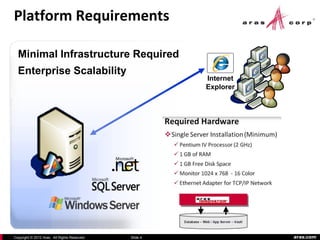
Platform Requirements

  Minimal Infrastructure Required
  Enterprise Scalability
                                                        Internet
                                                        Explorer


Copyright © 2012 Aras. All Rights Reserved.   Slide 4              aras.com
Komponenten des Aras-
   Innovator-Systems


                         Vault                          Database


Copyright © 2012 Aras. All Rights Reserved.   Slide 5              aras.com
TestSystem Installation
– Im Überblick
 Betriebsystem und Datenbank
          Start: Windows 7 (Premium oder Enterprise)
          Prüfen ob IIS installiert ist (ggf. mit CD nachinstallieren)
          Dot-NET-Framework 3.5 installieren (http://go.microsoft.com/fwlink/?LinkId=120550)
          MS SQL Server 2008 Advanced Express installieren (http://go.microsoft.com/?linkid=9394725)
 Aras Innovator Installation
          Internet Explorer Settings prüfen
           (mehr Doku unter http://www.aras.com/support/documentation/ )
          Aras Innovator 9.3 installieren (download unter
               http://www.aras.com/support/downloads/download.aspx )
          Rechner-MAC-Addresse ermitteln und damit Aras-Lizenzkey holen (von Aras home page)
          Manual-DotNet-Security-Conig-Tool „sdns.exe“ lokal kopieren und starten
 Beispiel Datenbank laden
          Demo Datenbank (Solution Basics) von Aras Community holen (http://www.aras.com/projects/)
          MS-SQL-Managementstudio starten, neue DB anlegen und DemoDB.bak Datei laden.
          Vault-Zip im Aras Vault-Verzeichnis auspacken.
          In Aras Config-Datei neue Datenbank registrieren.
Copyright © 2012 Aras. All Rights Reserved.           Slide 6                                      aras.com
IIS & DotNet Installation unter
   Window Features Prüfen


Copyright © 2012 Aras. All Rights Reserved.   Slide 7   aras.com
SQL Server 2008 Express

    Installation „as Administrator“
    Bei 64Bit Windows7, die 64Bit-Version vom SQL-Server Installieren.
             Da Win7 keine unterstützte Server-Plattform ist, erscheint eine Warnung (OK für Testsystem).
    Feature Selection – DB Engine + Management Tools
    Mixed Mode Authentication
          empfohlen.
    Sys Admin (sa) Passwort vergeben
          (und notieren – wird später für
          Laden von Demo-Daten benötigt)


Copyright © 2012 Aras. All Rights Reserved.        Slide 8                                        aras.com
SQL Server 2008 Connectivity
   Testen
    Nach der Installation das SQL Server Management Studio starten und
          mit „sa“ anmelden.


    Wird später auch dazu benötigt die Demo-Daten zu laden

Copyright © 2012 Aras. All Rights Reserved.   Slide 9                     aras.com
Aras Innovator Installation
 Lizenzkey auf Aras Home Page holen
 Heruntergeladenes InnovatorSetup.msi
  starten  (run as Administrator)
 Installationspfad auf C:ArasInnovator93
  ändern (empfohlen bei Windows7)
 „Complete“ Installations-Option
 Standardeinstellungen für:
             Web Alias und Vault Server
 Mit DB-Server als „sa“ verbinden.
 Database-user-Login definieren
  name: innovator pwd: innovator
 „Configure“ Innovator Solutions DB


 Finale Installation starten


Copyright © 2012 Aras. All Rights Reserved.   Slide 10   aras.com
DotNet Security Setzen

    Manual .NET Security Conrig Tool
          (sdns.exe utility) herunterladen.
    Wichtig unter Windows 7:
           starten „als Administrator“
    URL der Aras Installation eingeben


Copyright © 2012 Aras. All Rights Reserved.   Slide 11   aras.com
Internet Exporer
    Einstellungen abgleichen
                                                          1. Open an Internet Explorer window.
 Dokument „Aras Innovator 9.3 -                          2. In the upper right select Tools Internet Options

                                                          a. Select the Security tab i. Select the Trusted Sites Zone 1. Select the Sites button a. Add
     Internet Explorer Client Machine                     the URL for Innovator to this zone.


     Configuration.pdf“ herunterladen                     b Enable Protected Mode (Windows 7 and Vista Only) – Disable

                                                          ii. Select the Custom Level button and insure the following settings (scroll down to find an
     und Einstellungen                                    appropriate option): 1. .NET Framework-reliant components a. Run components signed
                                                          with Authenticode – Enable
        http://www.aras.com/support/documentation/        2. ActiveX controls and plug-ins a. Allow ActiveX Filtering - Disable
                                                          b. Download signed ActiveX controls – Enable
 Microsoft Internet Explorer öffnen                      c. Run ActiveX controls and plug-ins – Enable
                                                          d. Script ActiveX controls marked safe for scripting – Enable

                                                          3. Downloads a. File download – Enable.

                                                          4. Miscellaneous a. Allow websites to open windows without address bar or status bar –
                                                          Enable

                                                          5. Scripting a. Active scripting – Enable


                                                          b. Select the General tab i. In the “Browser History” section, Select the Settings button 1.
                                                          Select ‘Every time I visit the webpage’
                                                          2. Select OK

                                                          ii. In the “Tabs” section, Select the Settings button 1. In the “When a pop-up is
                                                          encountered:” section select Always open Pop-ups in a new window (Let internet explorer
                                                          decides how pop-ups should open is the minimum setting allowed.)

                                                          c. Select the Advanced tab i. Browsing 1. Disable script debugging (Internet Explorer) -
                                                          Enable a. Aras recommends disabling script debugging for any user not actively
                                                          debugging their client machine. This is only recommendation and not a requirement. For
                                                          more information please see ActiveX control is deactivated when other applications are
                                                          docked with Internet Explorer on the Windows Desktop

                                                            2. Disable script debugging (Other) - Enable a. Aras recommends disabling script
                                                            debugging for any user not actively debugging their client machine. This is only
                                                            recommendation and not a requirement. For more information please see ActiveX control
                                                            is deactivated when other applications are docked with Internet Explorer on the Windows
                                                            Desktop
 Copyright © 2012 Aras. All Rights Reserved.         Slide 12                                                                            aras.com
DemoDatenbank Laden
   Von der Aras-Community herunterladen


   Step-By-Step Intructions


                Per SQL-Management-Studio
                 eine neue DB anlegen und die
                 .bak-Datei wiederherstellen.
                Fix-db-SQL-Commands für DB-Rollen
                 ausführen.
                Vault-Zip-Datei in das Aras-Vault-
                 Verzeichnis auspacken. (Hauptverzeichnis muss gleich DB-Name sein)
                Overlay-Zip-Datei in das Aras-Installationsverzeichnis auf dem Server auspacken.
                In Aras-Config-Datei (Installationsverzeichnis) die DB-Connection zur neuen Datenbank eintragen.
   Aras Starten – mit „demo“ (pwd: aras) anmelden. Beispieldaten ansehen
                Z.B. unter „DesignParts“, oder „DesignCAD Documents“, oder „DesignDocuments“
                Unter „PortfolioProjects“
Copyright © 2012 Aras. All Rights Reserved.                Slide 13                                                 aras.com
ACE Germany


 Fragen                           ?
 Rolf Laudenbach
 Director Aras Community
 Aras (Europe)


Copyright © 2012 Aras. All Rights Reserved.           aras.com

Aras PLM Installation

  • 1.
    BEDIFFERENT ACE GERMANY Copyright © 2012 Aras. All Rights Reserved. aras.com
  • 2.
    ACE Germany Tech Day: Installation eines Aras- Systems mit Demo-Datenbank Rolf Laudenbach Director Aras Community Aras (Europe) Copyright © 2012 Aras. All Rights Reserved. aras.com
  • 3.
    Installations-Video auf YouTube Copyright © 2012 Aras. All Rights Reserved. Slide 3 aras.com
  • 4.
    Platform Requirements Minimal Infrastructure Required Enterprise Scalability Internet Explorer Copyright © 2012 Aras. All Rights Reserved. Slide 4 aras.com
  • 5.
    Komponenten des Aras- Innovator-Systems Vault Database Copyright © 2012 Aras. All Rights Reserved. Slide 5 aras.com
  • 6.
    TestSystem Installation – ImÜberblick  Betriebsystem und Datenbank  Start: Windows 7 (Premium oder Enterprise)  Prüfen ob IIS installiert ist (ggf. mit CD nachinstallieren)  Dot-NET-Framework 3.5 installieren (http://go.microsoft.com/fwlink/?LinkId=120550)  MS SQL Server 2008 Advanced Express installieren (http://go.microsoft.com/?linkid=9394725)  Aras Innovator Installation  Internet Explorer Settings prüfen (mehr Doku unter http://www.aras.com/support/documentation/ )  Aras Innovator 9.3 installieren (download unter http://www.aras.com/support/downloads/download.aspx )  Rechner-MAC-Addresse ermitteln und damit Aras-Lizenzkey holen (von Aras home page)  Manual-DotNet-Security-Conig-Tool „sdns.exe“ lokal kopieren und starten  Beispiel Datenbank laden  Demo Datenbank (Solution Basics) von Aras Community holen (http://www.aras.com/projects/)  MS-SQL-Managementstudio starten, neue DB anlegen und DemoDB.bak Datei laden.  Vault-Zip im Aras Vault-Verzeichnis auspacken.  In Aras Config-Datei neue Datenbank registrieren. Copyright © 2012 Aras. All Rights Reserved. Slide 6 aras.com
  • 7.
    IIS & DotNetInstallation unter Window Features Prüfen Copyright © 2012 Aras. All Rights Reserved. Slide 7 aras.com
  • 8.
    SQL Server 2008Express  Installation „as Administrator“  Bei 64Bit Windows7, die 64Bit-Version vom SQL-Server Installieren.  Da Win7 keine unterstützte Server-Plattform ist, erscheint eine Warnung (OK für Testsystem).  Feature Selection – DB Engine + Management Tools  Mixed Mode Authentication empfohlen.  Sys Admin (sa) Passwort vergeben (und notieren – wird später für Laden von Demo-Daten benötigt) Copyright © 2012 Aras. All Rights Reserved. Slide 8 aras.com
  • 9.
    SQL Server 2008Connectivity Testen  Nach der Installation das SQL Server Management Studio starten und mit „sa“ anmelden.  Wird später auch dazu benötigt die Demo-Daten zu laden Copyright © 2012 Aras. All Rights Reserved. Slide 9 aras.com
  • 10.
    Aras Innovator Installation Lizenzkey auf Aras Home Page holen  Heruntergeladenes InnovatorSetup.msi starten  (run as Administrator)  Installationspfad auf C:ArasInnovator93 ändern (empfohlen bei Windows7)  „Complete“ Installations-Option  Standardeinstellungen für:  Web Alias und Vault Server  Mit DB-Server als „sa“ verbinden.  Database-user-Login definieren name: innovator pwd: innovator  „Configure“ Innovator Solutions DB  Finale Installation starten Copyright © 2012 Aras. All Rights Reserved. Slide 10 aras.com
  • 11.
    DotNet Security Setzen  Manual .NET Security Conrig Tool (sdns.exe utility) herunterladen.  Wichtig unter Windows 7:  starten „als Administrator“  URL der Aras Installation eingeben Copyright © 2012 Aras. All Rights Reserved. Slide 11 aras.com
  • 12.
    Internet Exporer Einstellungen abgleichen 1. Open an Internet Explorer window.  Dokument „Aras Innovator 9.3 - 2. In the upper right select Tools Internet Options a. Select the Security tab i. Select the Trusted Sites Zone 1. Select the Sites button a. Add Internet Explorer Client Machine the URL for Innovator to this zone. Configuration.pdf“ herunterladen b Enable Protected Mode (Windows 7 and Vista Only) – Disable ii. Select the Custom Level button and insure the following settings (scroll down to find an und Einstellungen appropriate option): 1. .NET Framework-reliant components a. Run components signed with Authenticode – Enable http://www.aras.com/support/documentation/ 2. ActiveX controls and plug-ins a. Allow ActiveX Filtering - Disable b. Download signed ActiveX controls – Enable  Microsoft Internet Explorer öffnen c. Run ActiveX controls and plug-ins – Enable d. Script ActiveX controls marked safe for scripting – Enable 3. Downloads a. File download – Enable. 4. Miscellaneous a. Allow websites to open windows without address bar or status bar – Enable 5. Scripting a. Active scripting – Enable b. Select the General tab i. In the “Browser History” section, Select the Settings button 1. Select ‘Every time I visit the webpage’ 2. Select OK ii. In the “Tabs” section, Select the Settings button 1. In the “When a pop-up is encountered:” section select Always open Pop-ups in a new window (Let internet explorer decides how pop-ups should open is the minimum setting allowed.) c. Select the Advanced tab i. Browsing 1. Disable script debugging (Internet Explorer) - Enable a. Aras recommends disabling script debugging for any user not actively debugging their client machine. This is only recommendation and not a requirement. For more information please see ActiveX control is deactivated when other applications are docked with Internet Explorer on the Windows Desktop 2. Disable script debugging (Other) - Enable a. Aras recommends disabling script debugging for any user not actively debugging their client machine. This is only recommendation and not a requirement. For more information please see ActiveX control is deactivated when other applications are docked with Internet Explorer on the Windows Desktop Copyright © 2012 Aras. All Rights Reserved. Slide 12 aras.com
  • 13.
    DemoDatenbank Laden  Von der Aras-Community herunterladen  Step-By-Step Intructions  Per SQL-Management-Studio eine neue DB anlegen und die .bak-Datei wiederherstellen.  Fix-db-SQL-Commands für DB-Rollen ausführen.  Vault-Zip-Datei in das Aras-Vault- Verzeichnis auspacken. (Hauptverzeichnis muss gleich DB-Name sein)  Overlay-Zip-Datei in das Aras-Installationsverzeichnis auf dem Server auspacken.  In Aras-Config-Datei (Installationsverzeichnis) die DB-Connection zur neuen Datenbank eintragen.  Aras Starten – mit „demo“ (pwd: aras) anmelden. Beispieldaten ansehen  Z.B. unter „DesignParts“, oder „DesignCAD Documents“, oder „DesignDocuments“  Unter „PortfolioProjects“ Copyright © 2012 Aras. All Rights Reserved. Slide 13 aras.com
  • 14.
    ACE Germany Fragen ? Rolf Laudenbach Director Aras Community Aras (Europe) Copyright © 2012 Aras. All Rights Reserved. aras.com